
Drag and Drop Documents for Vtiger CRM
Attach files to Vtiger CRM records by dragging them directly onto the record Detail view or Summary view. The files are created as Documents and linked to the current record without opening the Documents module manually.
Attach files without opening the Documents module
Drag and Drop Documents adds a practical upload option directly to Vtiger CRM record Detail view and Summary view. Users can drag files from their computer, drop them onto the page and attach them to the current record as linked Documents.
The extension is useful for teams that regularly store contracts, signed forms, product files, project files, customer documents or internal attachments under CRM records.
- Drag files directly onto supported record Detail view and Summary view
- Create Vtiger Documents automatically
- Link uploaded files to the current record
- Upload multiple files in one action
- Use standard Vtiger permissions and Documents folders
- No complex configuration page required
| Where it works | On record Detail view and Summary view for modules that support related Documents. |
|---|---|
| Output | Uploaded files are stored as Documents and linked to the current CRM record. |
| Setup | No daily setup is needed. The drop zone appears only where related Documents are available. |
| Best use | Fast upload of contracts, attachments, specifications, signed files and customer documents. |
| Compatibility | Prepared for Vtiger CRM 7.x and Vtiger CRM 8.x. |
Main Features
A compact Vtiger CRM extension focused on one practical problem: uploading and linking documents faster from the record page.
Drag and Drop Upload
Drop files directly onto supported Vtiger CRM record Detail view or Summary view.
Multiple Files
Upload several files together instead of repeating the same document creation process.
Linked to Record
Each uploaded file is stored as a Document and connected to the current record.
Documents Folder
Choose the Documents folder where the uploaded files should be stored.
Upload Progress
Each file shows its own upload progress so users can follow the upload status.
Remove Before Upload
Users can remove selected files from the upload list before starting the upload.
File Size Handling
Files larger than the CRM upload limit are skipped and reported to the user.
Vtiger 7.x and 8.x
Prepared for both currently used Vtiger Open Source generations.
From desktop file to linked CRM document
The upload process is intentionally short. Open a record, drag files over the Detail view or Summary view, confirm upload settings and the new Documents appear under the record.
Open a record
Open an Organization, Contact, Project or another record that supports related Documents.
Drag files over the page
A large dashed drop zone appears when files are dragged over the supported Detail view or Summary view.
Confirm upload fields
Choose folder, assigned user and optional description for the uploaded Documents.
Upload and refresh
Files upload one by one and the related Documents list refreshes after upload.
Control the document information before upload
After dropping files onto the page, Vtiger opens an upload window with selected files and common document fields. This keeps the process fast but still allows users to set the basic information needed for proper document storage.
- Title field for single file upload
- Automatic document names when multiple files are uploaded
- Assigned To field for document ownership
- Folder selection for Vtiger Documents
- Description applied to uploaded files
- Progress bar for each file
| Field | Meaning |
|---|---|
| Title | Document name. Visible when one file is uploaded. For multiple files, file names are used automatically. |
| Assigned To | User who owns the created Documents. By default it is the current user. |
| Folder | Documents folder where the uploaded files will be stored. |
| Description | Optional note saved on every created Document. |
Available only where Documents make sense
The drop zone is shown on a record Detail view and Summary view only when the module has a Documents related tab. If the module does not support related Documents, the drag and drop upload stays inactive.
This keeps the user interface clean and avoids showing upload functionality in places where a file cannot be correctly linked to the record.
- Works on record Detail view and Summary view
- Requires related Documents support
- No separate menu item required for daily use
- Uses the standard Vtiger Documents structure
Quick Guide
The basic functionality is shown in the animation below and described in a few simple steps. Since Drag and Drop Documents is focused on one straightforward action, a separate manual page is not required.
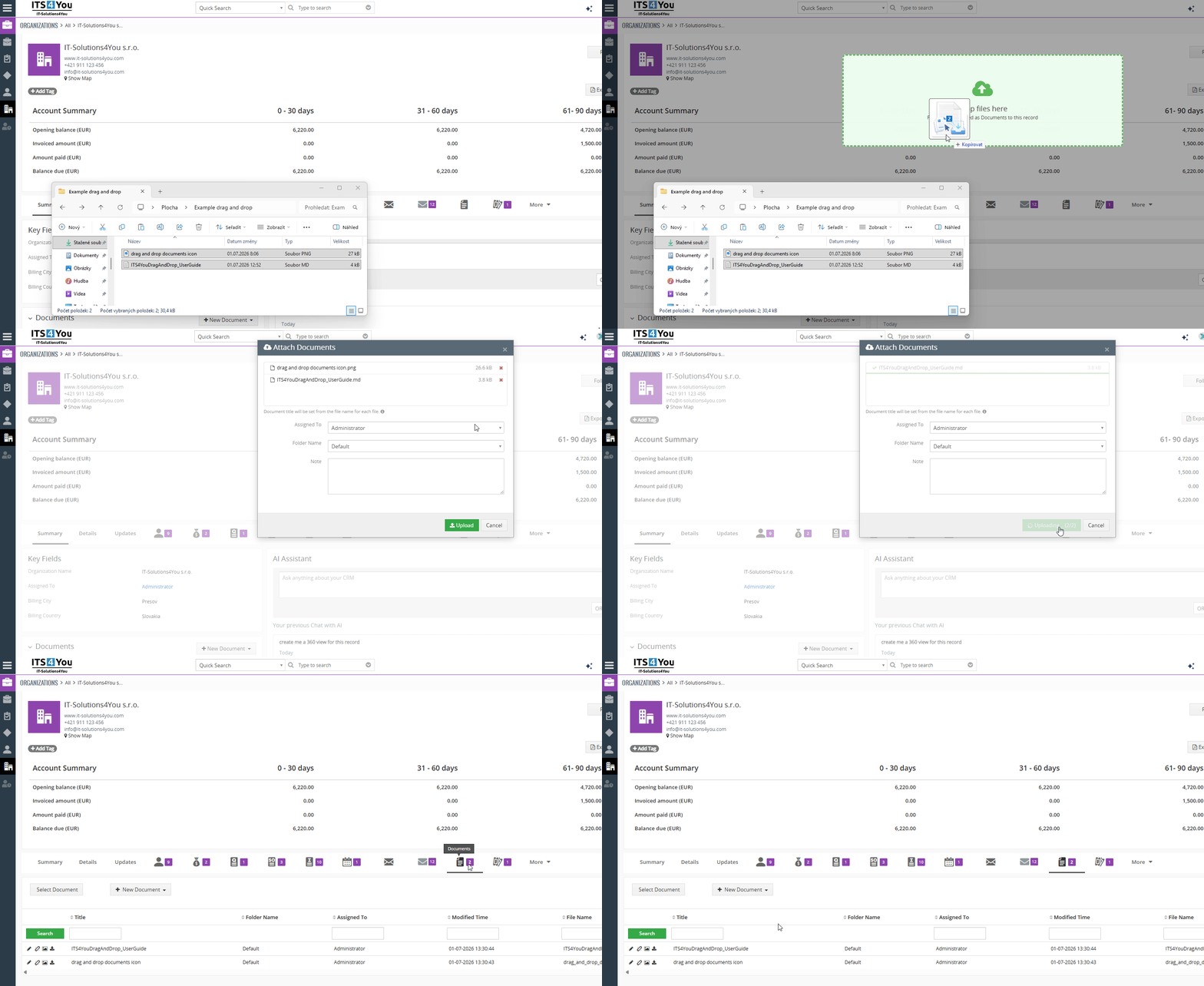
The animation shows how files can be dragged directly onto a Vtiger CRM record and uploaded as related Documents.
Attach files in four steps
- Open a record Detail view or Summary view in a module that has a Documents related tab.
- Drag one or more files from your computer over the CRM page.
- Drop the files into the dashed upload zone and check the upload window.
- Click Upload. The files are created as Documents and appear in the record Documents list.
Tips and troubleshooting
Included from Starter Package
Drag and Drop Documents is included from the Starter Package and is also available in Mini, Extended and All Access. It can also be purchased separately with monthly or yearly billing.
Drag and Drop Documents FAQ
Short answers for Vtiger CRM users and administrators who want faster document uploads.
What is Drag and Drop Documents for Vtiger CRM?
It is a Vtiger CRM extension that lets users upload files by dragging them onto a record Detail view or Summary view. The files are saved as Documents and linked to the current record.
Which Vtiger versions are supported?
The extension is prepared for Vtiger CRM 7.x and Vtiger CRM 8.x.
Does it work in every module?
It works only in modules that support related Documents. If a module cannot have related documents, the drop zone is not shown.
Does it work in Detail view and Summary view?
Yes. The upload zone can be used on supported record Detail view and Summary view.
Do users need to open Documents manually?
No. Users can stay on the current record page. The extension creates Documents and links them to the record during upload.
Can I upload several files at once?
Yes. Several files can be dropped together and uploaded one after another with individual progress bars.
What happens when a file is too large?
The file is skipped and reported to the user according to the maximum upload size allowed by the CRM and server setup.
Is it included in packages?
Yes. It is included from Starter Package and is also available in Mini, Extended and All Access. It can also be purchased separately.
Have questions before purchase?
Contact us if you are not sure whether your Vtiger modules support related Documents, if you need help with installation, or if you want to improve the way your team uploads files to CRM records.
- Compatibility questions for Vtiger 7.x and 8.x
- Installation and activation support
- Advice for document upload usage in supported modules
Start using Drag and Drop Documents for Vtiger CRM
Give your users a faster way to attach files to Vtiger records. Compatible with Vtiger CRM 7.x and 8.x.
Explore all Vtiger extensions
Combine Drag and Drop Documents with other Vtiger CRM extensions for PDF generation, reporting, email templates, automation, AI features and advanced CRM customization.