
Duplicate Vtiger Projects without rebuilding them manually
Create a new project from an existing Vtiger CRM project, choose which tasks and milestones should come with it, then decide whether task values should be copied as they are or reset for a fresh start.
Reuse a proven project structure in a few clicks
Duplicate Projects reduces repetitive setup for teams that regularly create similar projects and repeatable workflows in Vtiger CRM.
Duplicate from the Project record
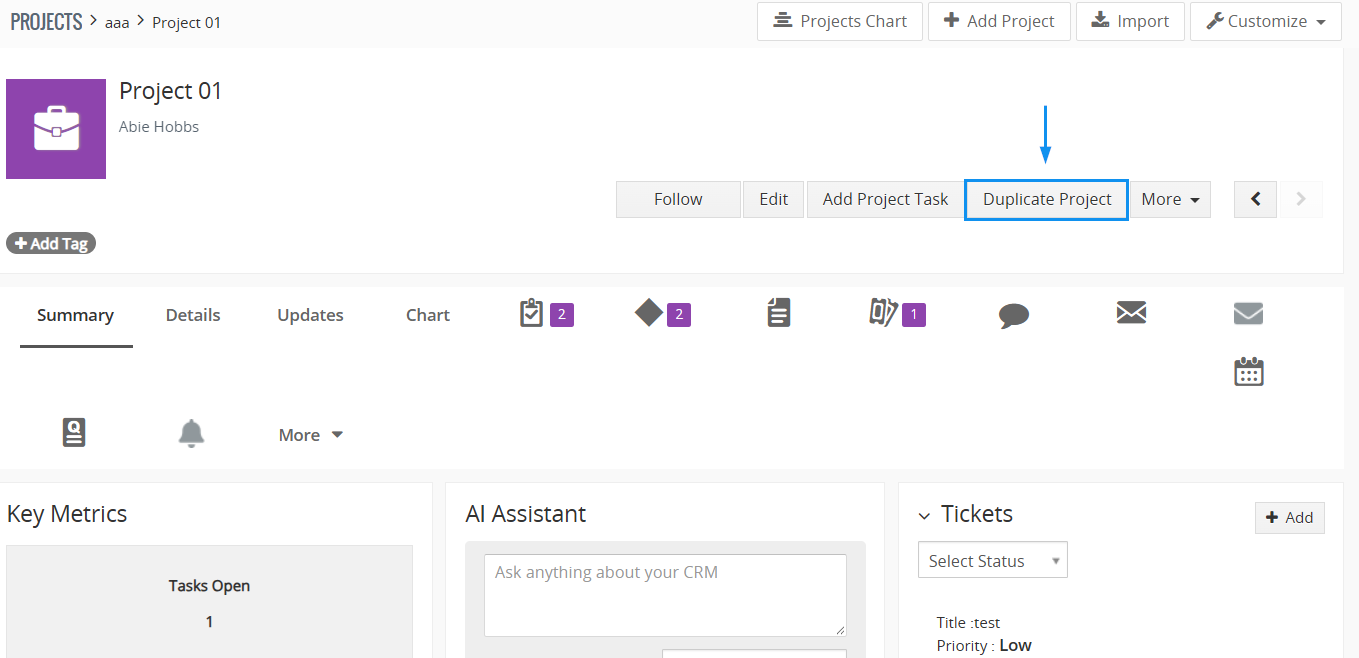
First, open an existing Project and use the action directly from its detail page.
Choose exactly which tasks to copy
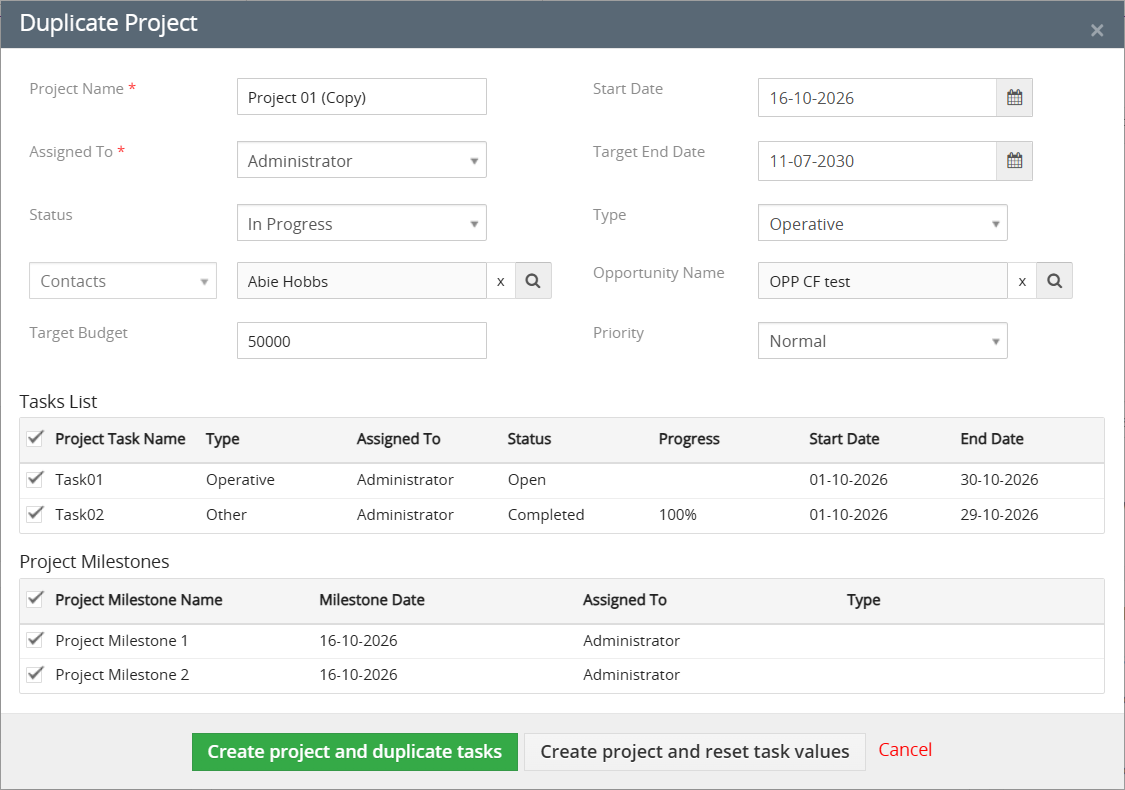
Tasks are preselected in the dialog. Therefore, you can keep the ones you need, clear individual rows or use the list header checkbox to select or clear all.
Bring selected milestones with you
In addition, Project Milestones can be included in the new project and are copied with their values.
Start from an exact copy or a clean plan
Then choose whether task dates, progress, hours, status and description should be preserved or reset for a new cycle.
Adjust the new project before creation
Next, review the copied fields and change values such as project name, start date, target end date, assigned user, status or priority before creating the new record.
Keep the source project untouched
Finally, edits made inside the duplicate dialog apply to the new project only. As a result, the original project is not changed by the duplication process.
Duplicate a Vtiger project in five steps
The workflow stays inside the Project record. Therefore, no separate menu or settings page is needed for the duplication itself.
Open a Project
Open the existing Vtiger CRM project that you want to reuse.
Click Duplicate Project
Select from the Project detail view.
Review project details
Change the copied project name, dates, assignment or other fields as needed.
Select tasks and milestones
Leave the required rows ticked and clear anything that should not be included.
Choose how tasks are created
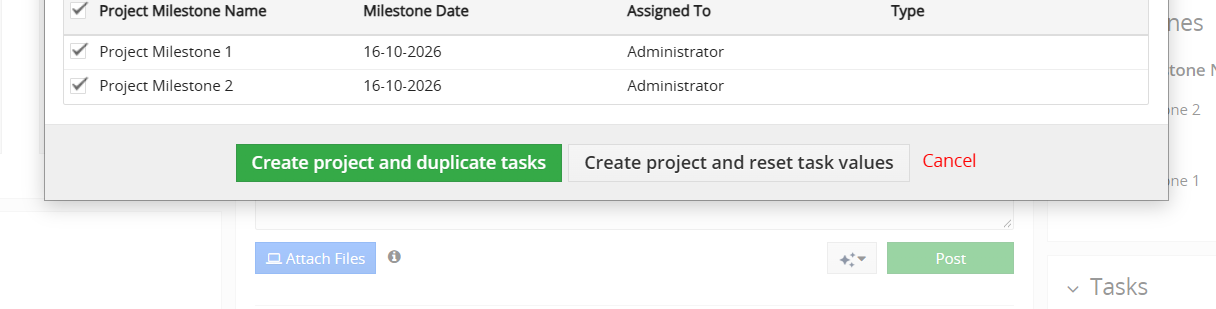
Use one of the two project creation buttons shown below.
Project name and required fields
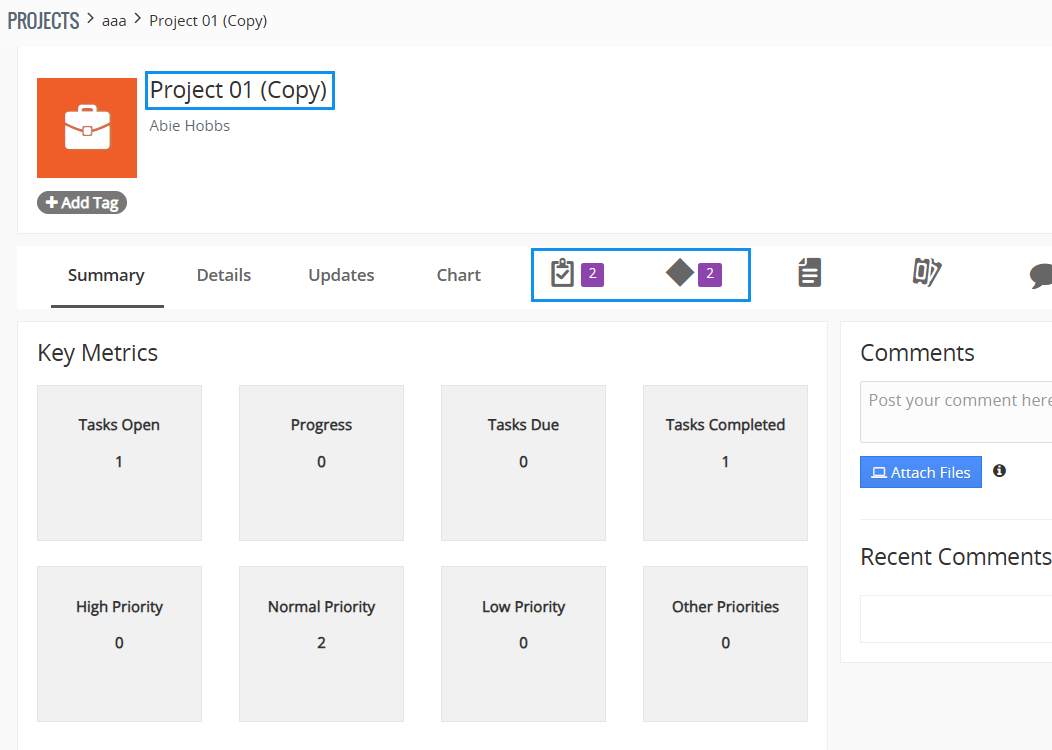
By default, the duplicated project name receives the suffix (Copy) so you can distinguish it from the source. You can change the name before creation. Fields marked with a red asterisk are mandatory.
Visibility follows permissions
You only see tasks and milestones that you are allowed to view. In addition, you need permission to open the source Project and create Projects.
Choose between an exact task copy and a clean project plan
The selected creation option changes how copied task values are handled. However, milestones keep their values in both modes.
For example, use this when the new project should closely match the original. Selected tasks are copied with their existing values, including dates, progress, hours, status and description.
Instead, use this when you want the same task structure but a fresh execution. The copied task keeps its name, mandatory fields and assigned user, while other task values start empty.
Know what comes with the new project
Duplicate Projects intentionally copies the project structure and selected project records. However, it does not copy the complete history of every related item.
| Copied | Not copied |
|---|---|
| Project details as confirmed in the duplicate dialog | Comments and update history |
| Selected Project Tasks | Activities, events, to dos and emails |
| Selected Project Milestones | Tickets and other related records |
| Links to the same Documents as the original project | Files attached directly to the project |
Common use cases for Duplicate Projects
The extension is especially useful when a project structure is repeatable but the next execution needs its own independent Vtiger records. For example, teams can reuse the same delivery plan while creating separate Vtiger records for each customer or period.
Recurring customer implementations
For example, duplicate a standard implementation project for each new customer. Keep the same milestones and task structure, then reset task values so the new rollout starts clean.
Yearly or quarterly project cycles
Similarly, reuse an audit, maintenance, campaign or review project for the next period. Then adjust dates and keep only the tasks and milestones relevant to the new cycle.
Project templates without a separate template module
Alternatively, maintain a well structured Project as your internal reference. Then duplicate it when needed, rename the copy and tailor its dates and assignments.
Similar projects for different teams or owners
In addition, you can copy the same project structure, change the assigned user and update only the fields that differ instead of recreating tasks and milestones manually.
See Duplicate Projects inside Vtiger CRM
First, open the Project detail view and start the duplication. Next, review the complete dialog and choose how task values should be handled. Finally, open the newly created Project and continue working with its independent records.
Small details that matter in everyday use
- ✓Because tasks are copied one by one, large projects may take a moment. Wait until the new project opens before trying the action again.
- ✓ closes the dialog without creating anything.
- ✓Meanwhile, the original project is never modified by the duplication itself.
- ✓As a result, the new project, copied tasks and copied milestones receive their own record numbers and creation dates.
- ✓In addition, your normal workflows for new Projects, Project Tasks and Project Milestones run as usual.
Permissions required
Users need permission to open the source Project and permission to create Projects. Task and milestone lists only include records that the current user is allowed to view.
If the button is missing, an administrator should check whether the module is enabled in Vtiger Module Management.
Duplicate Projects FAQ
Answers about copied data, task reset behavior, permissions and project safety.
Project duplication basics
What does Duplicate Projects do in Vtiger CRM?
It creates a new Project from an existing one. In addition, you can choose which Project Tasks and Project Milestones should be included.
Does the original project change?
No. Changes made in the duplicate dialog apply to the new Project only. Therefore, the source Project is not changed by the duplication.
Can I choose which tasks are copied?
Yes. Task rows are selected by default. However, you can clear individual tasks or use the header checkbox to select or clear the whole list.
What is the difference between the two create buttons?
keeps task values. keeps the task structure but starts most task values empty.
Copied records and data
Are Project Milestones reset too?
No. Instead, selected Project Milestones are copied with their values in both creation modes.
Are Documents copied?
The Document records are not duplicated. Instead, the new Project is linked to the same Documents as the source Project.
Are comments, emails and activities copied?
No. For example, comments, updates history, activities, emails, tickets and other related records are outside the duplication scope described for this extension.
Permissions and troubleshooting
Why are some tasks missing from the list?
The dialog only shows Project Tasks that the current user is allowed to view. Therefore, missing tasks can be related to record permissions.
Why can I not continue from the dialog?
First, check required fields marked with a red asterisk. The new Project cannot be created while a mandatory field is empty.
Why is the Duplicate Project button missing?
The module may be disabled. Therefore, ask an administrator to check Vtiger Settings and Module Management.
Create the next project without rebuilding the last one
Duplicate a Project, keep only the tasks and milestones you need, then choose whether the task data should stay intact or start fresh.
Explore more Vtiger CRM extensions
Combine project duplication with other ITS4YOU tools for documents, reporting, communication and workflow automation.