
Convert Sales Order to Purchase Order for Vtiger CRM
This tool allows you to create Purchase Orders from Sales Order via Detail view
An extension which allows users of Vtiger CRM to work more effectively, save their time and improve usage of Vtiger CRM
More ›
Purchase Order(s) to be created
Product NameQuantity
Sales Order › Vendor 1
2
Sales Order › Vendor 2
5
Sales Order › Vendor 3
1
Create Purchase Order(s)Cancel
Convert SO to PO features
- Convert Sales Order to Purchase Order
- For each Vendor a separate Purchase Order is created
- Saving time for users of Vtiger CRM
- Easy to use
- Vtiger 7.x/8.x compatible
- Included in our packages: Extended, All Access

Start using our extension now!
Installation & Usage
Installation & Validation is via our Free Extension Installer
For detailed guide how to validate and install our modules visit guide below:
If you finish the installation of our module Convert SO to PO, you are able to use the module and start converting in your Vtiger CRM system.
We will show you how to:
- Convert the Sales Order to Purchase Order
- Create Purchase Order for each Vendor separately
How to convert the Sales Order to Purchase Order:
- Open your Sales Order in Detail view.
- Via "More" button, select option "Convert to Purchase Order".
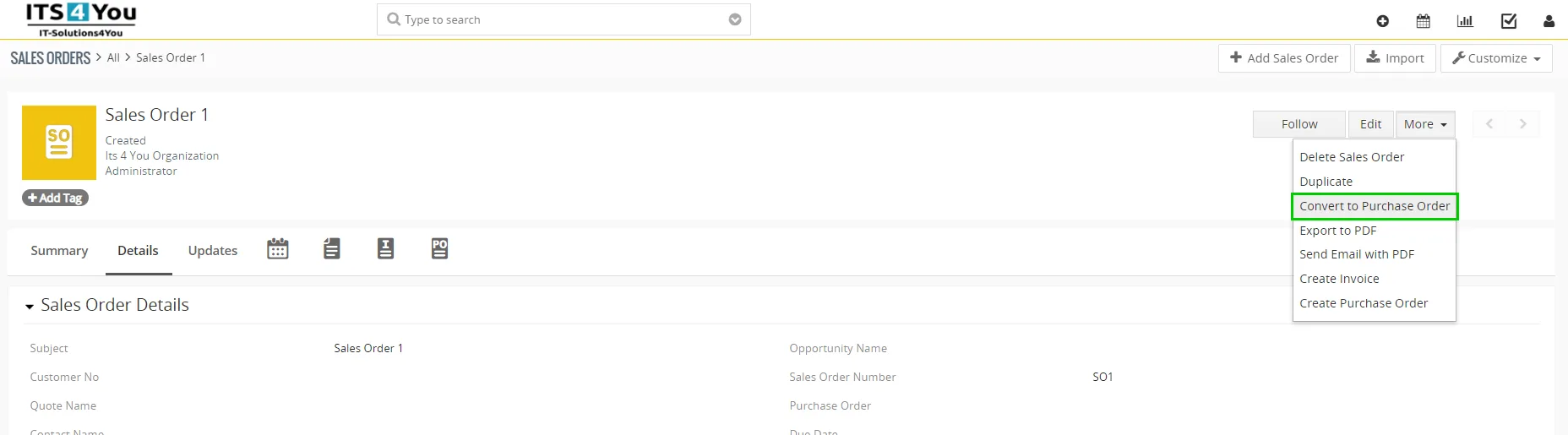
- The pop-up window will appear, showing the List of products you have in your Sales Order and Quantity:
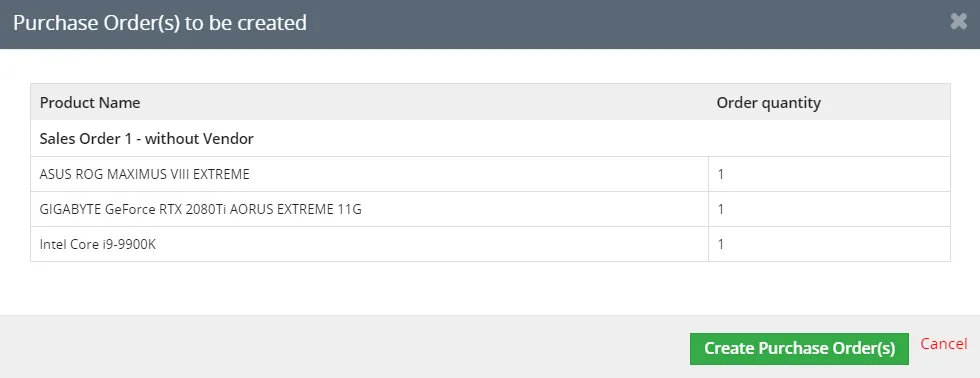
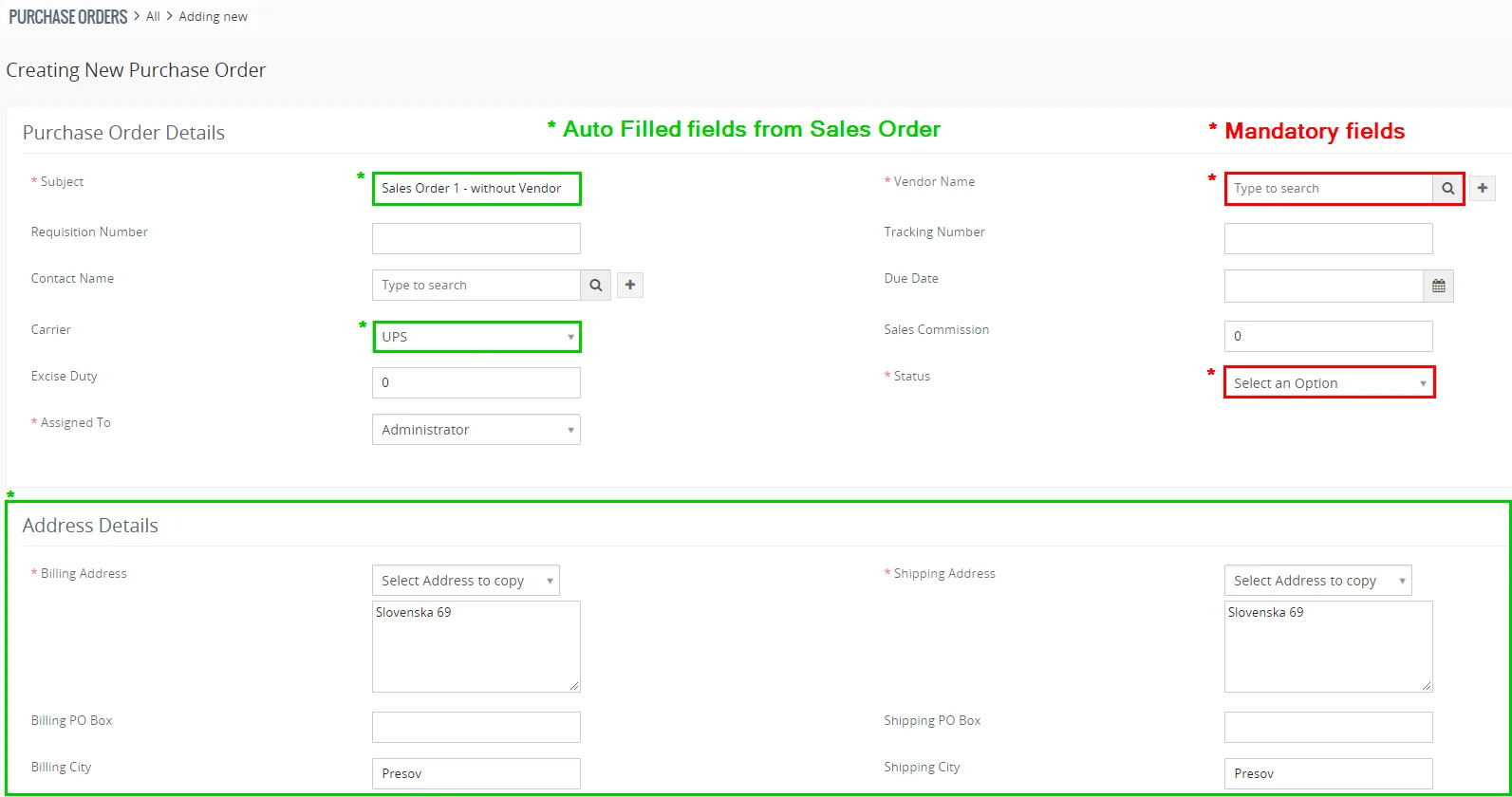
- Next, click on "Create Purchase Order(s)" and edit window for Purchase Order will appear.
*Here you can see some fields are already filled, other fields are *Mandatory. You can also edit fields here, like *Subject.
Select *Vendor and *Status and proceed with "Save" button.
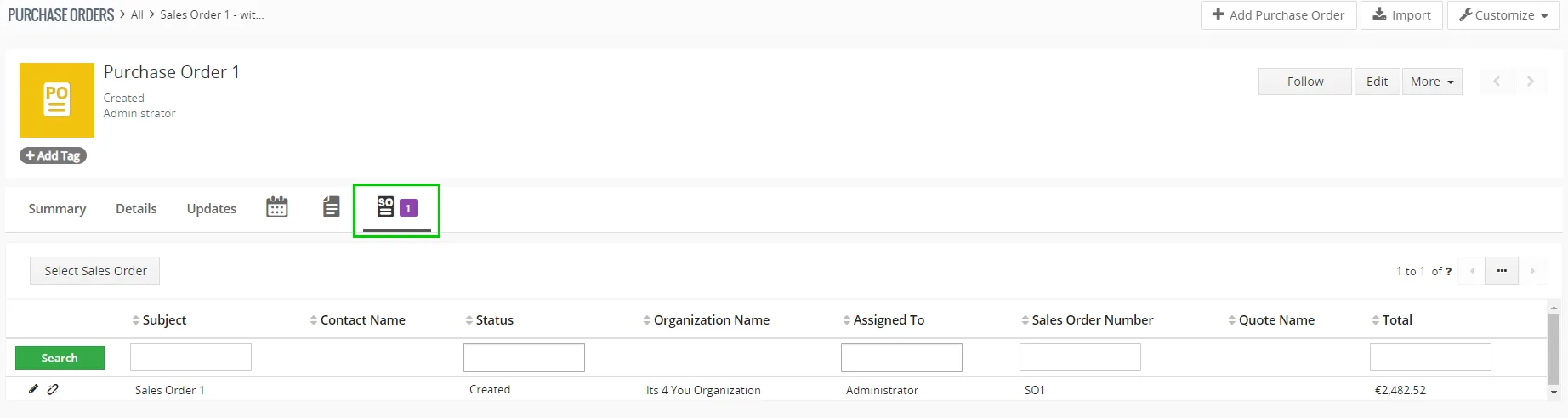
- When the Purchase Order is created, you can see that it's also linked to the Sales Order you converted it from:
How to create Purchase Order for each Vendor separately
- First, make sure you have created vendors in Vendors module.
- For example, we will be using 3 vendors (Vendor 1, Vendor 2, Vendor 3) for each product in our Sales Order so we have 3 products with 3 different vendors:
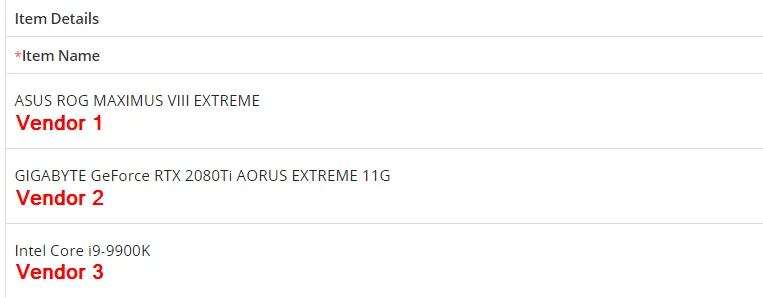
- Next, when your products have assigned vendors, go to your Sales Order detail view and do the same as before, via "More" button select "Convert to Purchase Order".
The pop-up window will appear and you can see for each vendor there will be Purchase Order (3 total):
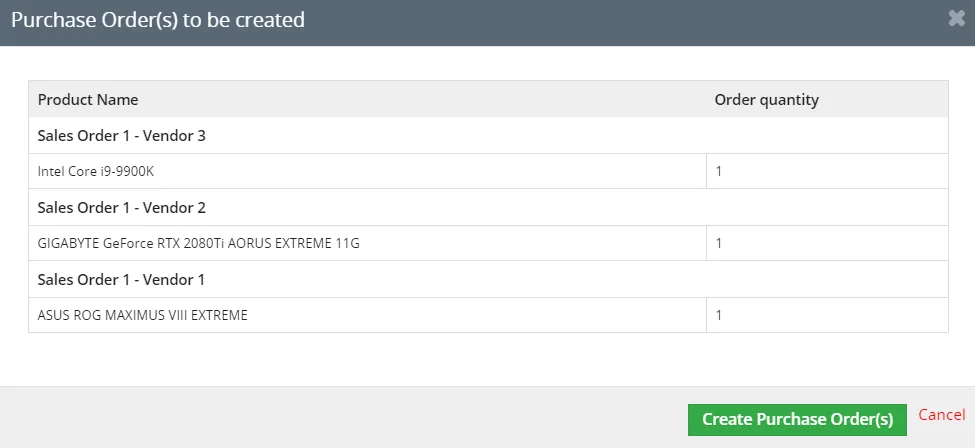
- After you click on "Create Purchase Order(s)", you will see that Purchase Orders were created:
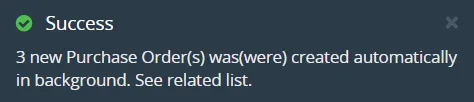
- Now you can see Purchase Orders in the actual module, or in the related list in Sales Order:

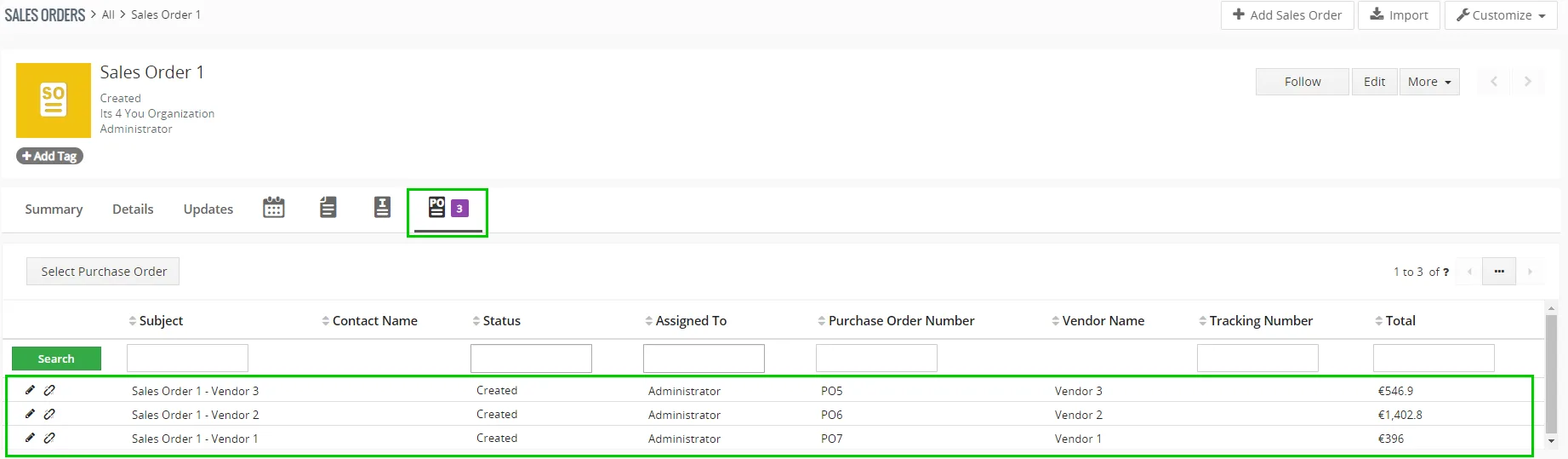
Convert the Sales Order to Purchase Order
Create Purchase Order for each Vendor separately
- 10 January 2020: 4.1
- The module should be properly installed now on Vtiger 7.1 version
- January 2020: 4.0
- new validation system via our FREE extension Installer
- July 2019: 600.700.1.2
- minor bug fixes
- June 2019: 600.700.1.1
- minor bug fixes
- fixed issue with languages
- fixed issue with licensing
- June 2019: 600.700.0.1
- extension release
- same installation package for Vtiger 7.x & Vtiger 6.x
Try Convert SO to PO in our Vtiger CRM demo
See how Convert SO to PO works in practice before you buy.
 Vtiger CRM DemoView Demo
Explore all Vtiger extensions
Browse our complete collection of Vtiger extensions and discover more tools for your CRM.