
Brute Force for Vtiger CRM
Lock users of CRM system after "x" incorrect logins to prevent unauthorized logins
Block users for a duration of "xx" and allow a certain number of login attempts. Block the IP address by the number of blocked users.
SettingsBlocked IPInvalid LoginsRequired Actions
User Name Active
Block user after login attempts 3
Time lock (minutes) 15
IP address Active
Block IP after blocked users 3
Time lock (minutes) 60
Invalid Logins
UserIP addressAttemptsStatus
203.0.113.243 / 3Blocked
203.0.113.243 / 3Blocked
Brute Force features
- Block user after number of login attempts
- Time lock user for "xx" duration of time
- Block the IP address by the number of blocked users
- Time lock IP (minutes)
- List of blocked IP
- Easy Activation/Deactivation
- Vtiger login screen alert if blocked
- Easy to use
- Works together with Two-Factor Authentication
- Vtiger 7.x / 8.x compatible
- Included in our packages: Mini, Extended, All Access

Start using Brute Force now!
Installation & Usage
Installation & Validation is via our Free Extension Installer
For a detailed guide on how to validate and install our modules, visit the guide below:
How to Install & Validate extension
 Additional steps are needed so that the alerts that you can't log in can be shown to users on the welcome screen:
- Finish installation of extension via Installer.
- Go to Menu - Settings - CRM Settings - ITS4YOUSECURITY - BRUTE FORCE
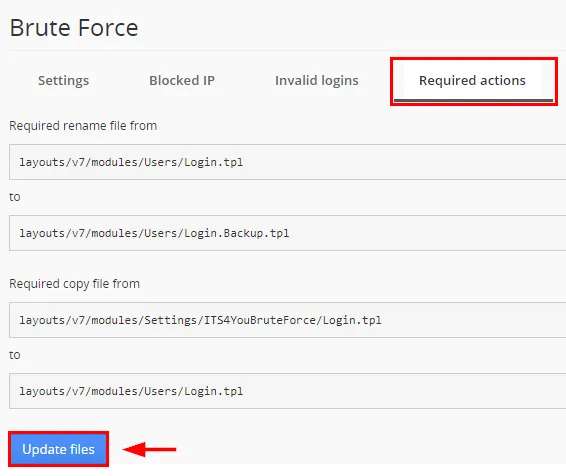
- Go to Required Actions tab.
- Click on the "Update files" button:
- Now you can start using the Brute Force extension.
- Enjoy!
CRM Administrator can configure following Setting:
- Active - activate or deactivate Brute Force function
User Name - Block user after number of login attempts - define, after how many login attempts user will be blocked
- Time lock (minutes) - for how long the user will be blocked in minutes
IP address - Block the IP address by the number of blocked users - define, after how many locked users, IP address will be blocked
- Time lock (minutes) - for how long the IP will be blocked in minutes
- Blocked IP tab - list of blocked IP addresses
- Invalid Logins tab - list of invalid logins into your Vtiger.
- Required Actions - option to Update files, this needs to be done in order to use this extension!
If you finish the installation of our module Brute Force, you are able to access the settings as Admin and set the login policies for all users in your CRM system
- In the Settings you have 4 tabs: Settings, Blocked IP, Invalid logins & Required actions
- Blocked IP is just list of IP addresses which were blocked already, there is no option for editing, it's just an informational tab
- Settings tab is main tab for Admin where you can setup login policies
- Start with Edit button on the right, you don't need to have the User Name and IP address features active at the same time, it's all up to you if you want to block just users or block IP address also
- In Edit window first make sure to check Active status, next set how many attempts can be made by the user before he is blocked, also set a Time lock in minutes
Example: Block user after the number of login attempts set to 3 and Time lock set to 15, the result is that if the user uses the wrong password 3 times, he will be blocked and can't log in for 15 minutes - Next, you can use also IP address block feature, you can block IP based on how many users tried logging in to your CRM with incorrect credentials and for how long IP block will last
Example: Block the IP address by the number of blocked users set to 3 and Time lock set to 60, the result is that if 3 users are blocked, the IP is blocked too for 60 minutes. After 60 minutes the hold is removed and you and users can log back in
You can see the whole process in the “Video tab” - Invalid Logins tab - list of invalid logins into your Vtiger.
- Required Actions - option to Update files, this needs to be done in order to use this extension!
--- 2026 ---
- 15 July 2026: 4.6
- added compatibility with the Two-Factor Authentication extension
--- 2021 ---
- 2 September 2021: 4.3
- fixed issue where inserting the wrong password didn't show wrong password alert on the login page
- fixed post uninstall issues where after uninstalling the Brute Force, the password rules were still present, now the password rules will revert back to Vtiger ones
--- 2020 ---
- 22 October 2020: 4.2
- fixed file path for login.tpl file in Required actions tab
- 26 August 2020: 4.1
- added tab "Required actions" where users have the option to update login files required to fully use the Brute Force extension
- added tab "Invalid logins" where users can see a list of unsuccessful login attempts
- added notifications icon
 for admin to see messages about users being locked down due to incorrect input
- 10 January 2020: 4.0
- new validation system via our FREE extension Installer
--- 2019 ---
- 29 May 2019: 600.700.1.3
- minor bug fixes
- 25 April 2019: 600.700.1.2
- minor bug fixes
- 15 April 2019: 600.700.1.1
- extension release for Vtiger 6.x
- same installation package for Vtiger 7.x & Vtiger 6.x
- fixed issue with licensing
- 1 March 2019: 700.0.1
- extension release for Vtiger 7.x
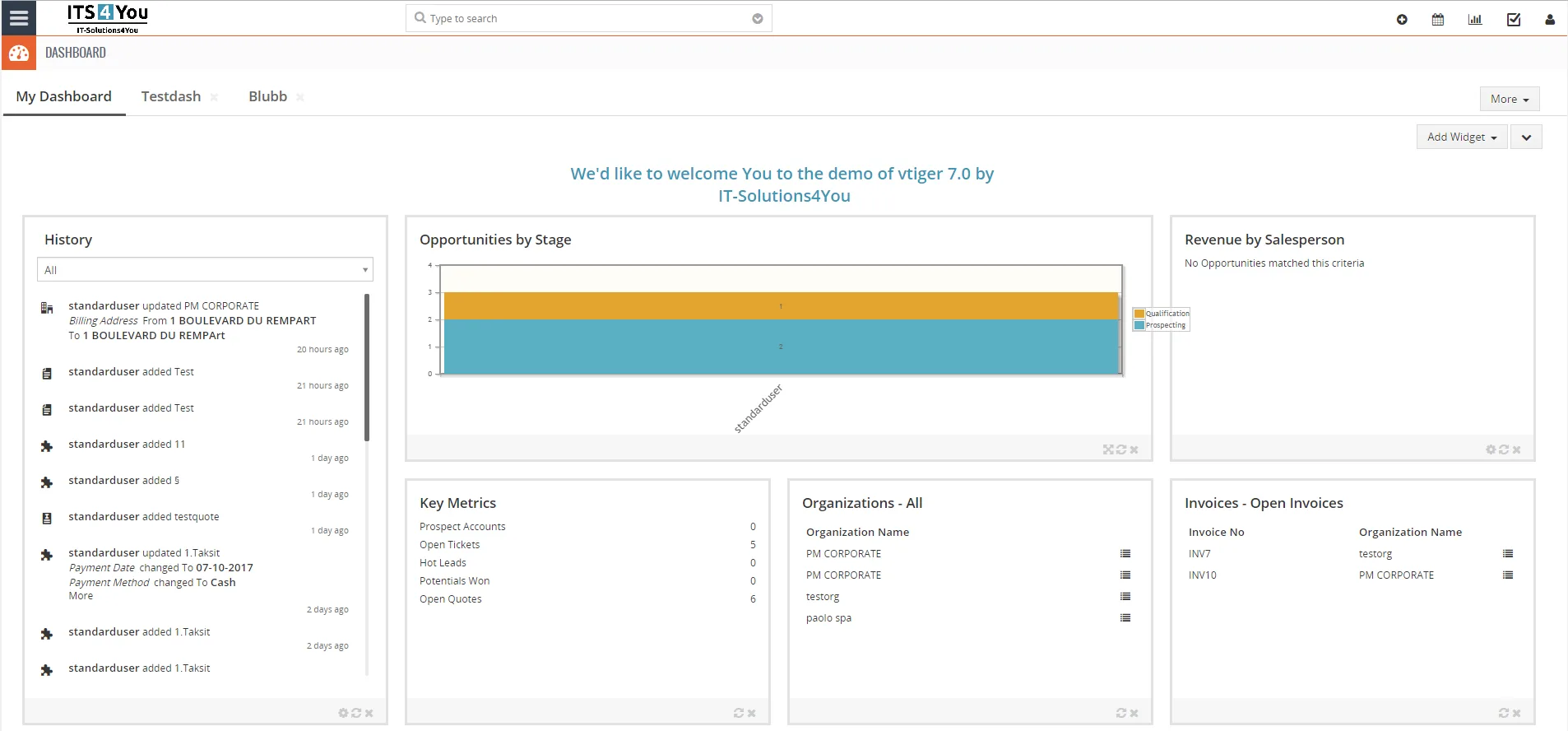
Try Brute Force in our Vtiger CRM demo
See how Brute Force works in practice before you buy.
 Vtiger CRM DemoView Demo
Explore all Vtiger extensions
Browse our complete collection of Vtiger extensions and discover more tools for your CRM.