
Two Factor Authentication for Vtiger CRM
Protect Vtiger CRM accounts with a second verification step after the password. Users can confirm sign in with a one time email code, an authenticator app or a single use backup code.
Secure CRM access even when a password is compromised
Two Factor Authentication adds a separate verification step after the standard Vtiger CRM password. A stolen or reused password is no longer enough to access the account.
Administrators can activate 2FA for the CRM, select the allowed verification methods and manage individual users. Each user can then verify by email or set up a compatible authenticator application on their phone.
- Second verification step after the CRM password
- One time verification codes delivered by email
- Time based codes from an authenticator application
- Single use backup codes for account recovery
- Administrator controls for users and verification methods
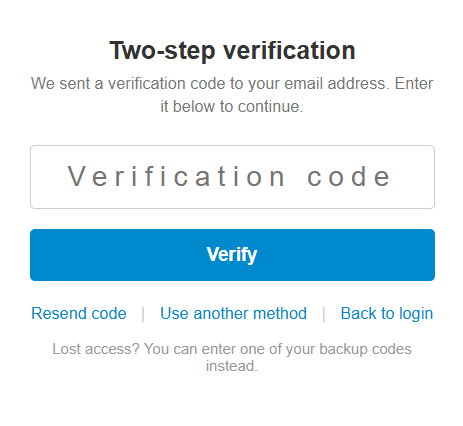
Main Two Factor Authentication Features
Control how users verify their identity and provide safe recovery options when access to the usual method is lost.
Email Verification Codes
Send a short one time code to the user email address during sign in.
Authenticator App Codes
Use six digit TOTP codes from Google Authenticator, Microsoft Authenticator, Authy and similar apps.
QR Code Setup
Guide users through a simple setup by scanning a QR code or entering the displayed key manually.
Backup Codes
Generate single use recovery codes for situations when email or the phone is unavailable.
Per User Control
Enable or exempt individual users and review their selected method and remaining backup codes.
Administrator Reset
Reset a locked out user so they can configure their second factor again at the next login.
Editable Email Templates
Customize the subject and body of verification code and backup code emails.
Secure Secret Storage
Authenticator secrets are encrypted and backup codes are stored as hashes.
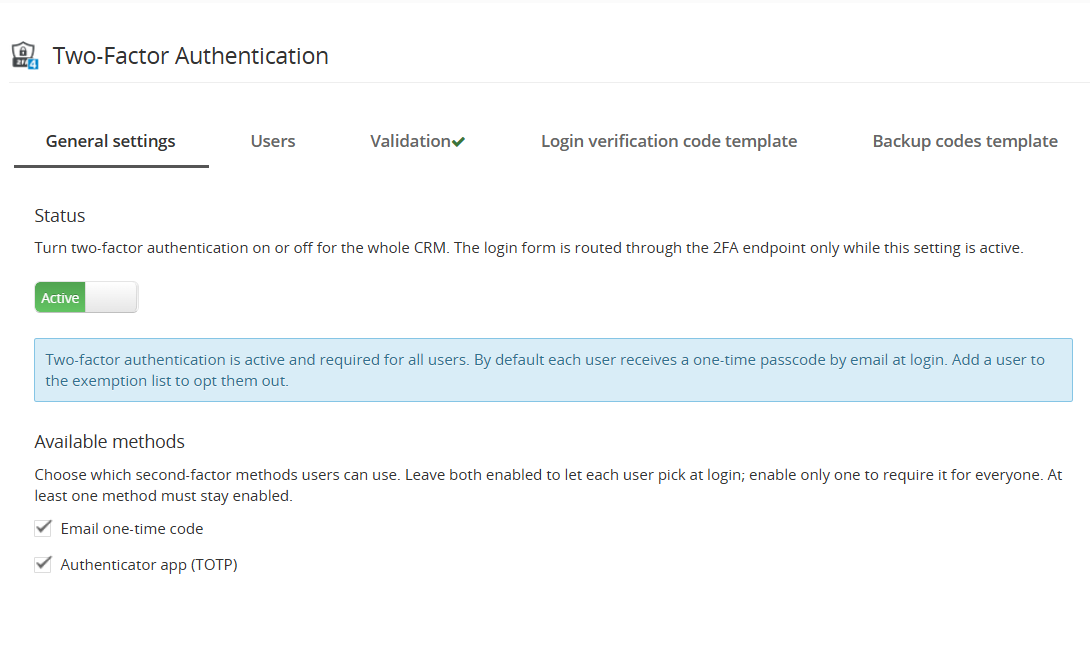
Choose which verification methods your users can use
The General settings tab lets an administrator activate or deactivate Two Factor Authentication for the CRM and select the available verification methods.
Enable both methods to let users choose between email and an authenticator app. Enable only one method when your company requires a single verification standard for everyone.
- Activate or deactivate 2FA for the complete CRM
- Allow email one time codes
- Allow authenticator application codes
- Require at least one available verification method
- Use email verification only when outgoing email is configured
Confirm that the outgoing email server works and save backup codes for the administrator account to reduce the risk of being locked out.
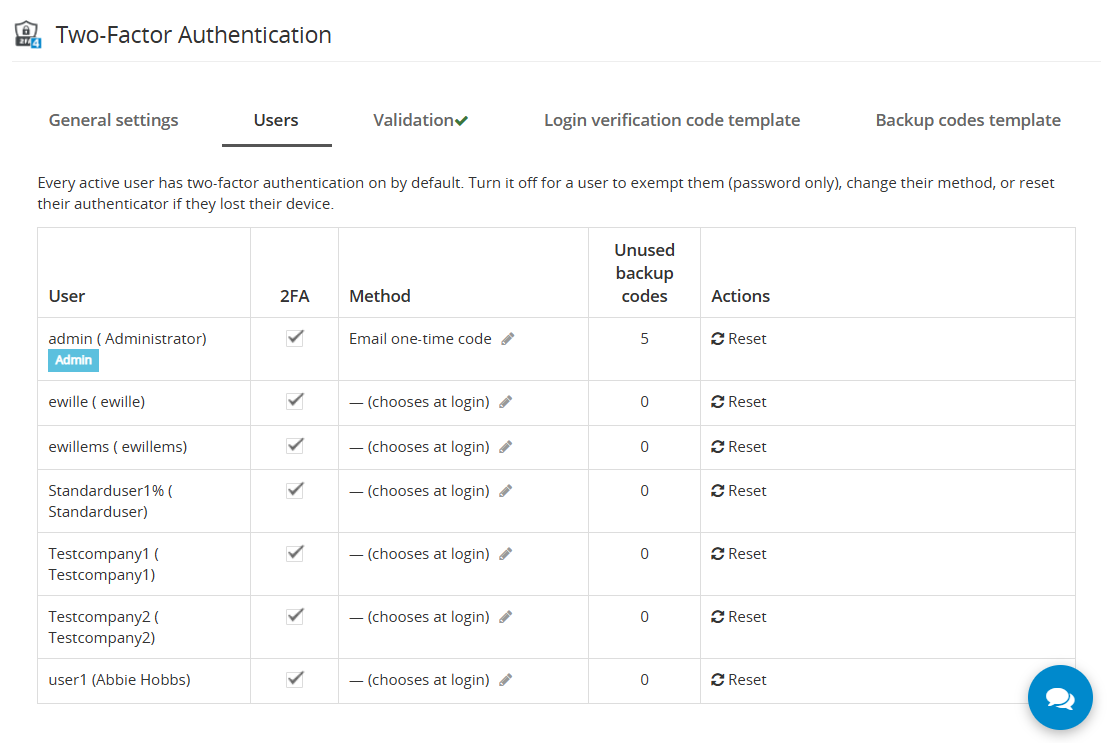
Manage 2FA separately for every active CRM user
The Users tab gives administrators a clear overview of the active users, their selected verification methods and the number of unused backup codes.
- Turn 2FA off for an exempt user
- Review or change the user verification method
- See how many unused backup codes remain
- Reset the user when a phone is lost or replaced
- Require new setup after a reset
Two Factor Authentication Use Cases
Use 2FA to reduce account takeover risk and give administrators clear recovery tools when a user loses access to their normal verification method.
Protect administrator accounts
Add a second verification step to accounts that can change CRM settings, users, permissions and business data.
Secure remote CRM access
Require more than a password when employees sign in from home, customer locations or unmanaged networks.
Reduce stolen password risk
Prevent access with a compromised password when the attacker cannot also provide the email or authenticator code.
Apply one company method
Allow only authenticator applications or only email codes when your internal security policy requires a standard method.
Recover after a lost phone
Let users sign in with a saved backup code or allow an administrator to reset and reconfigure their second factor.
Exclude a controlled account
Disable 2FA for a specific integration or special user account when the business process requires an exception.
How to Start with Two Factor Authentication
Follow these four steps to install the extension, configure verification methods and complete the first secure login.
Get the module or use your package license
Purchase Two Factor Authentication separately, or install it from the Installer if you already own the Extended Package or All Access Package. The free supporting module LoginDispatcher is installed automatically with 2FA.
LoginDispatcher must be installed and active. Without it, Two Factor Authentication will not work. The free Emails extension must also be installed and active to ensure verification and backup code emails are sent correctly.
- Separate monthly or yearly license
- Included in Extended and All Access packages
- LoginDispatcher must remain active
- Emails extension must remain active for email delivery
Configure the module in CRM Settings
Open CRM Settings → User Management → Two Factor Authentication. Activate the module, select the allowed login methods, customize the email templates used for verification and backup codes, and configure 2FA individually for users.
- Enable email codes, authenticator app codes or both
- Edit verification and backup code email templates
- Enable, exempt, change or reset individual users
Save the five personal backup codes
After the first successful login with 2FA, the system sends five backup codes to the user's email address. Each backup code can be used once when the normal verification method is unavailable.
Save the codes in a secure place and do not share them. They can be used to access the account when the phone or email verification method is unavailable.
Select and use the preferred verification method
After entering the normal CRM password, choose the available verification method. Enter the code received by email, use the current six digit code from the authenticator application, or enter an unused backup code when necessary.
- Email one time verification code
- Authenticator application TOTP code
- Single use backup code for recovery
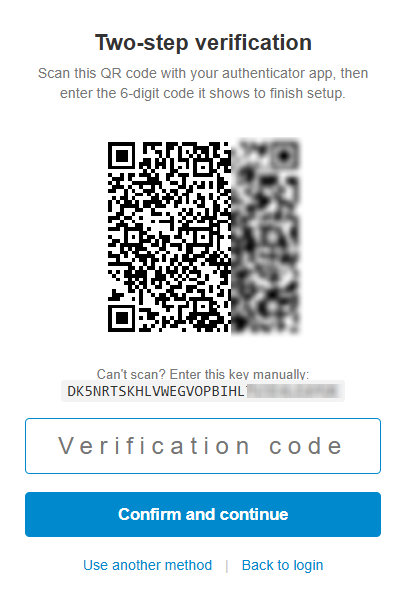
Click the screenshot to enlarge
Security note: Some parts of this example screenshot are blurred to protect sensitive setup information. Nothing is blurred during the standard setup process in the extension.
Connect the user account with a phone authenticator app
During the first authenticator login, the user scans the displayed QR code with Google Authenticator, Microsoft Authenticator, Authy or another compatible application.
- Scan a QR code with the mobile application
- Enter the displayed setup key manually when scanning is unavailable
- Confirm setup with the current six digit code
- Use a new time based code at every login
- Reconfigure the app after replacing the phone
Use single use backup codes to avoid unnecessary lockouts
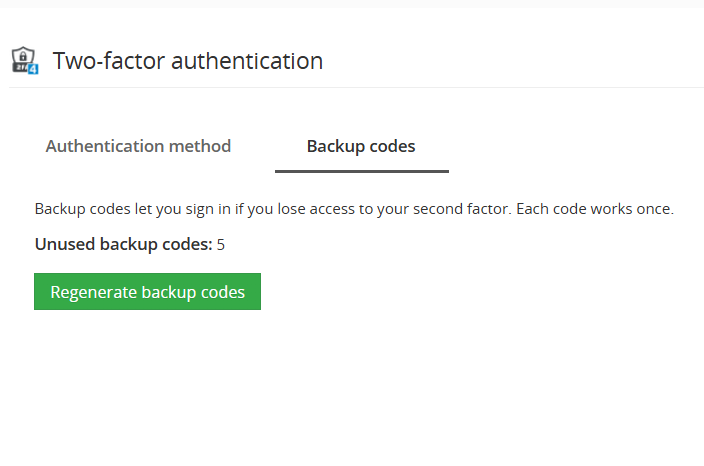
Users can generate backup codes from My Two Factor Authentication in their preferences. Every backup code works only once and can replace the usual email or authenticator code during verification.
- Generate a personal set of backup codes
- Display the codes only once for safer handling
- Receive a copy by email
- Use one backup code for one login
- Regenerate codes when the remaining set is no longer safe
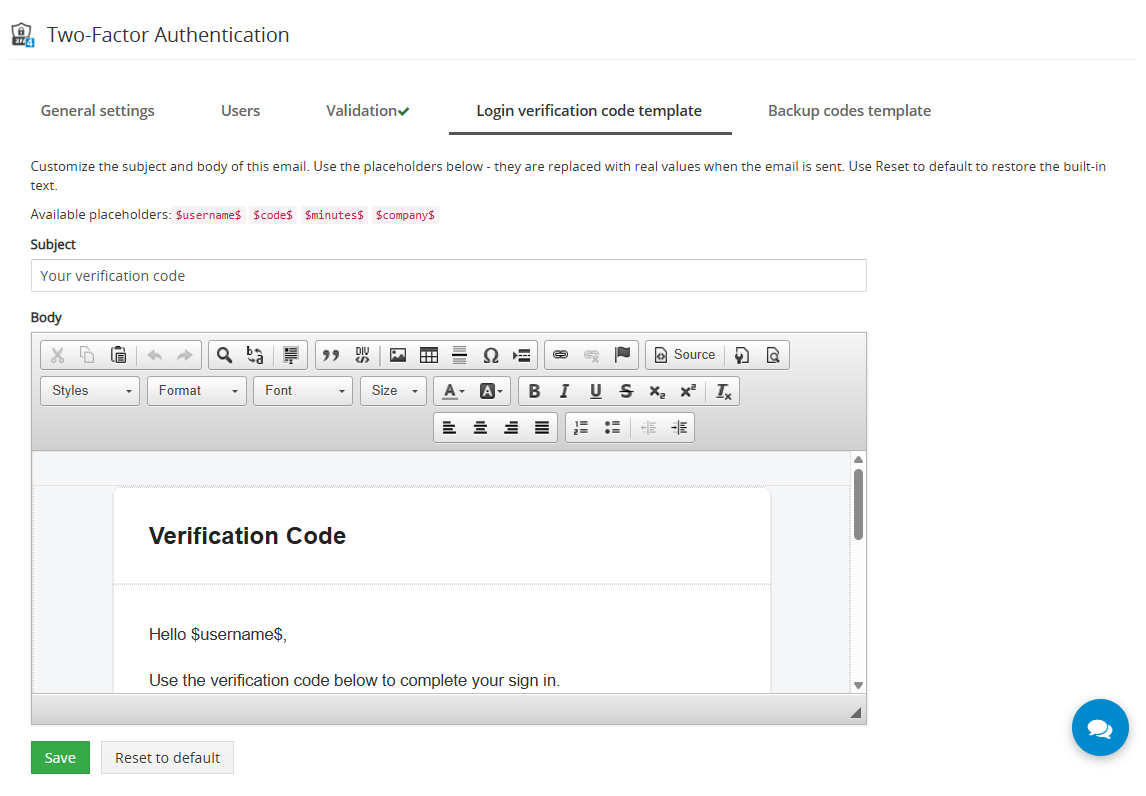
Customize verification and backup code emails
Edit the subject and rich text body of the login verification code email and the backup code email. Placeholders are replaced with the correct user, code, validity time and company values when the message is sent.
- User name placeholder
- Verification code placeholder
- Code validity time placeholder
- Company name placeholder
- Backup code list placeholder
- Reset templates to their default content
Use 2FA with other Vtiger security and login extensions
Two Factor Authentication is compatible with our login and security extensions. Keep every related module on its latest active version so the login process, security checks and user interface continue to work together correctly.
Custom Login Page
Use a branded Vtiger CRM login screen together with the additional Two Factor Authentication verification step.
View Custom Login PageBrute Force
Combine 2FA with login attempt limits, temporary user locks and IP blocking for stronger protection against unauthorized access.
View Brute ForceIncluded from Extended Package
Two Factor Authentication for Vtiger CRM is included in the Extended Package and All Access Package. It can also be purchased separately with monthly or yearly billing.
Two Factor Authentication for Vtiger CRM FAQ
Answers to common questions about verification methods, backup codes, account recovery and administration.
What is Two Factor Authentication for Vtiger CRM?
It is a Vtiger CRM extension that adds a second verification step after the user password. Verification can use an email code, an authenticator application or a backup code.
What exactly does 2FA mean?
2FA means Two Factor Authentication. It verifies a login with two different factors: something the user knows, such as a password, and something the user has, such as access to an email inbox, an authenticator application or a saved backup code. This means the password alone is not enough to enter the account.
Which Vtiger versions are supported?
The extension supports Vtiger CRM 7.3, 7.4, 7.5 and all Vtiger 8.x versions. Versions older than 7.3 are not supported because their PHP requirements are not compatible with the extension.
Are LoginDispatcher and Emails mandatory?
Yes. LoginDispatcher must be installed and active or 2FA will not work. The free Emails extension must also be installed and active to ensure verification and backup code emails are sent correctly.
Which authenticator applications can users use?
Users can use compatible TOTP applications such as Google Authenticator, Microsoft Authenticator or Authy.
Can users choose between email and an authenticator app?
Yes. When both methods are enabled, users can choose their preferred method during verification. An administrator can also allow only one method.
Does email verification require additional configuration?
Yes. The Vtiger CRM outgoing email server must be configured and working before email verification can be enabled and used reliably.
Do users need 2FA at every login?
Yes. After the password, users complete the verification step whenever 2FA is active for their account.
What happens when a user loses their phone?
The user can sign in with an unused backup code. An administrator can also reset the user setup so a new authenticator application can be configured.
Can an administrator exclude a user from 2FA?
Yes. The administrator can turn off the 2FA switch for an individual user. That user then signs in with the password only.
Can verification email content be customized?
Yes. Administrators can edit the subject and rich text body of the login verification and backup code emails and can restore the default templates.
Can an administrator see user backup codes or authenticator secrets?
No. Backup codes are stored as hashes and authenticator secrets are encrypted. They are not displayed to the administrator.
What should users do when an email code does not arrive?
They should check the spam folder, request another code, use an unused backup code or contact the administrator to verify outgoing email configuration.
Is the extension included in a package?
Yes. It is included in the Extended Package and All Access Package and is also available as a separate monthly or yearly subscription.
Have questions before purchase?
Contact us if you need to confirm compatibility, discuss installation or review the best verification method for your Vtiger CRM users.
- Compatibility check for Vtiger CRM 7.3, 7.4, 7.5 and all 8.x versions
- Installation and activation assistance
- Outgoing email configuration guidance
- Advice for authenticator apps and backup codes
Start using Two Factor Authentication for Vtiger CRM
Add email codes, authenticator app verification, backup codes and user recovery controls to your Vtiger CRM 7.3, 7.4, 7.5 or 8.x installation.
Explore all Vtiger extensions
Combine Two Factor Authentication with other Vtiger CRM extensions for document generation, email templates, reporting, automation, AI features and advanced CRM customization.