You don’t need to spend additional hours to figure out how it is working. It’s really simple and after you finish reading this post you will be able to give better look to your templates in no time!
Let’s take closer look at our example, how to proceed.
We will use the example with PC Hardware as a Products and Installation/Build of PC as a Service.
Note this is just an example, you can use any products or services you need!
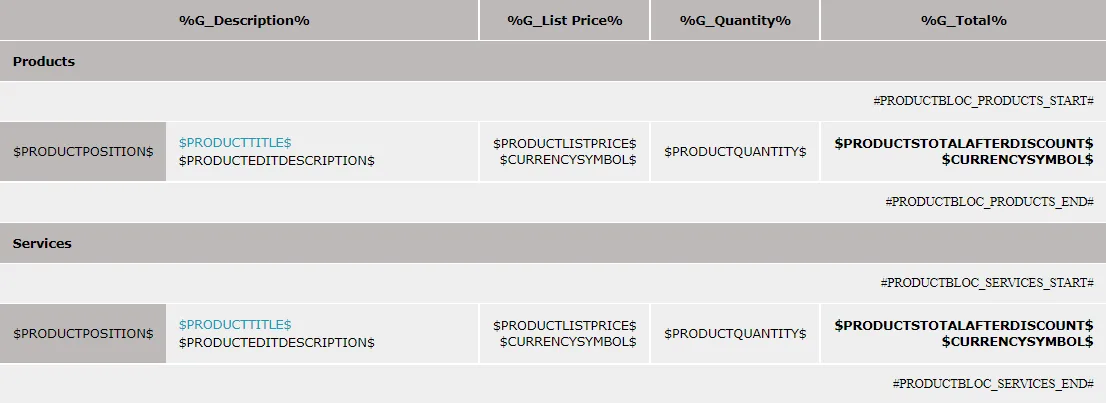
The main key to this customization are variables used to start and end product block. These variables are different for services and products.
Variables we will be need are:
For Products:
- #PRODUCTBLOC_PRODUCTS_START#
- #PRODUCTBLOC_PRODUCTS_END#
For Services:
- #PRODUCTBLOC_SERVICES_START#
- #PRODUCTBLOC_SERVICES_END#
You can find them easily in your PDF Maker like its shown below:
Next, you should have already created Invoice, Sales Order or any record you require to edit and export. As an example we will use Invoice with: Below you can see our
 Products (in blue box) and
 Services (in red box) in the Invoice we created (Edit view).
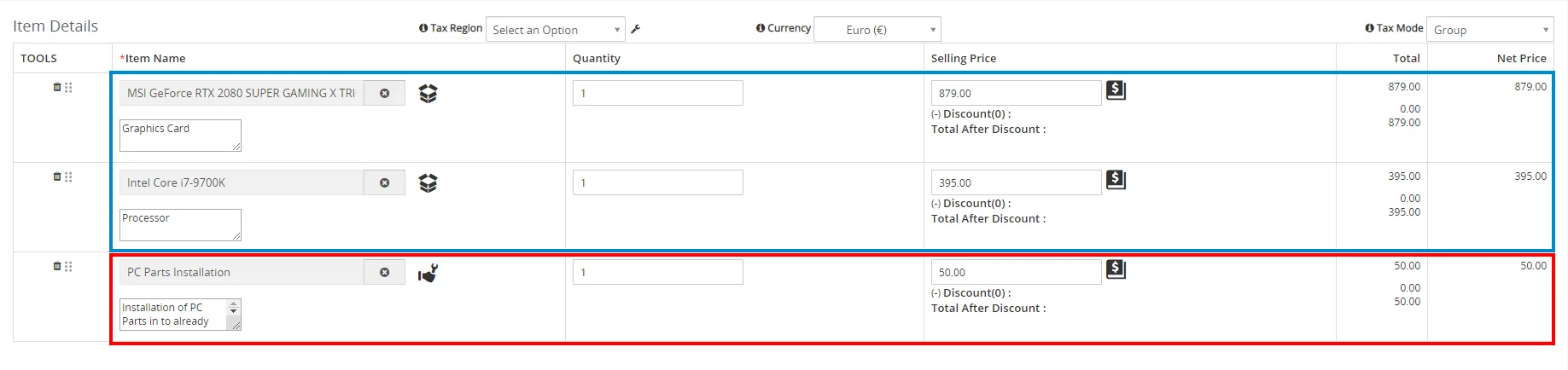
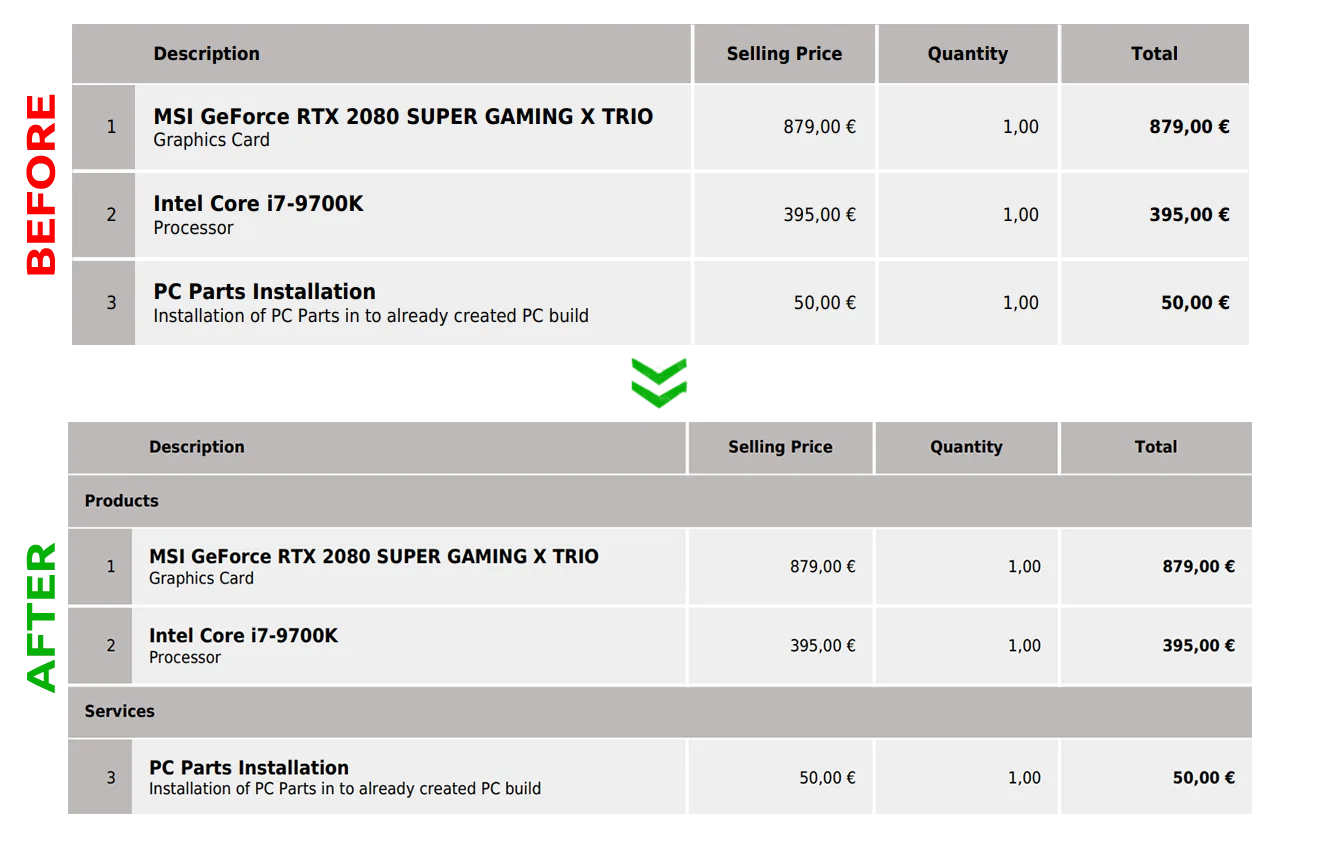
We can write a lot about this customization and how to perform it, but best is to show you an example images how it should look before and after inserting variables to separate blocks.
As mentioned before, we will work with variables:
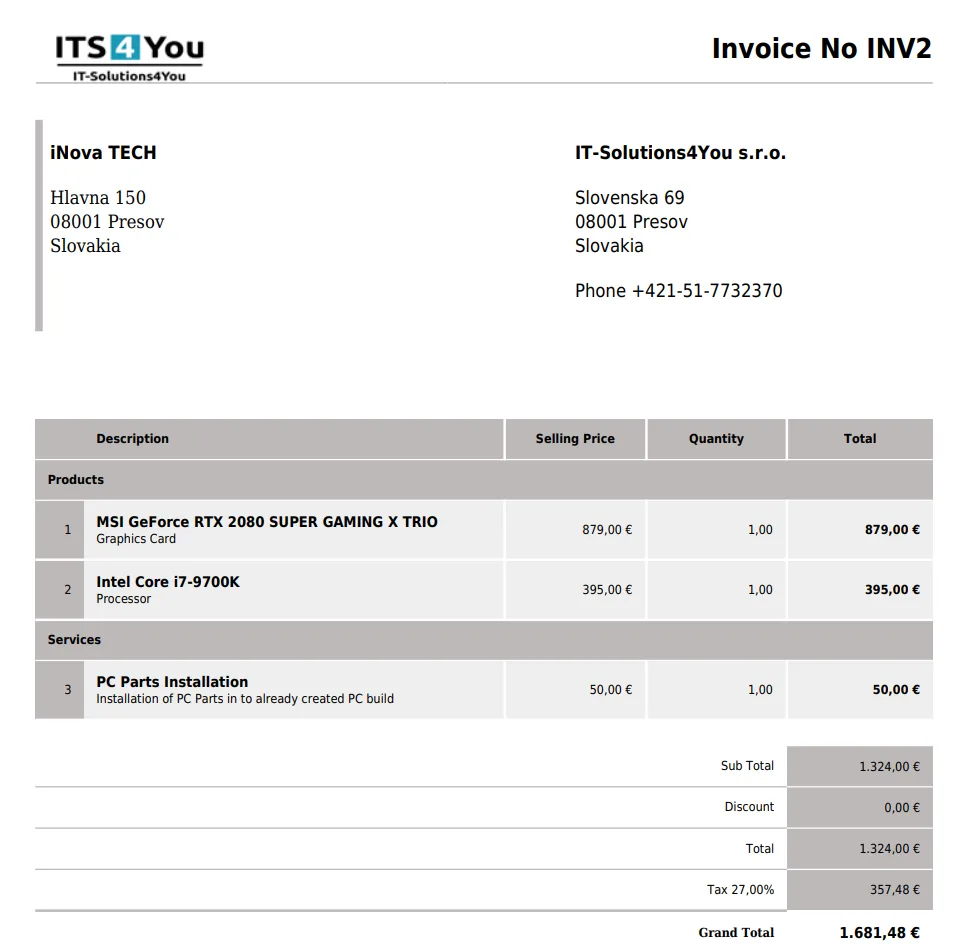
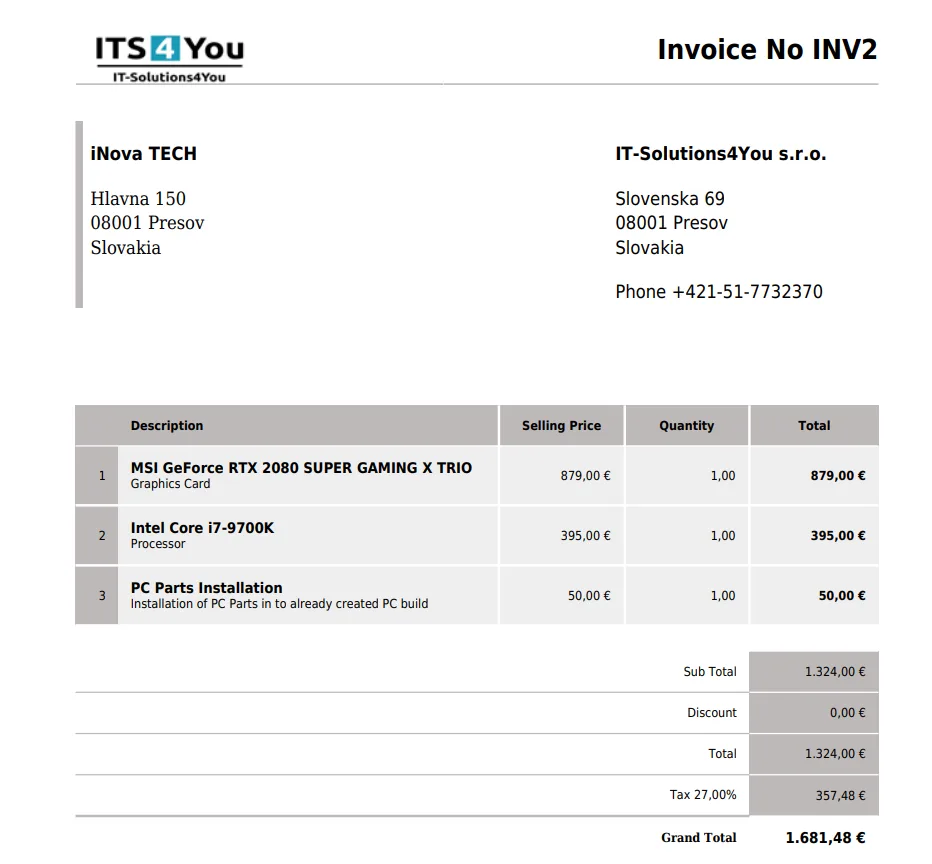
For Products: For Services: This is how it looks BEFORE adding separated blocks, Edit view and Export view preview: In the next image AFTER Edit,you see we made changes already. AFTER, you should be able to see something like image below:
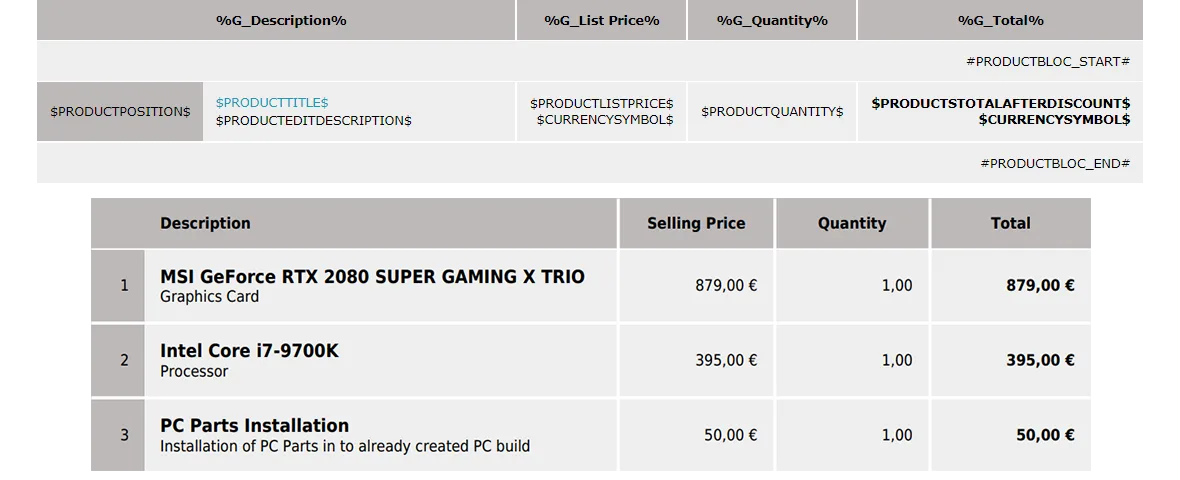
(#PRODUCTBLOC_PRODUCTS_START# or #PRODUCTBLOC_SERVICES_START#)
and product block end:
(#PRODUCTBLOC_ PRODUCTS_END# or #PRODUCTBLOC_ SERVICES_END#).
(#PRODUCTBLOC_PRODUCTS_START# or #PRODUCTBLOC_SERVICES_START#)
and (#PRODUCTBLOC_PRODUCTS_END# or #PRODUCTBLOC_SERVICES_END#), finally you can also change formatting.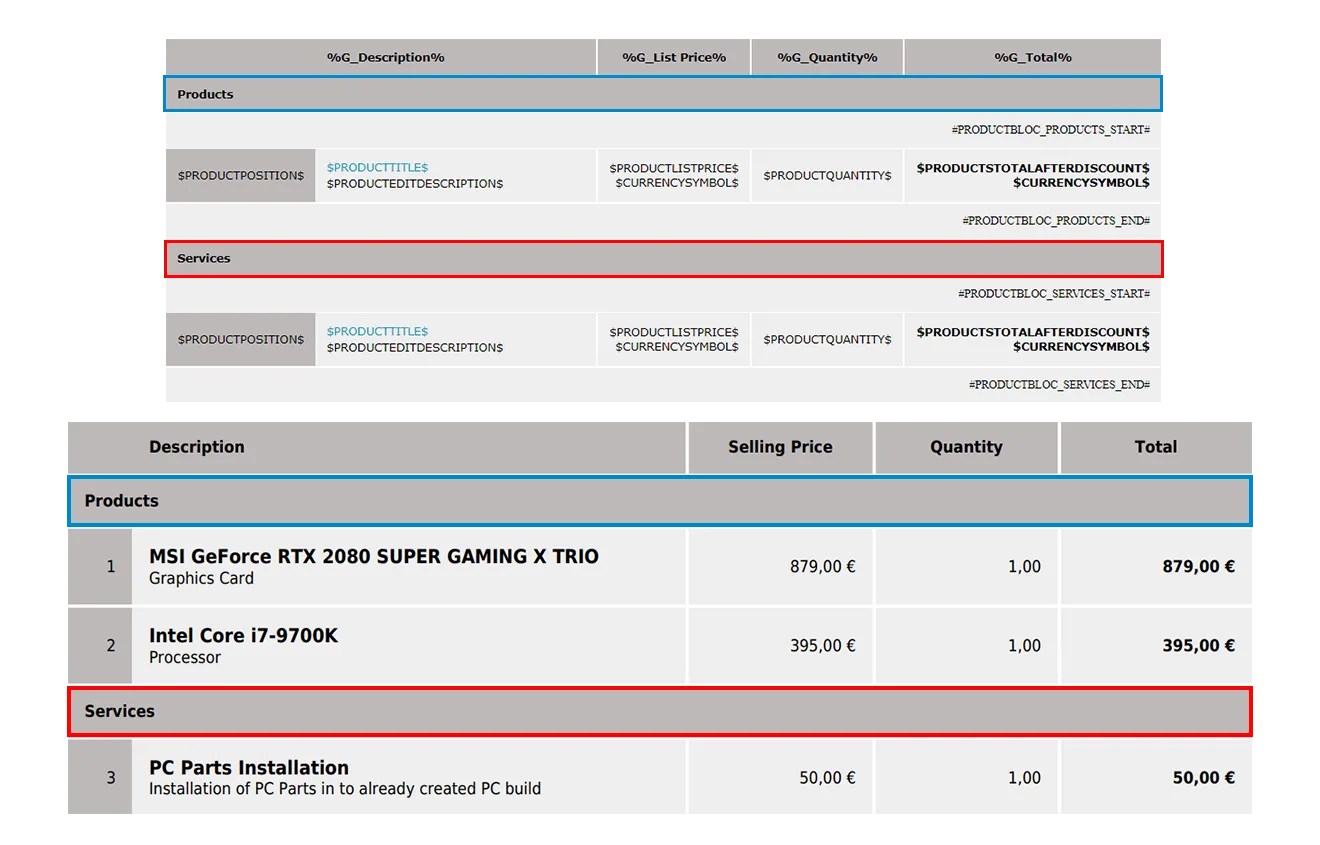
Comparison Before & After
Separated blocks preview in exported Invoice
Edit view in PDF Maker template with the Separate block variables used
Exported Invoice without using separate block variables
Default edit view without using separate block variables

If you still don’t have the PDF Maker, you can check our web-page here: PDF Maker
PDF Maker is also included in our all Extension packages
For any additional quests contact us at : info@its4you.sk
Need help with Vtiger CRM?
We develop extensions, integrations and custom solutions for Vtiger CRM. Tell us what you need and we will suggest the next step.