

AI API Key Activation
After successful license validation, the AI icon will be added to the top panel of your Vtiger CRM. Click this icon to open the Vtiger AI Extension window.

As the first step, you need to add your API key.
Note: Currently, only an OpenAI API key is supported.
You can create and manage your API key in the OpenAI Platform. The OpenAI API uses API keys for authentication, and the key should be kept private and not shared publicly.
Note: Make sure that your OpenAI API key is active and has available usage credit. Without a valid API key, the Vtiger AI Extension cannot communicate with the AI model.
When the AI window shows the message No API key found. Please add it in Settings., it means that no API key has been saved yet.
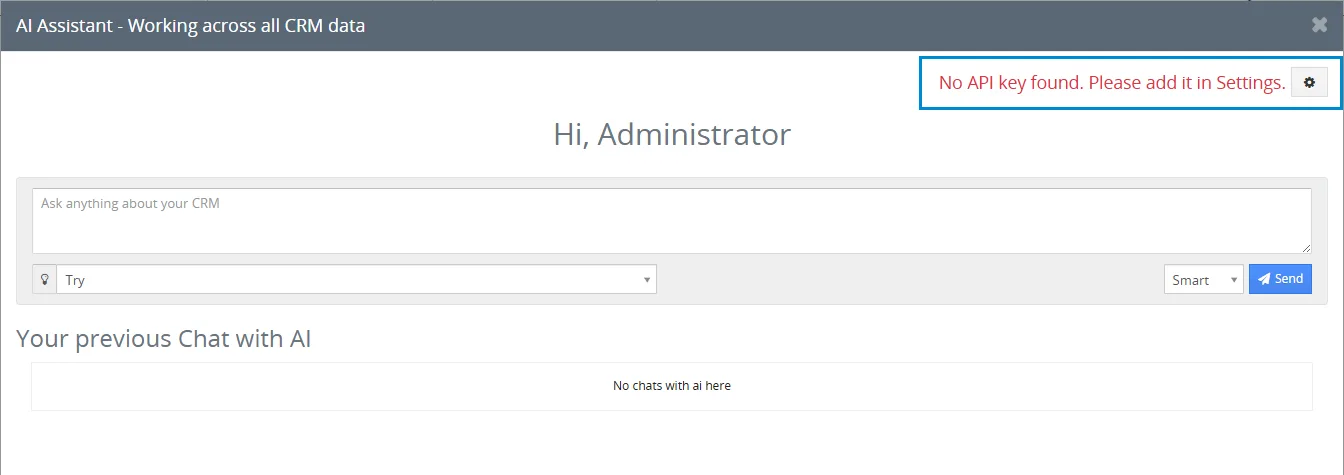
To add your API key:
- Click the Settings icon in the AI window

- Paste your OpenAI API key into the Enter your API Key field.
- Click Save.
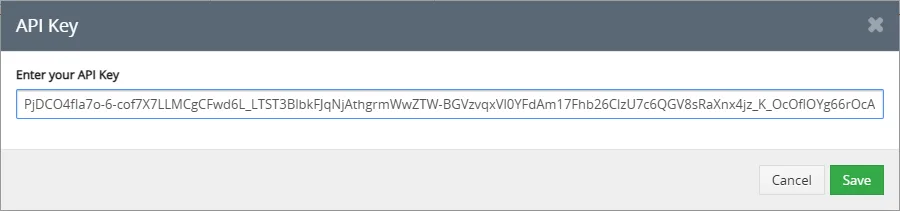
- After saving the key, you can start using the AI Extension.
Need help with AI Assistant?
Our support team answers questions about installation, templates and settings.