
In the next sections you can check how we can create Delivery Notes.
- create Delivery Note from Sales Order
- create Delivery Note from Invoice
- create new Delivery Note via List view
5.1 Creating Delivery Note from Sales Order
In your business, if you first need to create Sales Order and then you will deliver products, this option to create a Delivery Note is suitable for you. After that you can invoice this product/s. To use it, please provide following steps:
- Create or open your Sales Order and go to Detail view, on the bottom right side you have Delivery Notes Overview block, via this block you are able to create Delivery Note. To proceed, click on
 button.
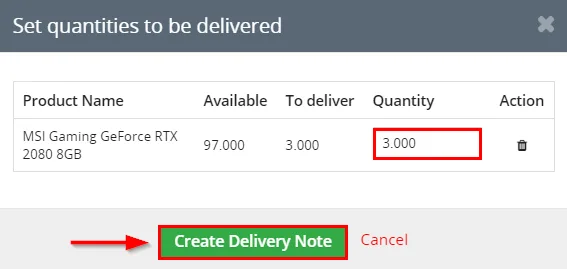
Creating Delivery Note from Sales Order - Now, please set quantities of products to be delivered (you can choose all or part of products). Finish by clicking on the
 button.
Creating Delivery Note from Sales Order - Your Delivery Note was created.

Creating Delivery Note from Sales Order - If it is necessary, you are able to create a second (next) Delivery Note (steps: 1,2) for the same Sales Order.
- Also, you can add products to existing Delivery Note via the
 button.
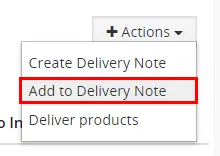
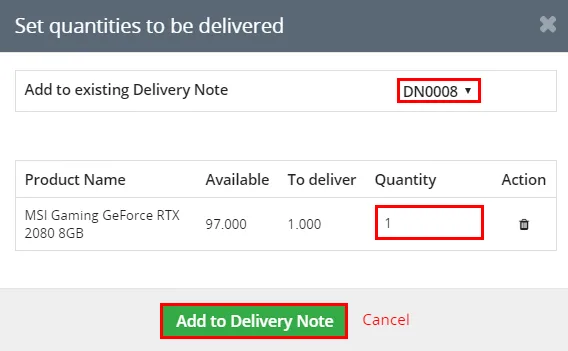
Creating Delivery Note from Sales Orde - After the products were added into Delivery Note, you are able to deliver products (change status to Delivered). You have two options how to do it:
a) Directly from Sales Order
Deliver products from Sales Order b) From Delivery Note that is in status Ready to Deliver
Deliver products from Sales Order - To invoice all delivered products you have also two options.:
a) Invoice products from Sales Order
Invoice delivered products from Sales Order b) Invoice products from Delivery Note Detail view
Invoice delivered products from Sales Order
5.2 Creating Delivery Note from Invoice
You are able also create Delivery Note from Invoice. To create it please see the next steps:
- Open or create Invoice and go to Detail view, on the bottom right side you have Delivery Notes Overview block, via this block you are able to create Delivery Note. To proceed, click on button.
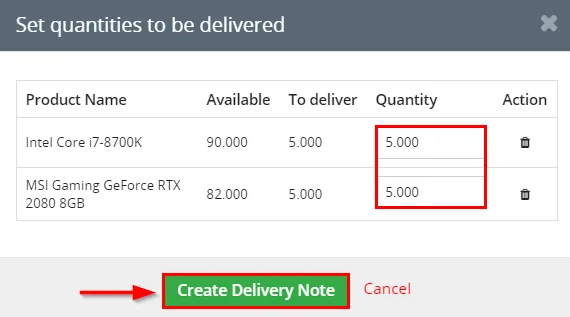
Creating Delivery Note from Invoice - Now, please set quantities of products to be delivered (you can choose all or part of products). Finish by clicking on the button.
Creating Delivery Note from Invoice - Your Delivery Note was created.

Creating Delivery Note from Invoice
 Note: All other steps are same from previous section Creating Delivery Note from Sales Order
5.3 Creating Delivery Note
The last option is creating Delivery Note first. Please provide following steps:
- Go to the List view of Delivery Notes and click on the
 button.

Creating Delivery Note - Fill information (Required are Organization and Item) and click on the
 button.
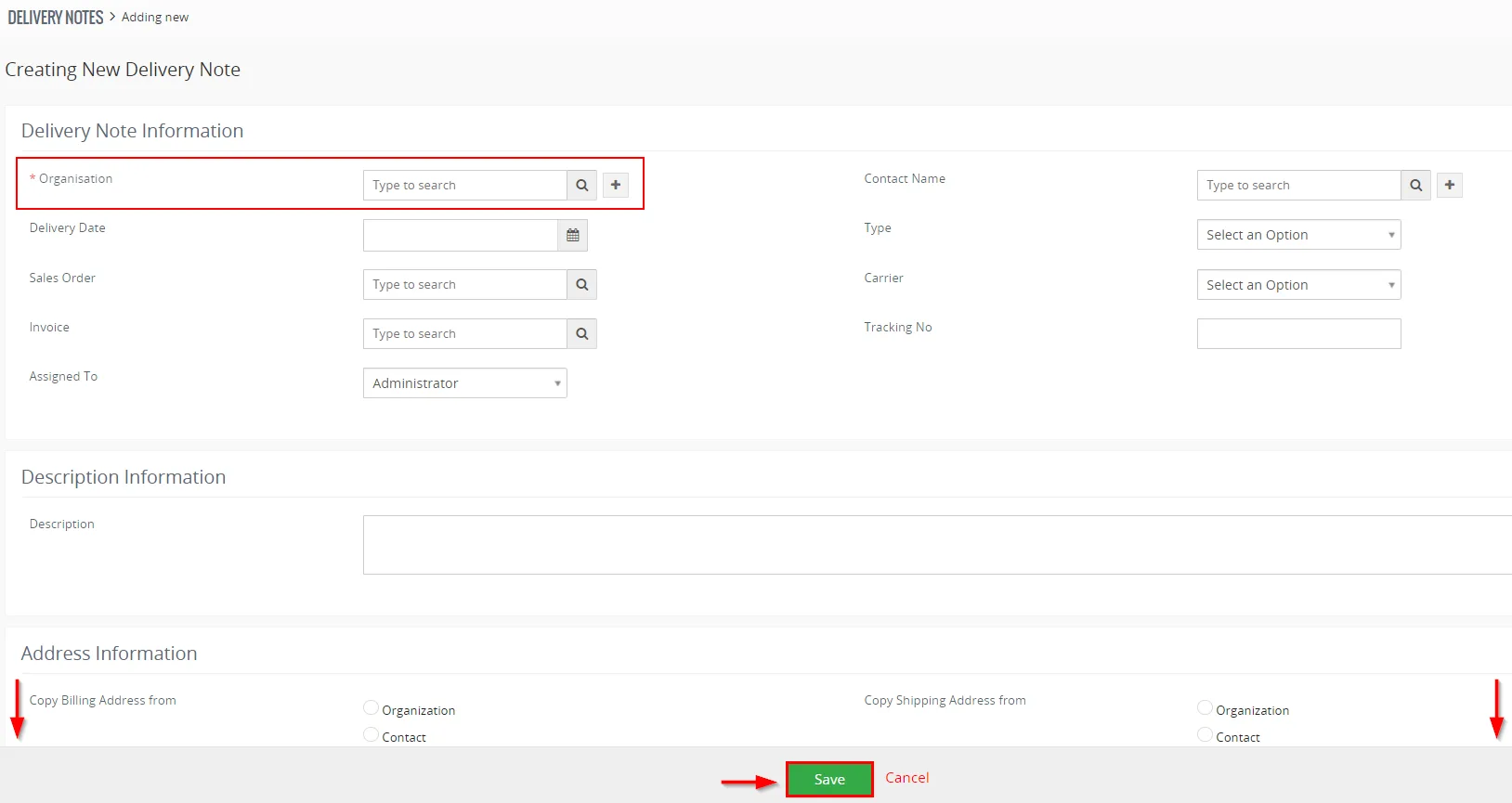
Creating Delivery Note - Now, you can deliver products. To deliver, please click on the
 button.
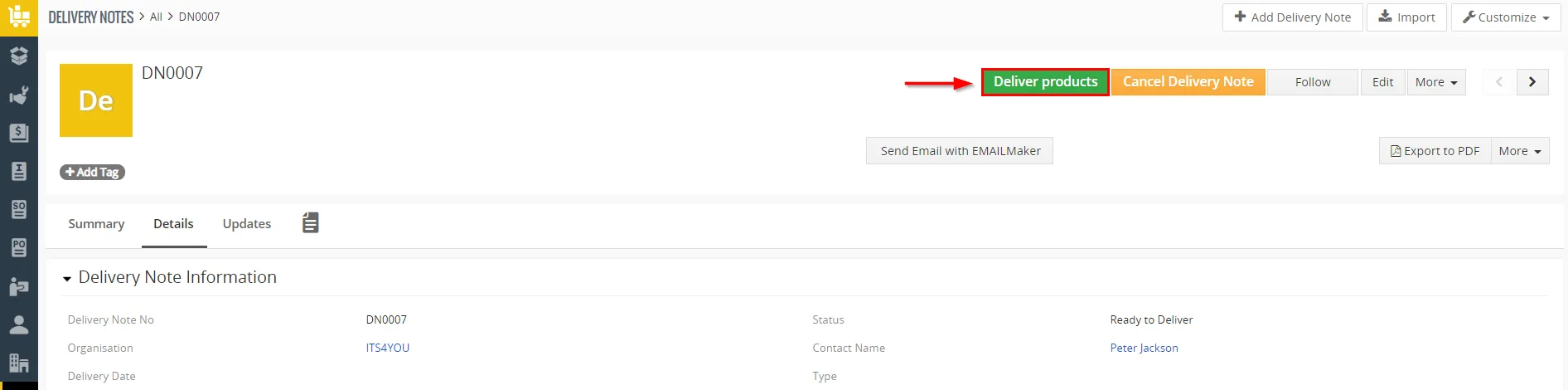
Deliver products from Delivery Note - Fill how many products will be delivered and click on the button.
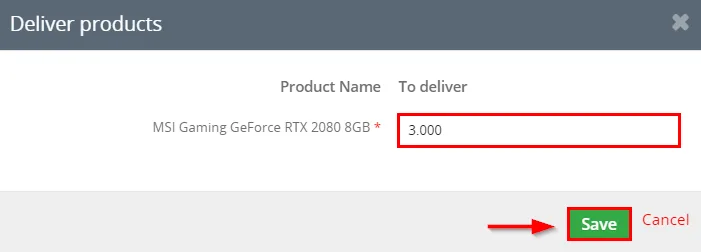
Deliver products from Delivery Notes - Now, you are able to invoice delivered products. Please click on the
 button.
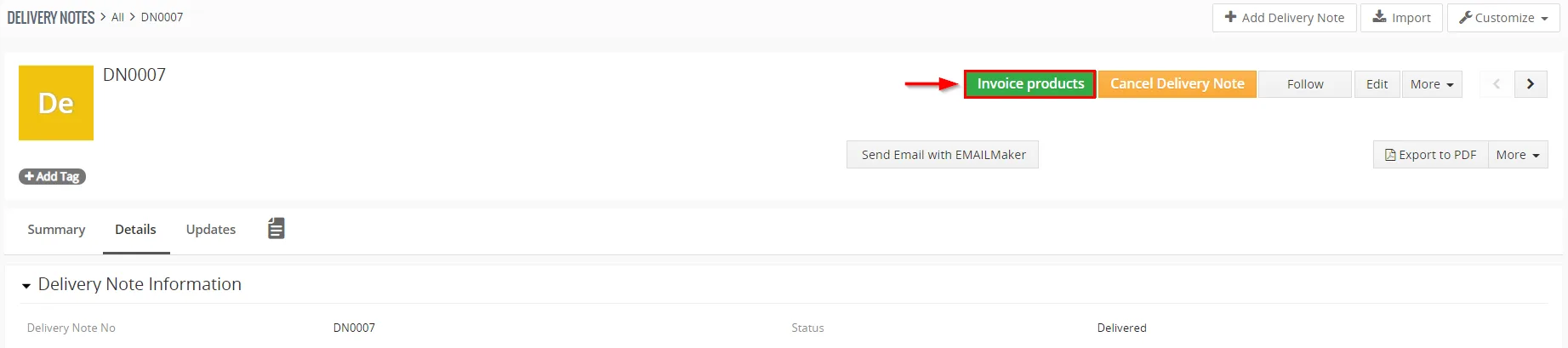
Invoice products from Delivery Note - Fill info you want and click on the button.
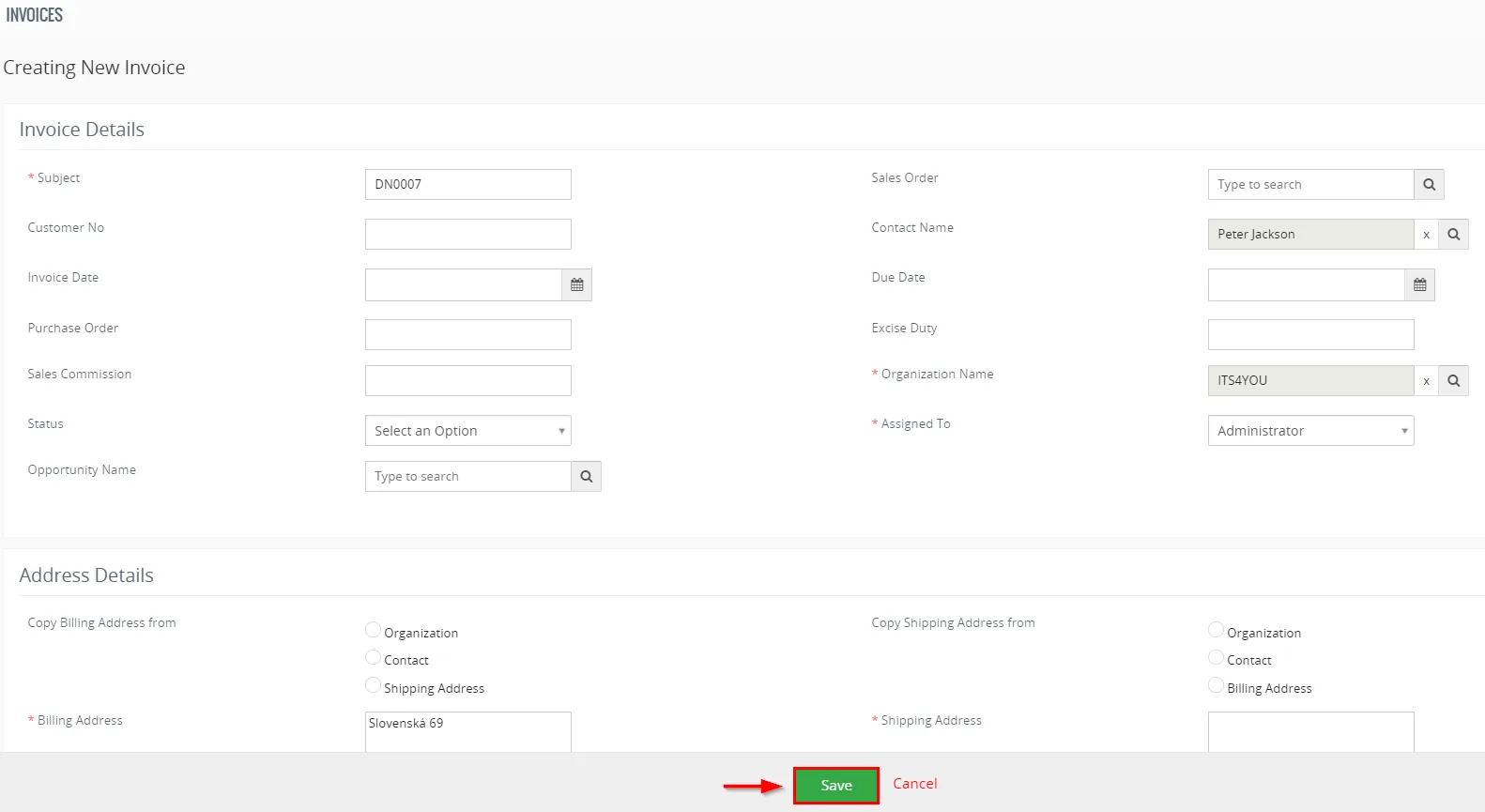
Invoice products
Note: To create Delivery Note, deliver product or invoice products you can also use Delivery Note block. To more information about Delivery block please check chapter 4.4 Delivery Notes block.
Need help with Delivery Notes?
Our support team answers questions about installation, templates and settings.