

In the following sections you can find how to create new color and then how to use it to colorize your Vtiger.
4.1 How to create color
To create new Color please provide following steps:
- Open ListView of ListView Colors 4 You and click on
 button
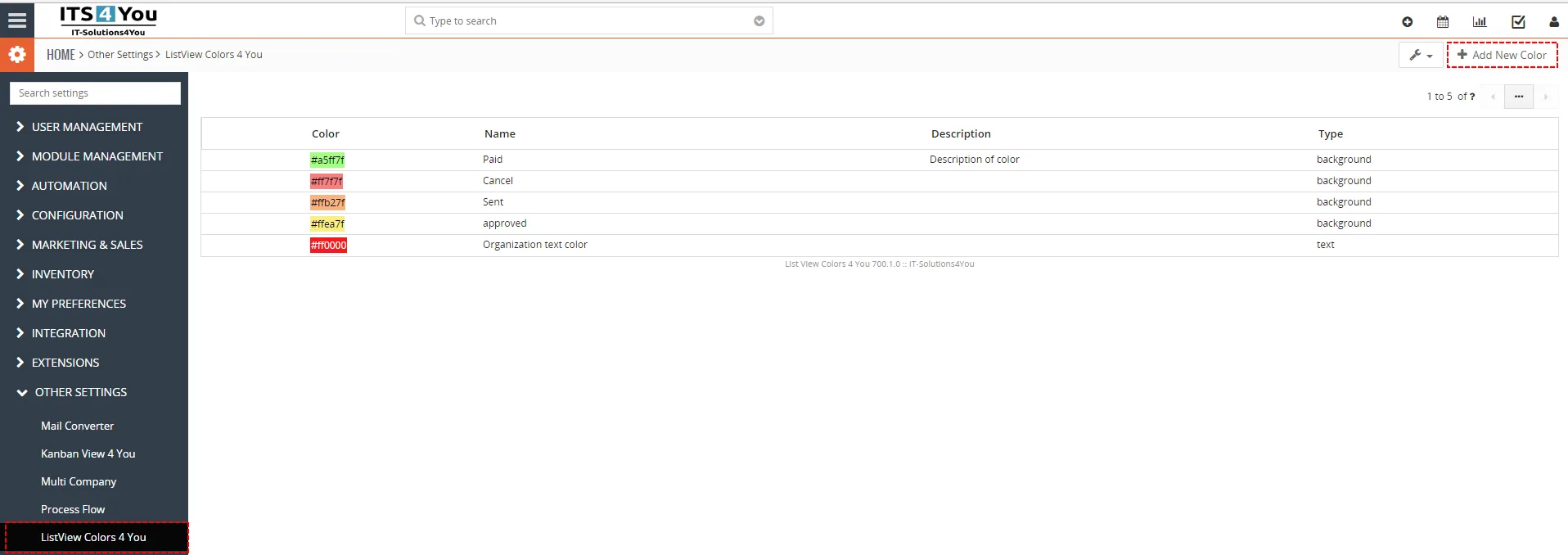
Create new Color – ListView Colors 4 You Vtiger 7 - Fill name, you can also fill description.
Then you need to select type of color. If you want to colorize background of records or textcolor.
And select color. You can insert hex code of color or select color from window.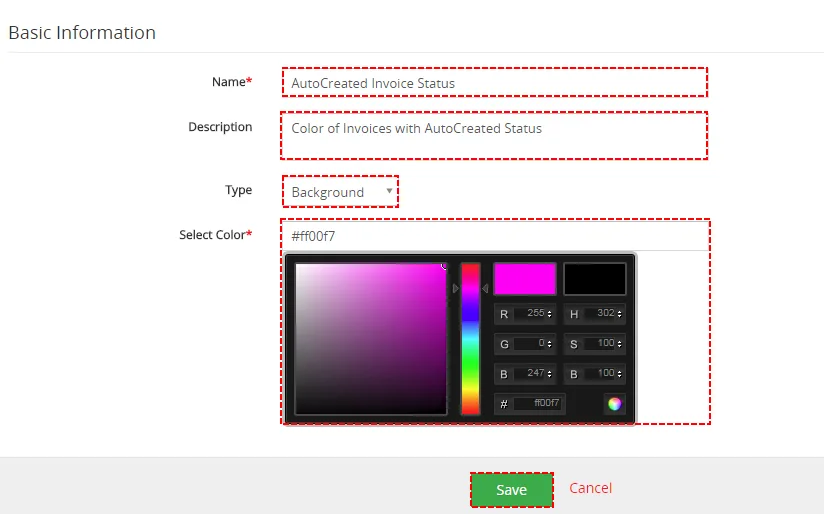
Create new Color – ListView Colors 4 You Vtiger 7 - Save it using
 button.
- Now, your Color has been created. How to apply your Color you can find in next section
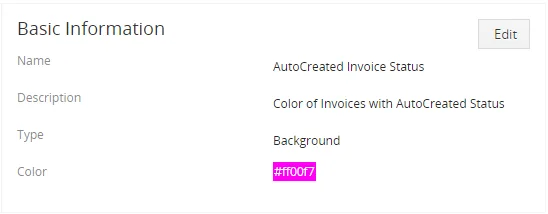
Create new Color – ListView Colors 4 You Vtiger 7
4.2 How to apply color
Now you need to create conditions when your Color will be used. Since Vtiger 7 we use Process Flow extension to create conditions to execute some actions like colorize your Vtiger.
Please provide following steps to create conditions:
- Open Process Flow 4 You extension. Go to All → Settings → Other Settings → Process Flow
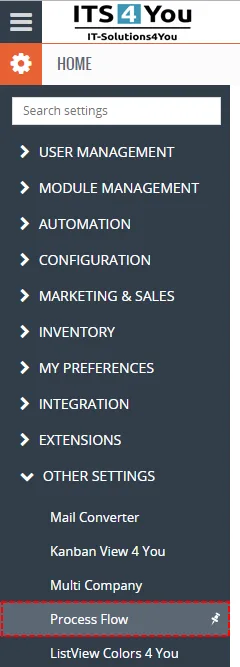
Create Condition – ListView Colors 4 You Vtiger 7 - In ListView of Process Flow click on
 button
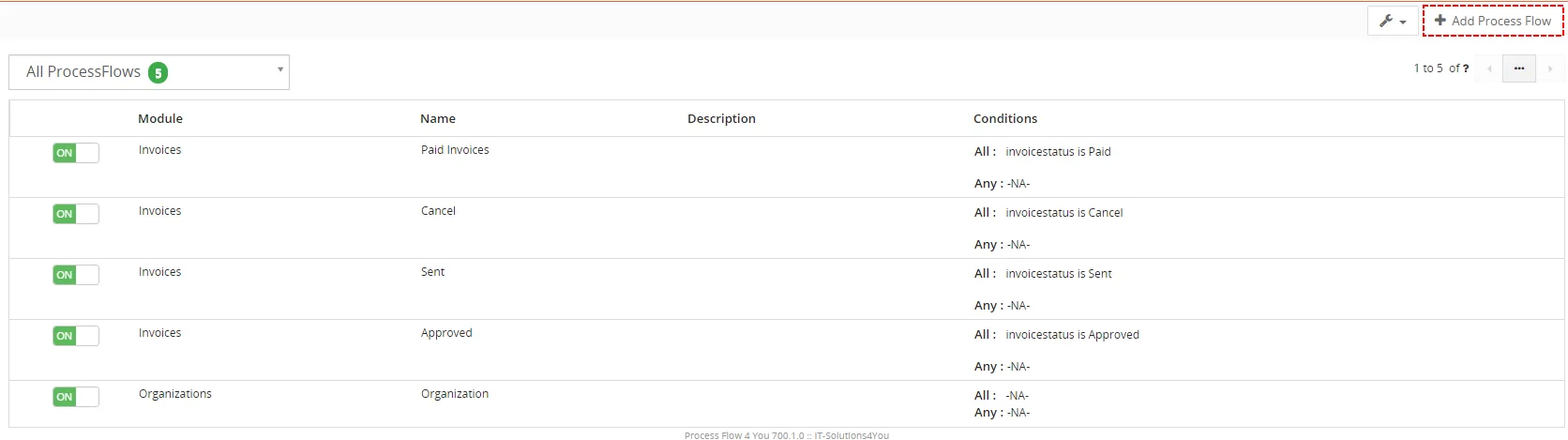
Create Condition – ListView Colors 4 You Vtiger 7 - Fill name, description, select module and choose status
- Now, you can create condition to use your created Color
- And Save it using button
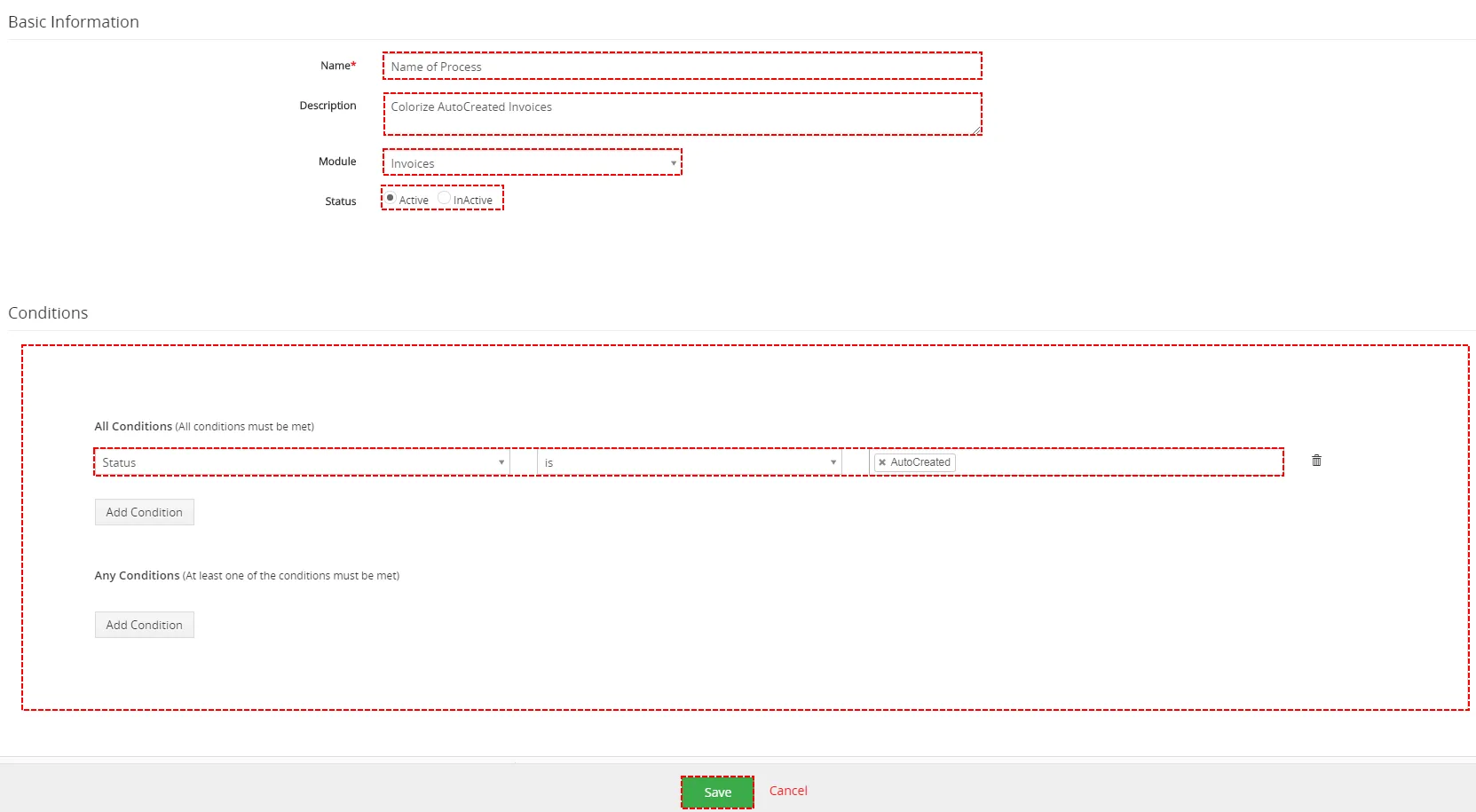
Create Condition – ListView Colors 4 You Vtiger 7 - Your Process Flow has been created.
Now, you need to select your Color in Actions part.
Please click on button a choose Select ListView Color
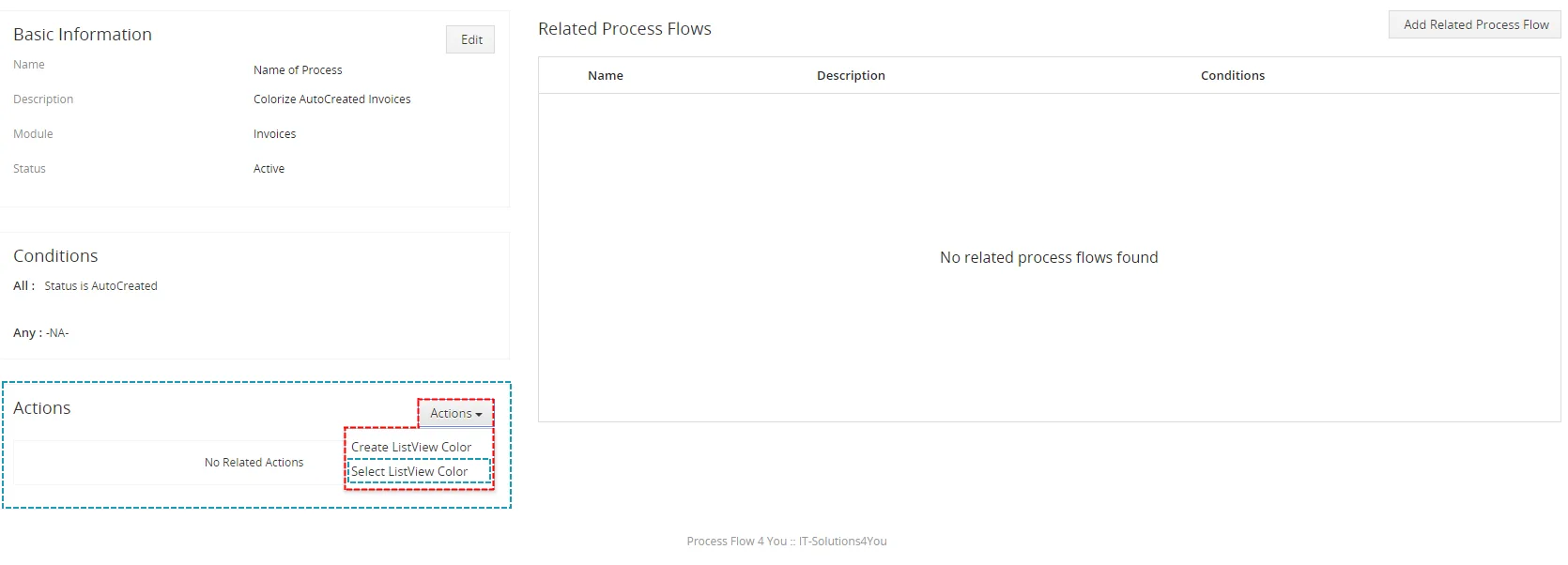
Select Action – ListView Colors 4 You Vtiger 7 - Select your Color
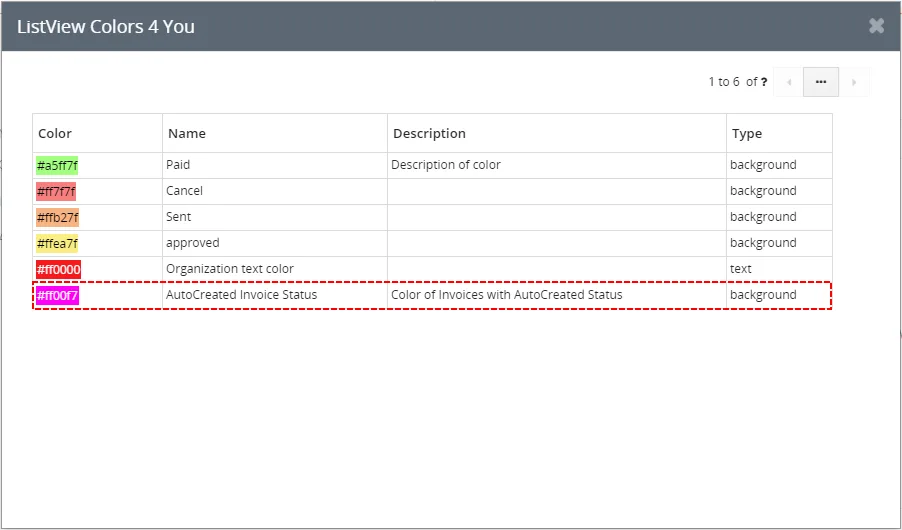
Select Color – ListView Colors 4 You Vtiger 7 - Color has been added and used in your Vtiger based on your conditions
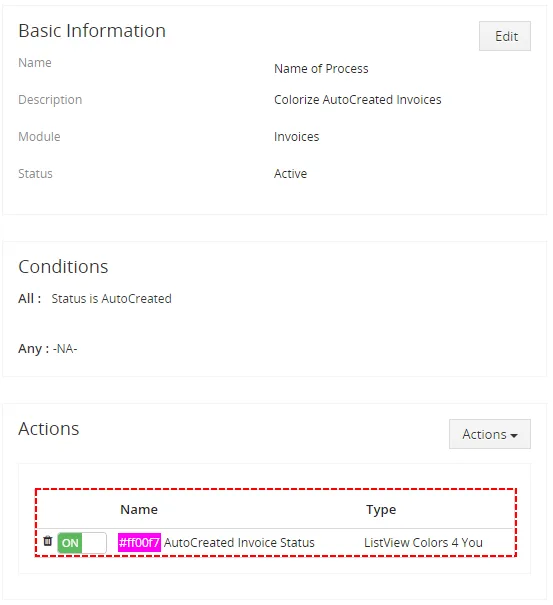
Color used – ListView Colors 4 You Vtiger 7 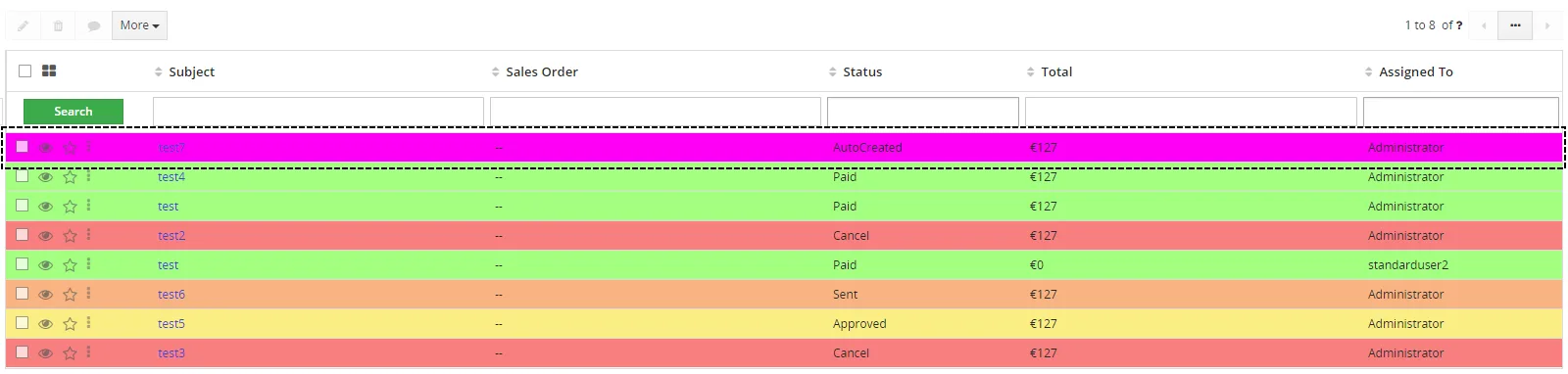
ListView Colors in ListView – ListView Colors 4 You Vtiger 7 Since Vtiger 7 version, ListView Colors 4 You also colors records in Related List.
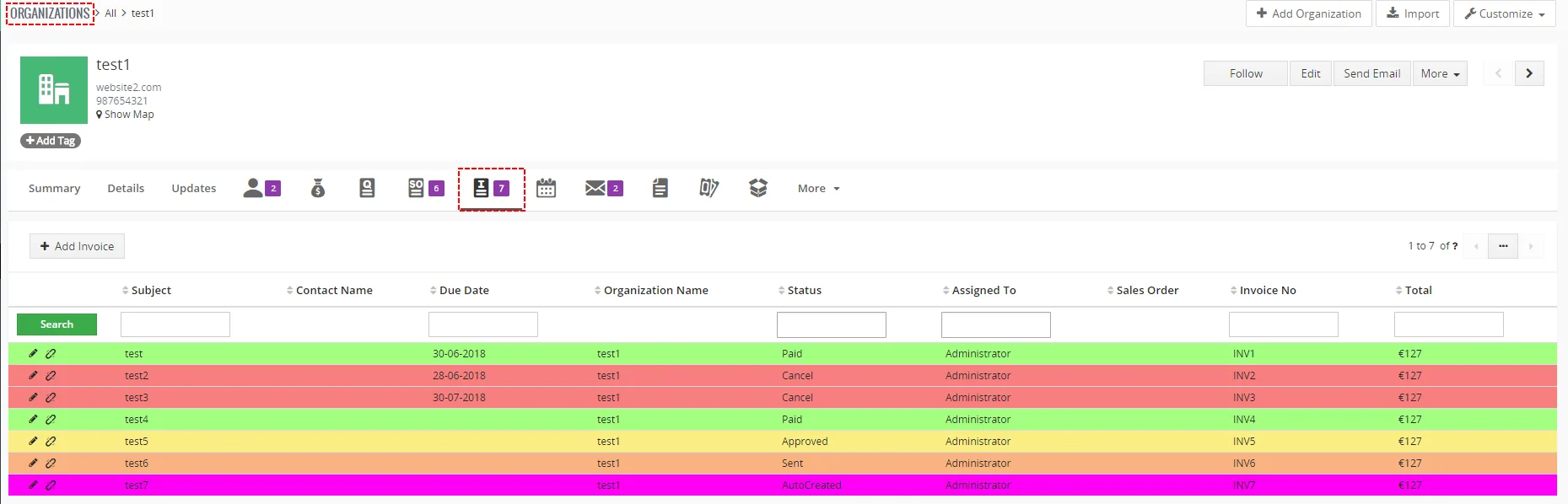
Related records – ListView Colors 4 You Vtiger 7
Need help with List View Colors?
Our support team answers questions about installation, templates and settings.