

Work area of ListView Colors 4 You consists of:
- ListView – used for common tasks like add new, edit and delete Colors
- DetailView – shows already created Colors in details
- EditView – allows the preparation of the new Colors or editing existing Colors
5.1 ListView
The common tasks like add/delete Colors or start editing have to be initiated via ListView Colors 4 You ListView. Go to All → Settings → Other Settings → ListView Colors 4 You and ListView Colors 4 You ListView will appear on your screen.

The main part of the ListView Colors 4 You ListView consists of list of the Colors, which gives you information about a Color name, a description, a type and a color.
 – contains actions for License settings, Upgrade and Uninstall
 – is used to add new Color
 – navigation bar
- List of created Colors
 – Delete and Edit options
5.2 DetailView
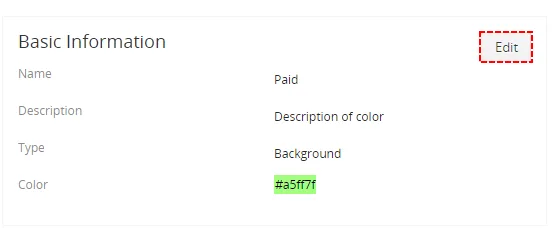
From ListView you can directly open any Color in the DetailView. The DetailView consists of:
- Colors details part
 – switch to EditView and start editing
5.3 EditView
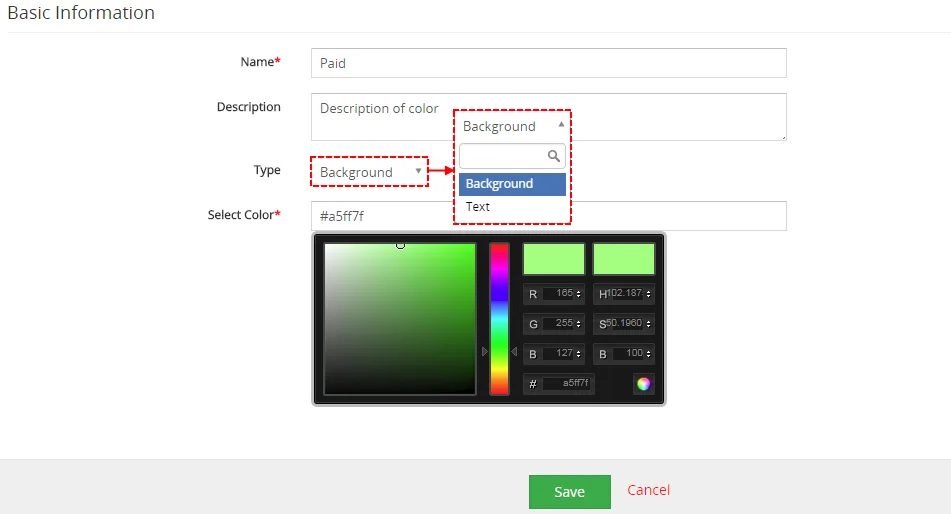
The EditView shown in the picture below allows the preparation of the new Color or editing existing Color.
- Name – name of color
- Description – short description of your color
- Type – since Vtiger 7 there is also option to colorize text as well as background
- Select Color – you can insert hex code of color or select color manually
Need help with List View Colors?
Our support team answers questions about installation, templates and settings.