
Mobile App has some additional features you can perform which will be described down below in the posts.
4.1 PDF Maker export to PDF
PDF Maker extension for Vtiger is a very powerful Vtiger extension for create Business Proposals, Contracts, Cases, Project activities documents and of course different kind of Quotes, Sales Order, Purchase Order, Invoices and much more.
- With PDF Maker installed on your Vtiger CRM system, you can utilize the Export to PDF feature via the Mobile App.
- Simply select the record you wish to export, and then choose the desired PDF Maker template. This seamless operation empowers you to generate PDF documents with customized templates directly from the convenience of your mobile device.
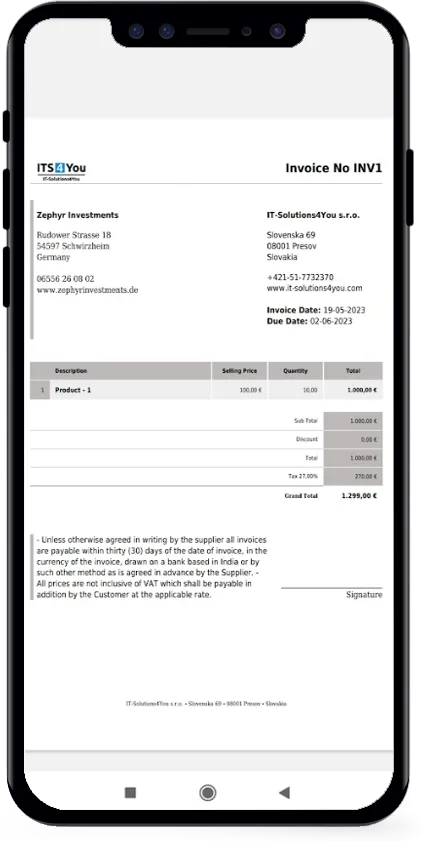
The exported PDF file will be saved on your mobile device, typically in the ‘Downloaded files’ folder, ensuring easy access to the generated PDF documents.
How to do it step by step? See below:
1. Open the Mobile App and select the record you want to export to PDF.
(Make sure the PDF Maker template is created for selected Module)
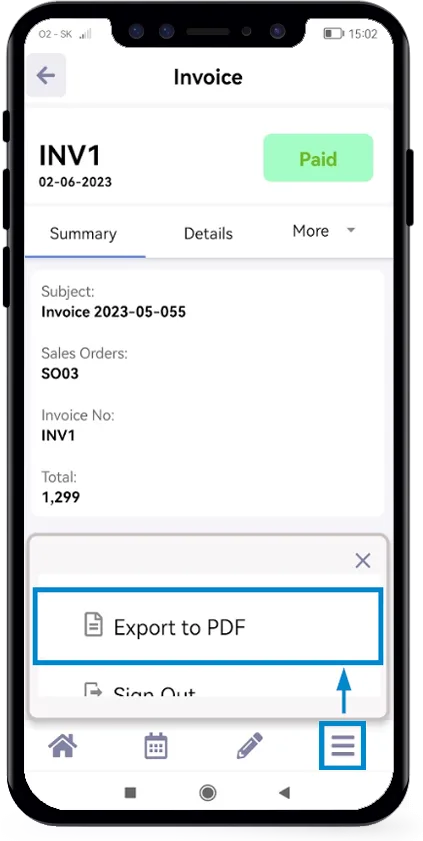
2. Next, via the Action button you see below select the Export to PDF option.
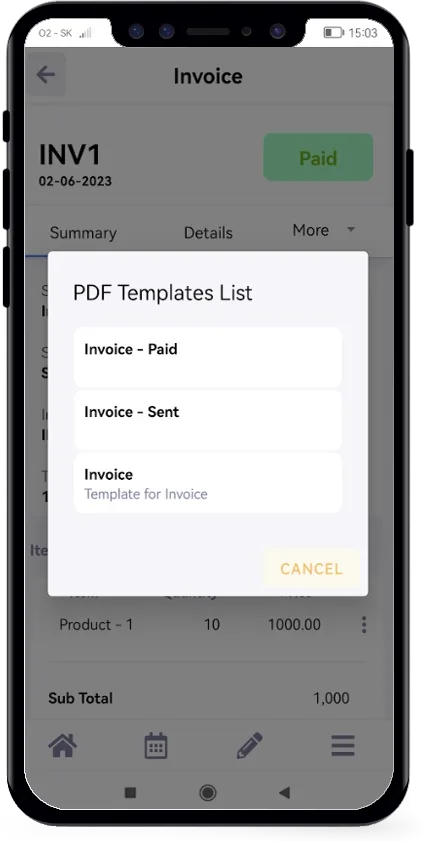
3. Then choose select the template from the Template list.
4. Exported .pdf file should be saved in to your mobile device and you can view it.
4.2 Send Emails
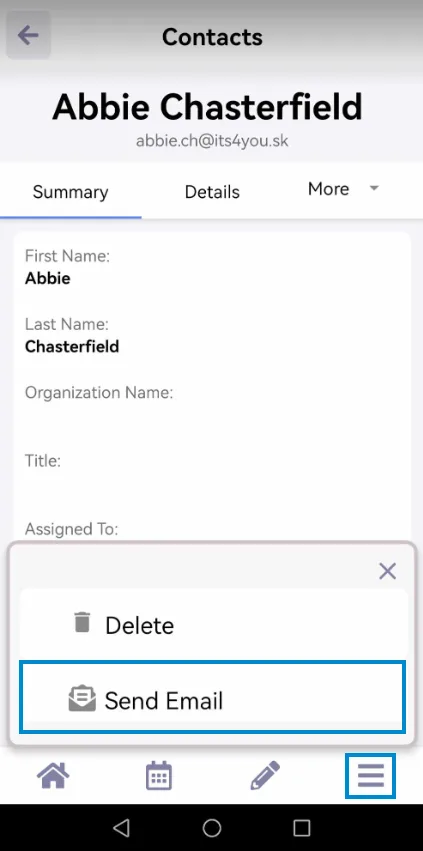
Sending emails can be done through the Detail view of each record that supports emails, or, simply said has a Primary or Secondary Email field.
In order to send an Email, please open any record you want, for example Contact, then click on the icon  and select the option “Send Email”.
Then just fill the required fields and finish Sending the Email process.
4.3 Mobile authentication
Starting with Mobile App extension version 4.5, a new Mobile Authentication feature is available to enhance the security of CRM logins. Instead of relying solely on a password, users will receive a secure authentication code as a push notification on their mobile device when logging into the CRM system.
To use this feature, the Brute Force extension (version 4.5 or higher) must be installed. This extension provides an extra layer of protection against unauthorized access attempts and works together with the mobile app to deliver secure login codes.
The following sections will explain how to activate, configure, and use Mobile Authentication for your CRM system.
Before enabling Mobile Authentication, ensure the following requirements are met:
-
The Mobile App extension in your CRM system is updated to the latest version (minimum required version is 4.5)
-
The Mobile application on your mobile device is also updated to the latest version available
-
The Brute Force extension must be installed and running at version 4.5 or higher
- In your CRM, go to Settings → INTEGRATION → Mobile App 4 You
- In the Active Users view, you will see a new column labeled 2FA and a checkbox
- Enable (check) this option for each user you want to activate Mobile Authentication for
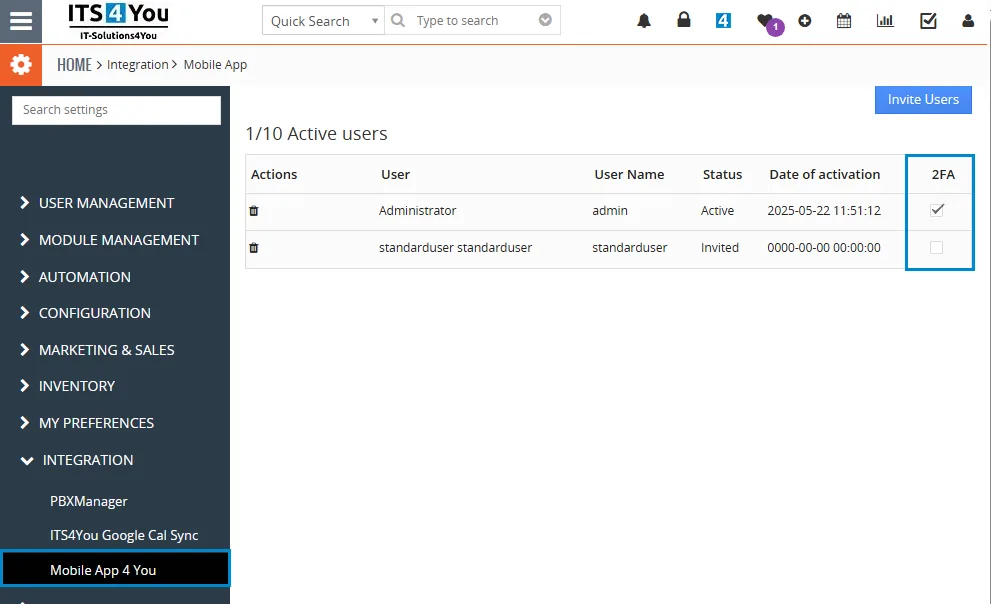
- To complete the setup, open the Mobile App on your device and simply log in
No additional action is required—this login will automatically verify and register the user token needed for Mobile Authentication to function properly
How Mobile Authentication Works
Once Mobile Authentication is enabled for a user, each time they attempt to log in to the CRM system, they will first receive a push notification on their mobile device containing an authentication code.
The user must enter this code on the authentication screen that appears before completing the login process.
There is also an option to receive an email with a code using Send via Email button. The email will be sent to the address specified in the user’s My Preferences in Vtiger CRM.
Below is an example of the authentication screen along with the corresponding mobile app notification:
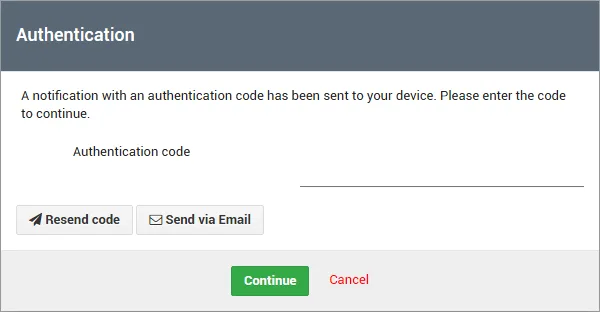
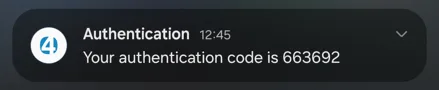
One-time authentication code using Mobile notification
Need help with Mobile App?
Our support team answers questions about installation, templates and settings.