
The Mobile App operates through Admin Vtiger CRM sending invitations to users via email.
Upon receiving the invitation, Users can login to the Vtiger CRM installation with mobile app, fill the url of CRM and their login they are using for CRM system.
 Even Admin when firstly installing the extension, must invite himself via Vtiger CRM to start using the Mobile App.
3.1 Invite users to use Mobile App
After successfully installing the Extension and Mobile App, the Admin of the Vtiger CRM system can start sending invitations to users, but in the first step, mainly to himself, so that he has access to the Mobile App as an Admin.
See the process below:
- Open your Vtiger CRM and navigate to CRM Settings – INTEGRATION – Mobile App 4 You.
You will see a list view of Active users where you can via button start inviting the users.
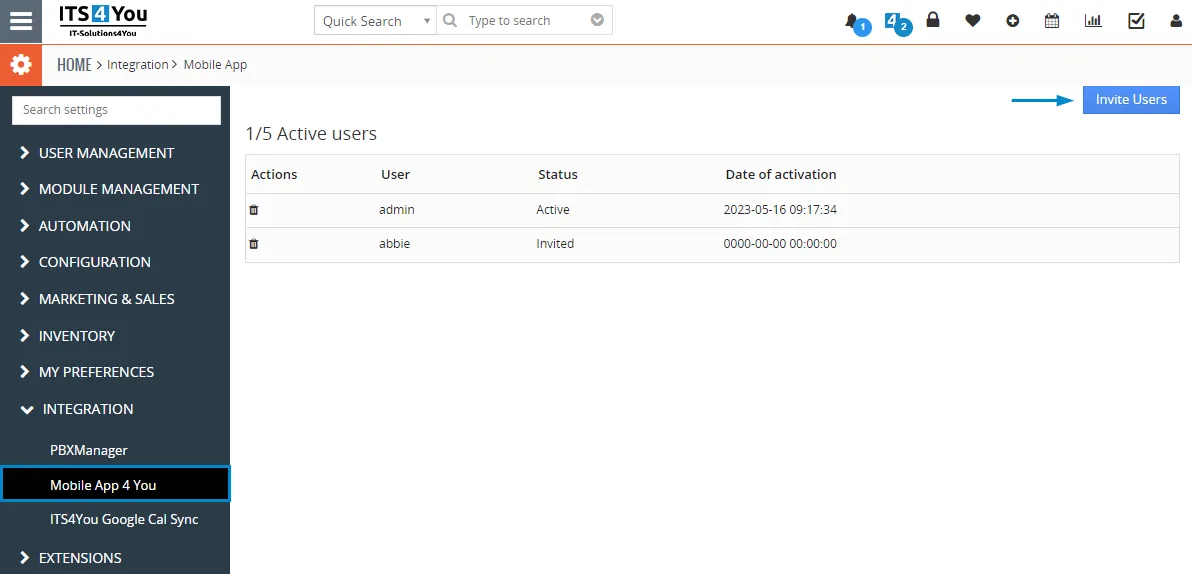
Mobile App – List view of Active users - We have already invited ourselves as an Admin of the Vtiger CRM as you can see the status is already Active, and you can also see Date of Activation.
Via button you can invite All Users or specific users
(We have already invited user “Abbie” which status is Invited.)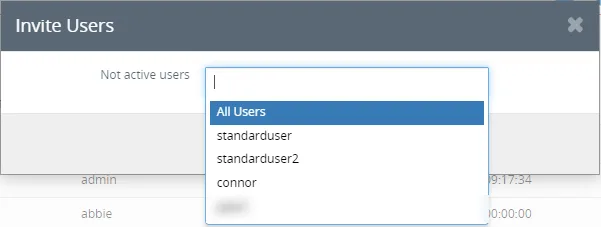
Mobile App – Inviting users - After sending an invitation to the User, he can now login via Mobile App with the same credentials used for Vtiger CRM + url of the CRM domain must be written in.
The CRM url is found in the invitation Email users receive.
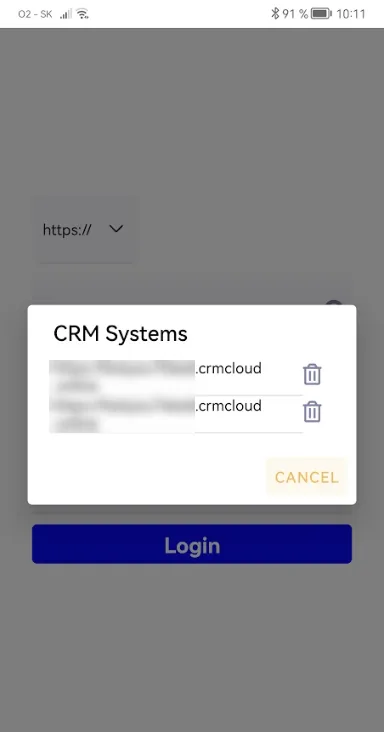
(The CRM url will be saved for future use in case you have more CRM domains you can switch between them)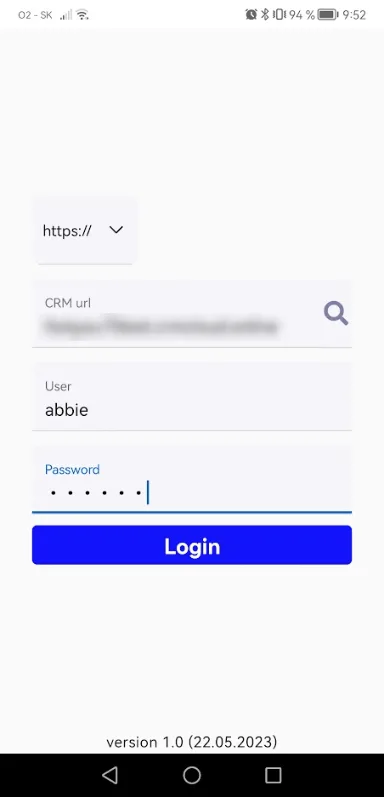
Mobile App – Login screen
Below we will explain some of the list view fields for Mobile App:
- 1/5 Active users – the amount of users you requested or you purchased, showing currently active / total ordered users
- Actions – you can remove users which will lower active users count
- Status – showing the current status of the invitation process
- Date of activation – showing the exact date and time when the invited users logged in to the Mobile App
These features in the Mobile App for Vtiger CRM enhance your user management capabilities, providing valuable insights into active user counts, invitation status, and user engagement metrics.
3.2 Login to Mobile App
If you have completed the first steps and invited users, then you as Admin and your Vtiger CRM users can log in to the application.
We will describe the Login screen and its functions in more detail.
Below you can see the Mobile App login screen, the following can be filled in order to login to the Mobile App:
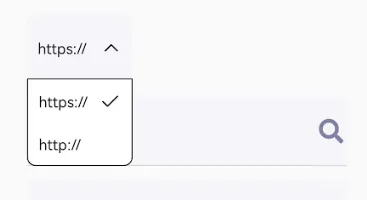
- https:// or http:// – select the protocol for Vtiger CRM domain used
- CRM url – the CRM url you are working with or the one you received in the invitation email
(more CRM urls can be stored and also removed by clicking on magnifier) - User – the user name, same as used the Vtiger CRM login
- Password – password used same as for Vtiger CRM login
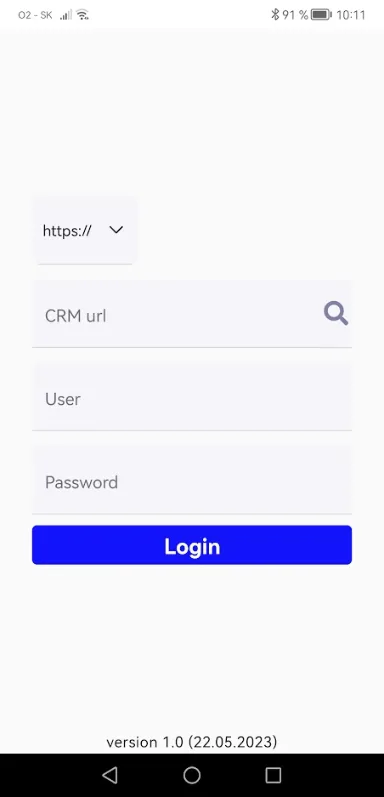
Mobile App – Login screen
https:// or http://
CRM url
3.3 Navigation
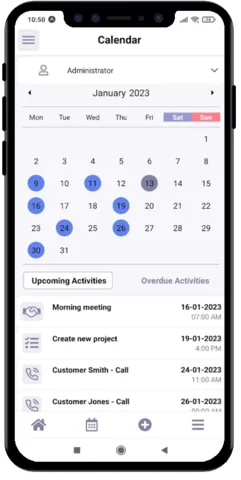

Menu structure is designed to provide a seamless experience, ensuring that you can access the desired Modules & Extension quickly and efficiently.
Whether you need to view records, access settings, or perform various tasks, the app’s easy menu navigation makes it simple to find what you’re looking for, enhancing your overall user experience.

Navigation buttons – Home, Calendar, Create, and Actions – are strategically positioned within the app, ensuring easy access to essential features and enhancing your overall experience while using the Mobile App for Vtiger CRM.
3.4 Create, Edit, Delete records
In the Mobile application, it is possible to create, edit and delete records very easily.
Let’s take a closer look at each operation in more detail below:
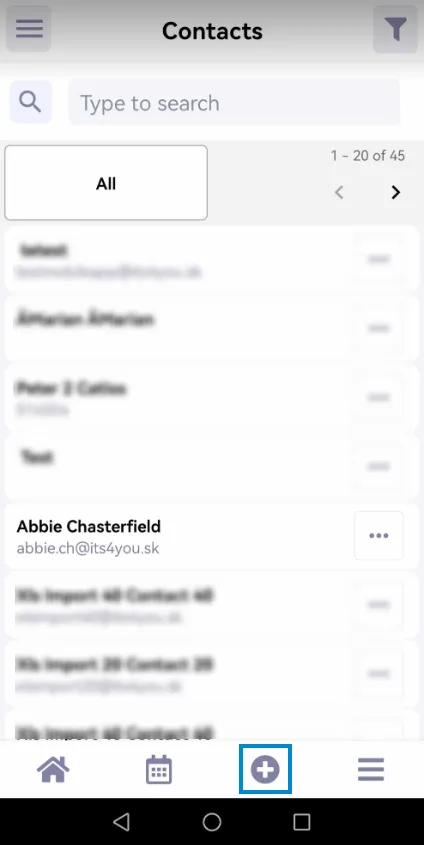
Create
To create an record, please navigate via Menu to your desired module.
Overview of existing records will be shown, called also list view, where you can add a new record using the button 
Edit
Editing records is also simple operation, there are 2 options for editing existing records:
- via List view of the records in the actual Module
– in the list view click on dots icon and select edit option

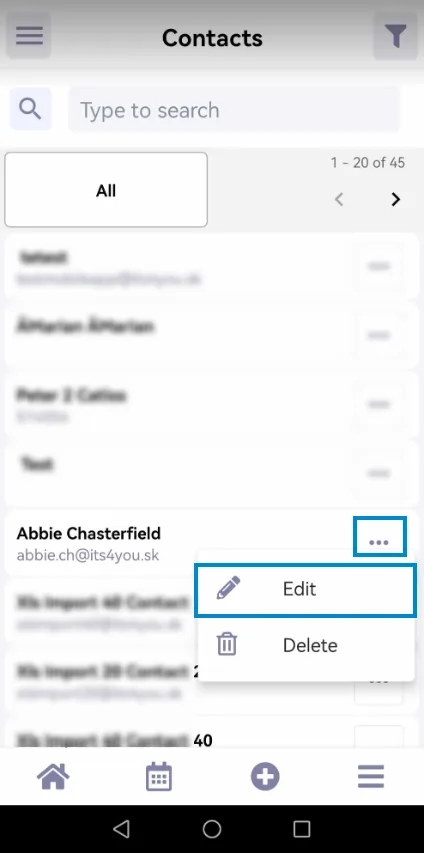
Vtiger Mobile App – editing records - via Detail view of the actual record
– open the record detail view you need and from the bottom icons select edit icon
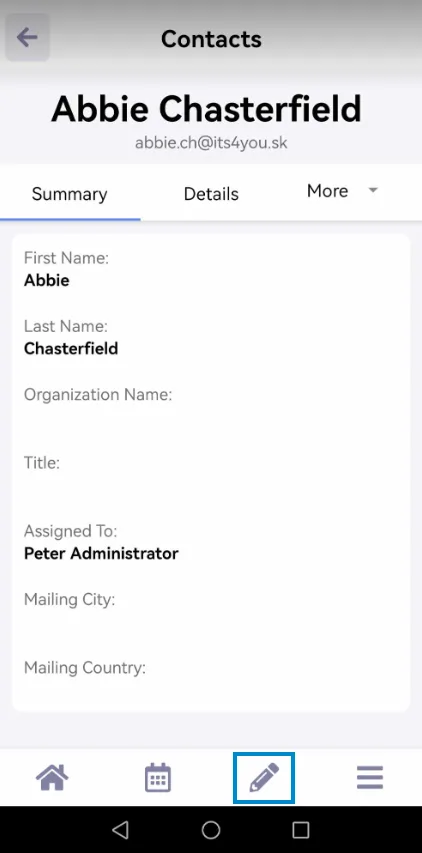
Vtiger Mobile App – editing records
Delete
As well as editing, for deleting records there are 2 ways:
- via List view of the records in the actual Module
– in the list view click on dots icon and select Delete option 
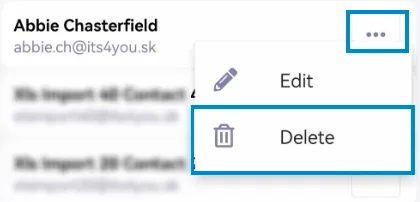
Vtiger Mobile App – deleting records - via Detail view of the actual record
– open the record detail view you need and from the bottom icons select and then select Delete option.
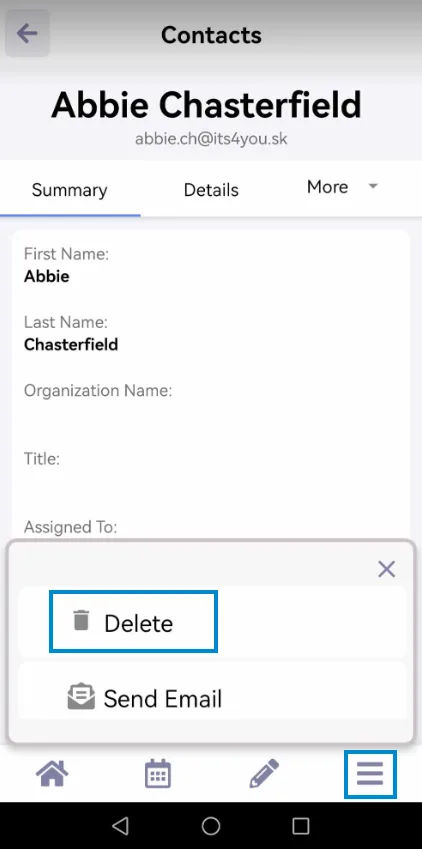
Vtiger Mobile App – deleting records
Need help with Mobile App?
Our support team answers questions about installation, templates and settings.