
There are currently two options how to install extension:
- (Recommended) Using our Free extension Installer
(Please visit the Installer page for more info) - Manually installation using a .zip file
(You still need to have Installer in order to activate license)
The Installer is required for the proper operation and license validation of our extensions.
After purchasing a license, you can find the Installer in your order email or download it from your My Account portal.
If you are an existing customer and already have the Installer installed, you only need to activate your license.
After that, the purchased Extension will appear in the list of available extensions for installation.
⚠️ Uninstalling Extension will remove all saved Settings!
3.1 Installation via Installer (default)
Make sure you have Installer installed, you can download Installer via My Acount Dashboard after purchasing License Key, or it will be send to your Email.
To install extension, click the  button next to the Extension you have purchased and confirm the installation process. During the installation, and also during future updates, the Changelog may be displayed so you can review the latest changes before continuing.

After the license is successfully activated and the extension is installed, you can continue with the next steps to use the extension.
3.2 Manual installation
There is also a way to install / update the extension manually in some scenarios:
- Manual installation or update of the extension can be requested if you contact our support because you are facing some issues with extension.
- Standard way of installation and update is using our Installer. In some rare cases we can send you .zip file to update the extension manually.
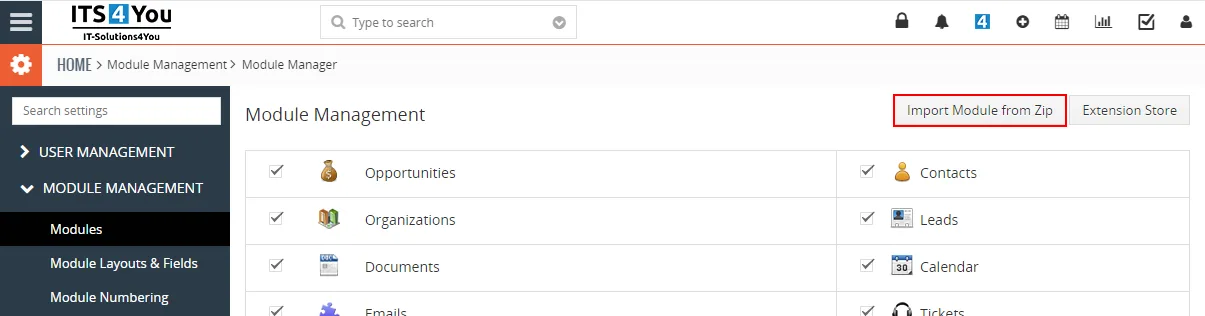
Installation can be done via Module Manager by clicking on the button  and selecting the .zip file.
Need help with Custom Login Page?
Our support team answers questions about installation, templates and settings.