
In the following chapters, we will show you how to use Multi SMTP extension step by step.
3.1 Add new SMTP
First step to start using Multi SMTP is to create new SMTP/s you will be using.
the SMTP extension allows you to have multiple SMTP/s.
Follow the steps below to add new SMTP:
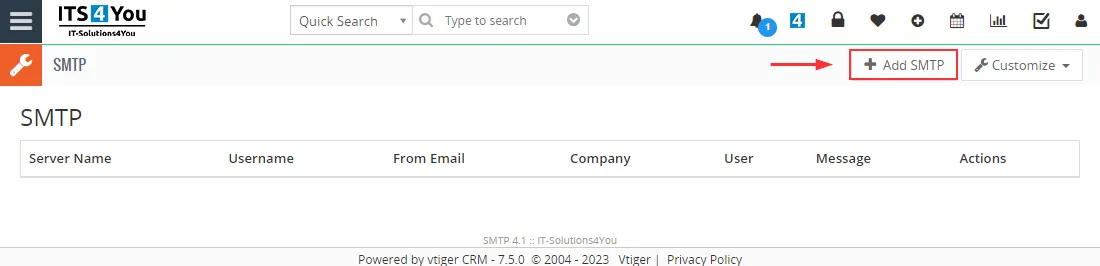
- Select SMTP from the menu:
 ——>

- Here you can see your SMTP(s) list view. To add new please click on
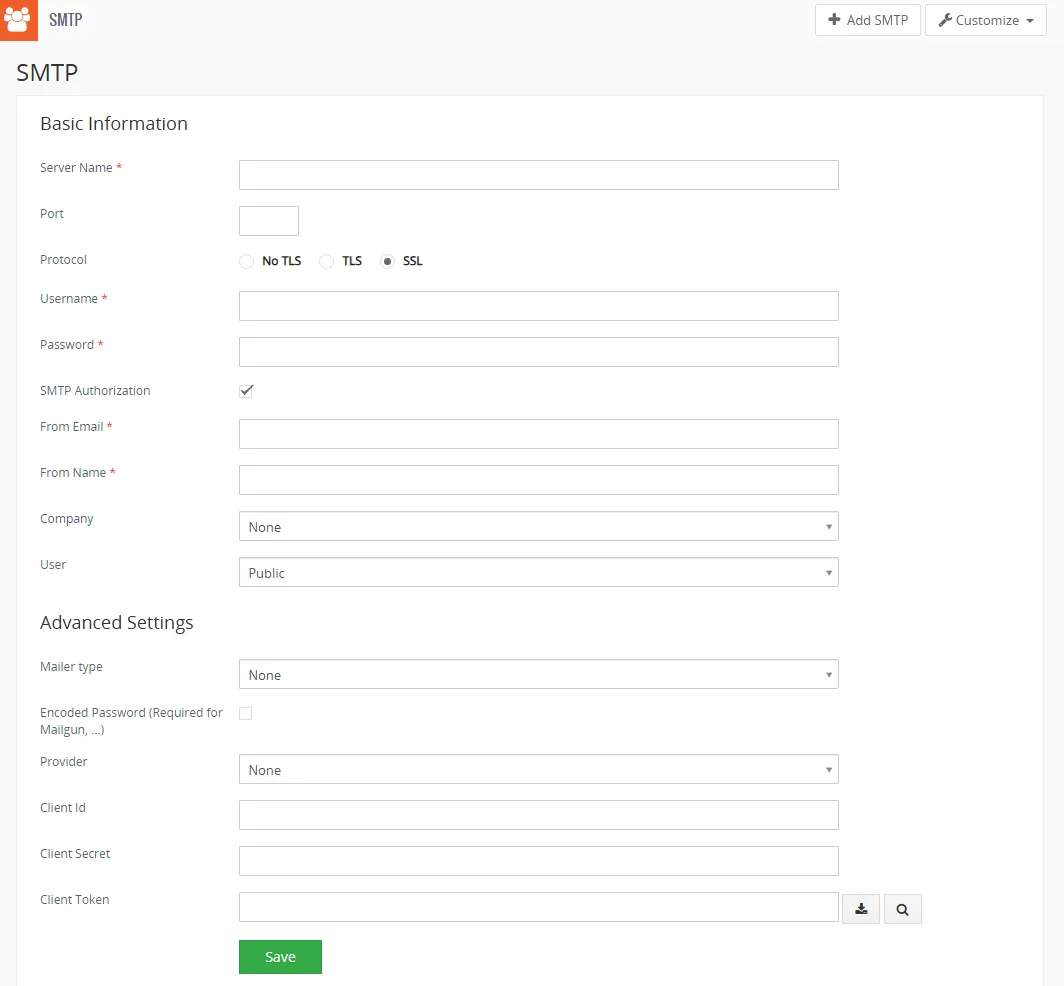
How to add new SMTP - Now, fill information needed to add SMTP.
- Proceed via
 to add SMTP.
The fields specific for our SMTP extension are explained below:
- From Email – email which will be shown as From if a recipient receives it
- From Name – name which in most cases is shown with an From Email to the recipient
- Company – here you will select a Multi-Company record which is created by our Multi-Company extension (if installed)
(this Company will be using this SMTP for mailing) - User – define for which user SMTP is, it can be also as Public for all users free to use
Advanced Settings:
- Mailer type – select the type of mailer used:
none – by default, if the PHPMailer library has smtp, it is smtp, if it has sendmail, it is sendmai
smtp – set PHPMailer to smtp when the customer has default sendmail
sendmail – it is for those users who do not have smtp - Encoded Password (Required for Mailgun, …) – used for a password like Mailgun has, that the password has special characters, or is too long, in which case it is not saved properly, and this function is used then, so it should be checked
- Provider – option to select Google provider and setup a Outgoing server
- Client id – required id
- Client Secret – required secret code
(Google Client ID and Client Secret are required for authentication and authorization purposes when integrating applications with Google services, such as Google APIs or OAuth-based authentication. The Client ID and Client Secret are obtained from the Google Developers Console when you create a new project and enable the corresponding APIs.) - Client Token – access token from the Google Authorization Server, extracts a token from the response, and sends the token to the Google API that you want to access. For an interactive demonstration of using OAuth 2.0 with Google (including the option to use your own client credentials), experiment with the OAuth 2.0 Playground.
All fields marked with * are mandatory fields and needs to be filled.
3.2 Usage of SMTP
The Multi SMTP extension offers versatile functionality within Vtiger CRM.
This extension seamlessly integrates with our existing extensions, which are listed in the “Compatibility with ITS4You extensions” section.
- Users can define the SMTP settings when sending emails, working with campaigns, and more.
- In most cases, it is a straightforward process where users simply select the desired From Name + From Email for specific actions.
- The values from the SMTP configuration are automatically loaded into the From Email and From Name fields, including the email address and name associated with the selected SMTP.
Below, we provide an example of how to use SMTP in combination with Email Maker.
Users can select any desired record and follow the steps to reach the Compose window. In this window, they will see the loaded list of available SMTP configurations, as well as the default options provided by Vtiger.
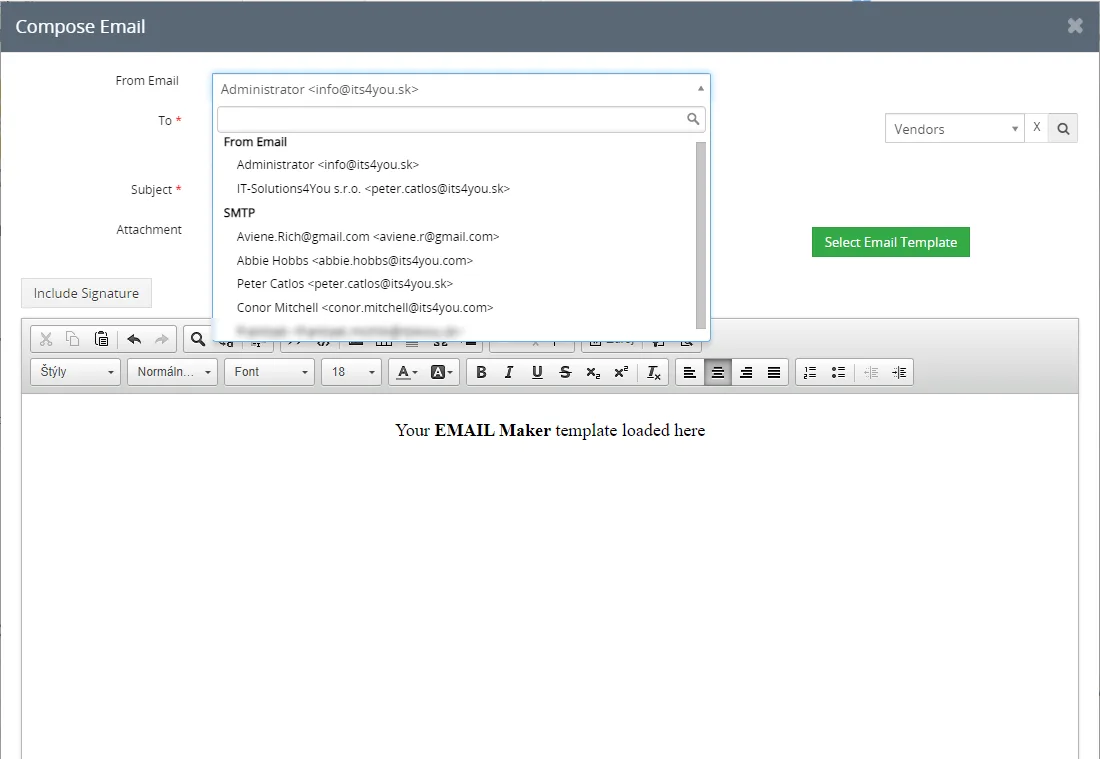
- From Email – shows user name + user Primary email and Company details + Outgoing Server From email
- SMTP – shows all SMTP/s available for specific users, where are defined From Name and From Email
3.3 List view & Management
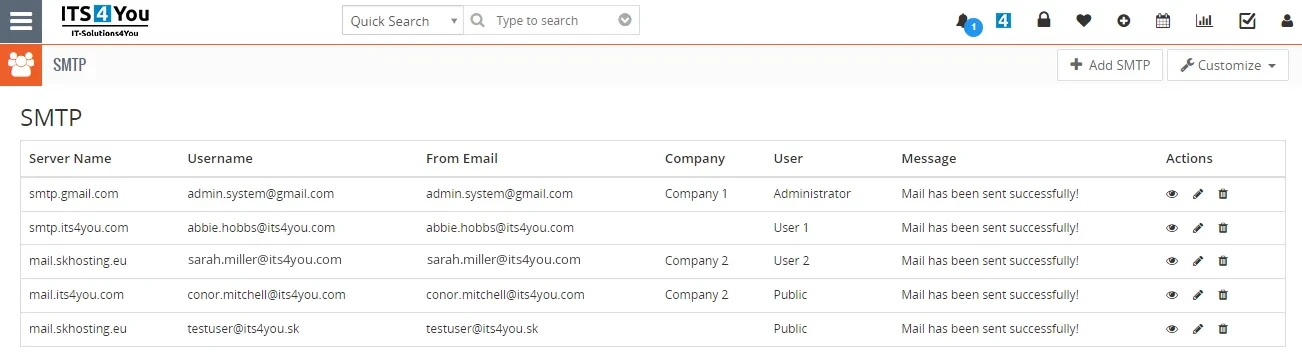
In the list view of Multi SMTP, users have the ability to perform various actions.
These include creating a new SMTP, previewing already created SMTPs, and accessing additional actions such as viewing, editing, and deleting SMTPs through the Actions icons.

Below is preview of Multi SMTP extension List view:
3.4 Sharing & Visibility of SMTP
Multi SMTP can be used by all users of our Extensions and the Vtiger CRM system.
However, there is also an option to restrict the usage of SMTP to certain users based on the Company and User fields in the SMTP configuration.
This allows assignment of specific SMTPs to specific users.
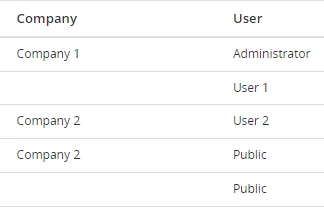
Lets explain the main fields for this below:
Company field
This field is used when Vtiger CRM have our Multi-Company extension installed.
Users which are assigned to the Multi Company based on Role or direct Assigment can see and use this SMTP when field Company is defined.
 Users assigned to different Multi Companies are restricted from viewing SMTP configurations belonging to other Multi Companies.
Example:
- User 1 has Role 1 and is also assigned to MC 1 – this user can use use SMTP and also edit the SMTP
- User 1 has Role 1 but is not directly assigned to MC 1 – this user can only use and see SMTP from the selection list but can’t edit it and see it in the SMTP extension
User field
Each user who is assigned to the SMTP based on this field can use, edit and delete the SMTP.If User is not defined and it is set to Public, only admin can edit this SMTP but other users can use it.
Example:
- SMTP 1 has User field as User 1 – User 1 can see the SMTP in the list view, edit it, delete it and use it
- SMTP 2 has User field as Public – All users can use it but only Admin can edit it, delete it and use it
Example with combination User and Company fields:
Example 1:
User 1 has Role 1 and is directly assigned to MC 1 as “administrator” via Assigned to field.
In the SMTP 1 there are fields as User: User 1 and Company: MC 1 – User 1 can use SMTP and also Edit.
Example 2:
User 1 has Role 1 and is not directly assigned to MC 1 as “administrator” via Assigned to field.
In the SMTP 1 there are fields as User: User 1 and Company: MC 1 – User 1 can use SMTP and also Edit.
Example 3:
User 1 has Role 1 and is not directly assigned to MC 1 as “administrator” via Assigned to field.
In the SMTP 1 there are fields as User: Public and Company: MC 1 – User 1 can use SMTP but can’t Edit it or see itin the list view of SMTP.
Example 4:
User 2 has Role 2 and is not directly assigned to any MC.
In the SMTP 2 there are fields as User: Public and Company: None – User 2 can use SMTP but can’t Edit it or see itin the list view of SMTP.
Need help with Multi SMTP?
Our support team answers questions about installation, templates and settings.