

Work area of Credit Notes 4 You consists of:
- ListView – used for common tasks like add new, edit and delete Credit Note, import and export credit notes and access to others tools
- DetailView – shows already created Credit Notes in details
- EditView – allows the preparation of the new report or editing existing reports
- References – show references to another Modules
5.1 ListView
The common tasks like add/delete Credit Note, import/export Credit Note or start editing have to be initiated via Credit Notes 4 You ListView. Go to All → SALES → Credit Notes and Credit Notes 4 You ListView will appear on your screen.

The main part of the Credit Note 4 You ListView consists of list of the Credit Note, which gives you information about a Credit Note name, a reference, an amount and related dates. As shown in the picture, above the list of the payments you can find following:
 – contains actions for Vtiger related tools like Follow, Tags, export, finding duplicates and access to others tools
 – are used to edit, delete and comment
 – is used to add new Create Note
 – is used to import records
 – Vtiger related tools, License settings, Upgrade and Uninstall
- List of created Credit Notes
 – Detail, Delete and Edit option
 – searching options
 – navigation bar
- Lists part – to apply filter on records
5.2 DetailView
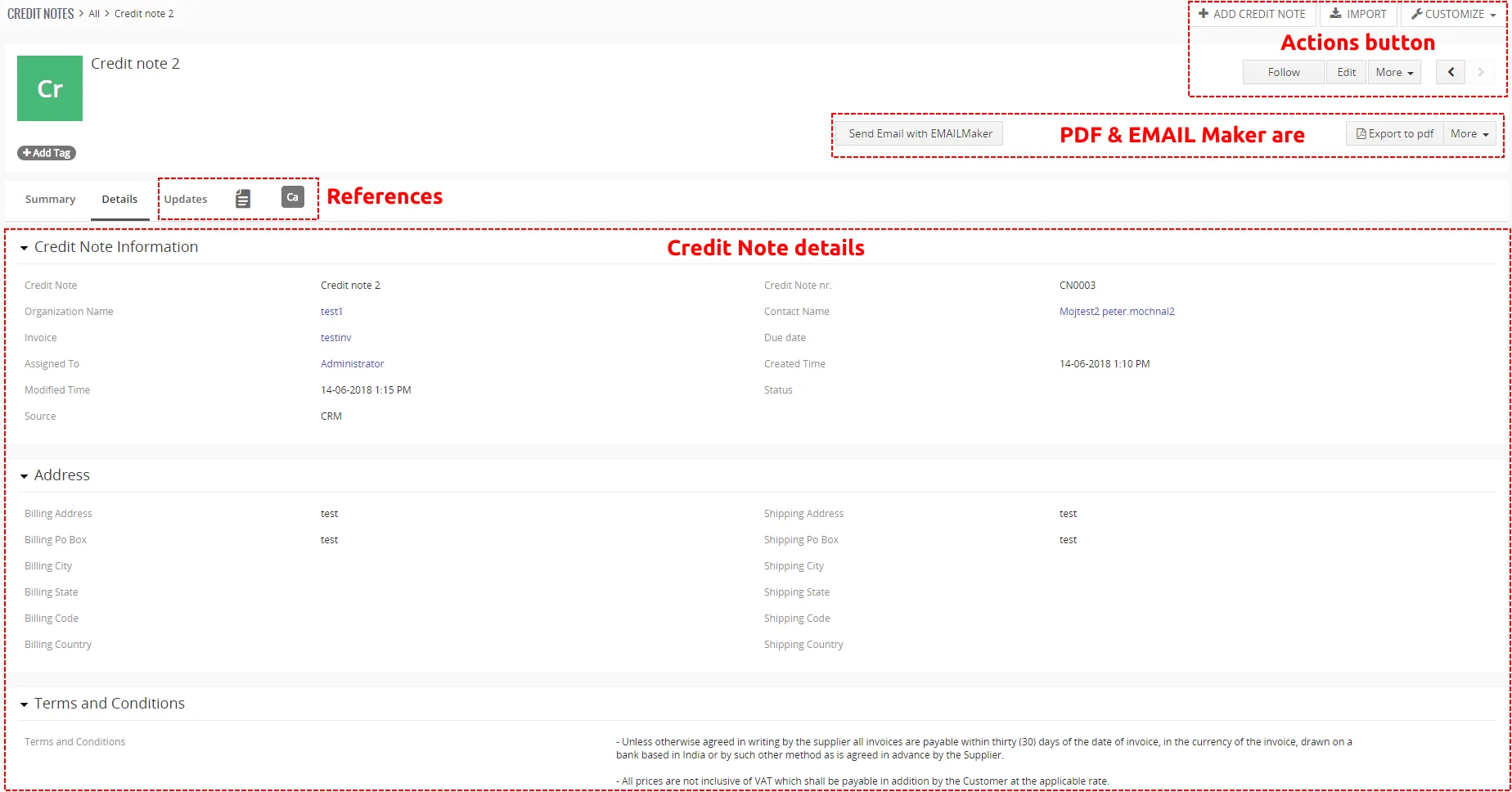
From ListView you can directly open any Credit Note in the DetailView. The DetailView consists of:
- Credit Note details part
- Group of action buttons
- – add New Credit Note
- – import records
- – vtiger related tools, License, Integration, Upgrade and Uninstall of Credit Notes 4 You
 – follow button
 – switch to EditView and start editing
- – allows to delete, duplicate Credit Note and add Payment to Credit Note (Cashflow – Additional features)
 – navigation buttons (previous/next Credit Note)
- References part – most important is reference to Documents, Updates and Cashflows (Additional features)
- PDF Maker area – allows to create PDF file (Additional features)
- EMAIL Maker area – allows to send email via EMAIL Maker(Additional features)
5.3 EditView
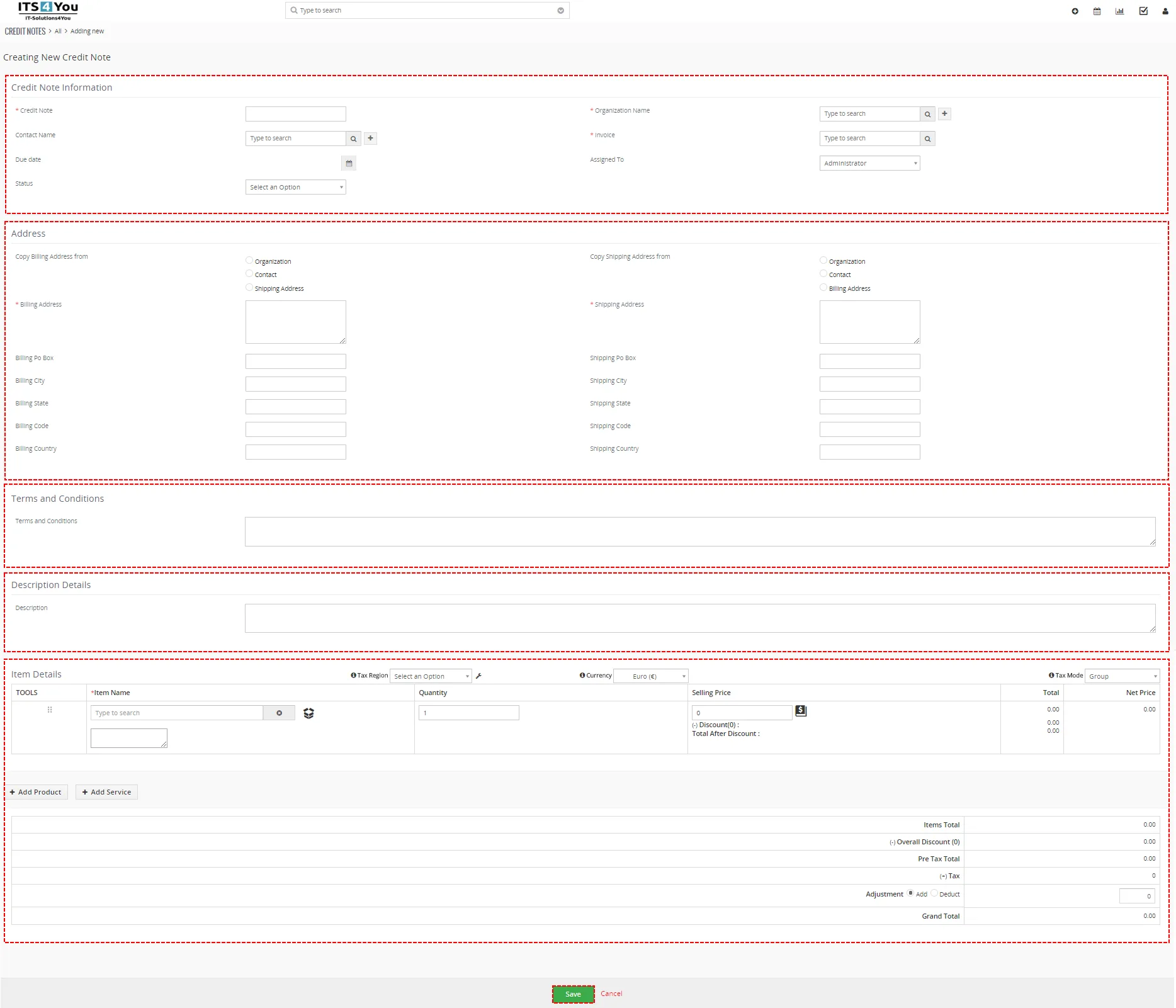
The EditView shown in the picture below allows the preparation of the new Credit Note or editing existing Credit Note. The EditView is divided into five parts:
- Credit Note Information – main part
- Address – Billing Address and Shipping Address
- Terms and Conditions
- Description Details – can be used to more detailed description or important notes
- Item Details – Product Block
5.4 Reference
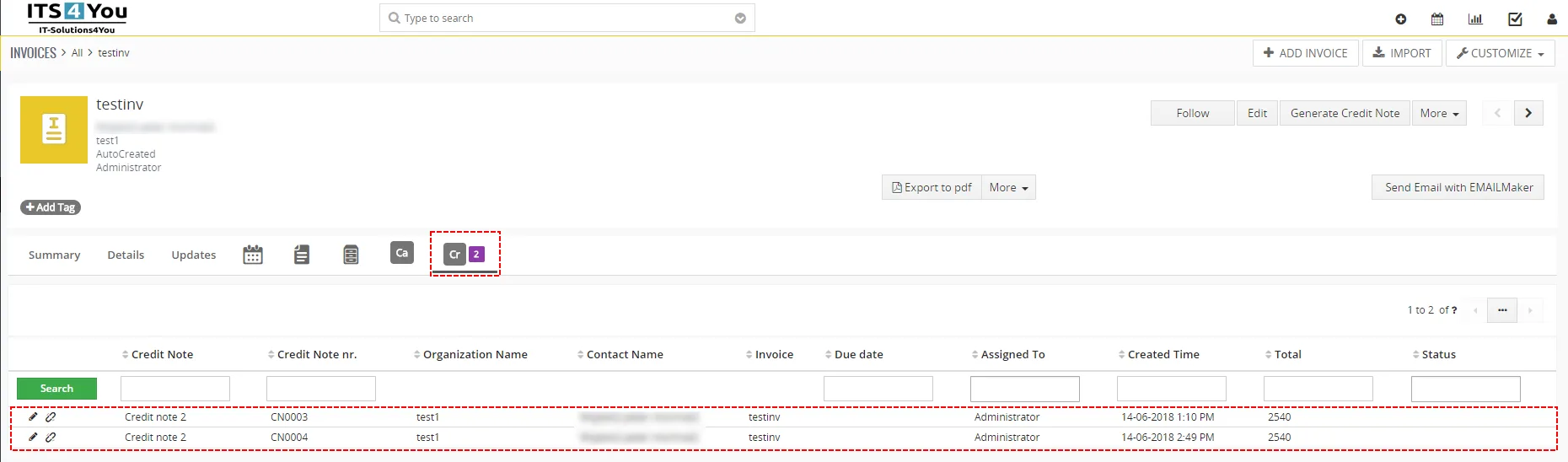
Every Credit Note, you have created and is assigned to Invoice, you can find in DetailView of Invoice. Go to Invoice module, choose your Invoice and click on  .
Need help with Credit Notes?
Our support team answers questions about installation, templates and settings.