

The upgrade of the module is initiated manually or via our Installer.
Updating via Installer:
- open the Installer in the CRM
- in the Modules tab find your installed module and you should see the
 button available
- If the new version is available, you will be notified via Installer Notifications icon

Updating Credit Notes manually:
Click on Upgrade link in Customize tab of Credit Notes.

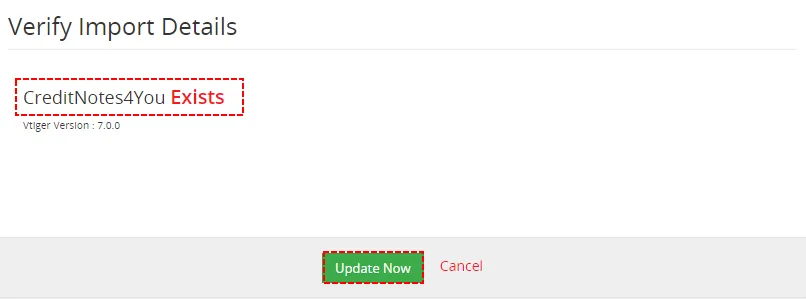
So please refer to above installation part for details how to initiate the import of the module from the file. As can be seen on following picture you will be notified that the Credit Notes 4 You module already exists. The upgrade will start immediately when you click on the  button.
After upgrade the notification about successful upgrade is shown.

Need help with Credit Notes?
Our support team answers questions about installation, templates and settings.