
When you successfully activated the license key for the extension or the package, you can now proceed with the Installation.
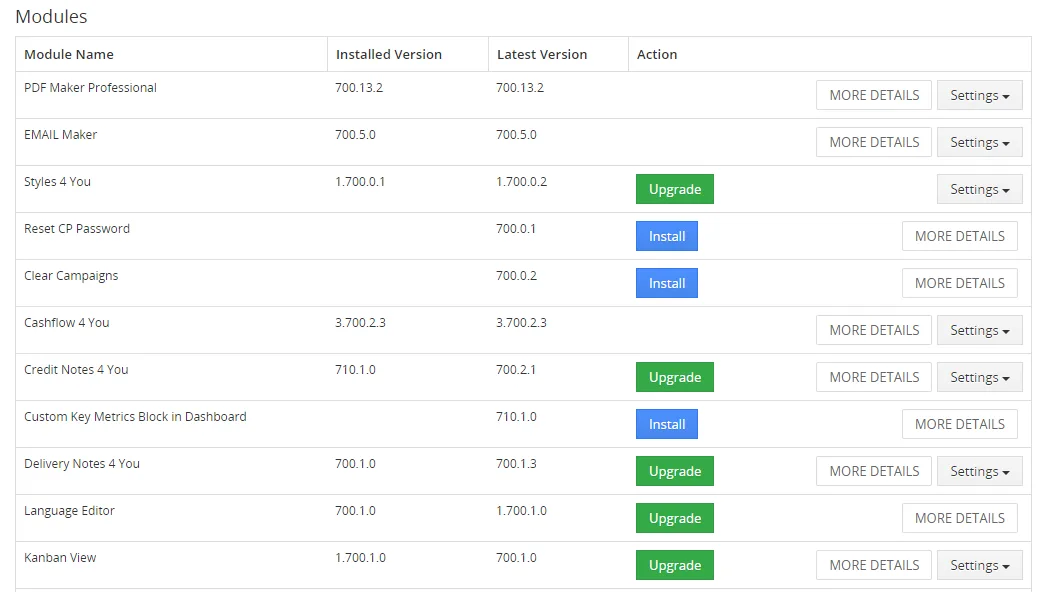
You can see all available modules in the Modules tab.
In the Modules tab, you can manage them by following actions:
- See your current installed & latest versions.
- Via button
 you can Install the modules you purchased or free available modules.
- If your module is outdated,
 button will appear under Actions and you can update your module to the latest version.
 button will allow you perform additional actions like: Upgrade, Uninstall, License Settings & more.
 will redirect you to the our extension page, where you can check more details about it or how to use it.
6.1 Installation
To install the module you need to perform few steps:
- Select the module from the table and via button install the module.
- Following window will appear, please confirm via
 button that you want to install the module.

- An installation Log window will appear and you should see the message: “Successful Installation”.
- Finish via
 button.
The xtension was Installed and you should NOT see the button in the Modules tab anymore. See an example:

Installer – Extension installation
6.2 Update/Upgrade
You have also option to Upgrade the extension, the button will appear in Installer Modules tab every time the new version is available.
- open the Installer in the CRM
- in the Modules tab find your installed module and you should see the button available
- If the new version is available, you will be notified via Installer Notifications icon

(scanning for new version is done be Cron every 24 hours)
6.3 How to Uninstall the extension
You have also option to remove the module via Installer window by accessing the Settings – Uninstall window:
- Go to your Installer, by a click on Notifications Icon and then on the button
 ,
or via Main Menu – Settings – CRM Settings – Extensions – ITS4YouInstaller - Find the module you need to uninstall in the Modules tab
- Via pick list button choose the Uninstall option, you will be redirected to the Uninstall window.
- Click on
 button

- Confirm uninstall with
 button
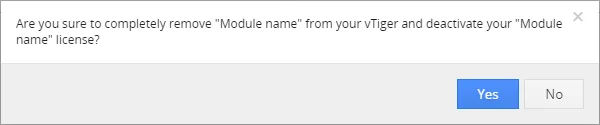
Now, the module has been removed from your Vtiger. To use this module again, you need to provide installation steps (see Installation chapter).
Need help with Installer?
Our support team answers questions about installation, templates and settings.