
The Installer has some additional features and actions you can perform see the chapters below for more information.
7.1 Free Extensions
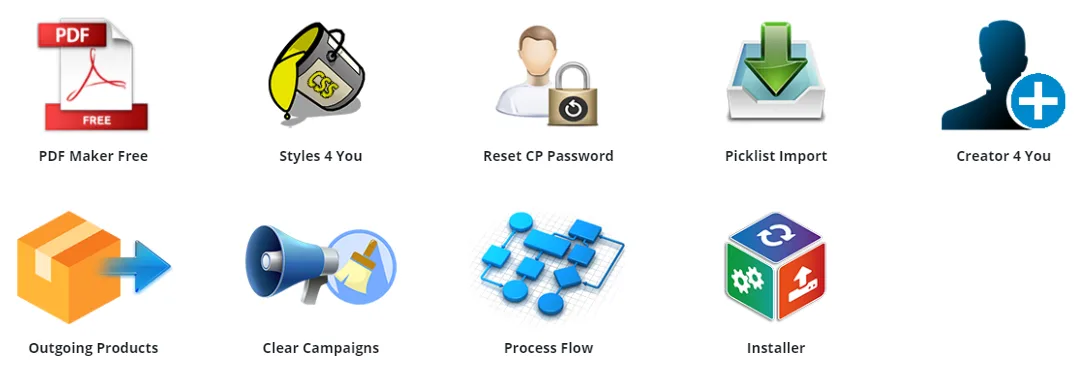
You are able to download our Free Extensions with the Installer.
The only condition is that you need to be logged in in to your account.
You can find the extensions in the Modules tab.
Then simply via button  install the extension you want/need.
7.2 License Renew
When your license key expired, you are able to perform Renew.
In the Activated Licenses tab you can see the license key and via button  buy renew for this license key.
(After clicking on the button you will be redirected to the our e-shop).
7.3 Notifications
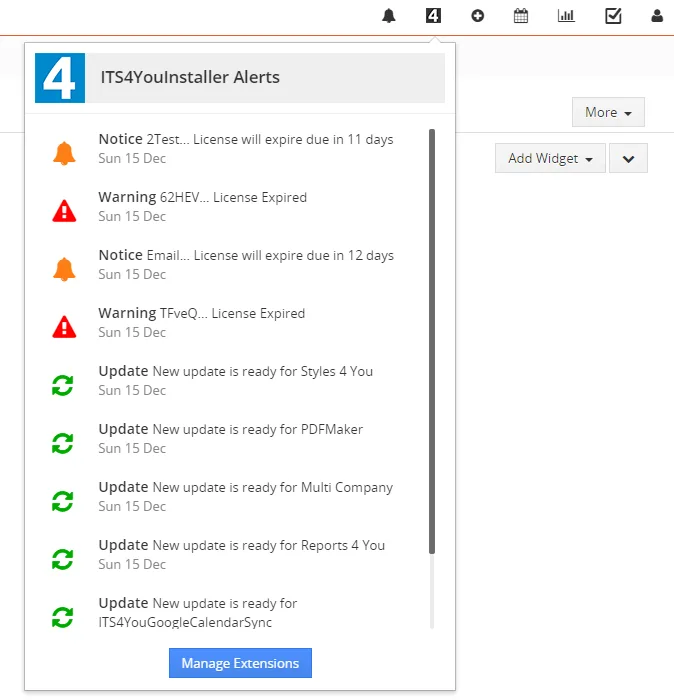
Notifications in Installer are shown via an icon 
 – you are able to see available upgrade for extensions.
 – receiving notifications that your license will expire in a few days.
 – warnings, that your license already expired and renew is required.
- You can access the Installer by clicking on
 button.
7.4 Modules/Packages Shop
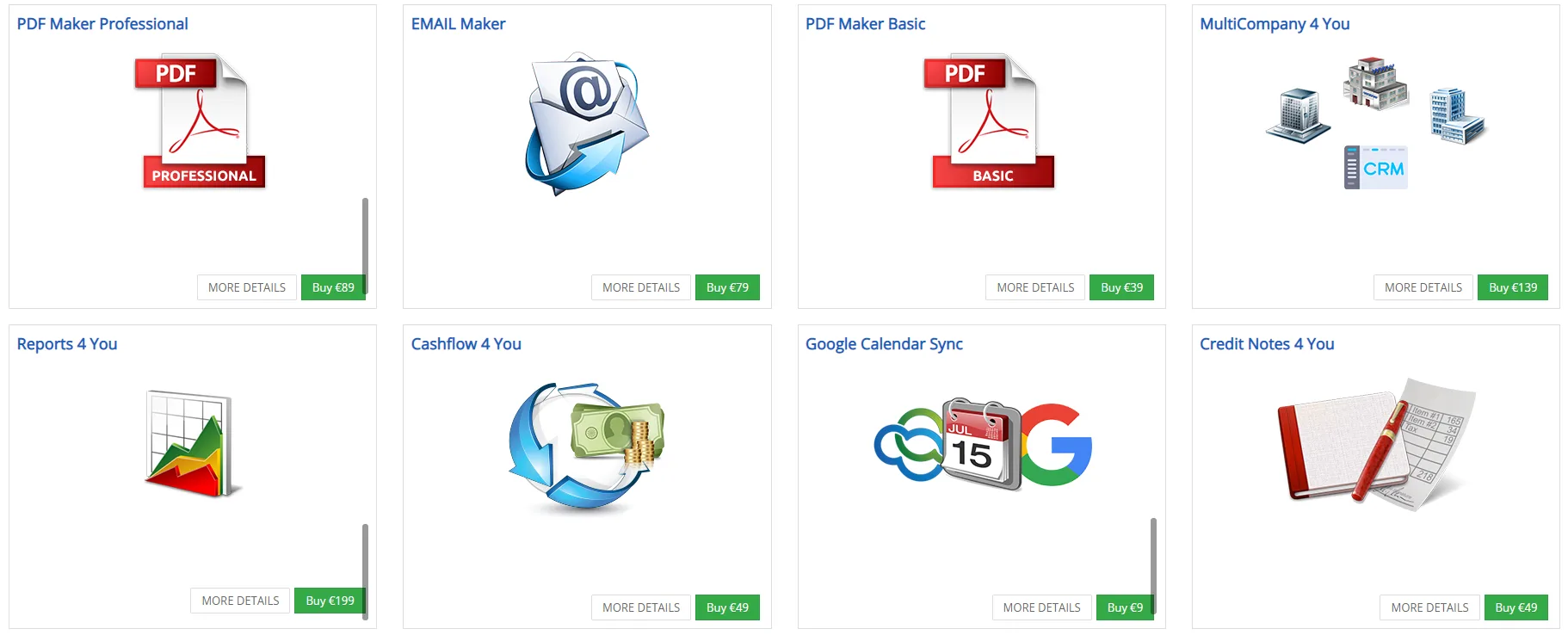
The Modules Shoptab can be used if you want to purchase our Modules or Bundle Packages.
- In the tab you see all modules which are available for you and you don’t own them yet.
- Modules which you already own aren’t shown in the Modules Shop tab.
- If you want buy module just lick on button “Buy € xx” and you will be redirected to our e-shop page to finish payment.
 Note: You must log in via Installer to our e-shop using @email and password you register with so you can see which extensions you are missing.
7.5 System requirements for our Extensions
We have added this feature in Installer version 0.24 since 20 January 2021.
- Before Installation of our Extensions, Installer will automatically check these parameters.
- If some of the parameters are not sufficient, the Installer may not allow to install our extensions until you change them to correct values.
For example: mbstring (Required for PDFMaker) – is mandatory to have, for our PDF Maker.
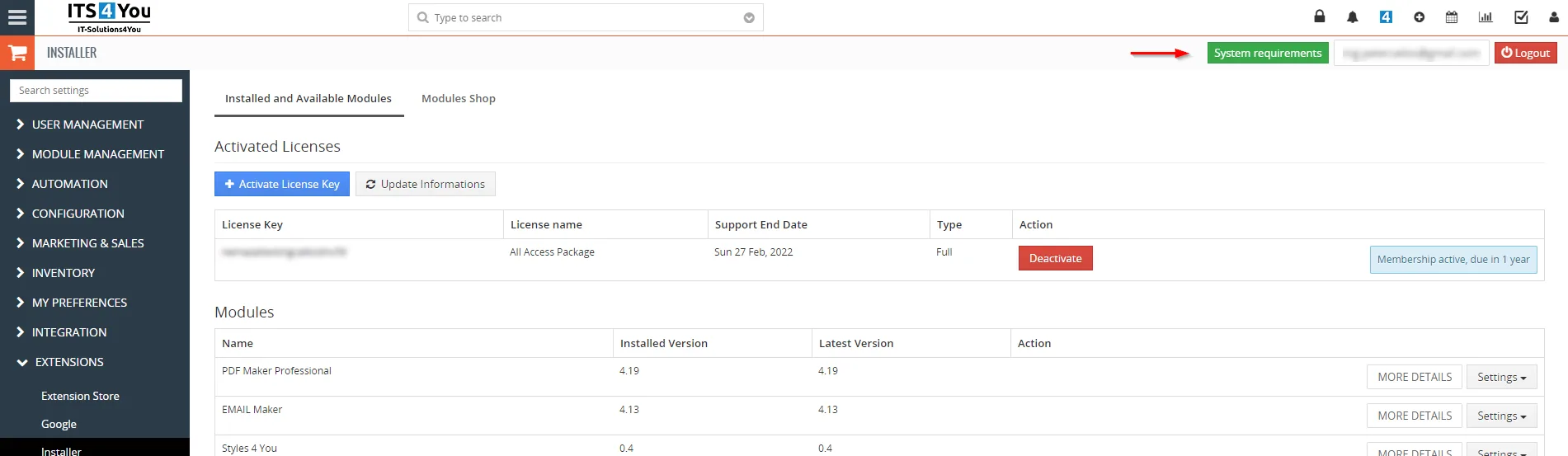
You can check the requirements by click on the button  on the the Installer main screen:
Following window will be open where you can see your Current values, Minimum requirements and Recommended value.
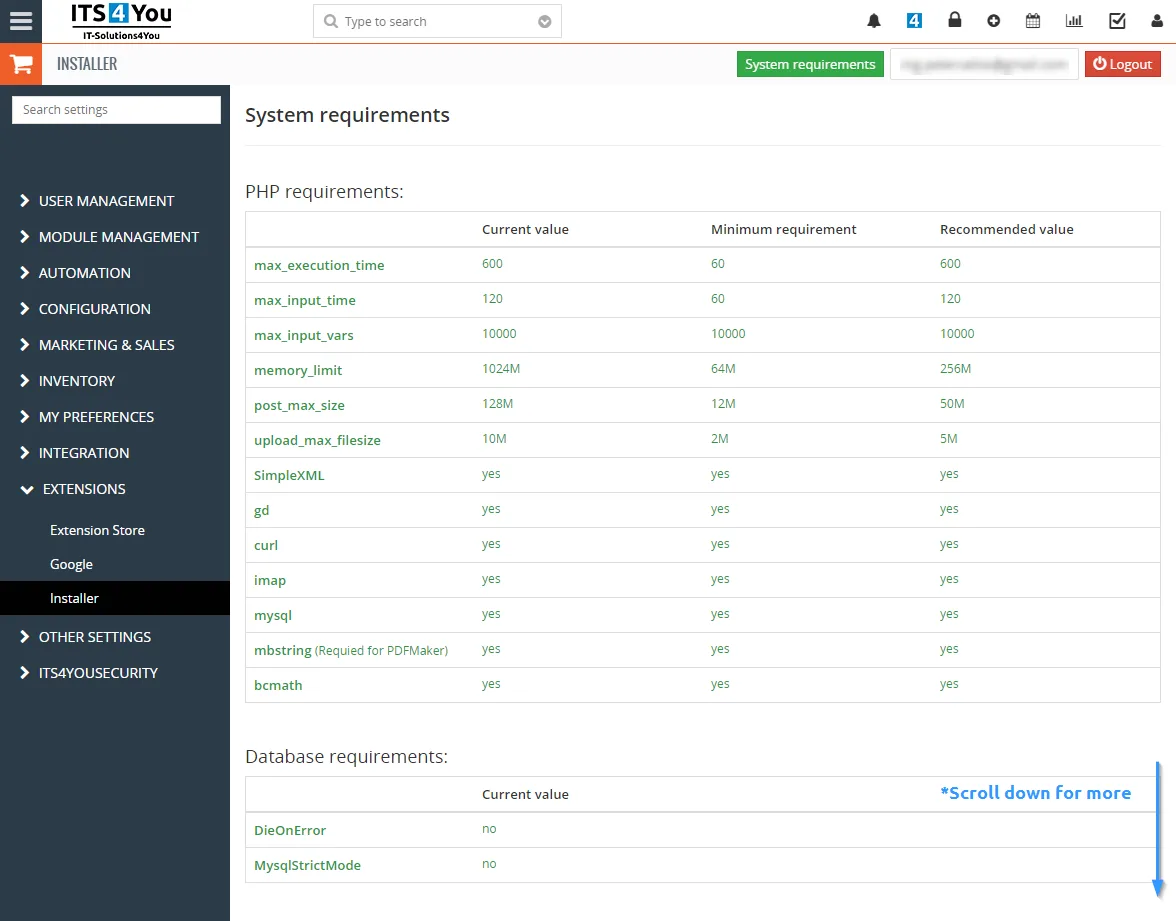
Note: We always recommend to set values based on Recommended values to ensure your system will run smoothly.
Need help with Installer?
Our support team answers questions about installation, templates and settings.