
There are few options how you can create PreInvoice:
- Create PreInvoice from Sales Order
- Create PreInvoice from Quotes
- Create new PreInvoice
5.1 Create PreInvoice from Sales Order
The mostly way to create PreInvoice, is generate PreInvoice from the existing Sales Order.
To createPreInvoice from Sales Order you have to provide following steps:
-
- Go to Sales Order List and choose a Sales Order:

Proforma Invoice creating from Sales Order - Click on
 button and now you have 2 options:
- Create PreInvoice – if you do not need products from Sales Order in PreInvoice (e.g. Percentage PreInvoice of Sales Order, … )
- Create PreInvoice with Products – if you want to make PreInvoice with products and services from Sales Order
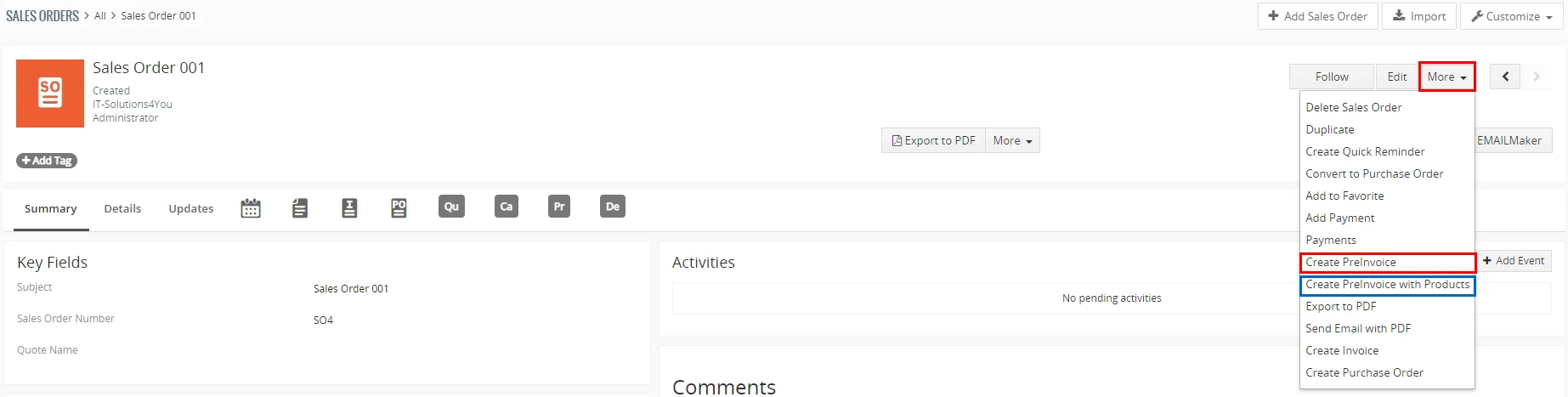
Proforma Invoice creating from Sales Order
- In appeared window, please specify PreInvoice details according to your needs and click on
 button.
- Go to Sales Order List and choose a Sales Order:
5.2 Create PreInvoice from Quotes
Next option to create PreInvoice is from existing Quotes.
To create PreInvoice from Quote you have to provide following steps:
-
- Go to Quotes List and choose a Quote:

Proforma Invoice creating from Quotes - Click on button and now you have 2 options:
- Create PreInvoice – if you do not need products from Quote in PreInvoice (e.g. Percentage PreInvoice from Quote, … )
- Create PreInvoice with Products – if you want to make PreInvoice with products and services from Quote
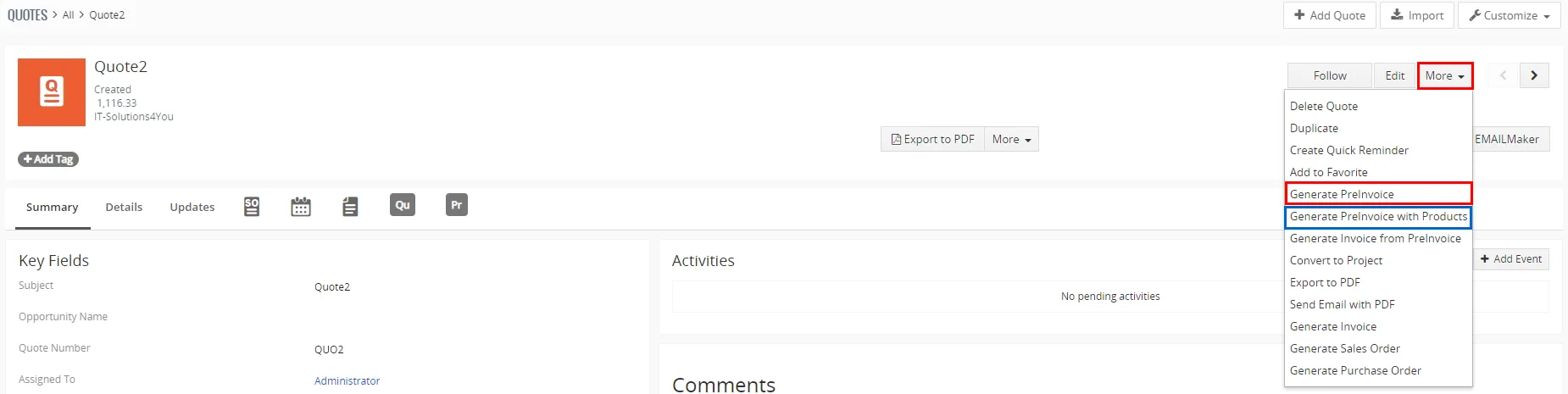
Proforma Invoice creating from Quotes
- In appeared window, please specify PreInvoice details according to your needs and click on button.
- Go to Quotes List and choose a Quote:
5.3 Create new PreInvoice
Alternately, you can create new PreInvoice by using  button in the List view of PreInvoice extension.
To create PreInvoice please provide following steps:
- Click on button.
- In appeared window, please specify PreInvoice details according to your needs.
- Click on button.
Need help with Pre-Invoice?
Our support team answers questions about installation, templates and settings.