

4.1 Create Process Flow
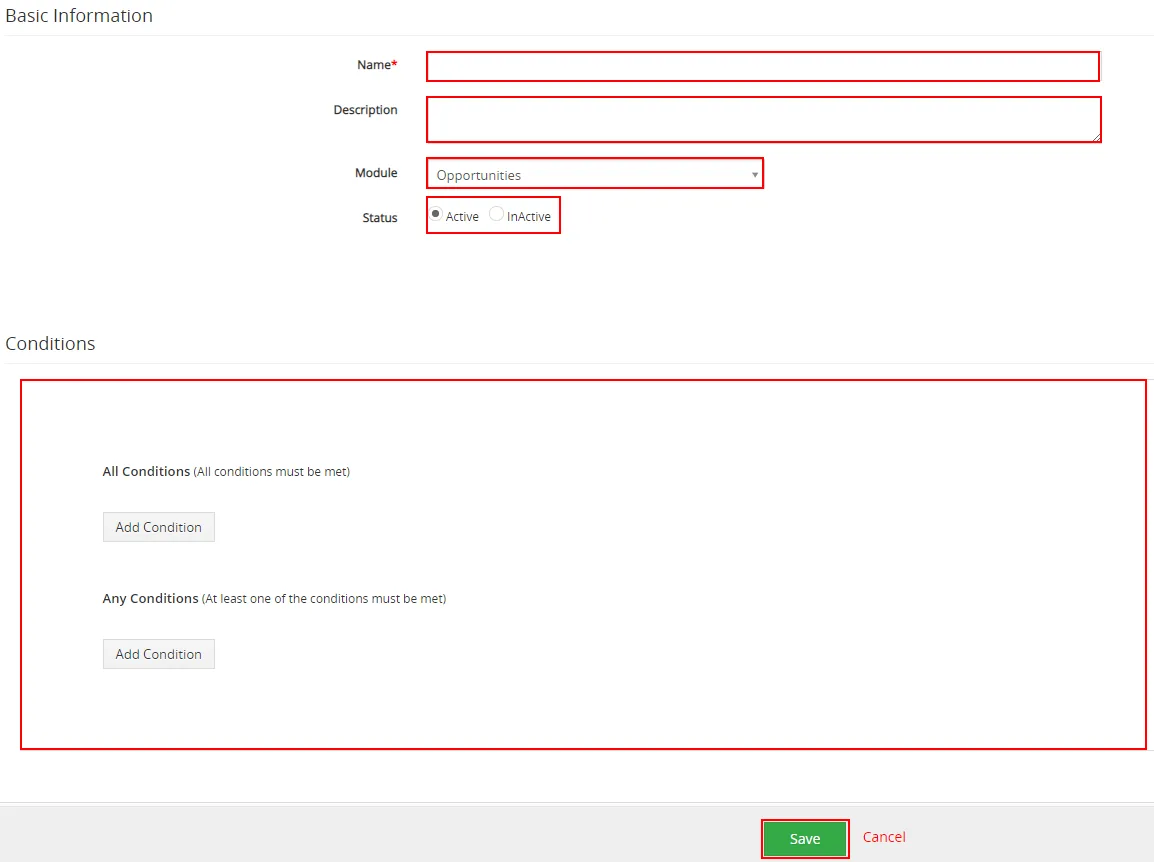
In Process Flow view click on  button.

Fill the name of Process Flow and Module and Status. Description is optional. Then you can choose condition when Process flow is executed. To finish please click on  button.
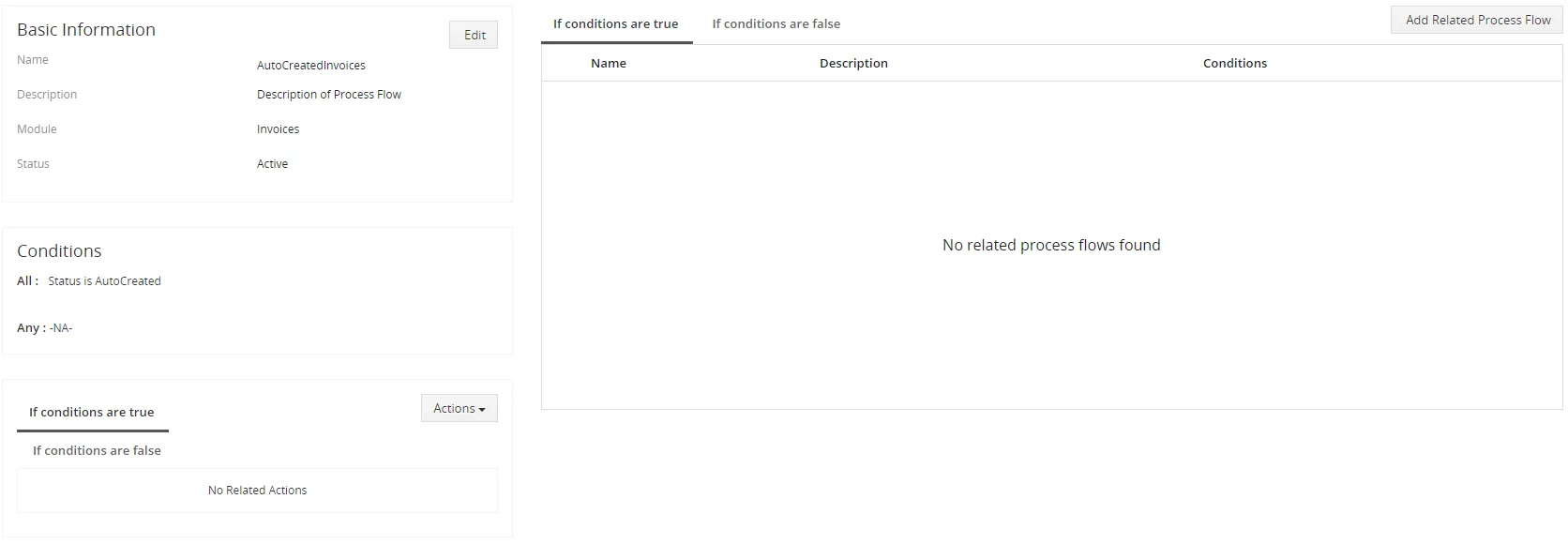
Now, your Process Flow has been created. How to add Actionor Related Process Flow you can find in following sections.
4.2 Action of Process Flow
Actions part executes actions if conditions are true or false.
Process Flow supports ListView Colors 4 You and Dynamic Fields 4 You actions.
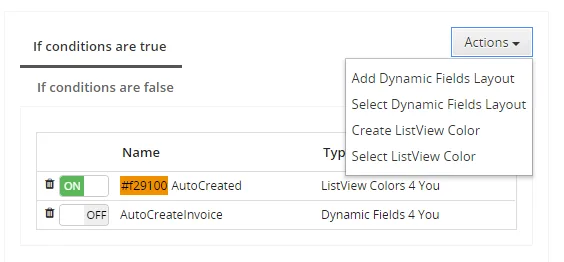
Actions part containts of:
- List of Actions
 button to select or add new action
- button to unlink the action
 /
 turn off or turn on
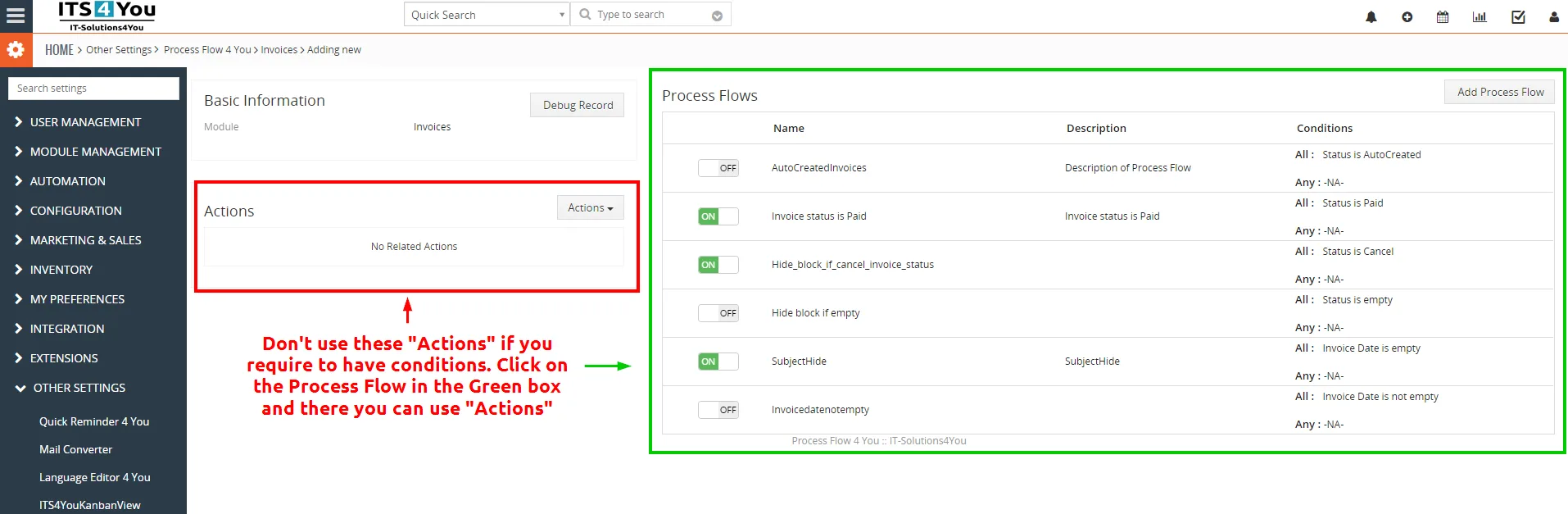
 Note: Using “Actions” in the default view when you select the module in the Process Flow will apply for example ListView Colors for all values as these don’t have conditions.
If you plan to have conditions (mostly you do) then you need to click on and there select if you need Dynamic Fields or ListView colors and also set the Conditions.
4.3 Create related Process Flow
To each Process you can add other Related Processes which are executed if parent process was executed. Process of creation, edition and functionality is the same like standard Process flow. To add Related Process Flow you just need to click on  button.
Related Process Flows tab contains of:
- List of Related Process Flows
- button to add new Related Process
 to remove or edit current Process Flows
- / are used to turn off or turn on Related Process Flow

Need help with Process Flow?
Our support team answers questions about installation, templates and settings.