
After installing the Quick Search you can notice a difference in searching option as follows:
Default Vtiger 7.x search

After installing Quick Search

In the Quick Search window you are able to choose module in which you want to search records.
 Note: This search window is accessible from dashboard and also from all modules and its set as default now. It’s basically always on screen so you can search records any time you need, without moving on the dashboard or doing additional steps.
Settings work area
Second work area are the settings.
To access Quick Search please go to Settings –> CRM Settings –> Other Settings –> Quick Search 4 You
- Module – list of modules for which you can set fields, which will be used to search records
- Actions – turn on if you want search records in these fields or turn off to deactivate searching in these fields for the current module
- Fields which are considered in a Quick Search – choose the fields which will be used for search
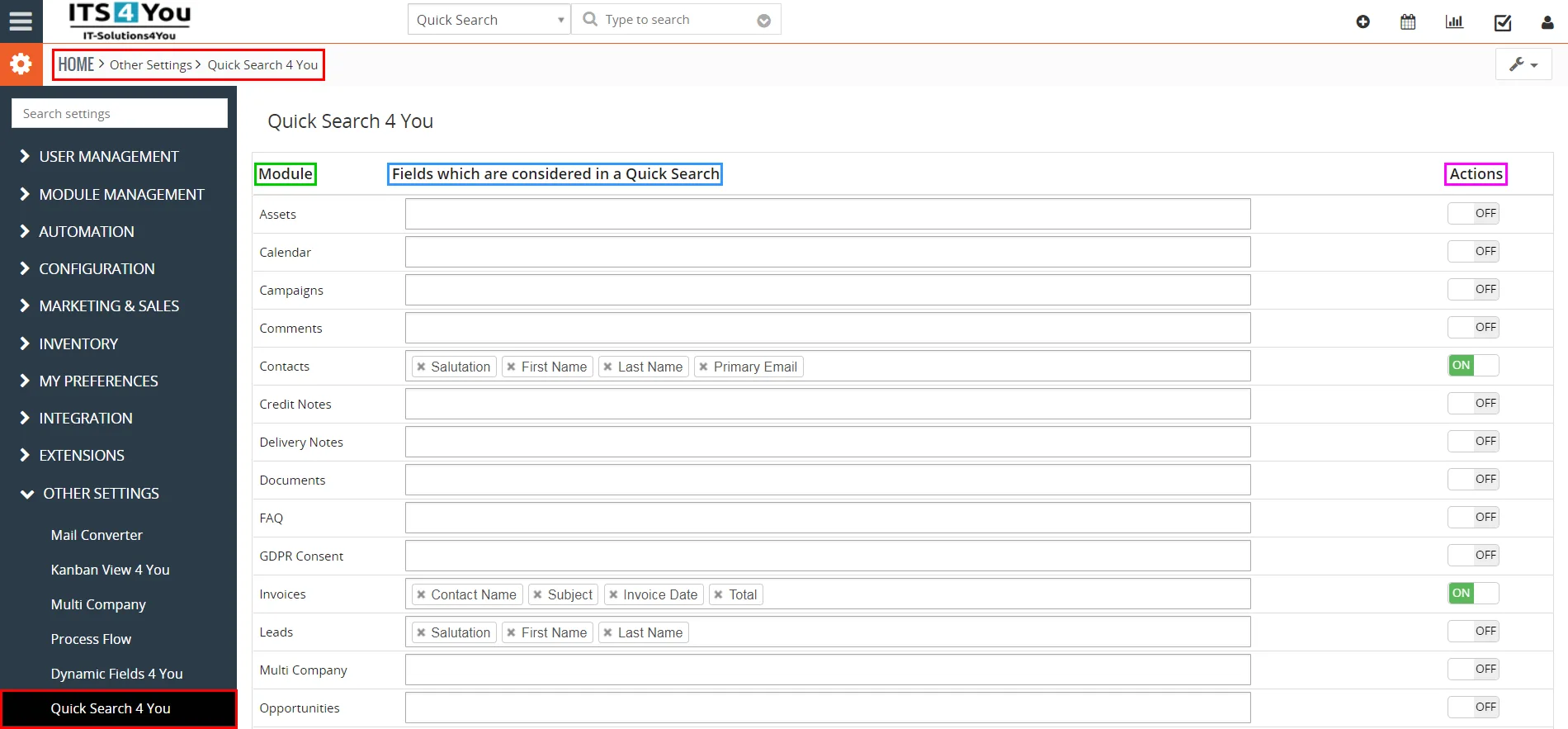
Note: There is no  button. If under Actions you choose to turn on or turn off fields for current module options are automatically saved and you can see the following message:

Need help with Quick Search?
Our support team answers questions about installation, templates and settings.