

Settings for Quick Search can be found in the actual module view via  button.
6.1 License Settings
Since December 2019/January 2020 all our modules will be using Installer to manage licenses. Please check our Installer pages for more information.
You can access the License settings like its shown below:
(there can be more options from the pick-list, depends on the module)
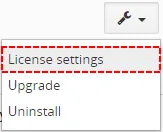
After accessing the License window you can see screen bellow with following information:
- Module name, Your Vtiger domain URL
- Description, if license is activate or not:
 – your license is currently active,
 – your license is not active and you need active it via Installer.
To activate or manage license, click on the  button.
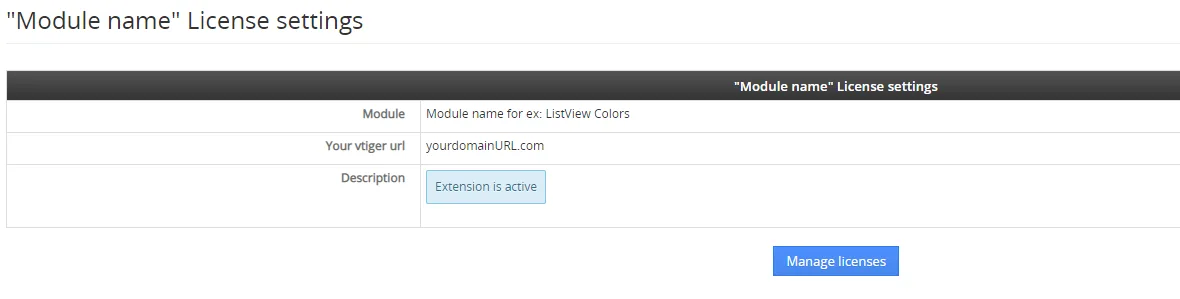
6.1.1 Deactivate license
If you want to deactivate your license, please provide following steps:
- Go to your Installer, by a click on Notifications Icon
 and then on the button ,
or via Main Menu – Settings – CRM Settings – Extensions – ITS4YouInstaller - The following screen will appear (see below):

Installer – deactivation of license You can deactivate license by click on the button

 Note:The module will be deactivated but not uninstalled and license will be removed from the Activated Licenses tab.
6.1.2 Reactivate license
To reactivate a license after deactivation, you need to follow the same process as you activated it first time:
- Click on the
 button and enter your license key.

- Confirm with
 button.
When the license was activated you can see module available in the Modules tab below.
Note: To see modules and manage licenses you have to log in to our e-shop with @email and password via  button (top right screen side in Installer module).
6.2 How to update Quick Search
The upgrade of the module is initiated manually or via our Installer.
Updating via Installer:
- open the Installer in the CRM
- in the Modules tab find your installed module and you should see the
 button available
- If the new version is available, you will be notified via Installer Notifications icon
Updating Quick Search manually:
Click on Upgrade in Settings of Quick Search. So please refer to above installation part for details how to initiate the import of the module from the file.

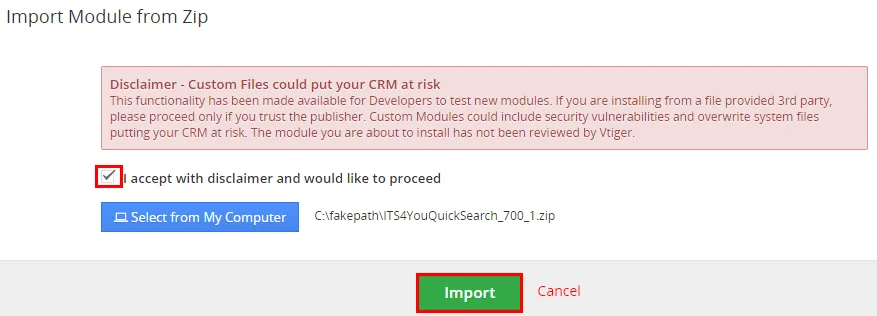
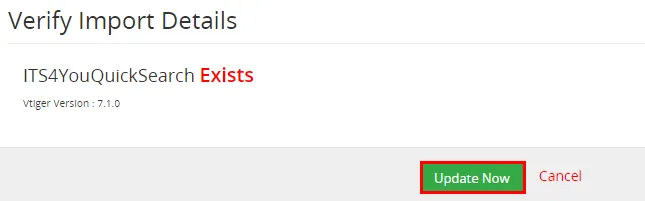
As you can be seen on the Picture below you will be notified that the Quick Search module already exists. Confirm License agreement and upgrade will start immediately when you click on the  button.
After upgrade the notification about successful upgrade is shown.
6.3 Uninstall
If you need to remove the module from your Vtiger you have two options:
- Uninstall via Installer.
- Manually via going to module Settings and choose Uninstall option.
6.3.1 Uninstall via Installer
You have also option to remove the module via Installer window by accessing the Settings – Uninstall window:
- Go to your Installer, by a click on Notifications Icon and then on the button ,
or via Main Menu – Settings – CRM Settings – Extensions – ITS4YouInstaller - Find the module you need to uninstall in the Modules tab
- Via
 pick list button choose the Uninstall option, you will be redirected to the Uninstall window.
- Click on
 button

- Confirm uninstall with
 button
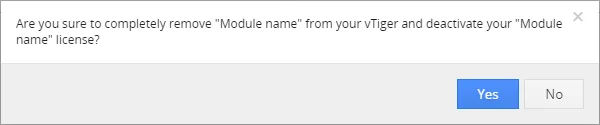
Now, the module has been removed from your Vtiger and your license has been deactivated. To use this module again, you need to provide installation and validation steps (see Installation chapter).
6.3.2 Manual Uninstall
There is also available option to remove Quick Search from your Vtiger manually. To uninstall please provide following steps:
- Go to the Settings of Quick Search (Settings –> Other Settings –> Quick Search)and click on Customize Icon and choose Unistall.
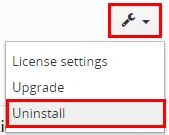
Quick Search Unistall - Click on button.

Quick Search Unistall - Confirm uninstall with
 button.
Now, Quick Search is removed from your Vtiger and your license is deactivated. To use Quick Search again, you need to provide installation and validation steps (see chapter 2. How to install Quick Search).
Need help with Quick Search?
Our support team answers questions about installation, templates and settings.