
To install PDF Maker Free via Module Manager you need to have installed our Installer free extension.
So please read following steps how to download, install our Installer and our PDF Maker:
- First of all, you need to go into our E-shop.
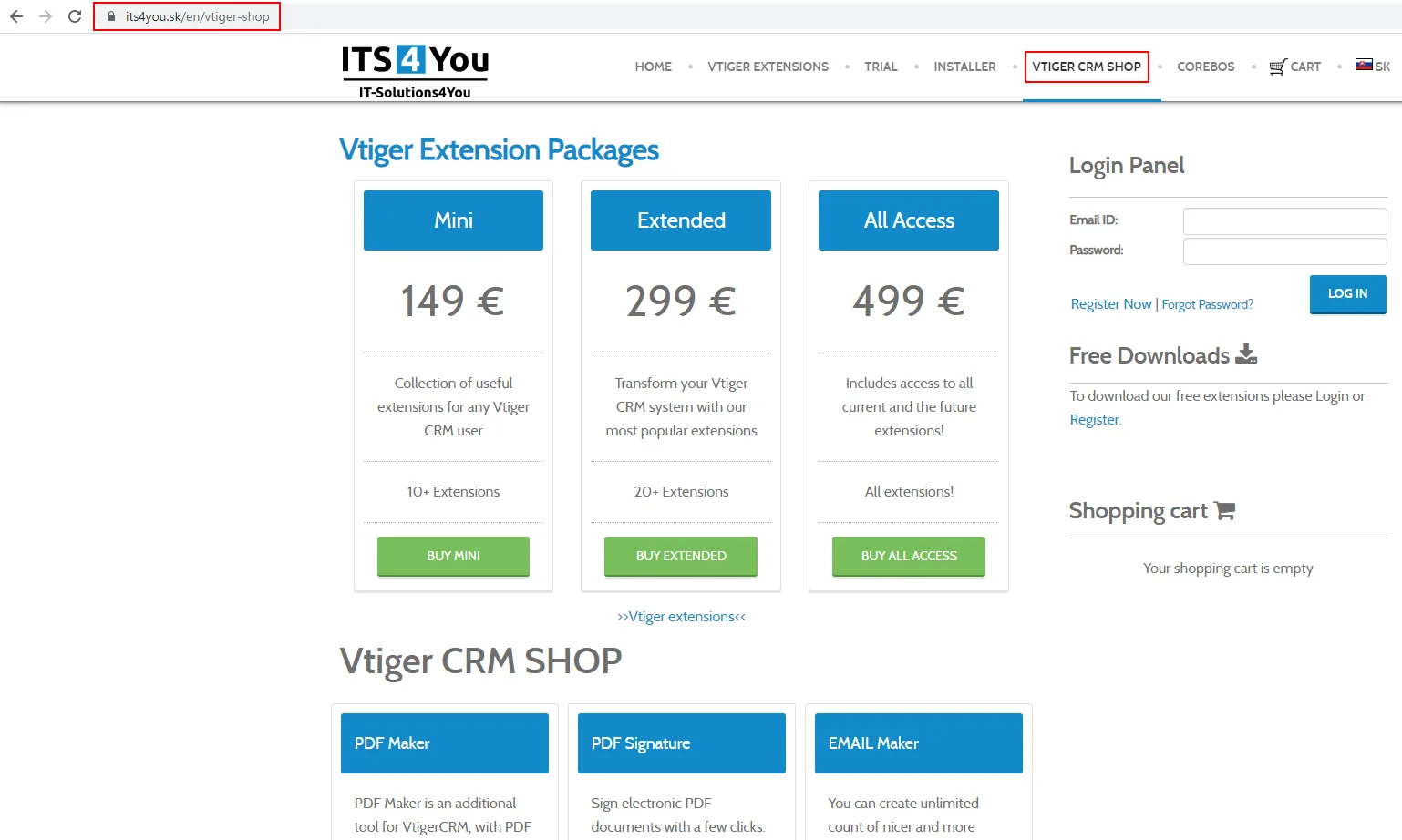
Visit our E-shop - If you are already registered, just simply login into our E-shop.
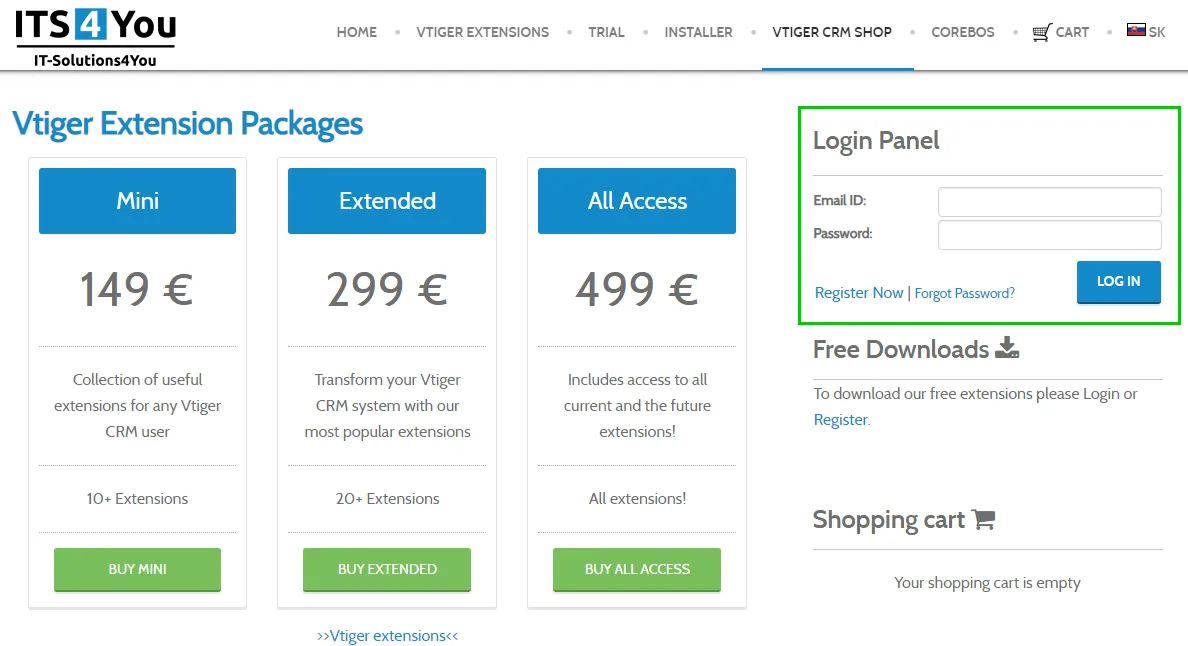
Login to our E-shop - If you don’t have registration, please provide few steps to make one:
- Click on Register Now button.
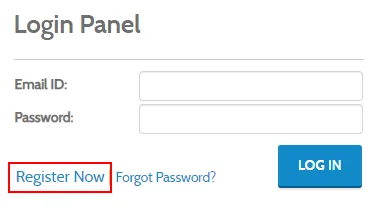
Register Now - Fill required info and accept Terms and Conditions. We also recommend to subscribe to our Newsletter to receive hot offers, Discounts or info about Updates and new Extensions.
And click on button.
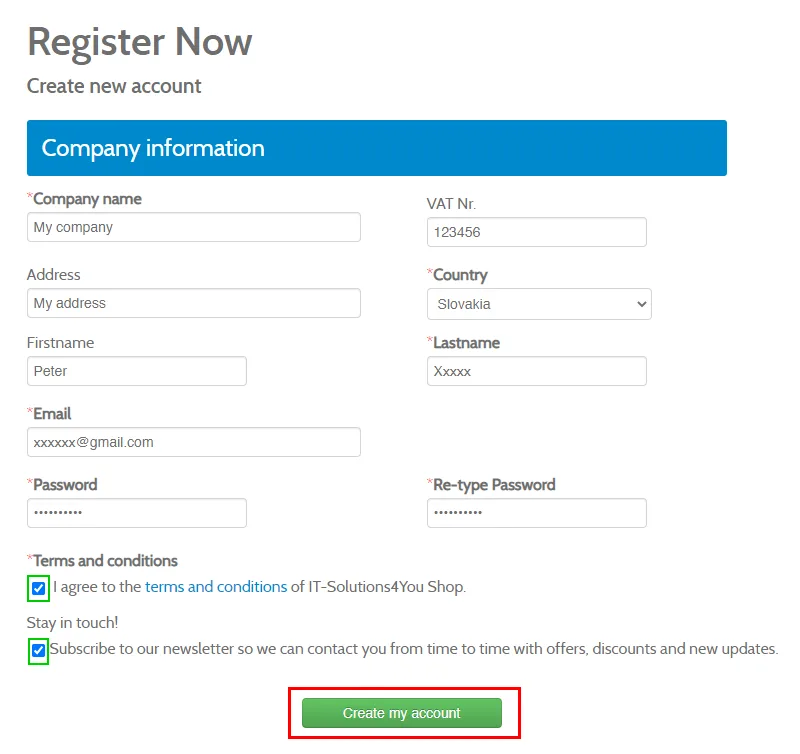
Sign to our E-shop - After Registration you will be logged in automatically.
- Click on Register Now button.
- If you are already registered, just simply login into our E-shop.
- In our E-shop you can see Free Downloads section.
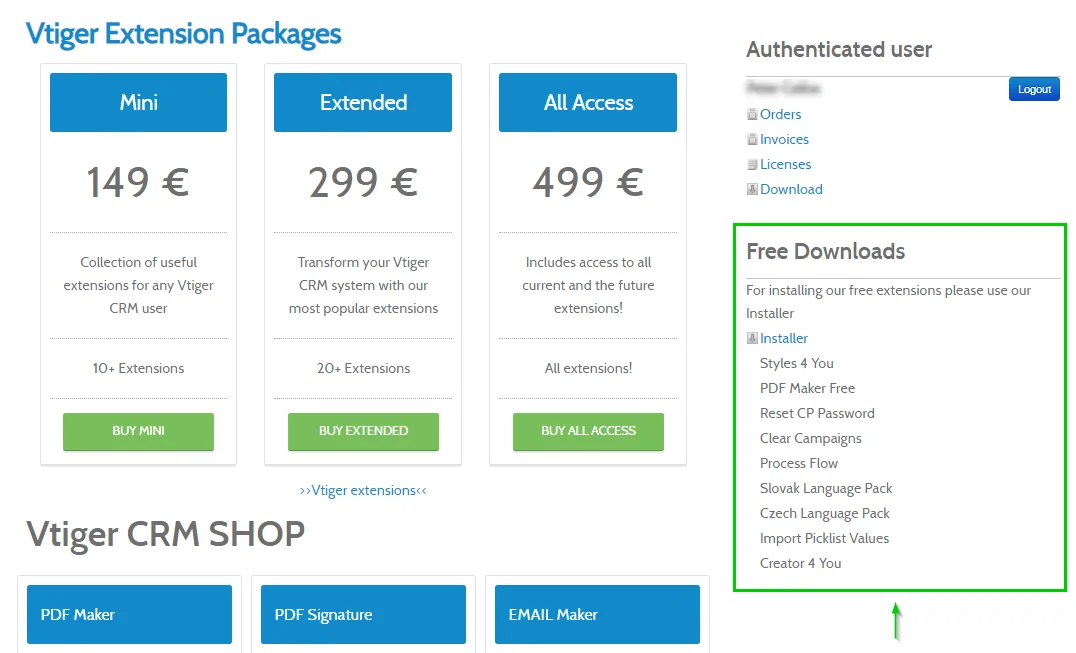
Location of Free Downloads - In the section you can see the list of free extensions and Installer with on click action.
Please click on the Installer: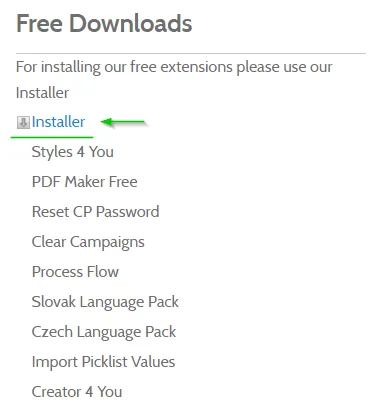
Click to download Installer - The Istaller .zip file will be downloaded.
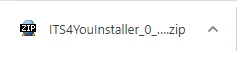
The Installer .zip file is downloaded - Next step is to install our Installer via Module Manager.
- Once the Installer is installed, please log in to the Installer with same details you used for E-Shop registration.
More details how to login and use our Installer you can find here. - Following screen will appear with the available Free Extensions list, click
 button to install PDF Maker.
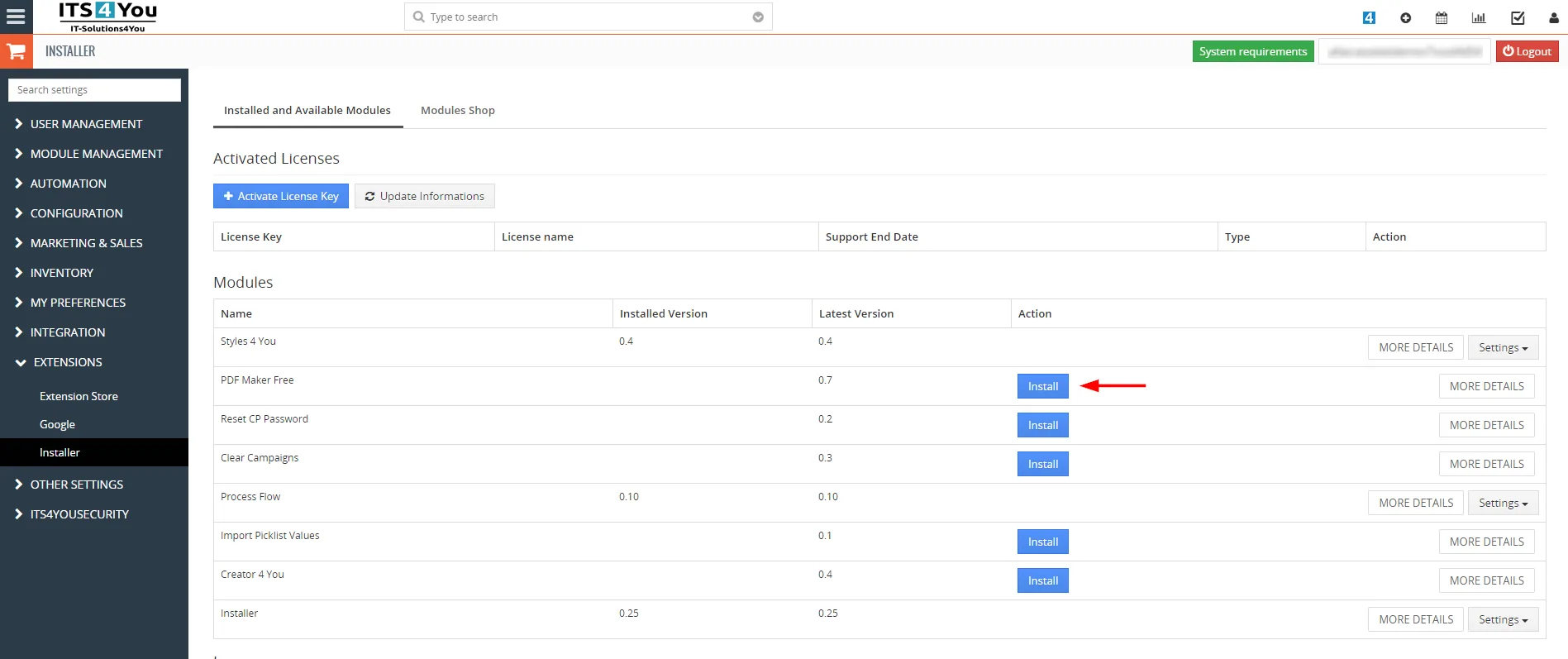
PDF Maker Free- installation via Installer - The installation is finished and you will see an Installation Log, in case there are no any errors marked with red text, installations was successful.
- Procced via
 button.
- Go to PDF Maker via Memnu – Tools – PDF Maker and click on
 button and on the next screen click on
 and
 buttons.
The PDF Maker Free was sucessfully installed:

Need help with PDF Maker Free?
Our support team answers questions about installation, templates and settings.