
In the following section you can find short description how to edit your PDF template for vtiger CRM using PDF Maker.
4.1 Edit the PDF template
In order to edit the PDF template you have to start the PDF Maker tool which can be after installation located under the Projects as seen below on the picture.
- In vtiger CRM menu please go to Projects and click on PDF Maker (since vtiger 7 there is no Tools part so records which used to be in Tools tab are in Projects tab now)
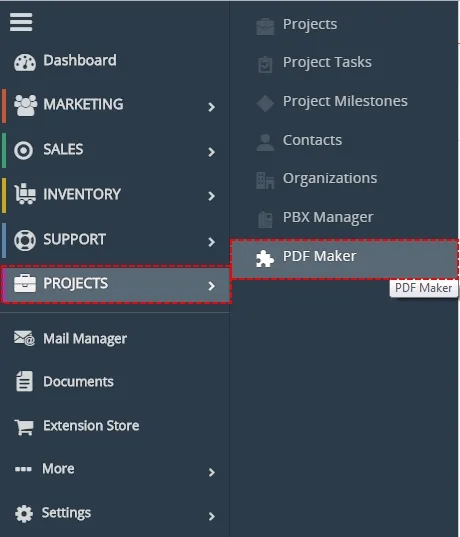
Location of PDF Maker module - The screenshot below shows PDF Maker ListView. You can click on template to see preview.

ListView of PDF Maker - In preview click on [Edit] to start editing templates
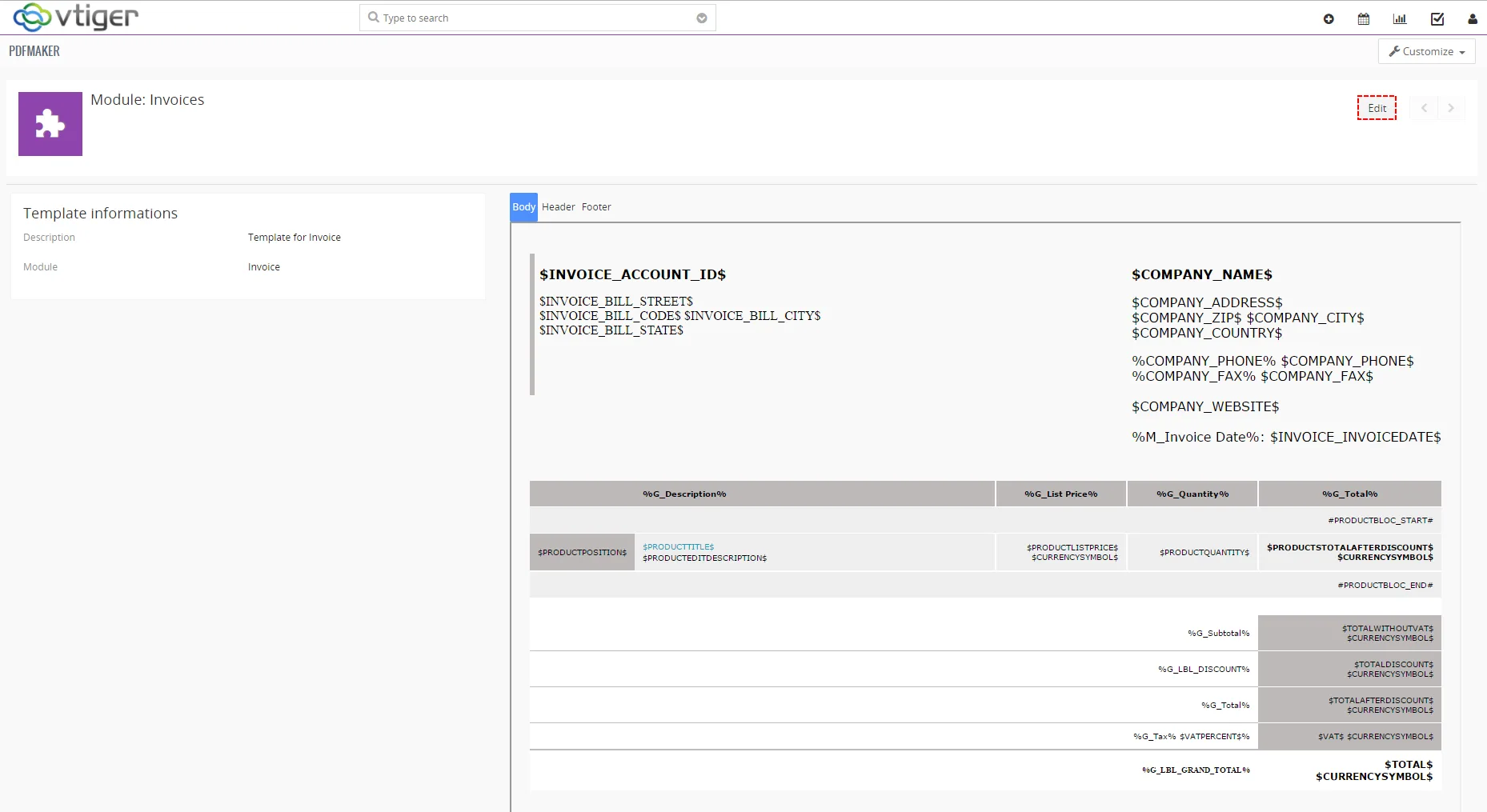
Preview of template - After editing click on [Save] button
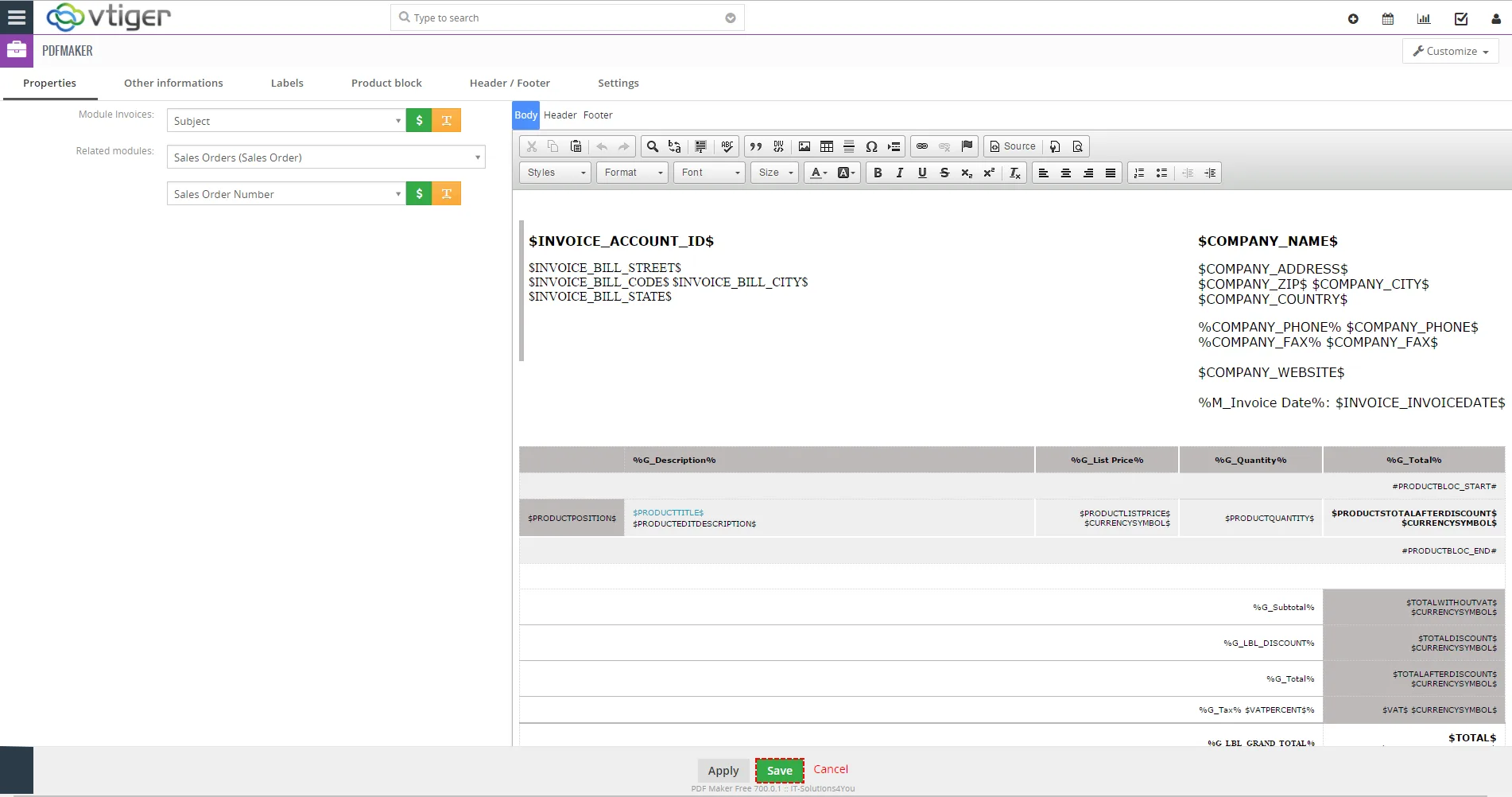
EditView and Save template
4.2 How to generate PDF file with PDF Maker template
With PDF Maker Free you can generate PDF file only from DetailView.
To generate PDF file please provide following steps:
- To generate without changing default language click in DetailView of record on [Export to pdf] button and in popup window click on [Download file]
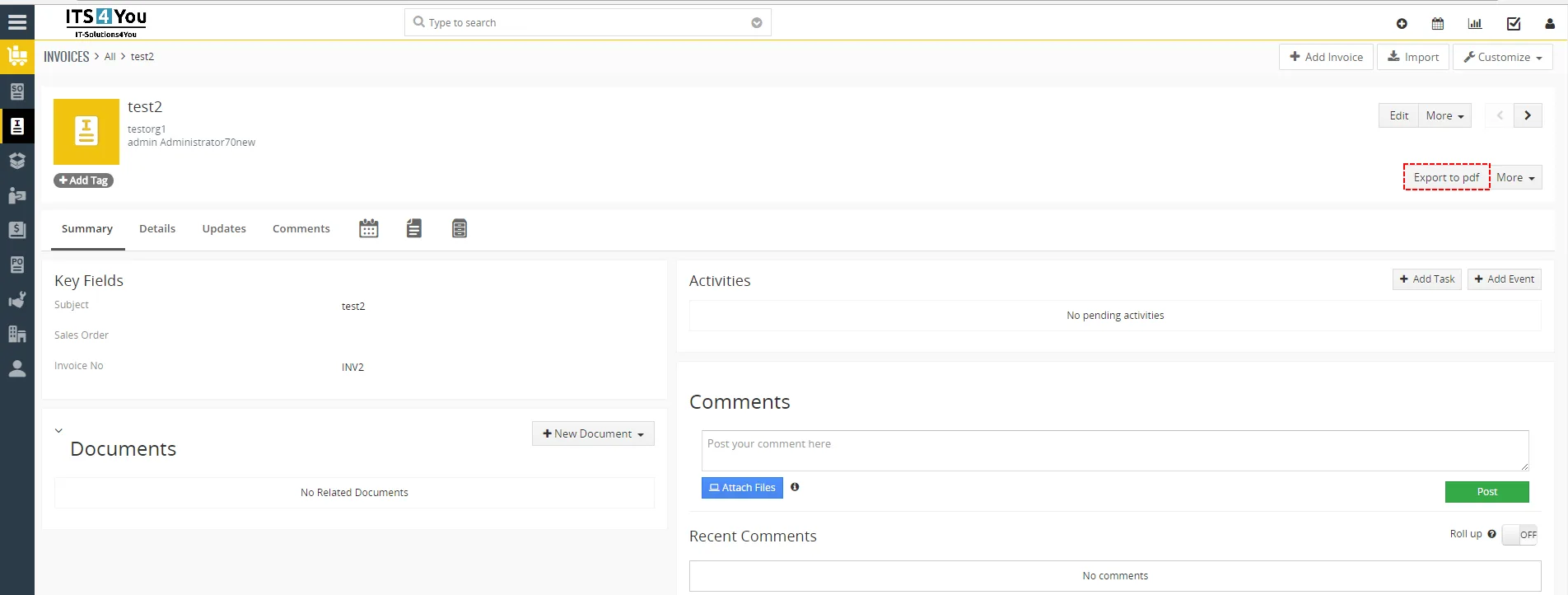
How to export PDF file 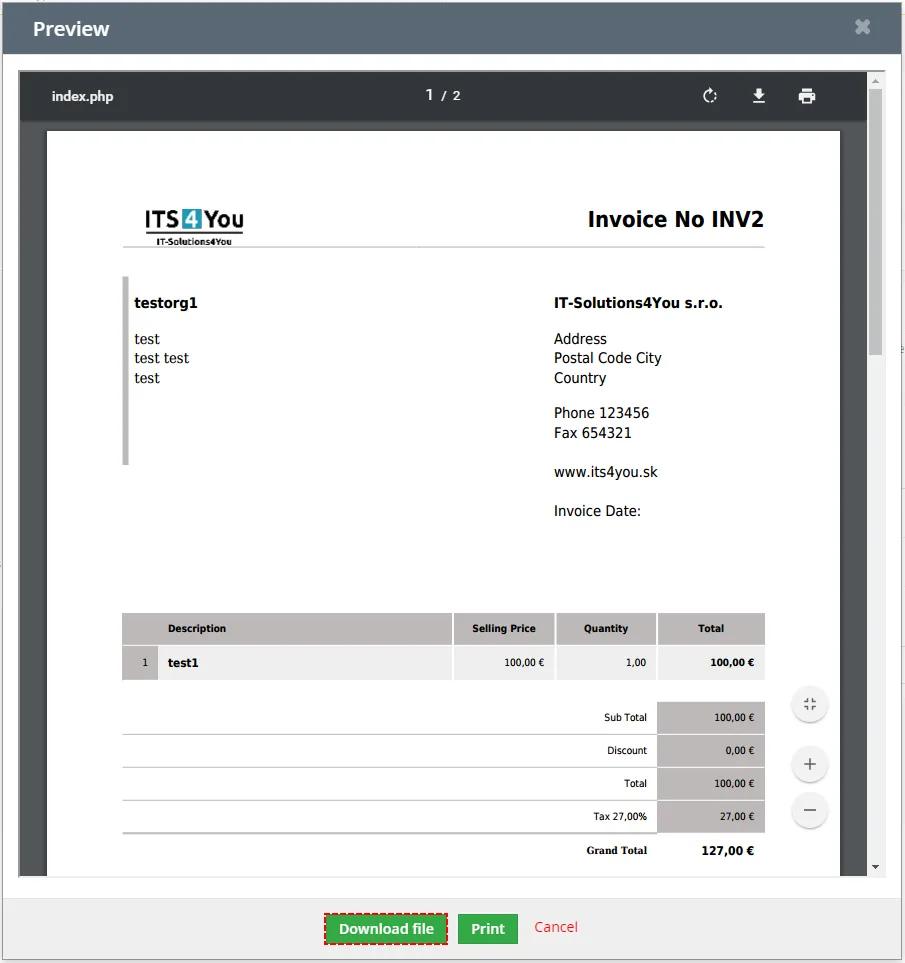
How to export PDF file - First, if you want to change language of pdf file or add PDF Product Page Break or change PDF Product Images click on [More] button
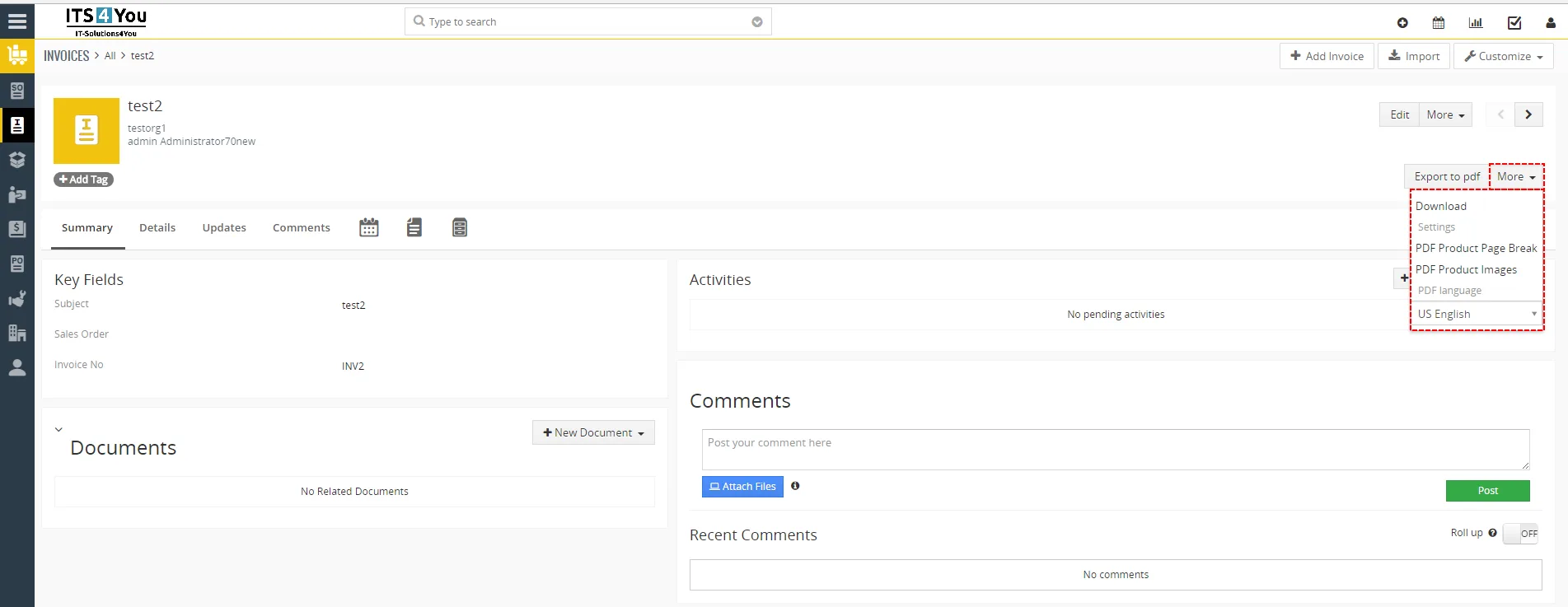
How to export PDF file - Then click on [Download] or [Export to pdf] button
Need help with PDF Maker Free?
Our support team answers questions about installation, templates and settings.