
The Work Area of PDF Maker consists of:
- ListView – list of your templates
- DetailView – shows already created pdf template in details
- EditView – allows you to edit existing templates
- PDF Maker block – mainly used for export records to pdf file
5.1 ListView of PDF Maker Free
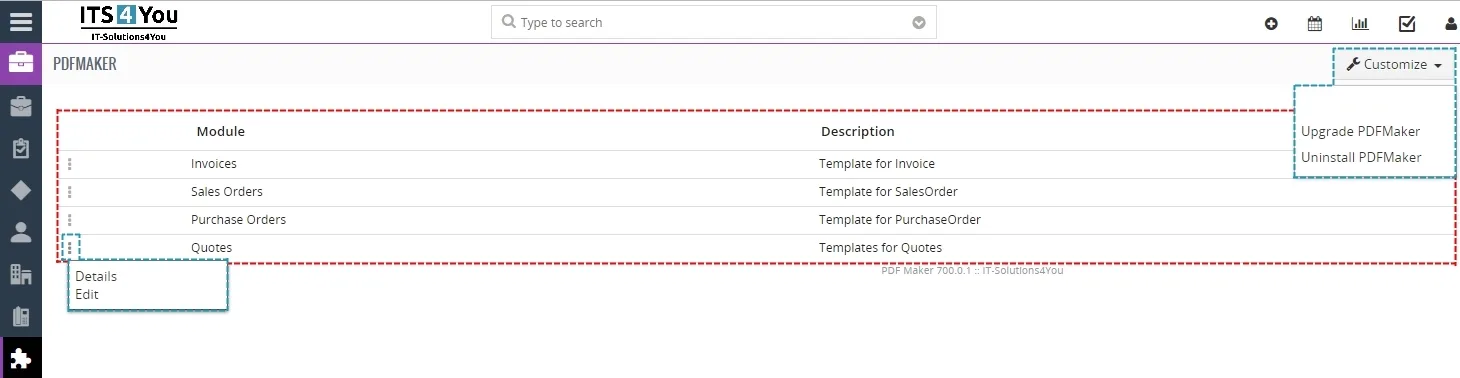
The main part of the PDF Maker ListView consists of list of the PDF templates, which gives you information about a module and a short description.
Under customize button you can find:
- Upgrade PDF Maker
- Uninstall PDF Maker
There are also buttons to see PDF template details and Edit PDF template.
5.2 DetailView of PDF Maker Free
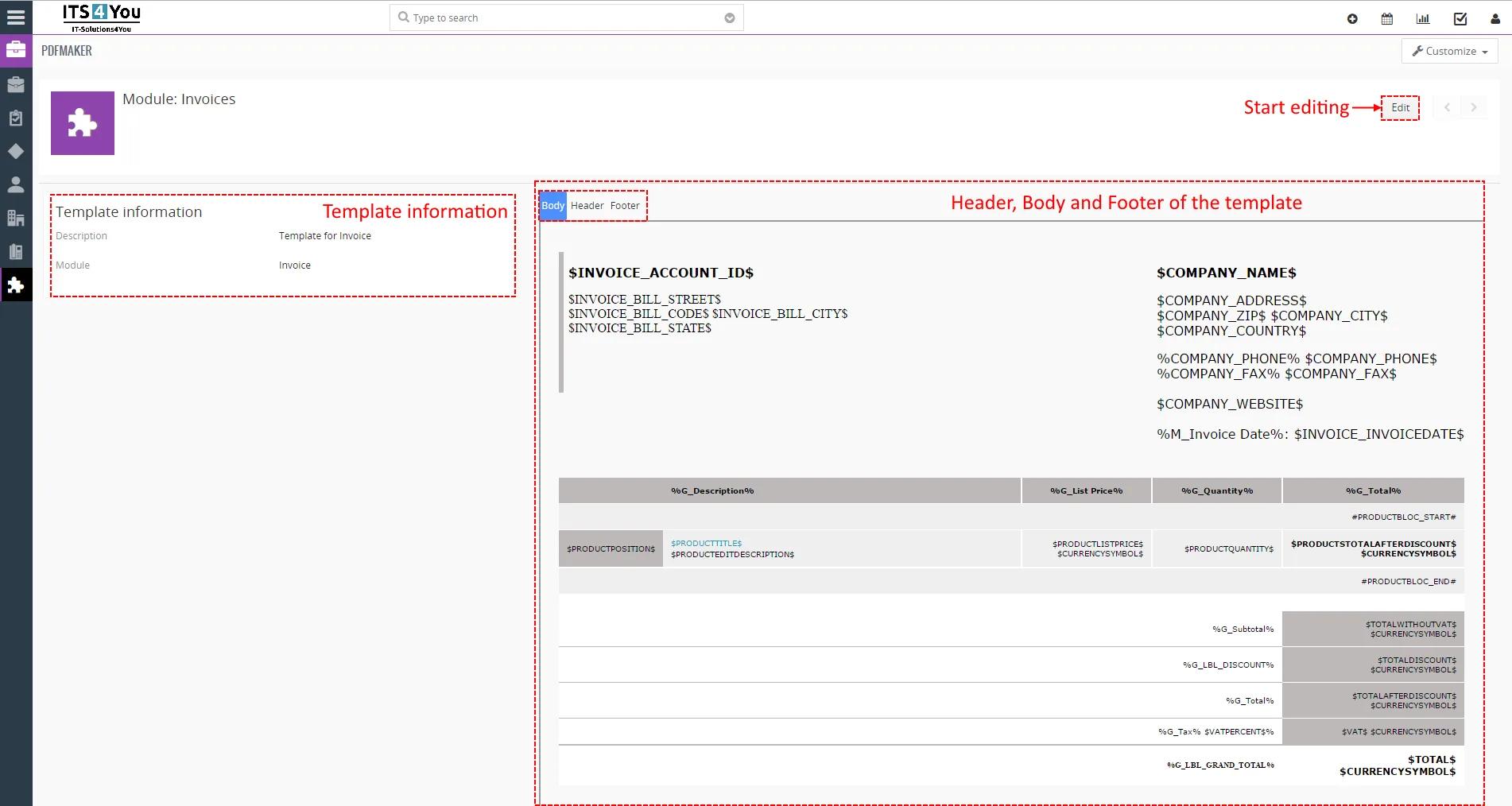
From ListView you can directly open any pdf template in DetailView. The DetailView consists of:
- Template information part – gives basic information of the template
- PDF template itself which consist of Header, Body and Footer part.
- [Edit] button – switch to EditView and start editing
5.3 EditView of PDF Maker Free
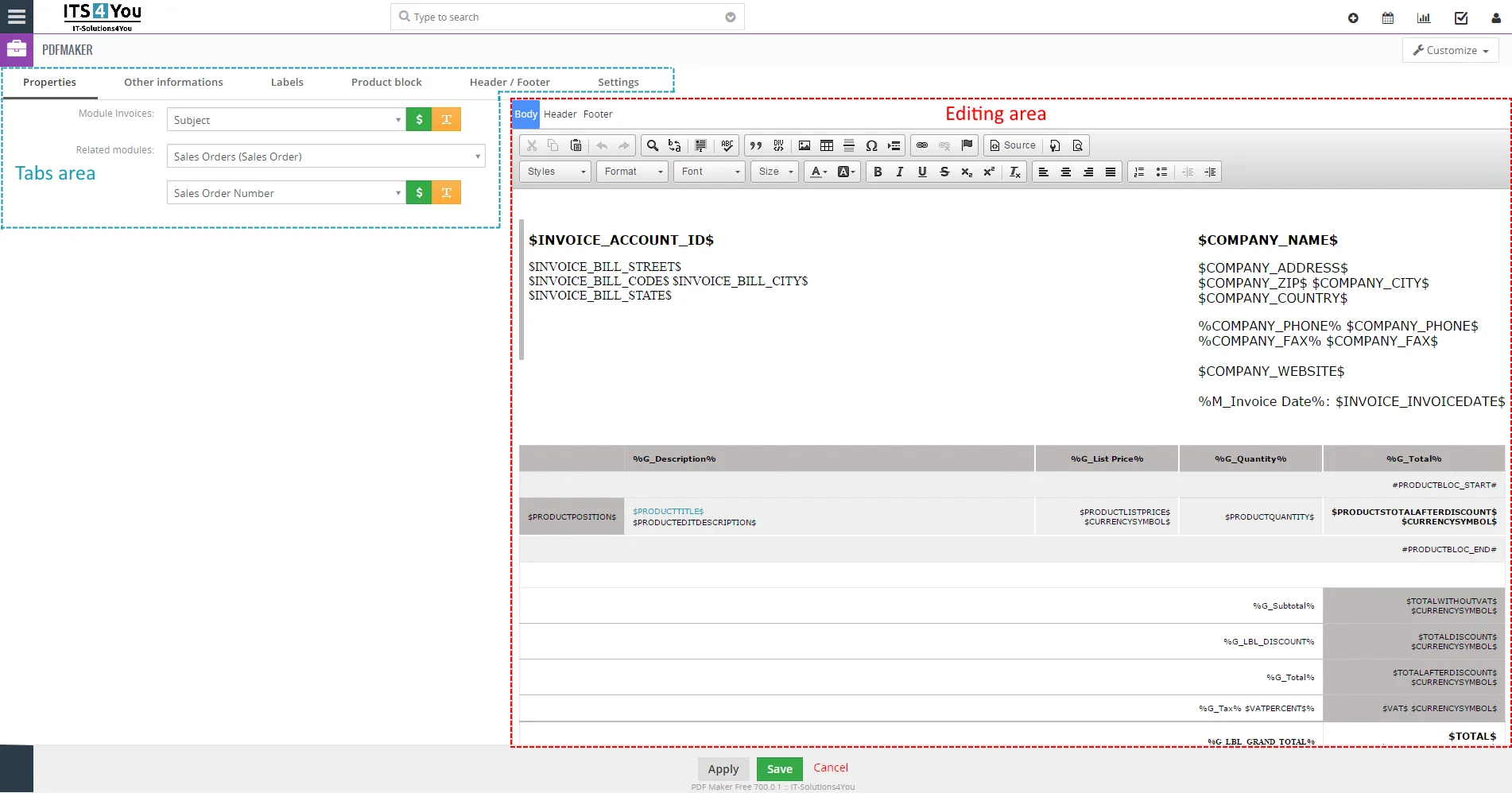
The EditView shown in the picture below is divided into two areas:,
- Tabs area – allows user to insert into template different kind of values, fields, labels and to set up properties and other common settings of the pdf template. Tabs area consists of following tabs, which are described in the following subchapters:
- Properties
- Other informations
- Labels
- Product block
- Header/Footer
- Settings
- Editing area – is mainly used for inserting/editing your own text, tables, images etc. and to make some design adjustment of the template like font change, color, format, size, background color of the text etc. This editing can be initiated via many toolbars located inside three tabs (Body, Header and Footer) in the above part of Editing area.
5.3.1 Properties
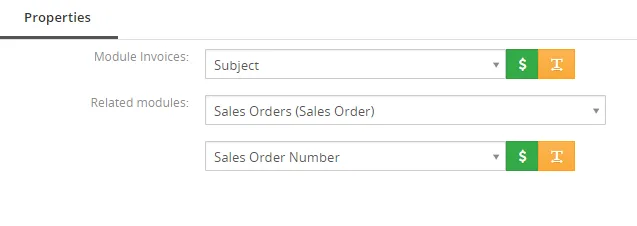
The main purpose of the Properties tab is to add variables of module and related modules.
| Name | Description |
|---|---|
| Primary Module | Template will be based and available only for one primary module and its fields. |
| Related modules | If exists related module(s) to selected module, it is possible here to select and use fields from any related modules. |
5.3.2 Other information
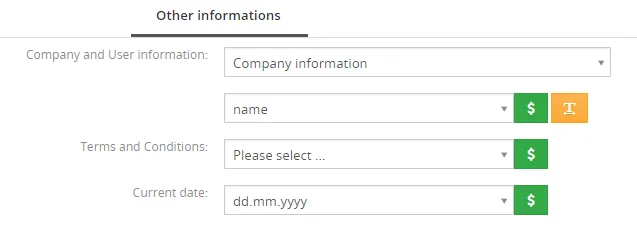
As shown below Other informations tab contains several fields. They are Company and User information, Terms and Conditions, Current date, Barcodes, QR code and Custom functions.
| Name | Description |
|---|---|
| Company and User information | Comprises group of fields from Company information, Assigned to User, Logged in User, Modified by User and Created by User. Custom fields also supported. |
| Terms and Conditions | Terms and Conditions. |
| Current date | Current date in several formats. |
5.3.3 Labels
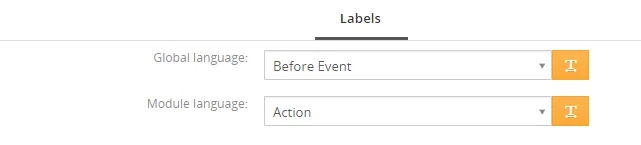
Labels tab consists of Global language and Module language. Labels are very useful especially in case you need to print/save documents in two or more languages.
| Name | Description |
|---|---|
| Global language | Global labels. |
| Module language | Labels related only to selected module. |
5.3.4 Product block
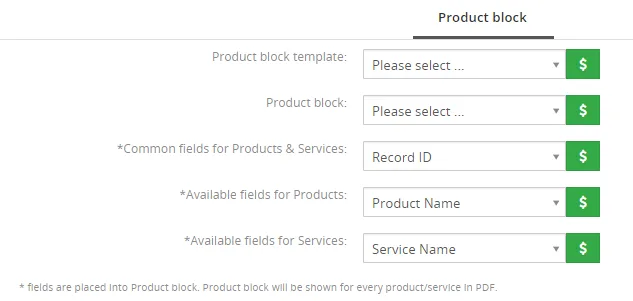
The product block tab allows inserting product block template and editing it. In addition, you can create your own product block using “Block start”, “Block end” and fields for products and services.
| Name | Description |
|---|---|
| Product block template | Insert predefined and created product block templates. |
| Product block | Products and Services Block start, Products and Services Block end. Products Block start, Products Block end. Services Block start, Services Block end. Each product block has to start with “Block start” and ends with “Block end”. |
| Common fields for Products & Services | Fields common for products & services. You can find same fields for products and services separately as well, but it is recommended to prefer common fields in the templates. |
| Available fields for Products | Fields for products. |
| Available fields for Services | Fields for services. |
5.3.5 Header/Footer
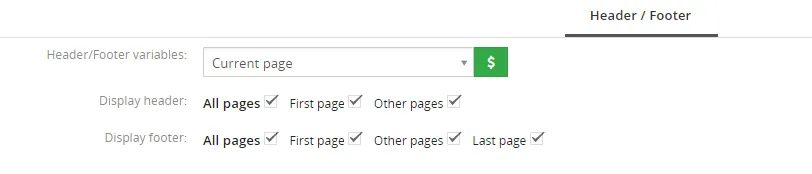
The Header / Footer tab comprises some variables and header/footer settings related to displaying.
| Name | Description |
|---|---|
| Header / Footer variables | “Current page”, “Total pages” and “Page/pages”. |
| Display header | Allows defining how to display the header of the pdf document. |
| Display footer | Allows defining how to display the footer of the pdf document. |
5.3.6 Settings
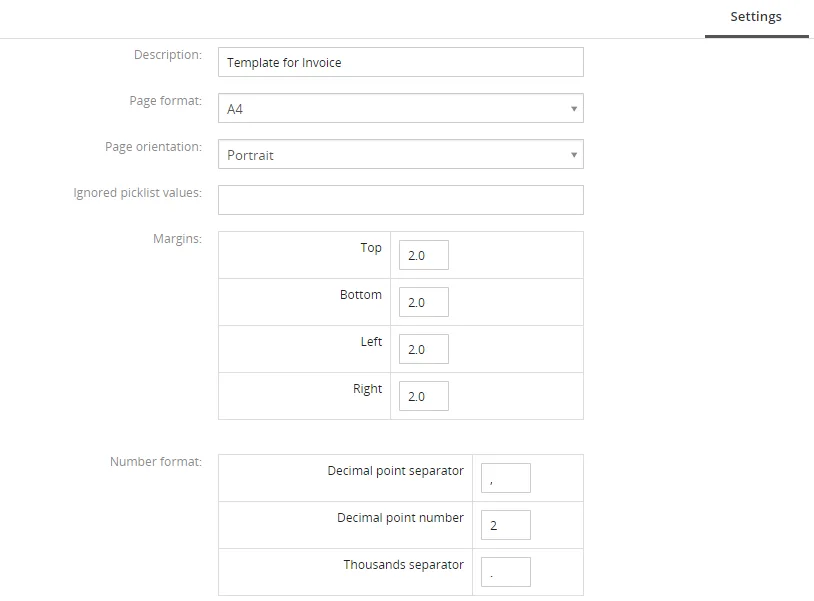
The settings tab allows defining Description of template, page format, page settings, number format and other settings from usage of template point of view.
| Name | Description |
|---|---|
| Description | The description of the pdf template. |
| Page format | A3, A4, A5, A6, Letter, Legal or Custom. Custom page format allows to define width and height of the page in mm. Maximum values are 2000 mm x 2000 mm and minimum values are 100mm x 100mm. |
| Page orientation | Portrait or landscape. |
| Ignored picklist values | Define picklist values which will be ignored in the final pdf document like None, none, keine etc. Entered values have to be separated with comma. |
| Margins | Margins in cm. Maximum value is 9.9 cm and minimum value is 0 cm. |
| Number format | Decimal point separator – comma, dot (but any symbol can be used) Number of decimal points – 0-3 Thousands separator – comma, dot, space (but any symbol can be used) |
5.4 PDF Maker block of PDF Maker Free
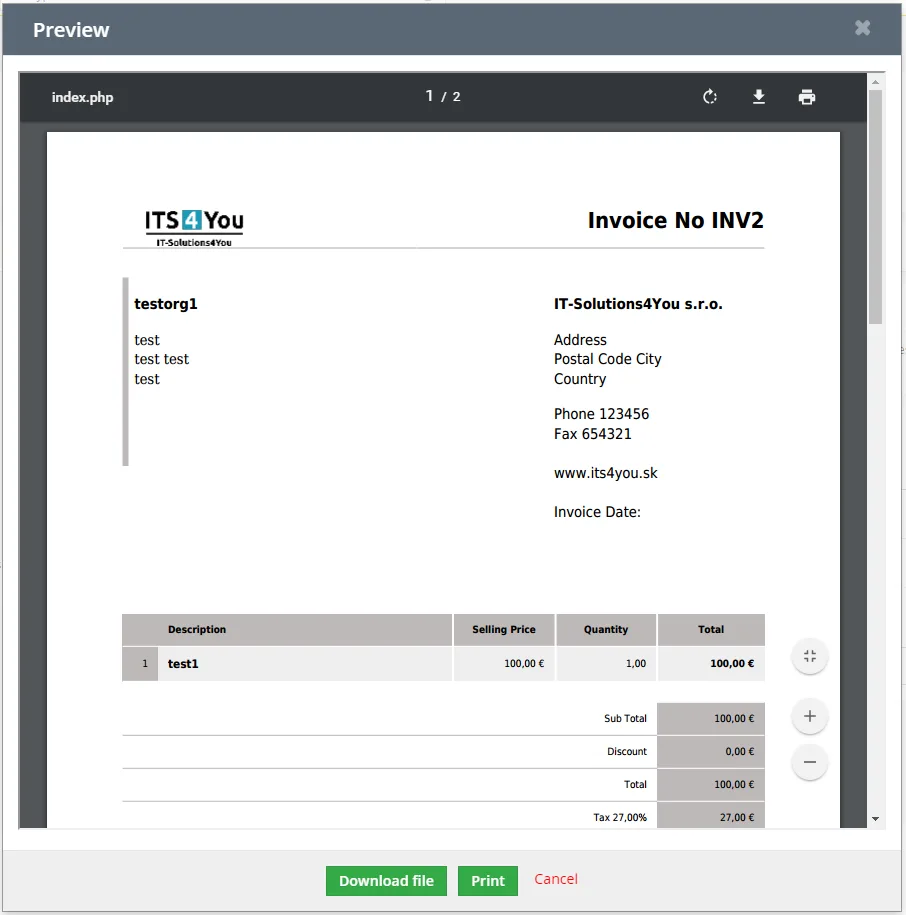
The PDF Maker block can be found inside the specific module. In the module ListView it is necessary to click on any record to see details and on the right side, you can find the block. PDF Maker block contains of 2 buttons.
- [Export to pdf] – you will see Preview of pdf with default options (Language, Product Page Break and Product Image) and you can see options to Download and print PDF file
- [More] – in more button you can find Download option to direct download pdf file, PDF Product Page Break to move product on other page, PDF Product Images to choose Product image for Products and set size. Also there is option to change PDF language

Need help with PDF Maker Free?
Our support team answers questions about installation, templates and settings.