

Settings part contains of:
- Upgrade PDF Maker
- Uninstall PDF Maker
7.1 Update PDF Maker Free
There is also a way to install / update the extension manually in some scenarios:
- Manual installation or update of the extension can be requested if you contact our support because you are facing some issues with extension.
- Standard way of installation and update is using our Installer. In some rare cases we can send you .zip file to update the extension manually.
Installation can be done via Module Manager by clicking on the button  and selecting the .zip file.
The upgrade of the PDF Maker is initiated in the same way as PDF maker installation or click on Upgrade PDFMaker link in Customize tab of PDF Maker.

So please refer to above installation part for details how to initiate the import of the module from the file. As can be seen on following picture you will be notified that the PDF Maker module already exists. The upgrade will start immediately when you click on the [Update Now] button.
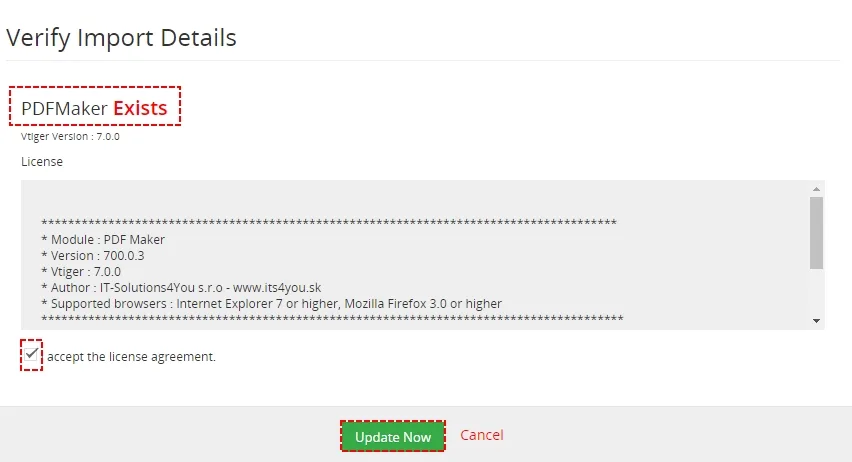
After upgrade the notification about successful upgrade is shown.

7.2 Uninstall PDF Maker
There is also available option to remove PDF Maker from your vTiger. To uninstall please provide following steps:
- Go to the ListView of PDF Maker and choose option Uninstall PDFMaker

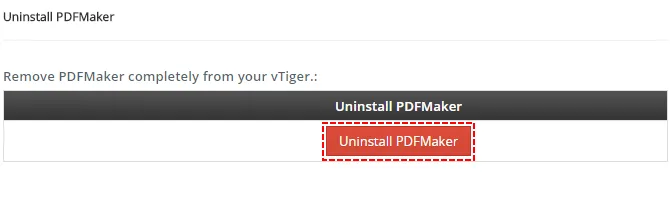
- Click on [Uninstall PDF Maker] button
- Confirm uninstall with [Yes] button
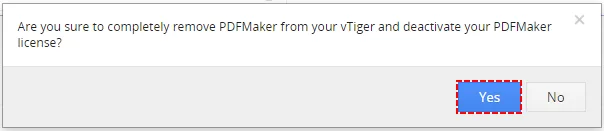
Now, PDF Maker is removed from your vTiger. To use PDF Maker again you need to provide installation steús.
Need help with PDF Maker Free?
Our support team answers questions about installation, templates and settings.