

The Work Area of the XLS Import consists of:
- List view – shows the list of created XLS Imports with additional actions
- Create view – consists of 3 steps: Definition, Processing and Results
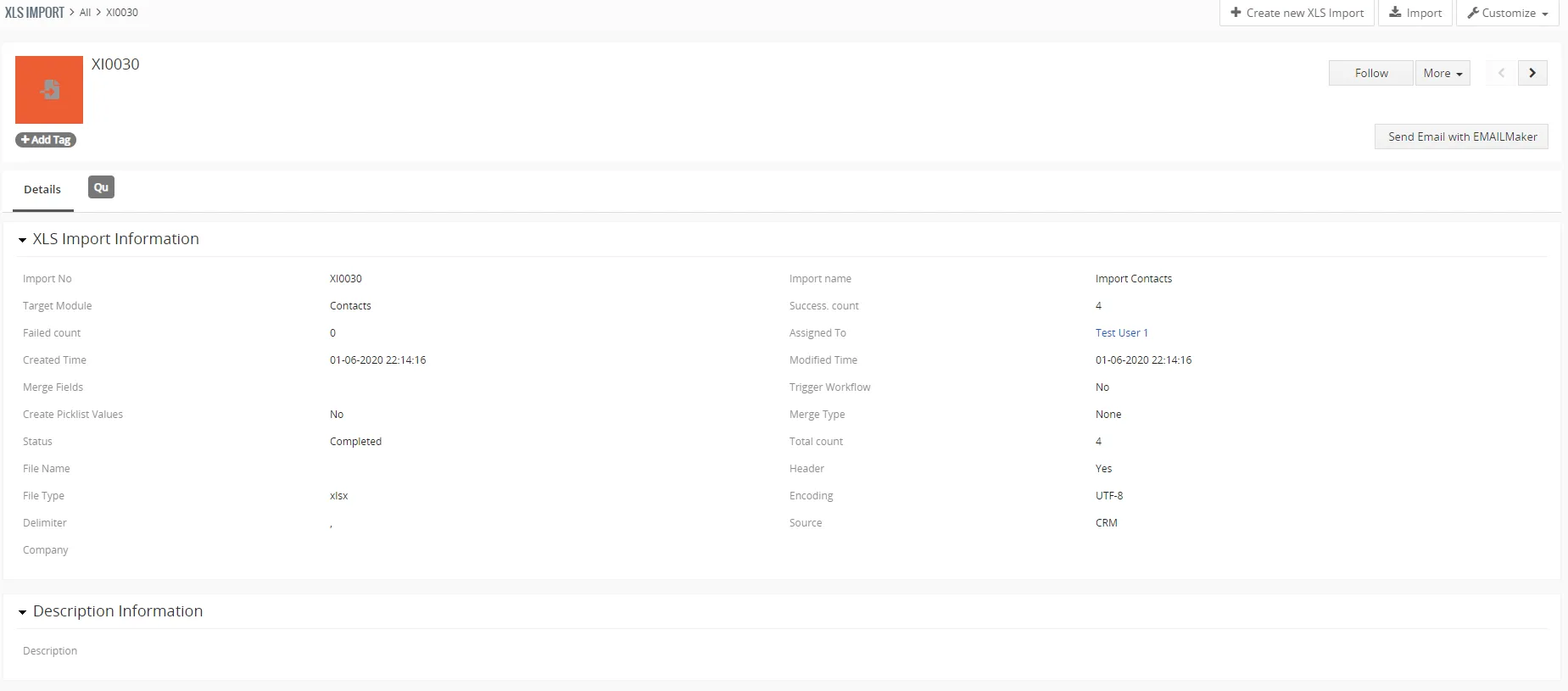
- Detail view – detail of the import with detailed information like: Target Module, Success. count, Total count, Failed count and more
4.1 List view
In the List view of XLS Import you are able to:
- Create new XLS Import via
 button
- Access Settings where you can:
Access License Settings
Update module manually
Uninstall module - Enter to Detail view by clicking on Import Name
- Delete the already created Imports
- Perform additional actions via
 button like: Follow, Unfollow, Add Tag

4.2 Create view
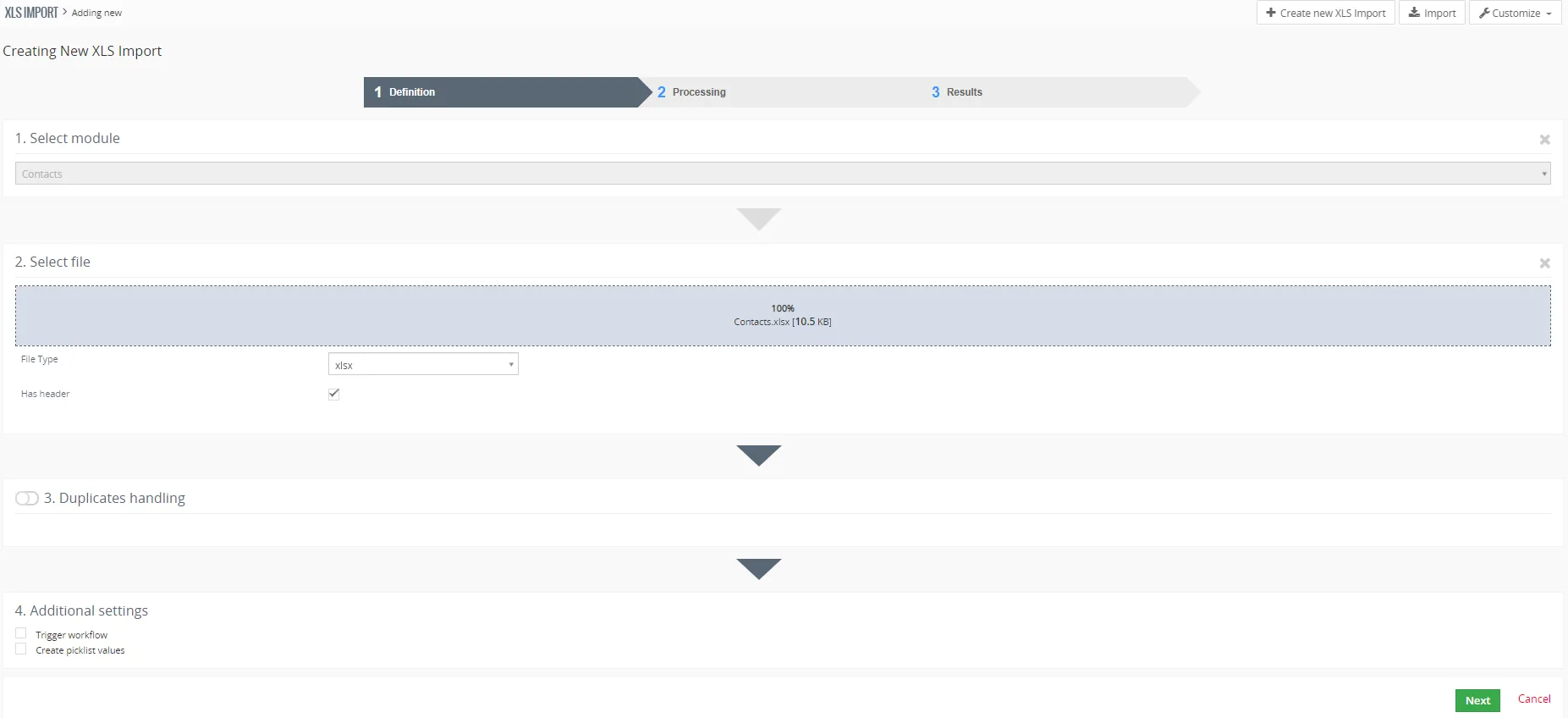
When you click on the you will enter to Create view, this view consist of:
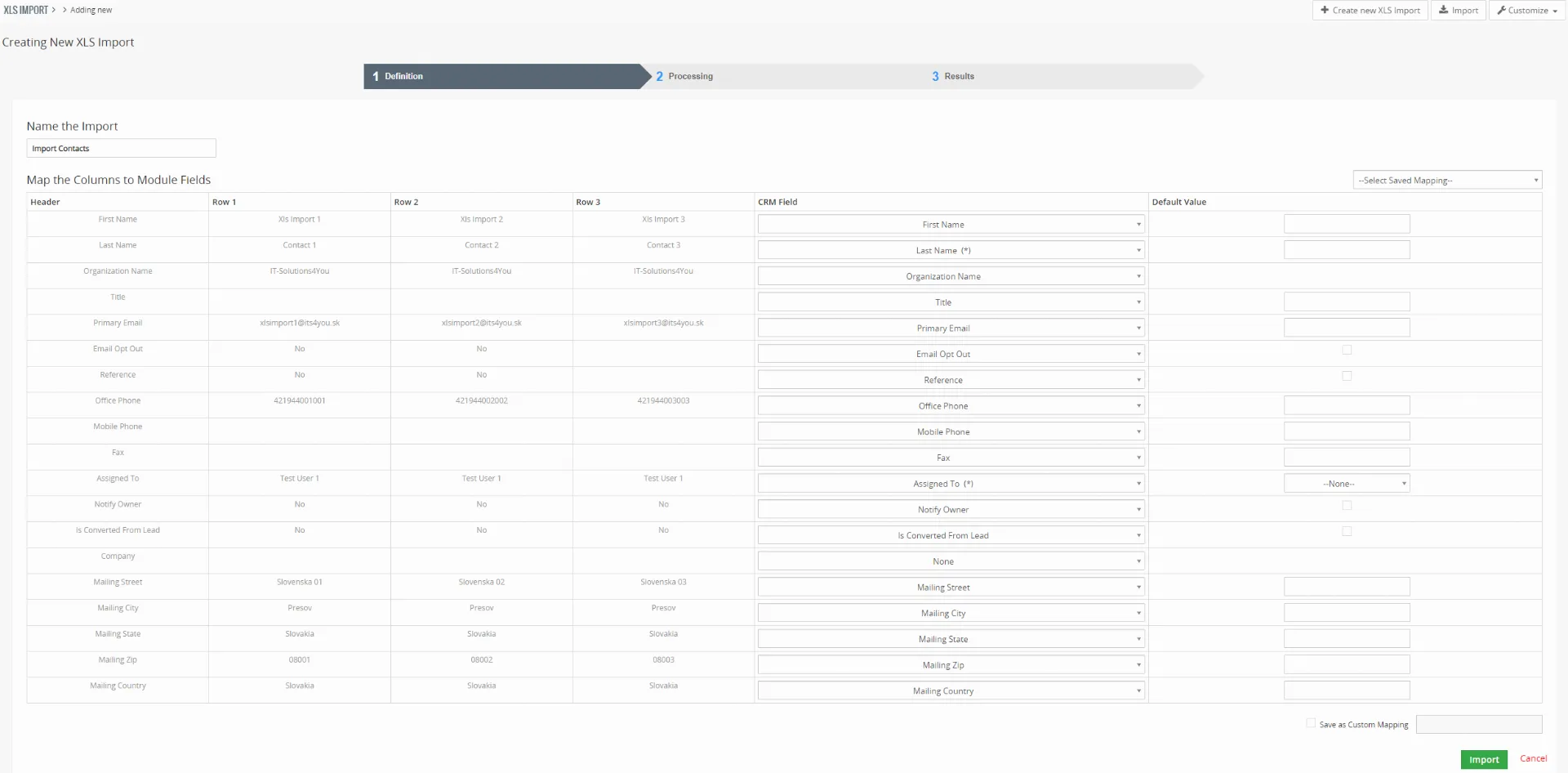
- Definition – first step where you need to select a module, load the supported files, set the duplicates handling, additional settings and set the mapping for the fields
- Processing – the process when the records are imported into your Vtiger CRM System
- Results – the final screen with the results of your import
(Click on the image to enlarge)
(Click on the image to enlarge)
(Click on the image to enlarge)

4.3 Detail view
There is also an option to see the Detail view of specific import, simply go to Menu – Tools – XLS Import.
From the list view, click on any import name and you will be redirected to the Detail view of the specific import.
In the detail view of import you can check useful information like:
- Target module – module to which you were importing the records
- Failed count – number of records which failed to import
- Success count – number of records which were successfully imported
- Trigger Workflow – if you used this feature for this Import
- Create Piclist Values – if there were any values created from this Import
- Total count – number of records in the file in total
- File Type – the type of file which was used for this Import
Need help with XLS Import?
Our support team answers questions about installation, templates and settings.