
The Calculate Fields module provides calculating values for Numbered fields or Date fields. This calculation for particular fields is based and provided on fields of related modules and defined filters for these modules.
In order to define a calculation for field in the target module you have to provide following steps:
- Define / select the field which value will be calculated in the target module.
- Define the filter (custom view) for the related module.
- Define the calculation within Calculate Fields settings.
The only new step from above approach is number 3. The others are the standard Vtiger CRM functionalities.
Please refer to the online Vtiger CRM manual, web pages, forums to obtain more details for example:
5.1 Setup calculation of the Calculate Fields
The Calculate Fields settings you can find under:
Menu → CRM Settings → Other Settings → Calculate Fields
In order to setup calculation provide following steps within settings:
- First at all click on
 button

Calculate Fields – New Calculate Field - Select the target module – the target module is the module in which new calculated field is created/located
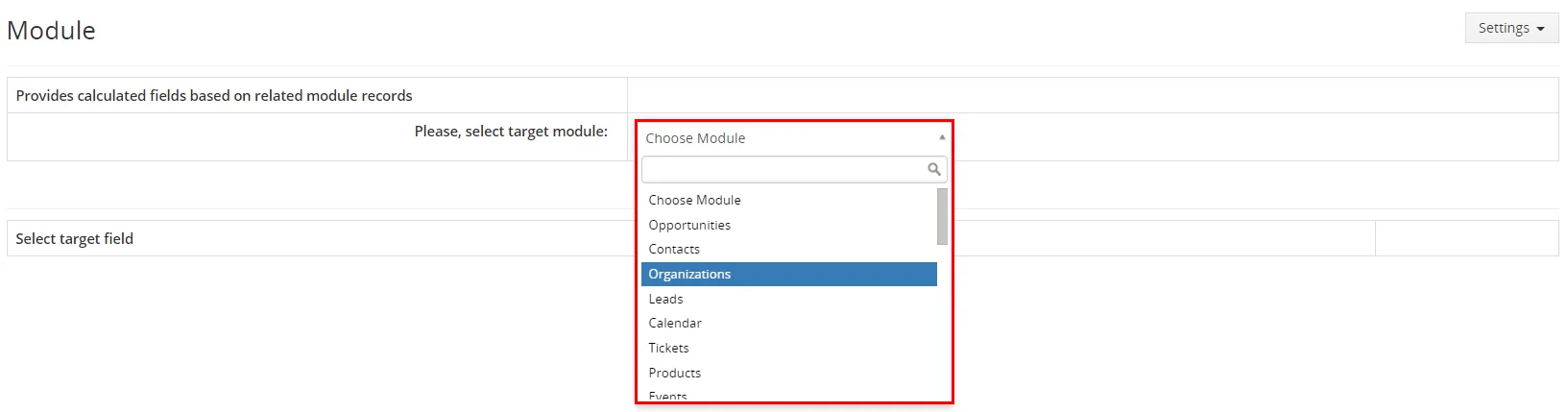
Calculate Fields – Select target module - Select the target field – the result of the calculation will be stored/updated in this field
(icon means, that this field is already filled by Calculate Fields)
(icon means, that this field is used by Calculate Fields)

Calculate Fields – Select target field Or you can reate a new field, so please provide following steps:
- click on
 button
- select Field Type
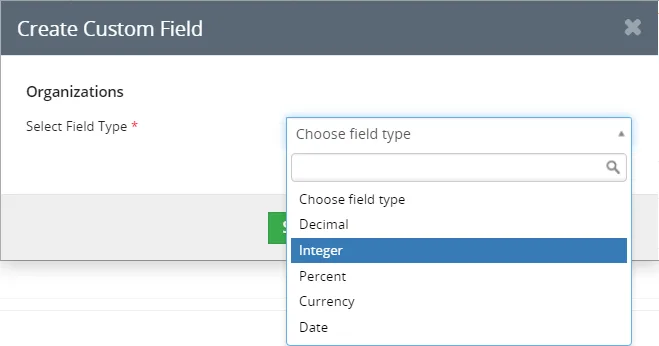
Creating new Custom Field - choose in which block the new Field will be placed/shown and type required information. click on

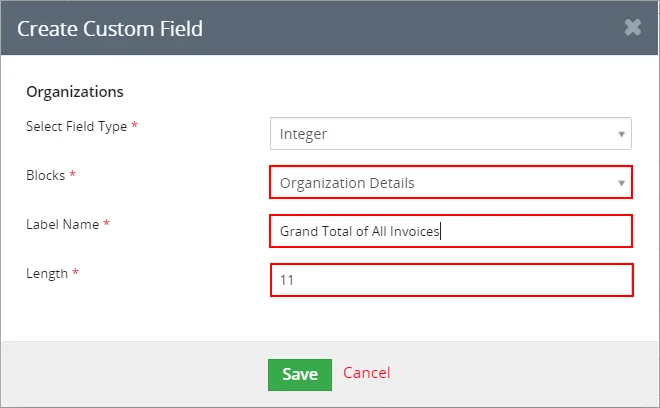
Creating new Custom FIeld - After Save, new custom field is created
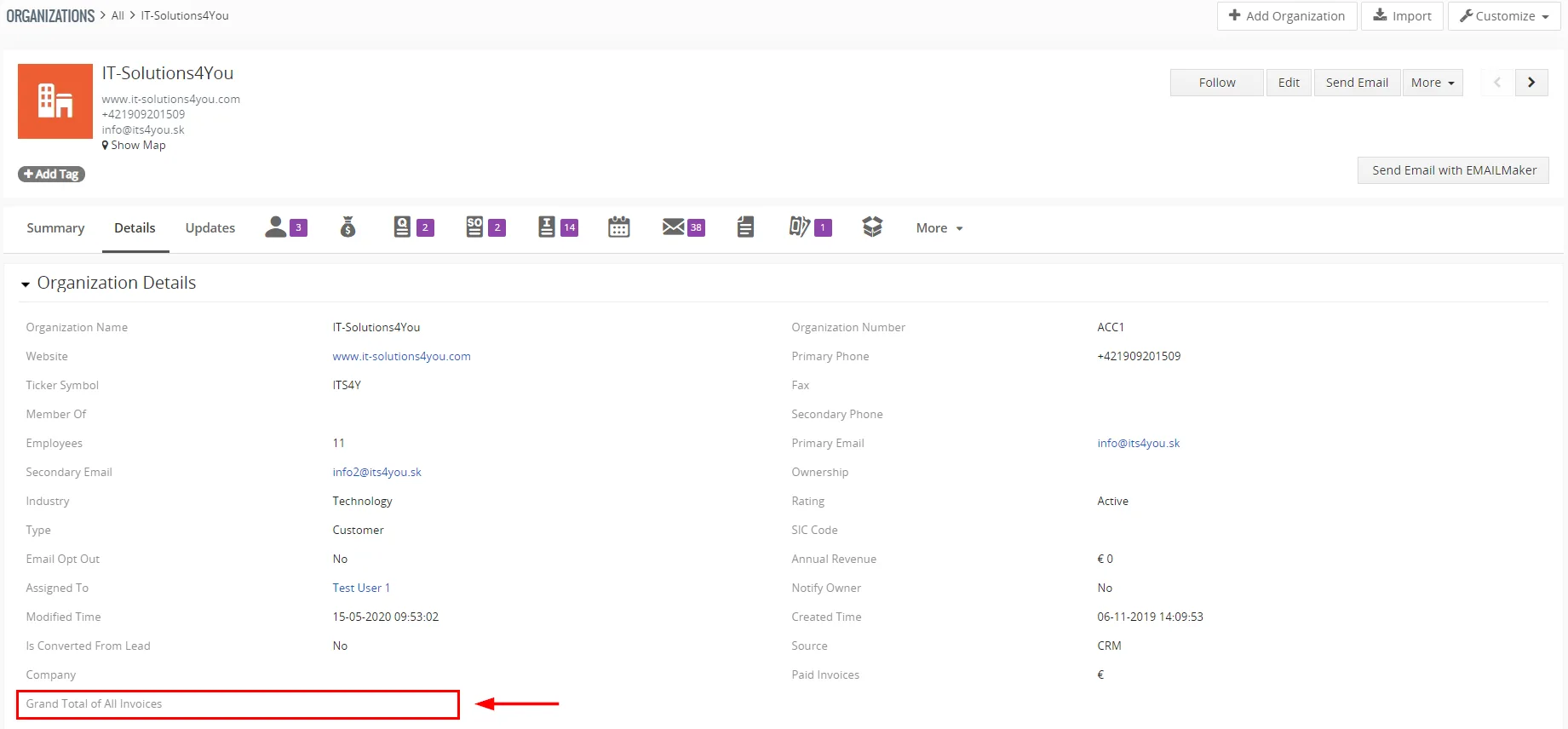
New Custom field
- click on
- Next click on Edit
 icon for already created Custom field
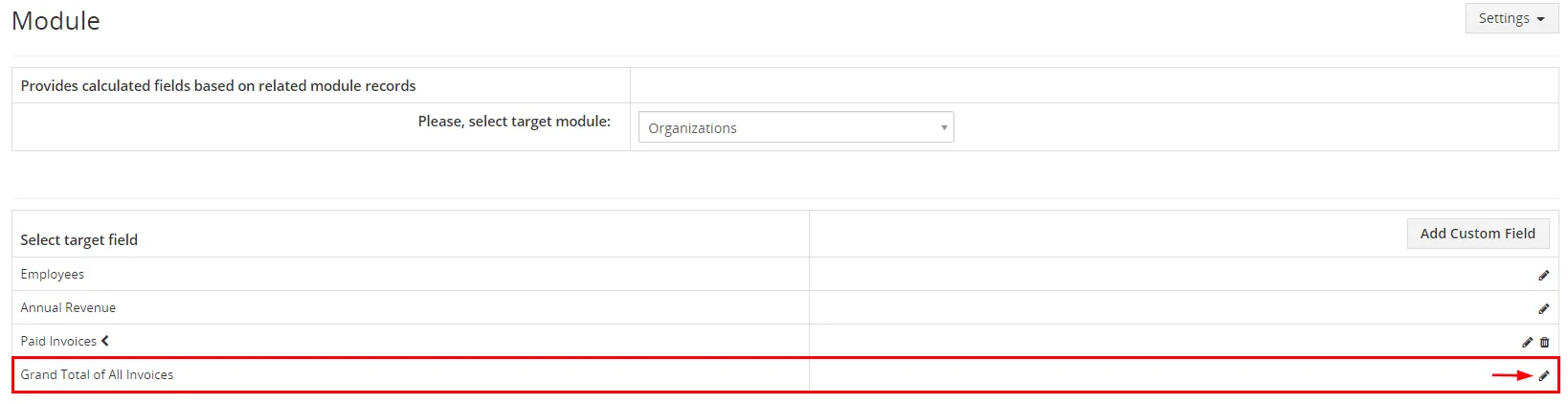
Selecting target field in Calculate Fields - Select related module – you can select only from the group of related modules (visible also within “More Information” tab), you can also add Description and click on

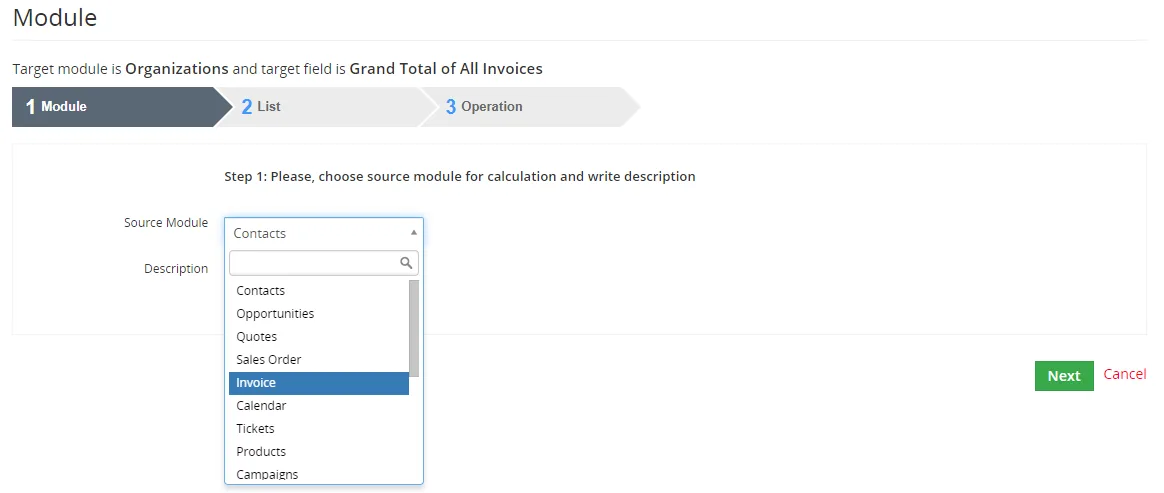
Choose Source Module - Select related module filter/custom view or you can create a new custom view – calculation is done using only group of related records which fit to filter conditions. Continue by
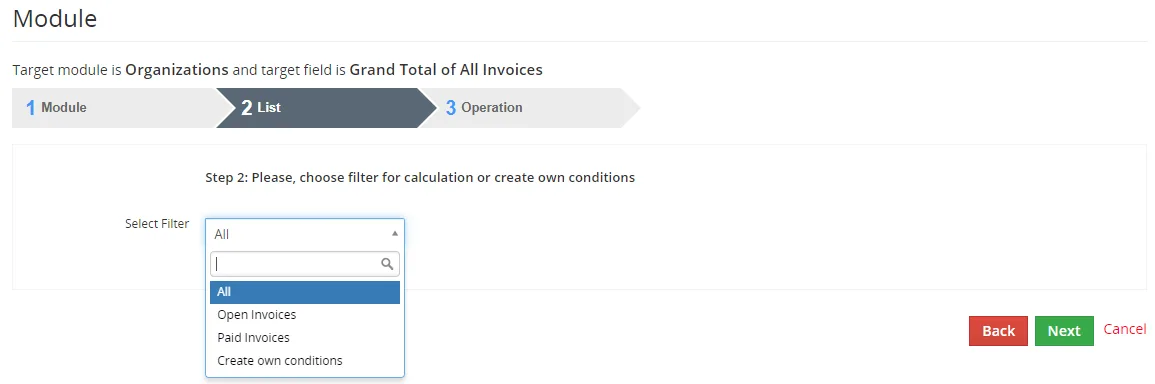
Selecting/creating a filter - A) Select column – Select column/related field – there should be a list of available columns from related module and the list depends on the type of related module.
You have to select one column according to your needs, e.g. Invoice you can select from: Adjustment, Sub Total, Total, Discount Amount and more.B) Select operation – we provide operations like:
SUM (value1+value2+…+valueN)
AVG (SUM/COUNT)
MIN (minimal value from all values, i.e. value1 …valueN)
MAX (maximum value from all values, value1 …valueN)
COUNT (the count of the values, i.e. N)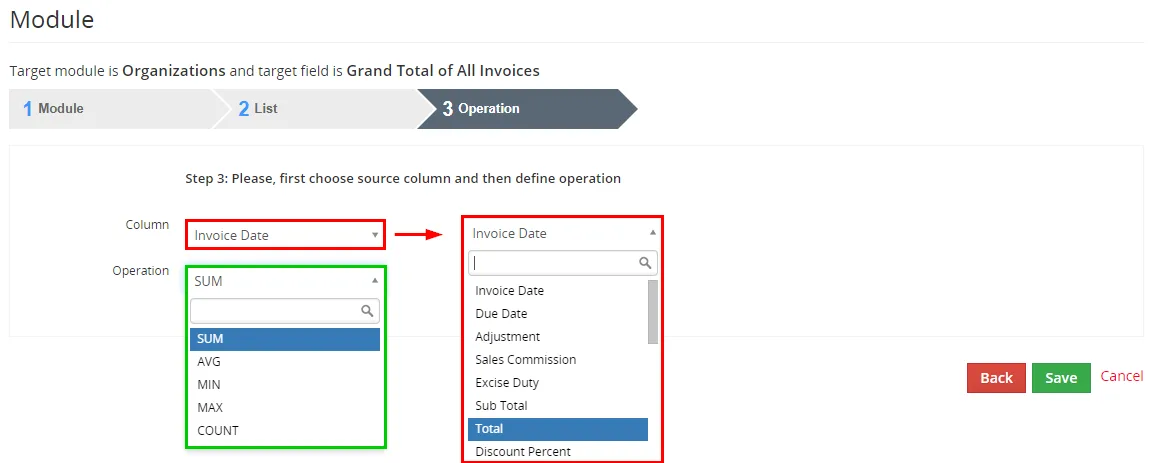
Selecting column and operation - Your Calculated Field is created/edited now

Your Calculate Fields - New column (Grand Total of All Invoices) is empty until first start of Calculate Field’s Scheduler
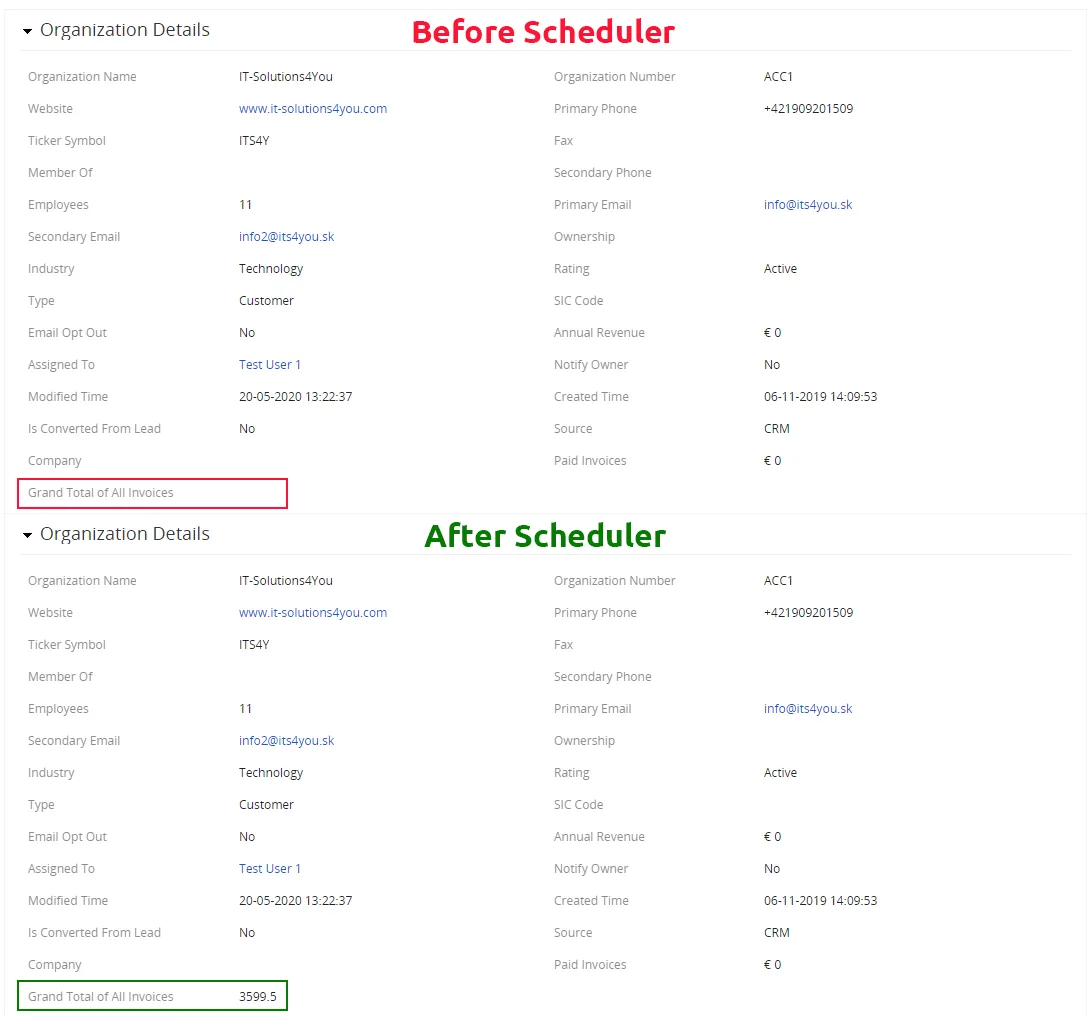
Calculated Fields results
5.2 Setup of Scheduler
As was before mentioned, the calculations provided for Calculated Fields are done automatically based on scheduler settings and cannot be initiated manually.
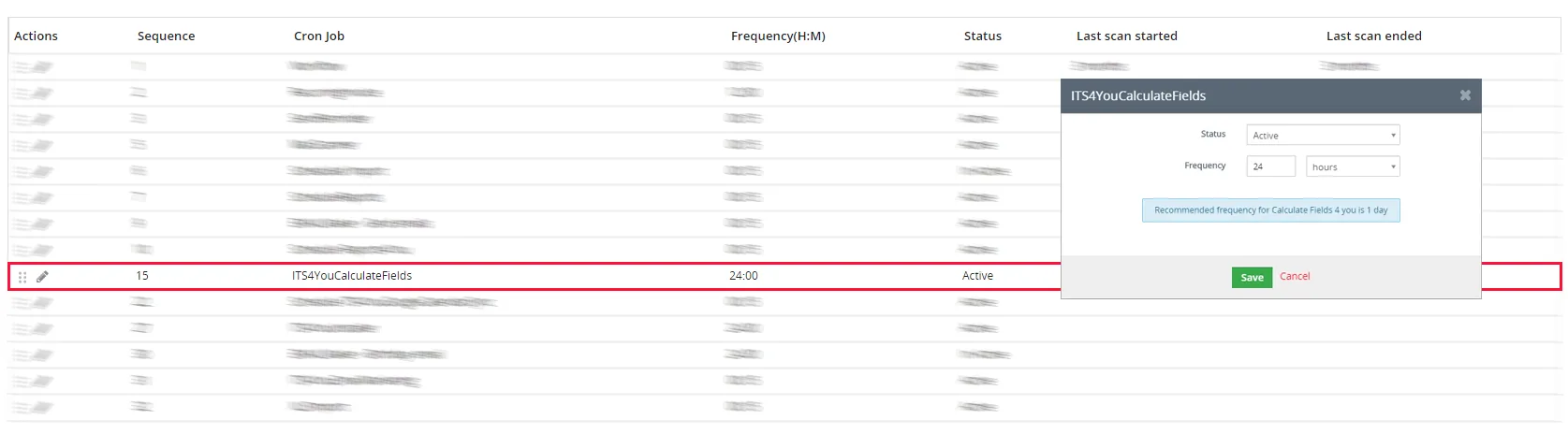
Please check the scheduler settings,i.e. check whether the status for Calculate Fields is “Active”.
If not, please change it via Edit icon, as well as define frequency as shown in the picture below:
 Recommended frequency for Calculate Fields 4 you is 1 day
5.3 AfterSave (instant calculation)
Since August 2021 we also support AfterSave calculations
This is included in version 4.5 and higher
 What is a AfterSave calculation?
The the calculations will be made immediately after saving the record.
For example:
We have an Organization where in the Annual Revenue field, there should be a SUM of all Paid Invoices assigned to the given organization.
So now when you create or edit any Invoice related to this Organization, the Annual Revenue will be instantly recalculated after you press Save button when editing or creating an Invoice.
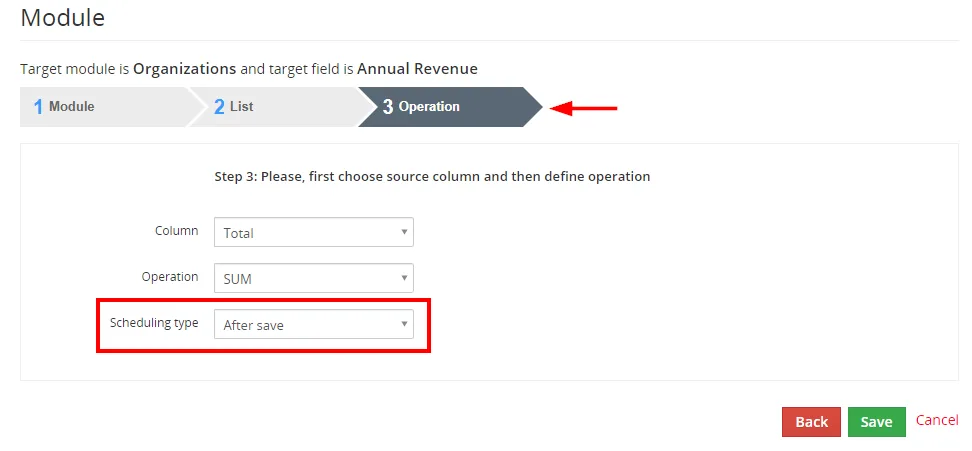
This setup you can find when creating or editing Calculated Fields in step 3 – Operation:
Need help with Calculate Fields?
Our support team answers questions about installation, templates and settings.