

Tracking Consent allows campaign recipients to decide whether email opening and link click activity may be tracked for their CRM record.
A campaign can contain recipients with different tracking preferences. You do not need to create separate campaigns for recipients who allow tracking and recipients who do not.
If a recipient has allowed tracking, the campaign can record supported email opens and link clicks when email tracking is also enabled in the CRM.
If a recipient has not allowed tracking, the campaign email can still be delivered, but ITS4You Emails does not add its own opening tracking pixel or convert links into tracking URLs for that recipient.
Tracking consent is different from unsubscribe
Tracking consent controls whether supported campaign activity can be measured. It does not control whether the recipient is subscribed to the campaign.
| Recipient setting | Campaign behavior |
|---|---|
| Tracking allowed | The campaign can track supported email opens and link clicks when email tracking is enabled. |
| Tracking not allowed | The email can still be delivered, but ITS4You email opening and link click tracking is disabled for that recipient. |
| Email Opt Out enabled | The recipient is excluded from campaign delivery. |
How recipients manage their consent
You can add Allow tracking and Disable tracking content blocks to a Newsletter template.
When the campaign is prepared, these blocks are personalized for each recipient. The recipient can open the corresponding page and confirm whether tracking should be allowed or disabled.
The recipient must confirm the action before the tracking preference is changed. Simply opening the consent page does not change the current setting.
After the preference is changed, the new tracking setting is used for campaign tracking activity associated with that recipient.
Important
Disabling tracking does not unsubscribe the recipient from your campaigns. It only prevents ITS4You Emails from recording supported campaign opening and click activity for that recipient.
The following sections explain how to configure Tracking Consent, add the consent controls to a Newsletter template, and verify the recipient’s current tracking preference.
7.1 Setting Up Tracking Consent
Before using recipient tracking consent in campaigns, make sure the required Tracking Consent field is available in the recipient modules used by Email Marketing.
An administrator can create or update the required fields by running the Email Marketing installation.
- Open Settings.
- Open the Email Marketing module settings.
- Select Run installation.
- Complete the installation process.
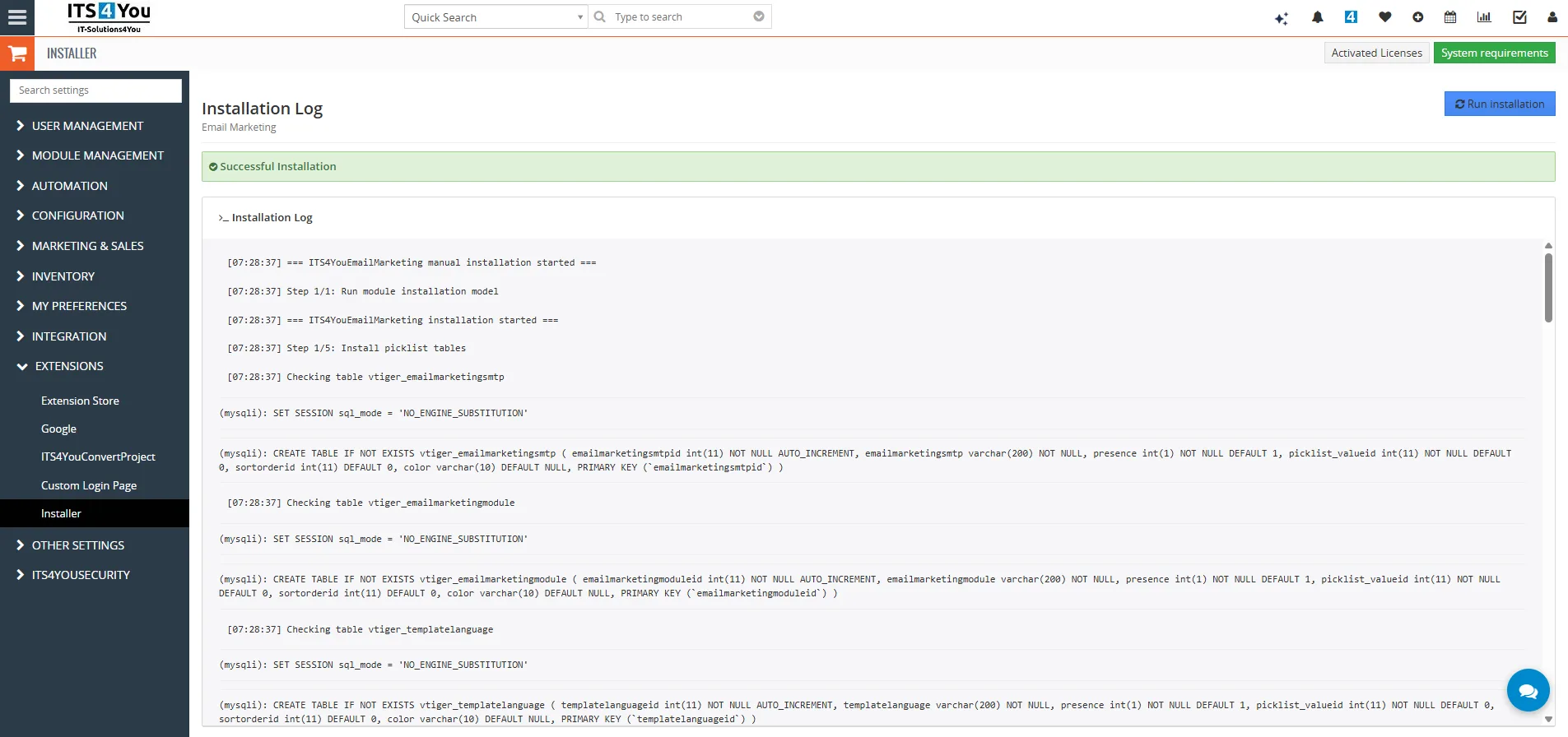
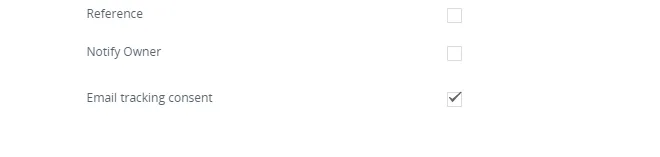
The installation creates the Email Tracking Consent checkbox in supported recipient modules such as Contacts, Leads, Accounts, and other active supported recipient entity modules.
Existing recipients are not automatically granted tracking consent. The Tracking Consent field is created without enabling consent for existing records.
The field in the screenshot represents the current tracking preference of the CRM record:
| Value | Meaning |
|---|---|
| Enabled | The recipient has tracking consent. Campaign tracking can be used when the other tracking settings also allow it. |
| Disabled | Campaign opening and click tracking is disabled for this recipient. |
Adding another recipient module
If you later add another supported recipient module that should be used by Email Marketing, run the Email Marketing installation again so that the required Tracking Consent field can be created for that module.
After the field is available, you can add the recipient consent controls to your Newsletter template.
7.2 Adding Tracking Consent to a Newsletter
Add tracking consent controls to a Newsletter template when you want recipients to manage whether their campaign activity may be tracked.
The Newsletter editor provides dedicated Allow tracking and Disable tracking content blocks.
- Open the Newsletter template that you want to use for your campaign.
- Open the available Content blocks.
- Add Allow tracking to let recipients grant tracking consent.
- Add Disable tracking if you also want recipients to withdraw their tracking consent directly from the email.
- Position the controls where recipients can easily find them.
- Save the Newsletter template.
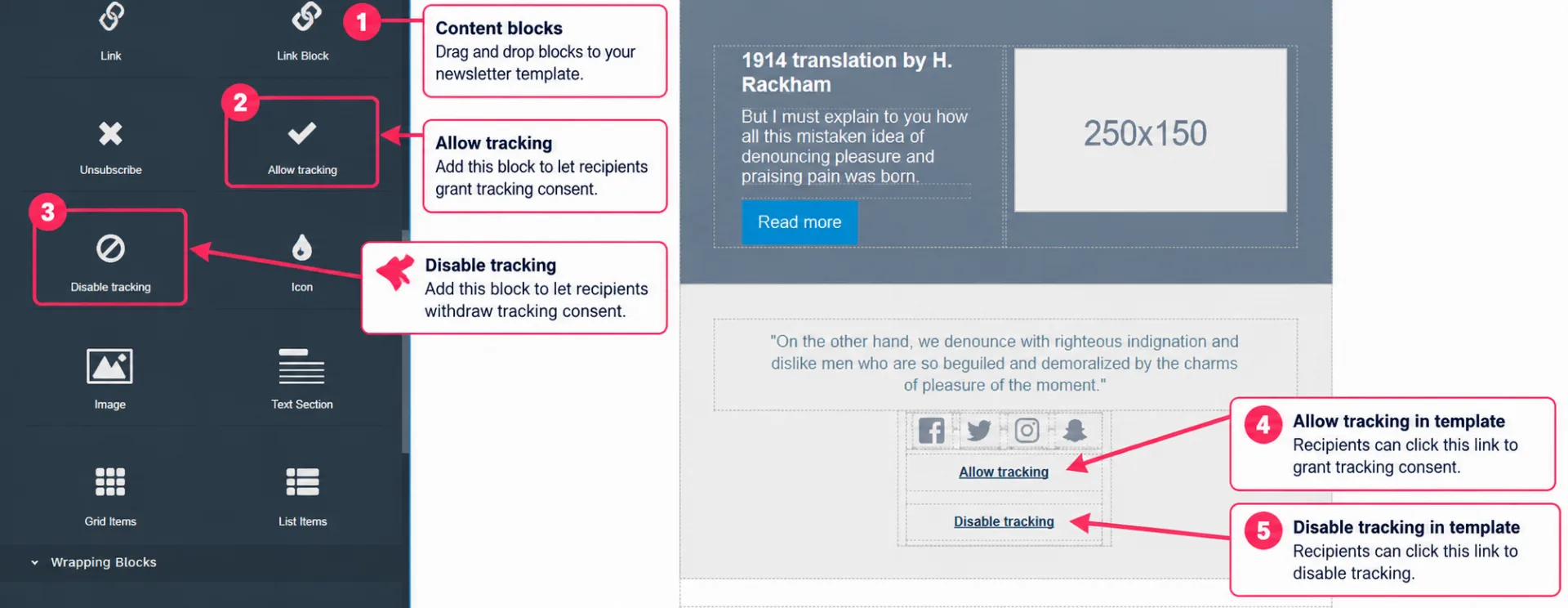
The numbers in the screenshot identify these controls:
- Content blocks: open the available Newsletter content elements.
- Allow tracking: adds a personalized action that allows the recipient to grant tracking consent.
- Disable tracking: adds a personalized action that allows the recipient to withdraw tracking consent.
How the links are personalized
You only need to add the appropriate content blocks to the template. Email Marketing prepares the recipient specific tracking consent links when the campaign email is personalized.
You can include both controls in the same Newsletter template. This allows the same template to be used regardless of the recipient’s current tracking preference.
Important
The consent controls affect ITS4You campaign tracking. They do not automatically remove external tracking images or tracking links that may already be included in the Newsletter content by another service.
7.3 Allowing Tracking
A recipient can grant tracking consent directly from a campaign email when the Newsletter contains an Allow Tracking action.
- The recipient opens the campaign email.
- The recipient selects Allow Tracking.
- A public confirmation page opens in the browser.
- The recipient reviews the action and confirms it.
- The recipient’s Tracking Consent value is updated in CRM.
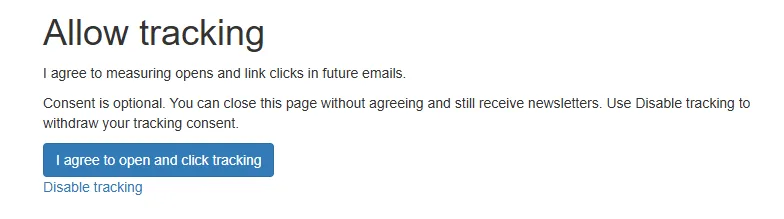
Opening this page alone does not change the tracking preference. The recipient must explicitly confirm the action.
After confirmation, the tracking preference is saved for the corresponding CRM recipient.
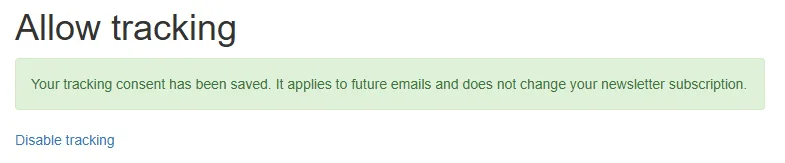
What changes after consent is granted
Future campaign messages for this recipient can use ITS4You opening and link click tracking when email tracking is also enabled in the CRM.
Granting tracking consent does not override other CRM settings that disable email tracking.
7.4 Disabling Tracking
A recipient can withdraw tracking consent using the Disable Tracking action included in the Newsletter.
- The recipient opens the campaign email.
- The recipient selects Disable Tracking.
- A public confirmation page opens.
- The recipient confirms the action.
- The Tracking Consent value for the corresponding CRM record is disabled.
Simply opening the page does not withdraw tracking consent. The recipient must confirm the action.
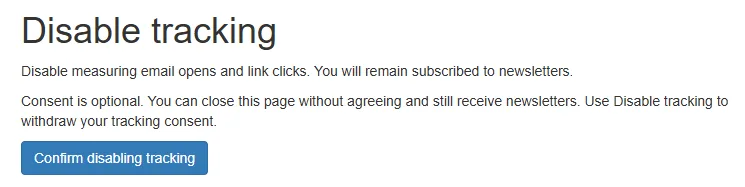

What happens after tracking is disabled
The recipient can continue receiving eligible campaign emails. Disabling tracking does not unsubscribe the recipient.
ITS4You Emails stops recording supported opening and click activity for campaign tracking when the recipient no longer has tracking consent.
This also applies when the recipient uses an older campaign email. Previously generated campaign links can still open their destination, but new tracking activity is not recorded while consent remains disabled.
Existing campaign statistics
Withdrawing tracking consent does not delete previously recorded campaign activity. Existing tracking history remains stored.
7.5 Checking Tracking Consent
You can check the recipient’s current tracking preference directly in the CRM record.
- Open the relevant recipient record, such as a Contact, Lead, or Account.
- Locate the Email Tracking Consent field.
- Check whether the field is enabled or disabled.
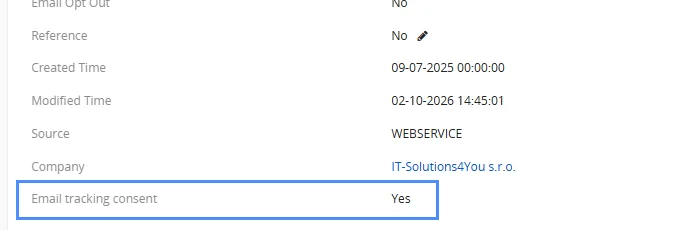
The Tracking Consent value determines whether campaign tracking is permitted for that CRM recipient:
| Tracking Consent | Result |
|---|---|
| Enabled | Campaign tracking is permitted when the other email tracking settings also allow it. |
| Disabled | Campaign opening and click tracking is not performed for the recipient. |
Manual changes
An administrator can also update the recipient’s Tracking Consent field manually when there is a valid reason to record a consent change directly in CRM.
Tracking Consent is separate from Email Opt Out. Changing Tracking Consent does not subscribe or unsubscribe the recipient from campaign delivery.
7.6 Tracking Consent and Campaign Metrics
Tracking Consent also affects the campaign statistics available in Email Marketing.
Not every delivered campaign email must be trackable. A recipient can receive the email while opening and click tracking remains disabled because the recipient has not granted tracking consent.
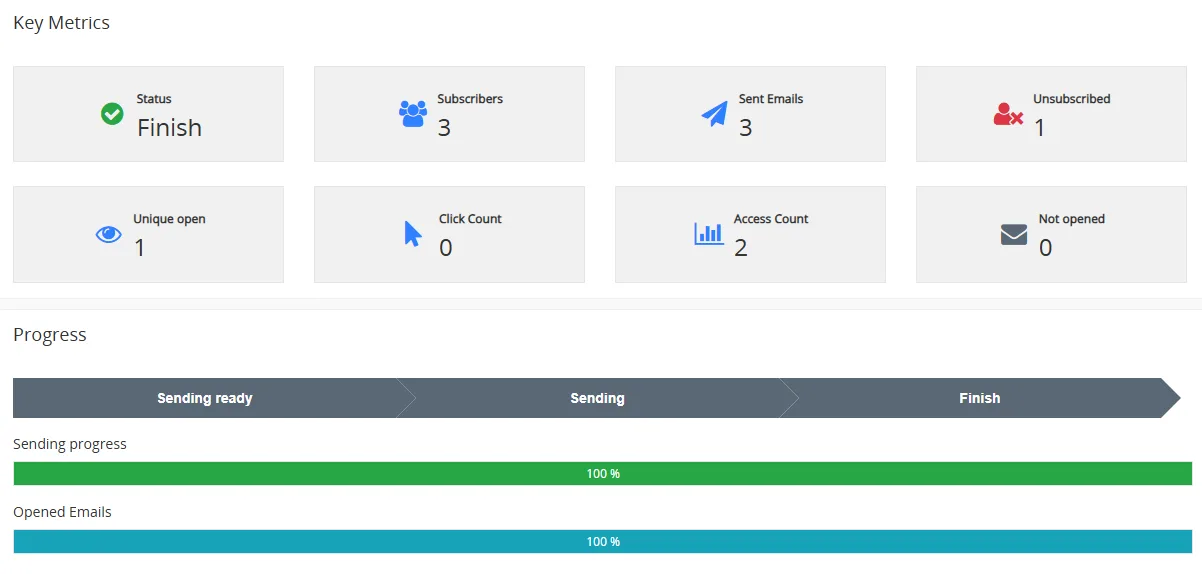
When reviewing campaign results, distinguish between delivered emails and emails that are eligible for tracking.
| Metric | Meaning |
|---|---|
| Sent Emails | Shows emails sent by the campaign. A sent email does not automatically mean that tracking was enabled for the recipient. |
| Opens | Shows recorded opening activity for messages where tracking was permitted. |
| Clicks | Shows recorded link click activity for messages where tracking was permitted. |
| Not tracked | Represents recipients or messages that are outside the currently trackable campaign population. |
Why the numbers can differ
A campaign may therefore contain more sent emails than trackable emails. This is expected when some recipients do not have tracking consent or when tracking is disabled by another applicable email tracking setting.
If a recipient later withdraws tracking consent, previously stored activity is not deleted. However, future supported campaign tracking activity is no longer recorded while consent remains disabled.
Tracking accuracy
Email opening and click statistics should be treated as campaign activity indicators. Mail client image blocking, caching, privacy features, and automated link scanning can affect the recorded results.
Need help with Email Marketing?
Our support team answers questions about installation, templates and settings.