

Module BuilderSettings can be accessed via the list view in the Installer list of Extensions.

In the Settings, you can find:
- Integration – will take you to modules Creation window
- Module Requirements – check if the all Requirements are met for your module (like Custom links, Event handlers, etc..,)
- License settings – see if a license is currently active
- Upgrade – updates extension if needed
- Uninstall – remove extension from your CRM
6.1 How to update Module Builder
The upgrade of the module is initiated via our Installer or manually.
Updating via Installer (recommended):
- open the Installer in the CRM
- in the Modules tab find your installed module and you should see the
 button available
- If the new version is available, you will be notified via Installer Notifications icon

Updating manually:
Updating module manually is sometimes required when our support team sends you .zip package, if you are having some issues or there is any update or customization available.
Otherwise, we always recommend to use update via Installer.
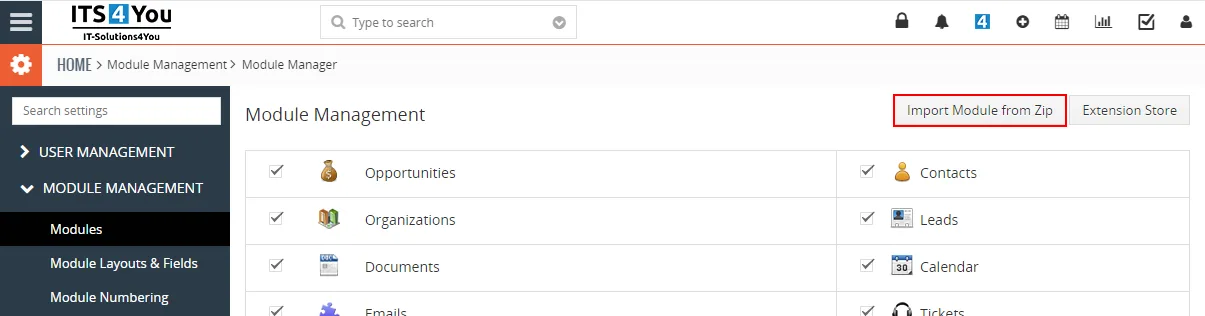
Update can be done via Module Manager by clicking on the button  and selecting the .zip file.
6.2 Uninstall
Safe Uninstall Protection
Prevent uninstalling a main module while related modules still exist to help protect CRM data.
Module Builder includes protection logic for related modules. The main module cannot be uninstalled while related modules still exist, which helps prevent accidental removal of module structures that are connected to other CRM data.
If you need to remove the Module Builder Main Plugin from your Vtiger, you have two options:
- Uninstall Main Module Builder via Installer.
- Manually by going to module Settings and choosing the Uninstall option.
6.2.2 Uninstall via Installer
You have also option to remove the module via Installer window by accessing the Settings – Uninstall window:
- Go to your Installer, by a click on Notifications Icon and then on the button
 ,
or via Main Menu – Settings – CRM Settings – Extensions – ITS4YouInstaller - Find the module you need to uninstall in the Modules tab
- Via
 pick list button choose the Uninstall option, you will be redirected to the Uninstall window.
- Click on
 button

- Confirm uninstall with
 button
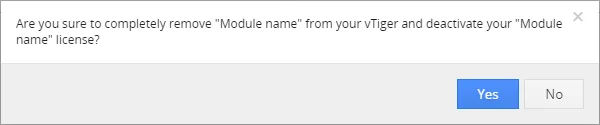
Now, the module has been removed from your Vtiger and your license has been deactivated. To use this module again, you need to provide installation and validation steps (see Installation chapter).
6.2.3 Manual Uninstall
There is also available option to remove Extension from your Vtiger manually.
To uninstall please provide following steps:
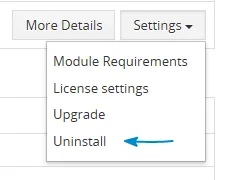
- Go to the Installer and find Module builder extension in list view, via button Settings select Uninstall.
Extension Uninstall - Click on button.
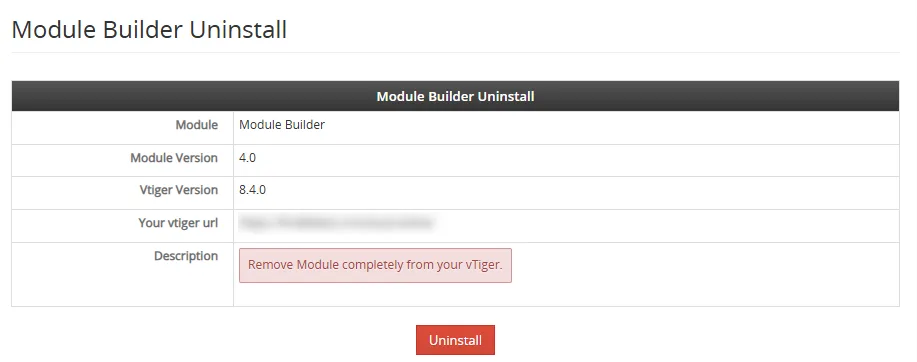 Confirm uninstall with
 button.
Now, Extension is removed from your Vtiger and your license is deactivated.
To use Vtiger Module Builder again, you need to provide installation and validation steps again.
Need help with Module Builder?
Our support team answers questions about installation, templates and settings.