

Multi Company 4 You is module which you need to set up correctly at the beginning and let them do their work on the background. It doesn’t mean that you cannot add additional company later or change some settings related to numbering. Before you start definition of additional companies within Multi Company 4 You it is necessary to define new companies’ roles (profiles) and users. So the whole set up comprises definition of:
- roles (profile is necessary) – standard vtiger functionality (see chapter 2.1)
- users – standard vtiger functionality (see chapter 2.3)
- companies – Multi Company 4 You functionality described in chapter 2.4
- custom numbering – Multi Company 4 You functionality described in chapter 2.5
How to initialize Multi Company 4 You is shown in the below picture.
5.1 Definition roles
During definition of roles you have to assign at least one profile. In case you don’t need for new companies separate profiles, you can start definition of roles, otherwise define firstly new profiles (https://wiki.vtiger.com/vtiger6/index.php/Profiles). Definition of roles is standard vtiger CRM functionality so please refer for example to https://wiki.vtiger.com/vtiger6/index.php/Roles or other web manuals.
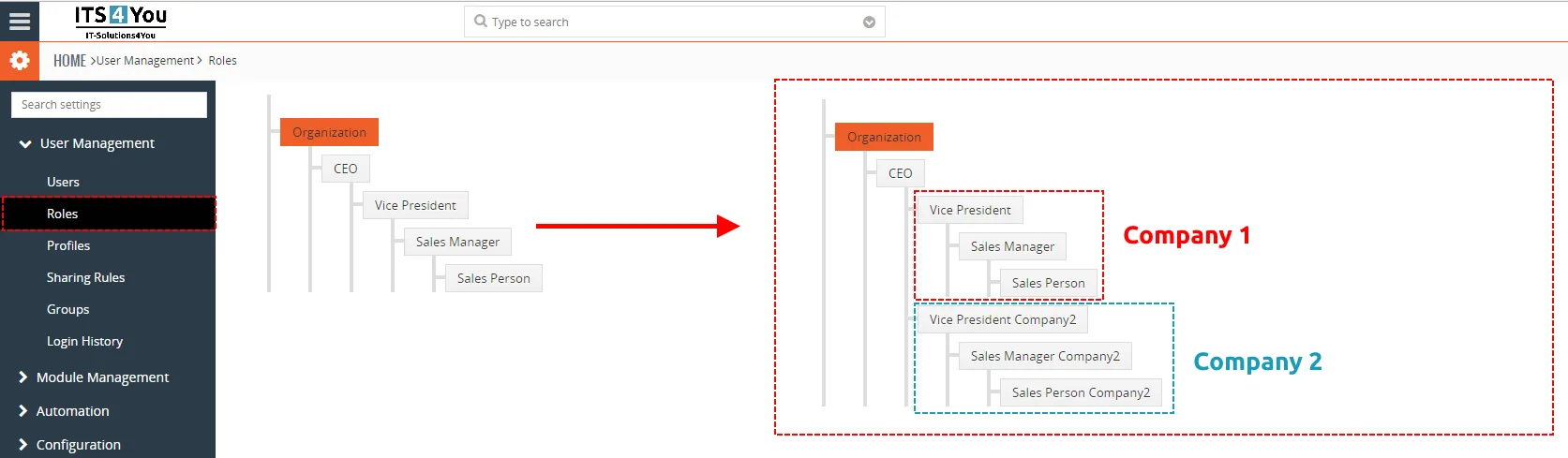
To create or change Roles please go to Settings -> CRM Settings and in the section User Management click on Roles link and set Roles according to your needs as you can see in the picture below.
5.2 Sharing rules
Installing Multi Company will NOT change Sharing rules automatically like it was in the past.
(The reason is that some users had own sharing rules and our extension overwrote their settings)
In order to set all or modules you need in Sharing Rules to Private, you need go to:
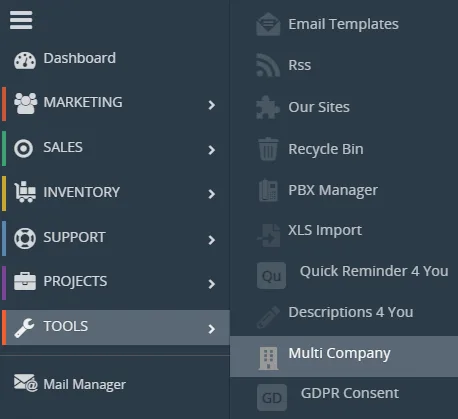
Menu – TOOLS – Multi Company – Customize – Integration
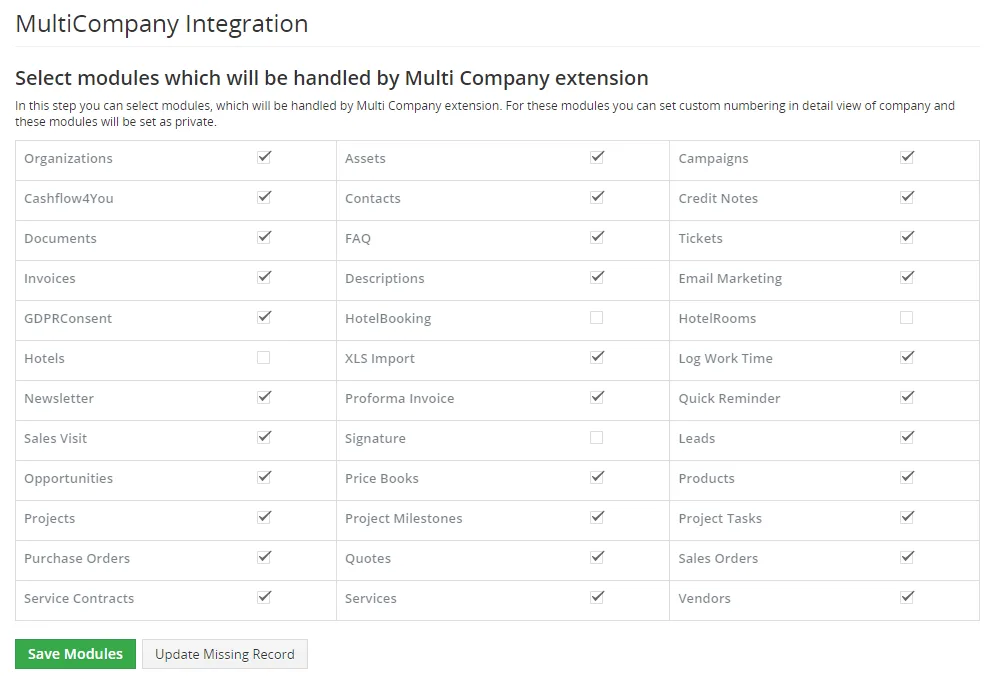
Simply select the modules you need and click on  next alert will appear. Please confirm it:

After clicking on  all selected modules Sharing Rules will be set to Private.
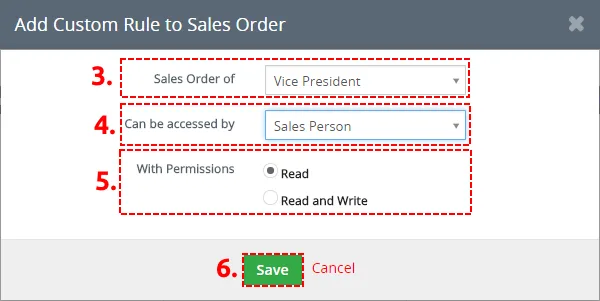
If you want some module set like public within one company there is option for custom rules.
For set using following step:
- Click on
 button for module you want to set custom rule

Add Custom Rule - Click on
 button

Add Custom Rule - Here choose who is owner of record
- Here choose who can access to record
- Set Read or Read and Write permission
- Click on
 button
Add Custom Rule
Or for detail information see: https://wiki.vtiger.com/vtiger6/index.php/Sharing_Rules
5.3 Definition users
After definition of roles you have to assign to users their new company related roles. Because the definition of users is also standard vtiger CRM function please refer to https://wiki.vtiger.com/vtiger6/index.php/Users for details.
To assign User to company please go to CRM settings and in the section User Management click on Users link. Here you can create or edit users.
The most important is set for each user role – that mean to which company belong it (Defined in Sharing rules chapter).
 MultiCompany does not support Assigned to – Groups.
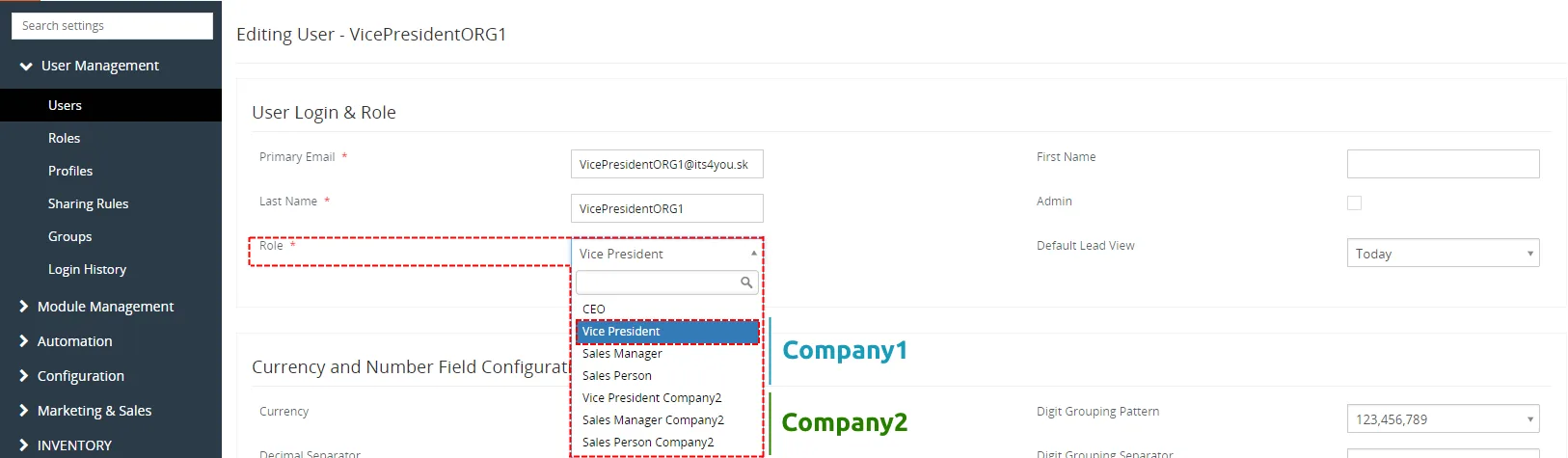
5.4 Definition new company
In case the roles are defined you can beside your original company define the additional companies. The new company can be easily defined using following steps:
- Go to Project and click on Multi Company
- Click on
 button
- In appeared window please specify company details according to your needs
- Save a new company
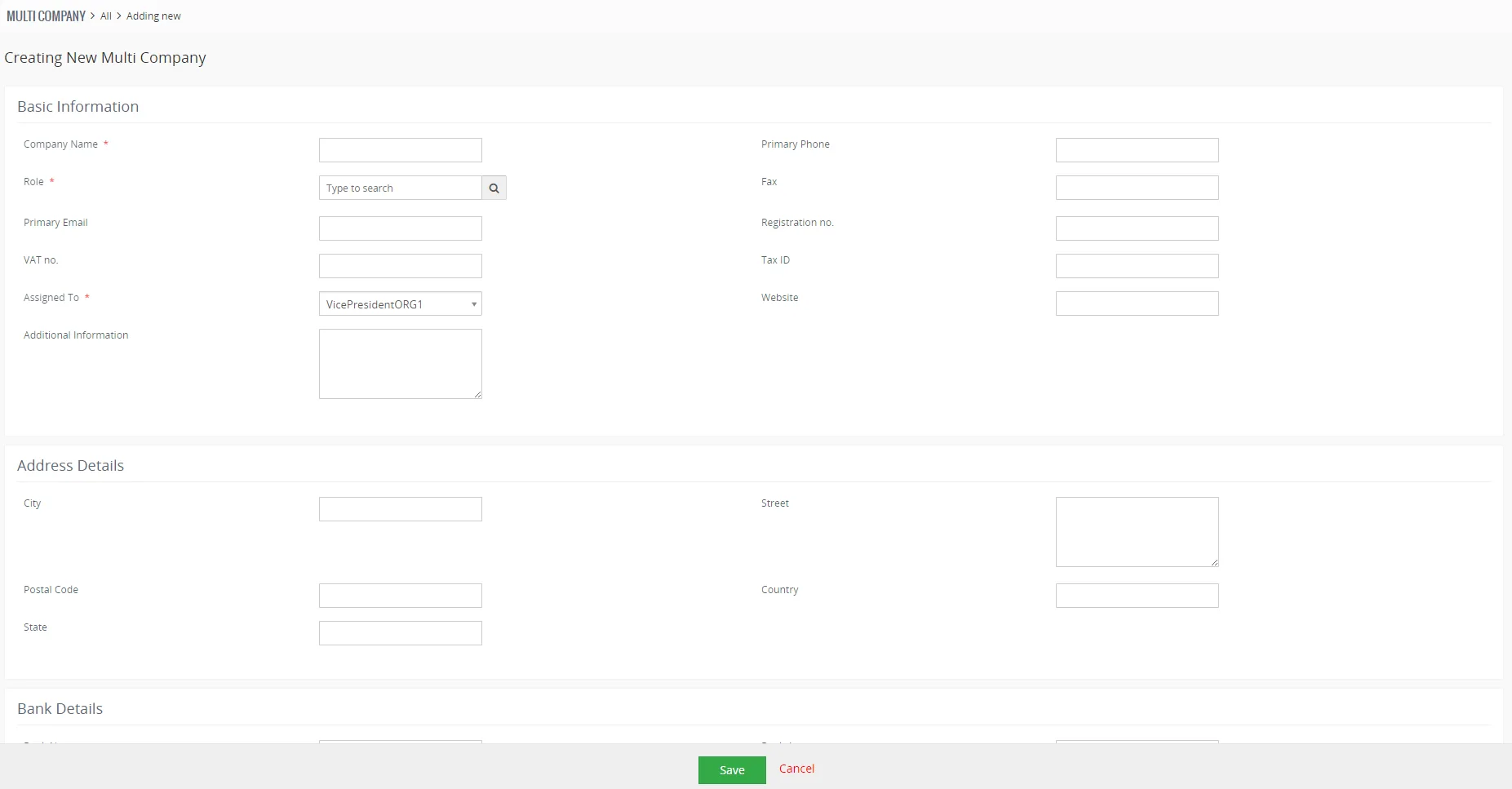
As you can see on Picture, you can find in company details also new field “Role”. It is mandatory field for correct working of the Multi Company. After selecting of role, all subroles are assigned to company. Also please check field Assigned To. It is also important field and we recommend to Assigned Company to higher user of this Company.
In the following Picture you can see relationship between Role – User – Companies
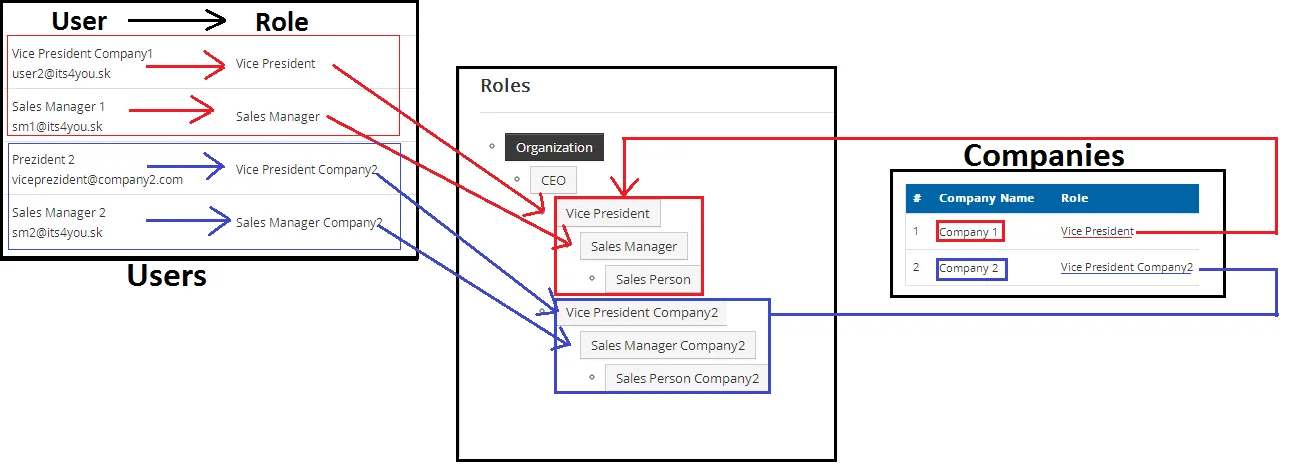
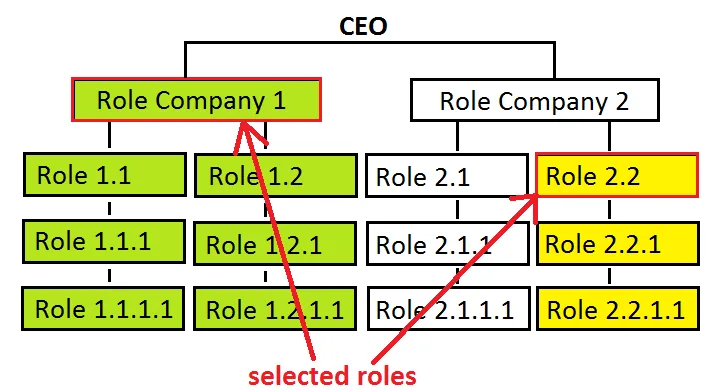
Next sections show why the role is important for correct working of the new modules. There is one common rule how the custom numbering is applicable for companies. As you can see in the following picture, the custom numbering will be applied to selected role and all subroles that fall under this role, i.e. will be inherited. Picture shows example where all users/roles belong to “Company 1” will use Custom Numbering settings and only users of Role 2.2 and its all “child” roles will use Custom Numbering settings. Role Company 2, 2.1 etc. will use original vtiger CRM Customize Record Numbering.
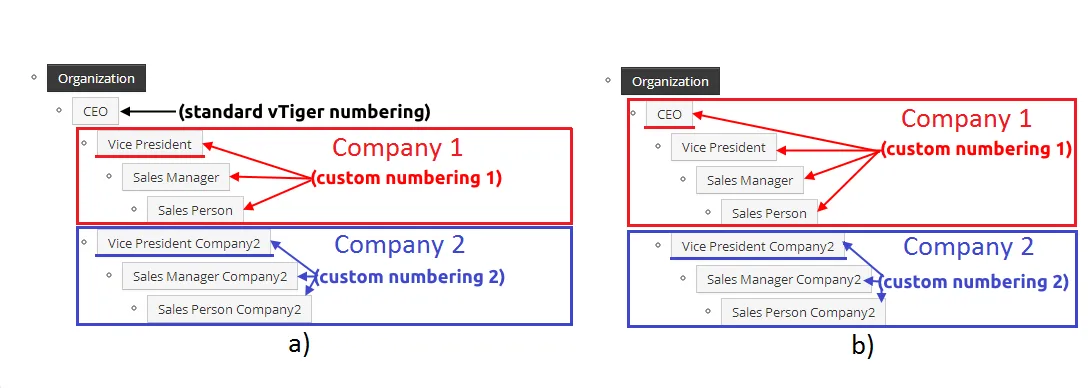
Based on this rule two different recommend settings of the roles for more companies are shown below:
- For each company the highest role except CEO is selected – in this scenario the custom
numbering settings is applicable for all users of separate company 1 or 2 but not for CEO - CEO is included in the first company – custom numbering is always applicable for all users
5.5 Definition the custom numbering
Within MultiCompany, you can define numbering per company and per module according to your needs.
To set which module should have custom numbering, please check the chapter
How to Enable/Disable a Module for MultiCompany.
Steps to Configure Custom Numbering
Step Open the company
Step Choose Numbering
Step Select the Module (If the module is not listed, check the chapter How to Enable/Disable a Module for MultiCompany).
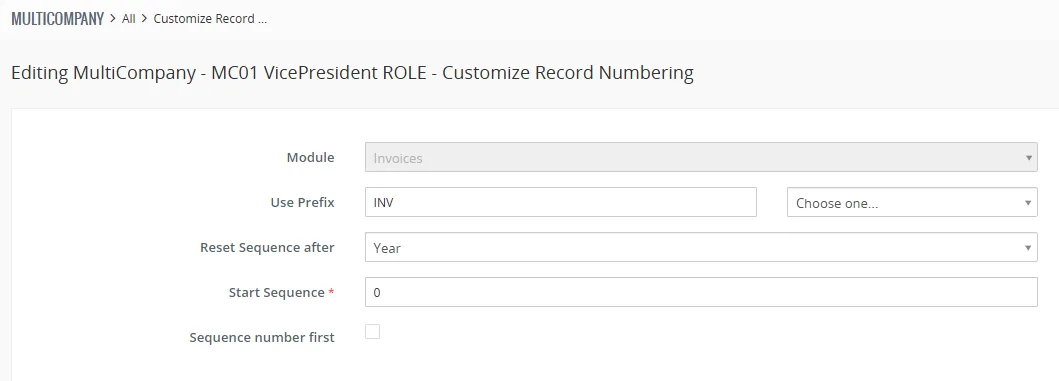
Step Define the Prefix – You can combine custom text with fields like: $year$, $yy$, $month$, $week$, $day$.
Step Reset Sequence After – Set the reset frequency (e.g., yearly, monthly, etc.).
Step Define Start Sequence – You can use values like 1, 01, 0020, etc.
Step Sequence Number First (Optional) – If the sequence should be displayed before the prefix (e.g., 001-YEAR).
Step To Finish – Click on the save button.
Example of Final Settings
Need help with Multi Company?
Our support team answers questions about installation, templates and settings.