

8.1 Do you want to show Company logo based on login user?
Did you set MultiCompany logo for your Company but in left corner is still showing logo from standard Company Details?
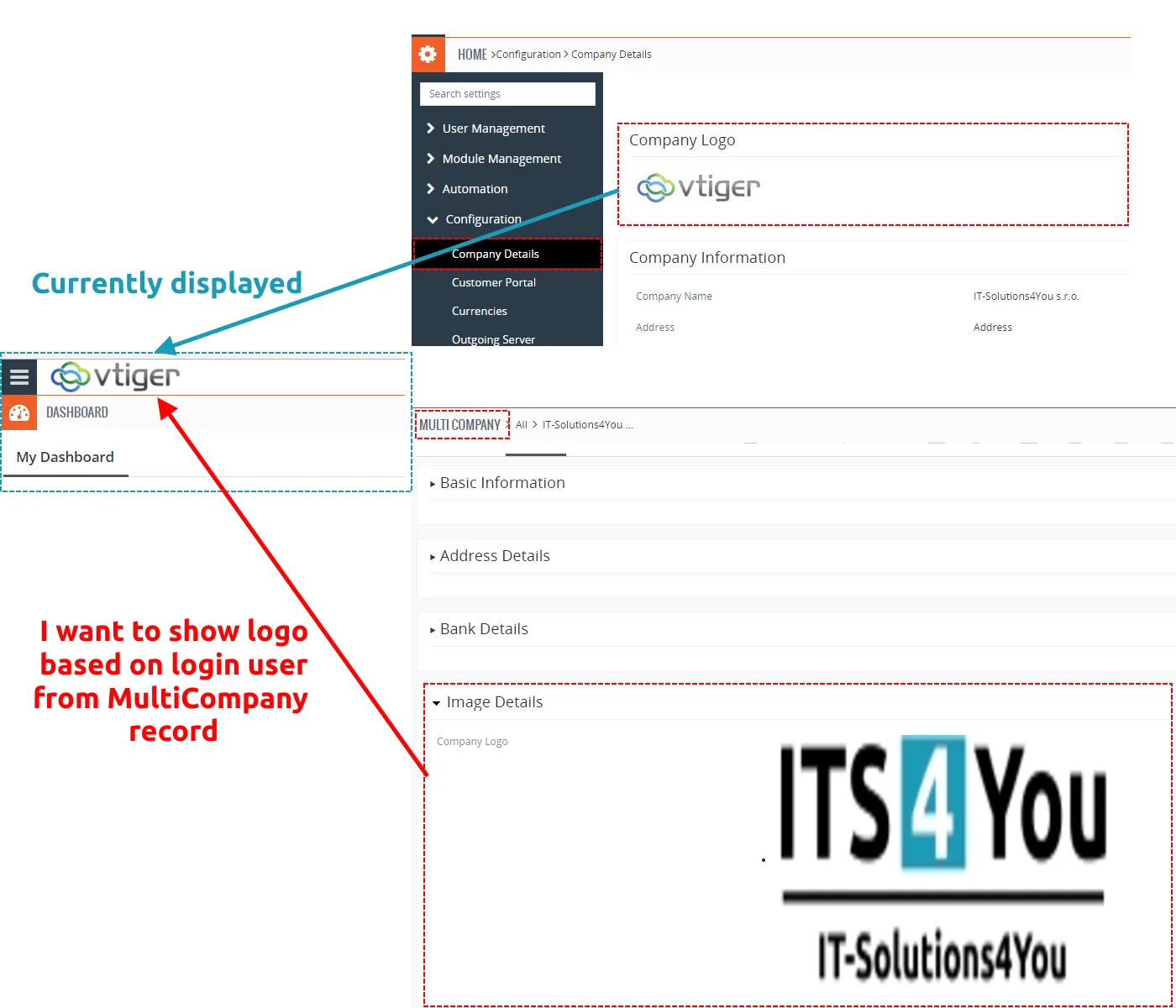
The reason is that we can not modify vtiger source code with our extension.
But you can do it.
To show logo based on login user please provide following steps:
- Please find file Basic.php (location is VTIGERPATH/modules/Vtiger/views/Basic.php)
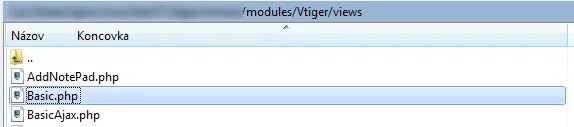
How to show Logo from MultiCompany - Go to line 34
- Change following code and save it.
$current_user = Users_Record_Model::getCurrentUserModel();
$companyDetails = Vtiger_CompanyDetails_Model::getInstanceById();
$companyLogo = $companyDetails->getLogo();
$companyRecord = ITS4YouMultiCompany_Record_Model::getCompanyByUserId($current_user->getId());
if ($companyRecord != null) {
$companyModuleModel = Vtiger_Module_Model::getInstance(‘ITS4YouMultiCompany’);
$logoField = Vtiger_Field_Model::getInstance(‘logo’, $companyModuleModel);
$imageDetails = $companyRecord->getImageDetails($logoField);
if (!empty($imageDetails)) {
$imageDetails = reset($imageDetails);
$companyLogo = new Vtiger_Image_Model();
$companyLogo->setData(array(‘imagepath’ => $imageDetails[‘path’] . “_” . $imageDetails[‘orgname’],
‘title’ => $imageDetails[‘orgname’],
‘alt’ => $imageDetails[‘orgname’]));
}
}

How to show Logo from MultiCompany
8.2 How to make Company Details visible for all users from this Company?
Did you assigned MultiCompany to the highest role of your Company but other users/roles can’t see any info about Company?
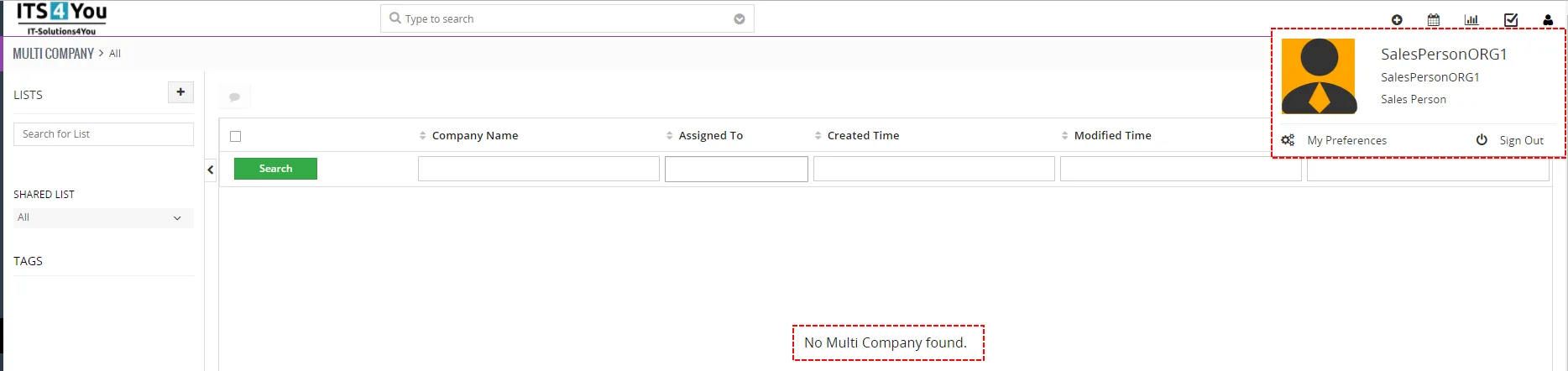
To make Company Details visible please provide following steps:
- Go to CRM Settings -> User Management -> Sharing Rules. Find MultiCompany module click on
 button and then Add Custom Rule
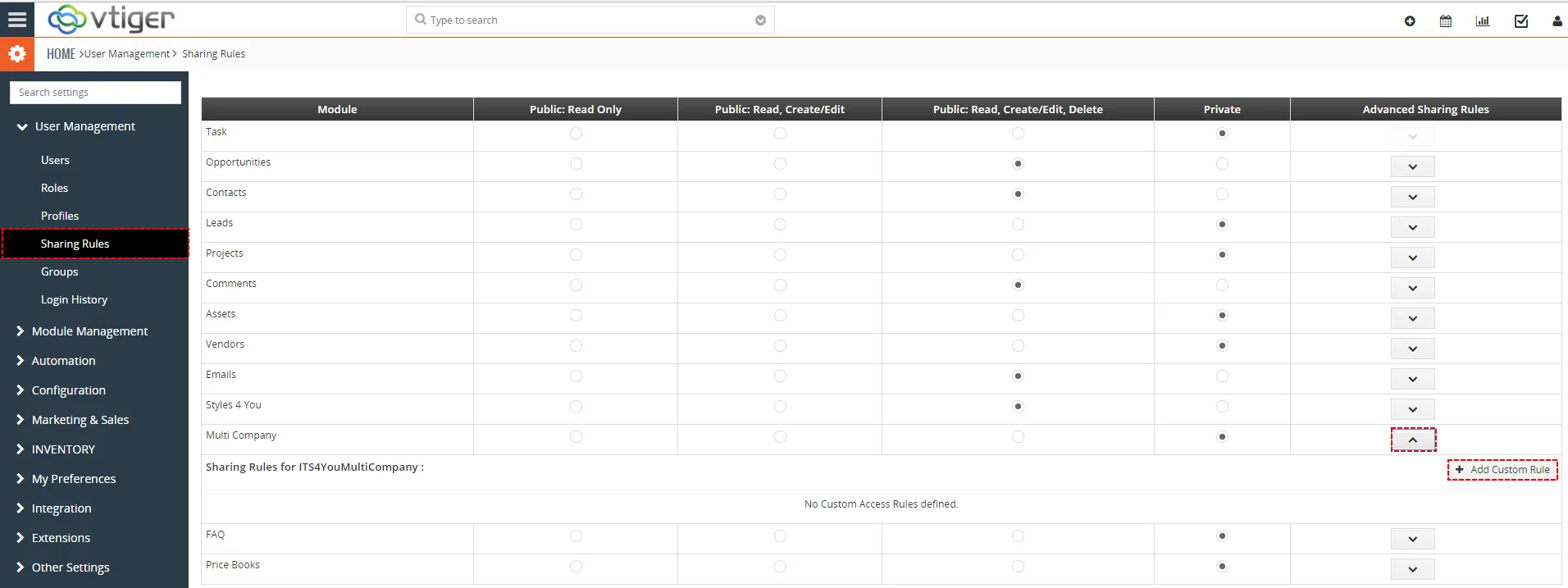
How to allow see company for all users - Add Custom Rules for rest of your Company’s roles
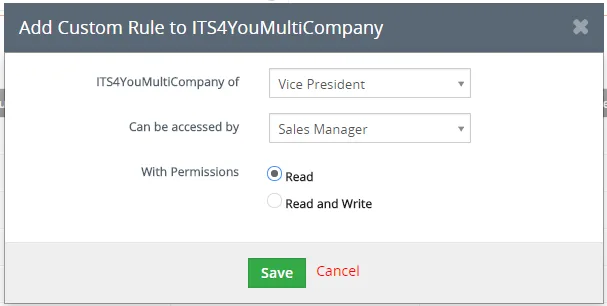
How to allow see company for all users
How to allow see company for all users

How to allow see company for all users - Now, other users can see Company details. And if you allow for other profiles only to see records then they can see Company details but they can’t change or delete your Company details.
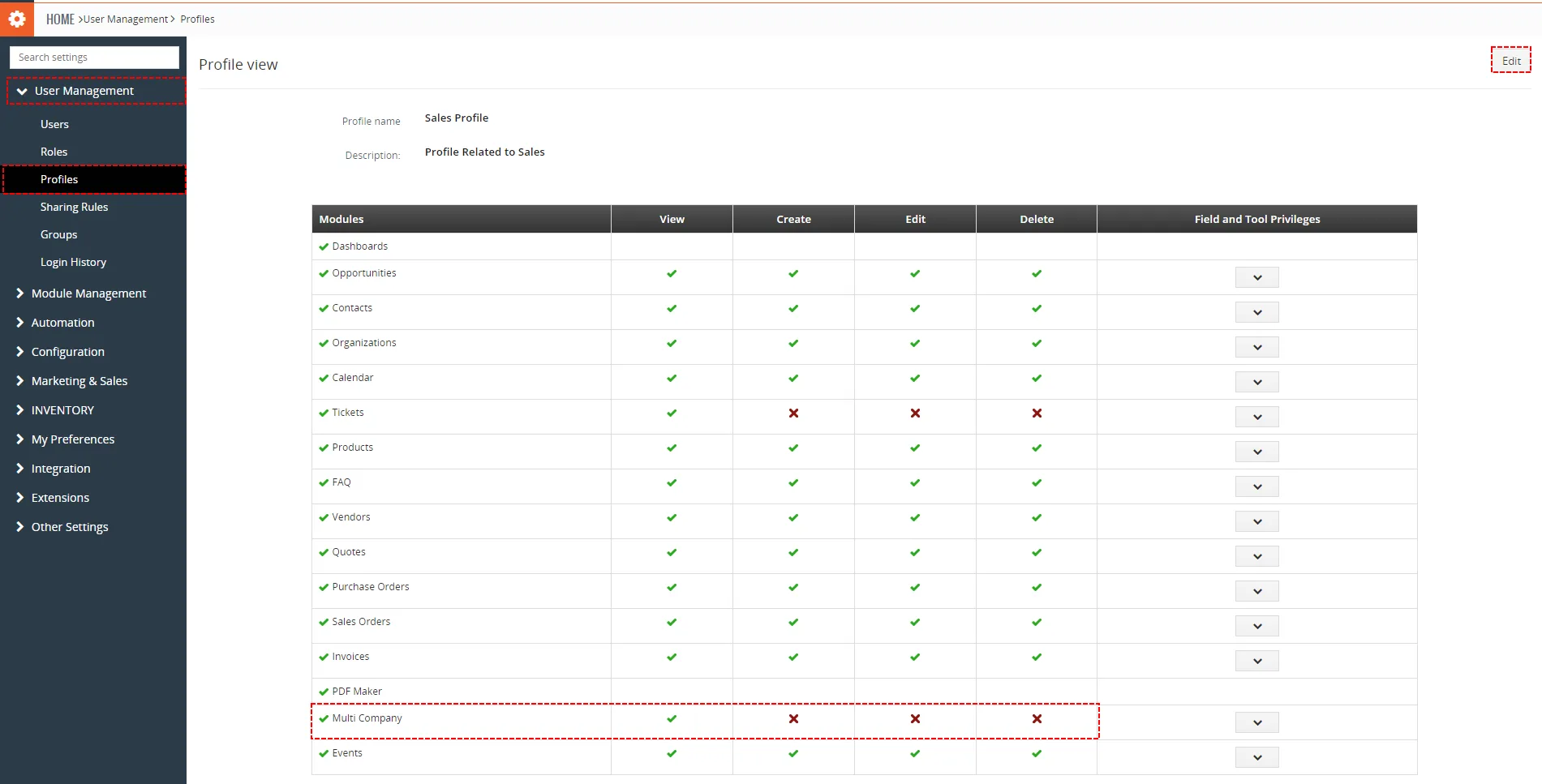
Our tip for other profiles

How to allow see company for all users
8.3 List of records based on Company
Is it possible for CEO to filter records based Company?
Yes, CEO have 2 option how to see list of records:
- In DetailView of Company
Here you can see All related modules for MultiCompany and when you select module you will see related records.
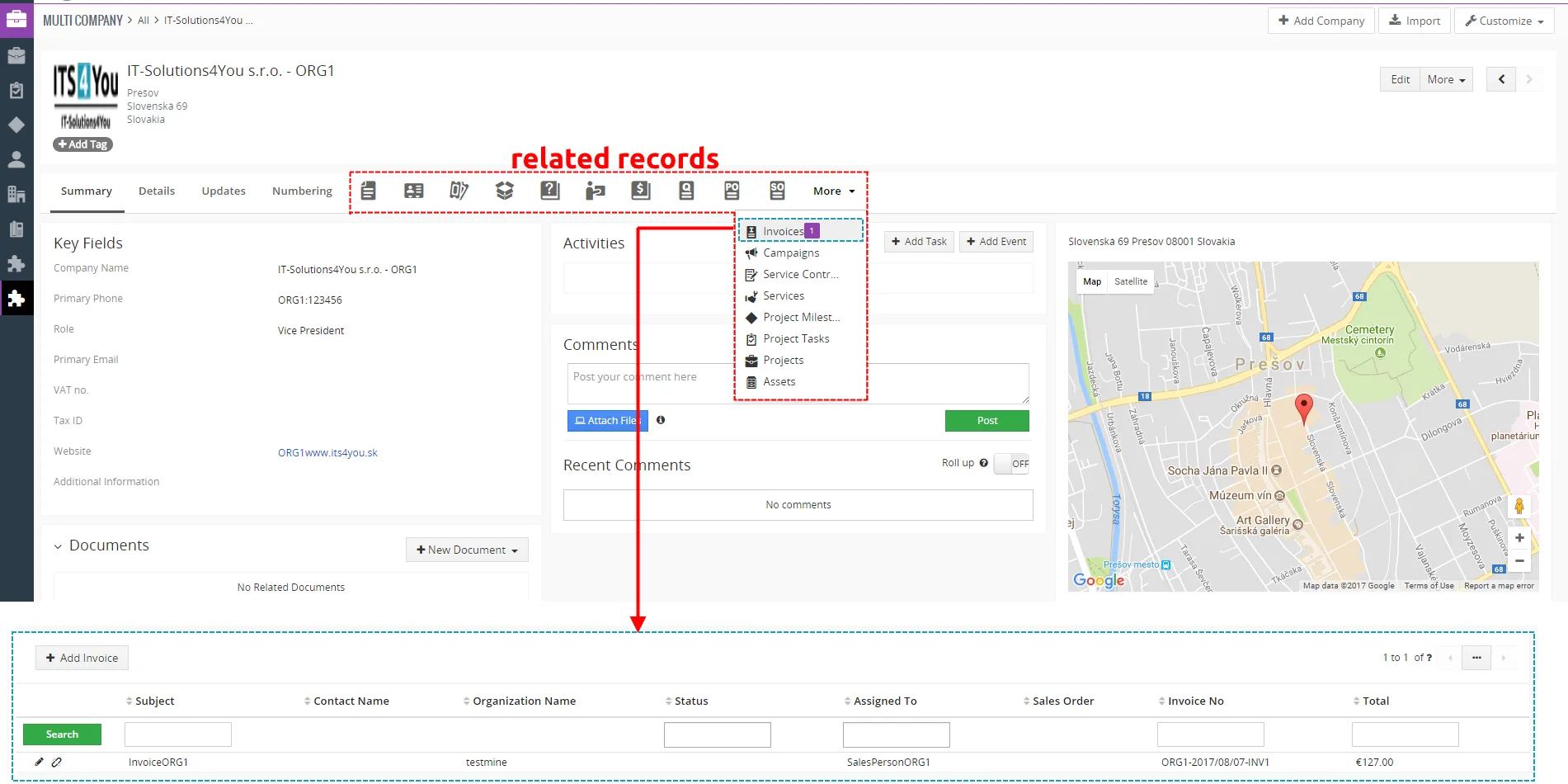
List of related Records - Create List and see records from ListView of module
With installation of Multi Company is new field Company created within all modules that use Multi Company.
Based this field “Company” you can create List (filter) to see records related to Company that you want to see.
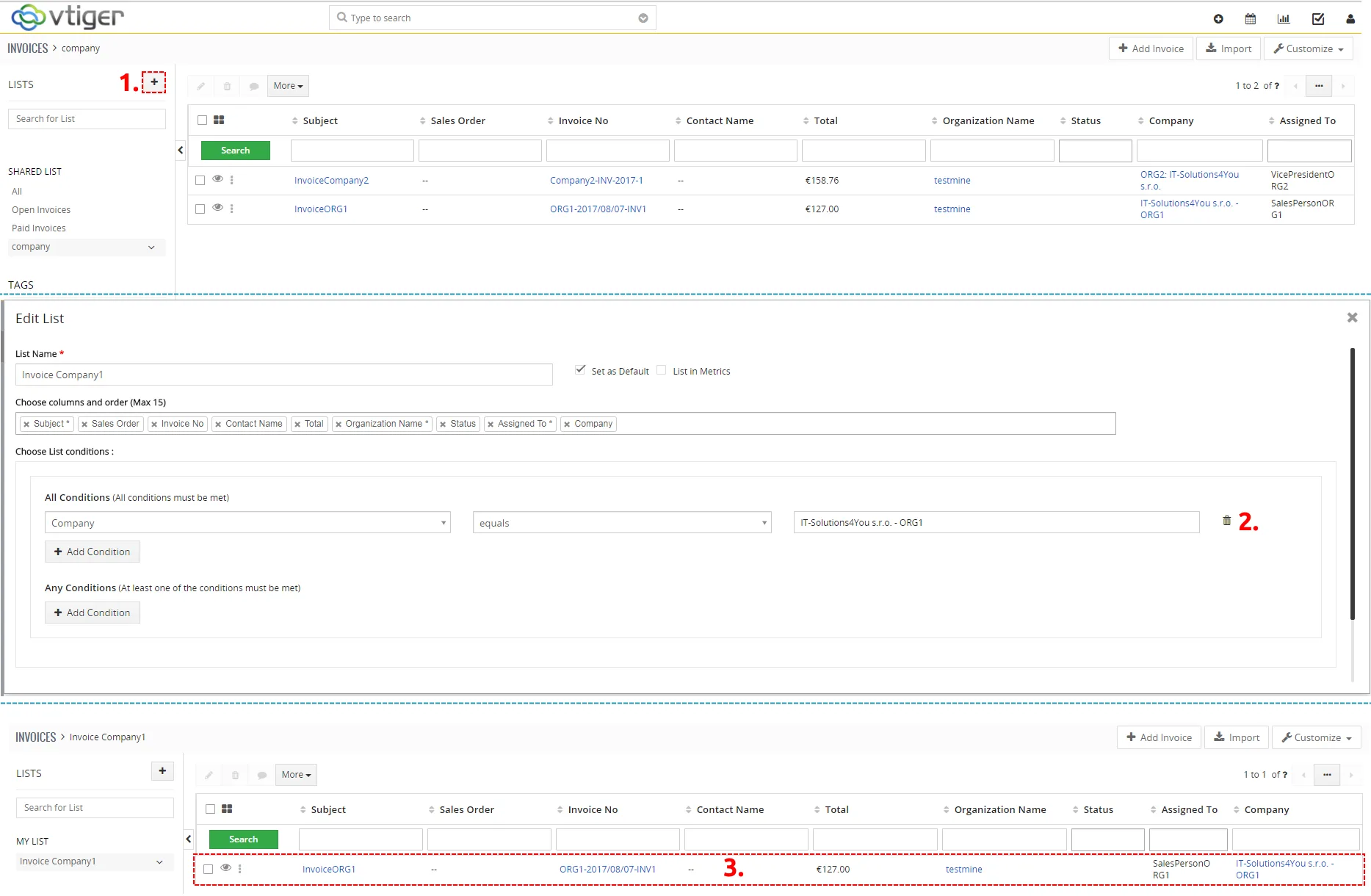
List of related Records
8.4 Assigning Imported Records to a Company
The Multi Company extension determines which company can access a record based on the user selected in the Assigned To field.
When importing records, each imported record must contain the correct user in the Assigned To column. The selected user must belong to a role assigned to the required company.Important
Records are not assigned directly to a company during the import. The company is determined according to the user selected in the Assigned To field.
How the assignment works
Each company in the Multi Company extension has specific roles and users assigned to it.
When a record is assigned to one of these users, the extension identifies the company according to the role of that user and applies the corresponding company access rules.
- A company is configured in the Multi Company extension.
- A role is assigned to the company.
- Users are assigned to these roles.
- Records are imported into a selected Vtiger module.
- The Assigned To value determines which user owns each record.
- Multi Company determines the company according to the role of the assigned user.
Choosing the import method
You can import records using an XLS file or a CSV file.
For XLS files, you need our XLS Import extension. This is the recommended method because it allows you to import XLS files directly into Vtiger CRM and provides a dedicated import process.
You can find more information about the extension here: XLS Import for Vtiger CRM.
If you do not have the XLS Import extension, save the file in CSV format and use the standard Vtiger Import function.
Recommended import method
We recommend using the XLS Import extension. It allows you to work directly with XLS files without converting them to CSV format.
Preparing the import file
Before starting the import, prepare an XLS or CSV file containing the records that you want to import into Vtiger CRM.
The file can contain any fields supported by the selected module. For example, when importing Organizations, the file can contain the organization name, phone number, email address, website and other information.
The most important column for Multi Company assignment is Assigned To.
Each row must contain the user who should own the imported record. This user must have a role assigned to the required company.
| Organization Name | Primary Phone | Assigned To | |
|---|---|---|---|
| Example Company One | 421 900 111 222 | company1@example.com | Abbie Hobbs |
| Example Company Two | 421 900 333 444 | company2@example.com | Abbie Hobbs |
Make sure that the user name in the import file corresponds to an existing and active Vtiger user.
The exact value accepted during the import can depend on the Vtiger version and the selected import method. We recommend testing the import with a small number of records before importing the complete file.
Assigned To mapping
If the user from the import file is not correctly assigned to the Assigned To field, select the required user manually in the field mapping settings. The manually selected user will then be assigned to the imported records.
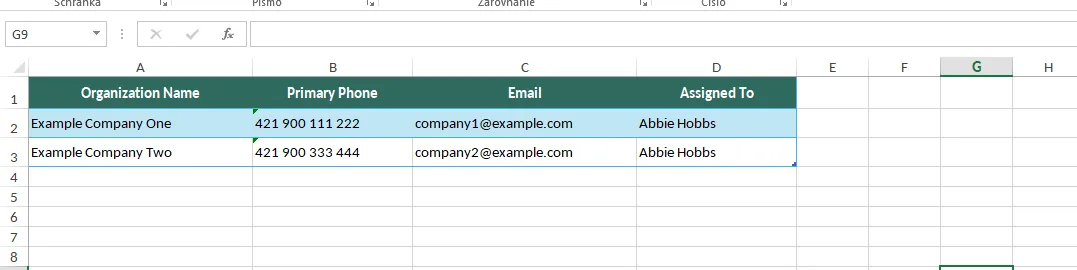
Example of an import file containing the Assigned To column.
Checking users and roles before the import
Before importing the records, verify that all users listed in the import file are assigned to the correct roles.
You should also verify that these roles are assigned to the correct company in the Multi Company configuration.
- Open the Vtiger CRM settings.
- Open the user and role management section.
- Find the user that will be used in the import file.
- Check which role is assigned to the user.
- Open the Multi Company configuration.
- Verify that the role is assigned to the required company.
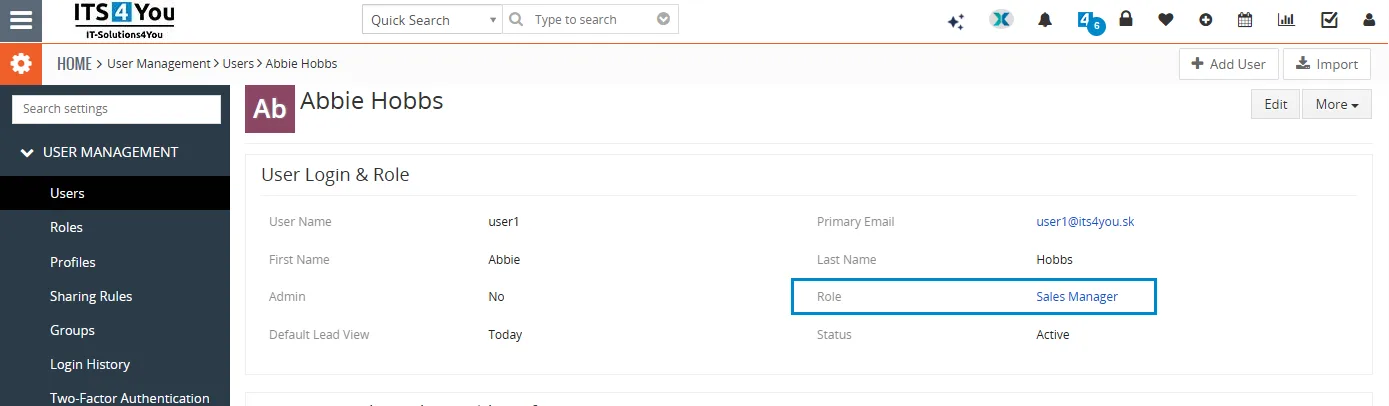
Check that the user has the correct role before starting the import.
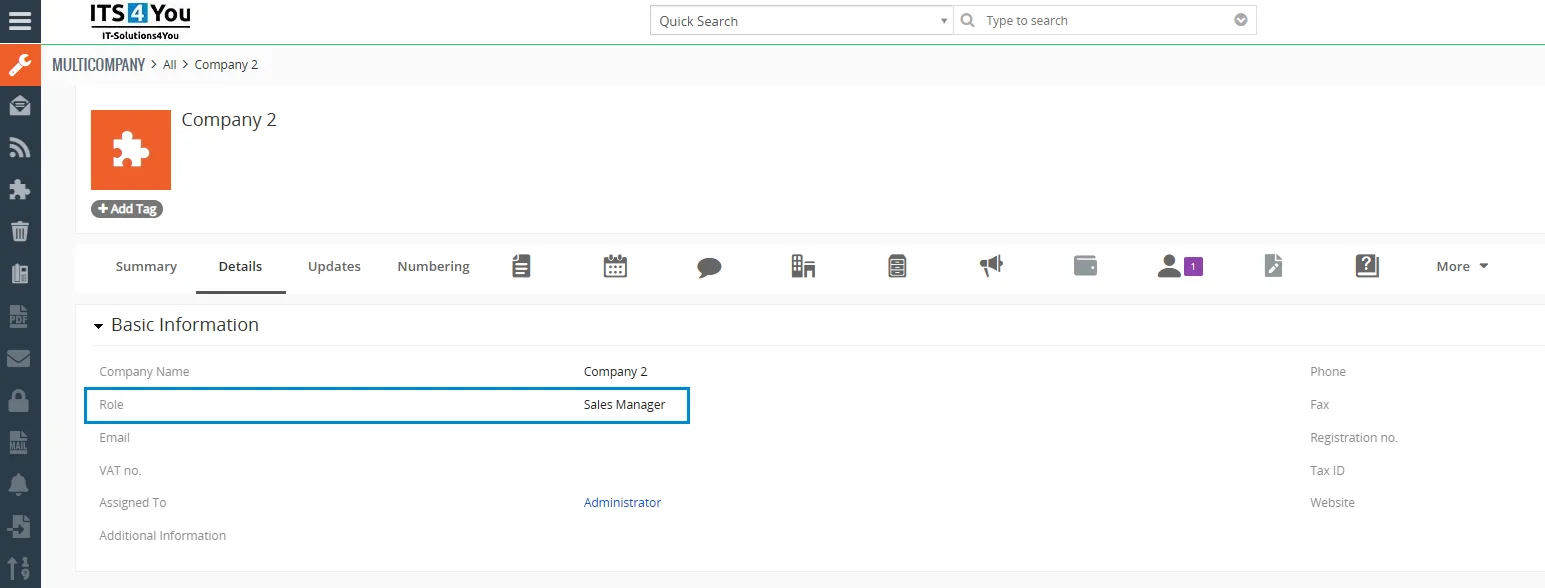
Verify that the role is assigned to the required company.
Importing records using XLS Import
To import an XLS file, the XLS Import extension must be installed and activated in your Vtiger CRM.
This is the recommended method when your data is stored in an XLS file.
Opening the XLS Import module
- Open the main Vtiger menu.
- Find and open the XLS Import module.
- Click the button to create a new import.
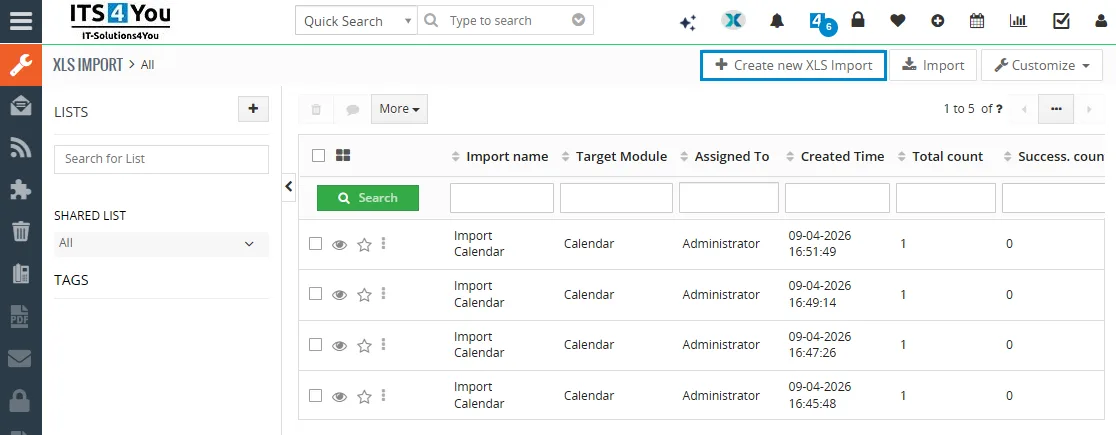
Open the XLS Import module from the main Vtiger menu and create a new import.
Selecting the module and XLS file
Select the Vtiger module where the records should be imported. For example, you can select Organizations, Contacts, Leads, Products or another supported module.
- Select the target Vtiger module.
- Select the prepared XLS file.
- Configure the available import settings.
- Continue to the field mapping step.
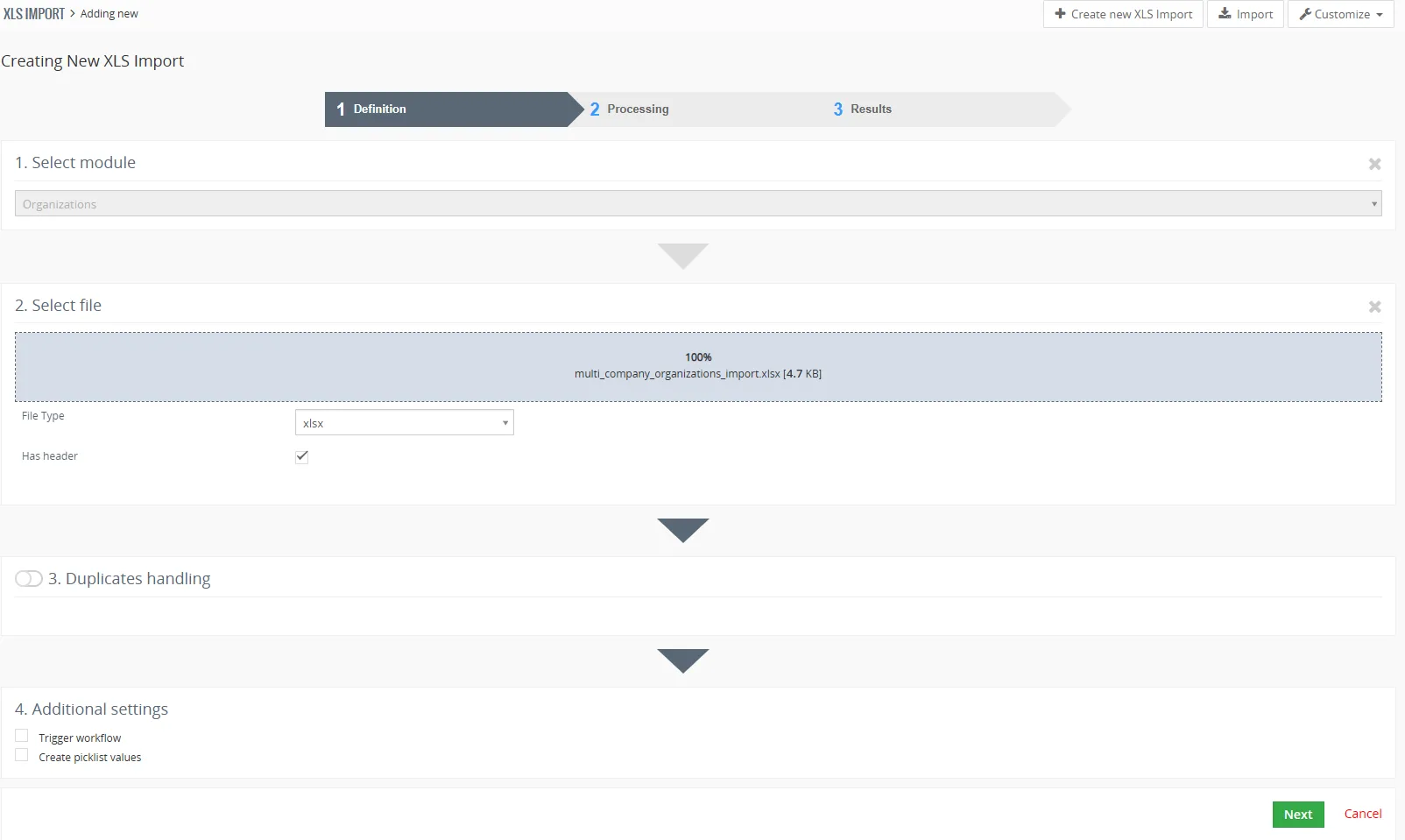
Select the target module and upload the prepared XLS file.
Mapping the XLS fields
During the field mapping step, connect each XLS column with the corresponding Vtiger field.
The column containing the responsible user must be mapped to the Assigned To field.
Required field mapping
The XLS column containing the user name must be mapped to Assigned To. Without this mapping, Multi Company cannot assign the imported record to the required company correctly.
If the user value from the XLS file is not mapped correctly, select the required user manually for the Assigned To field in the mapping settings. The manually selected user will be assigned to the imported records.
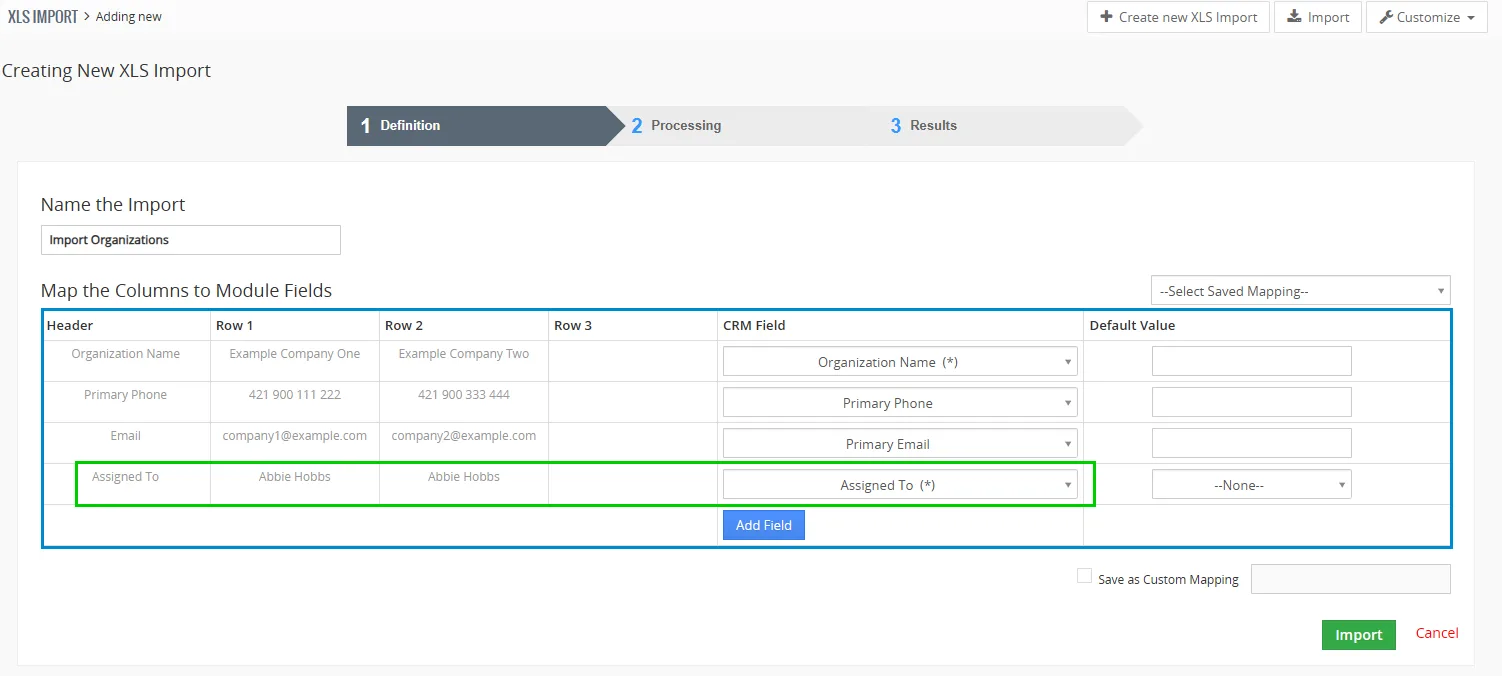
Map the user column from the XLS file to the Assigned To field. If required, select the user manually in the mapping settings.
Completing the XLS import
After all required fields are mapped, continue with the import. The XLS Import extension will create or update the records according to the selected import settings.
Each record will be assigned to the user specified in the XLS file or to the user selected manually in the mapping settings. Multi Company will then determine the appropriate company based on the role of that user.
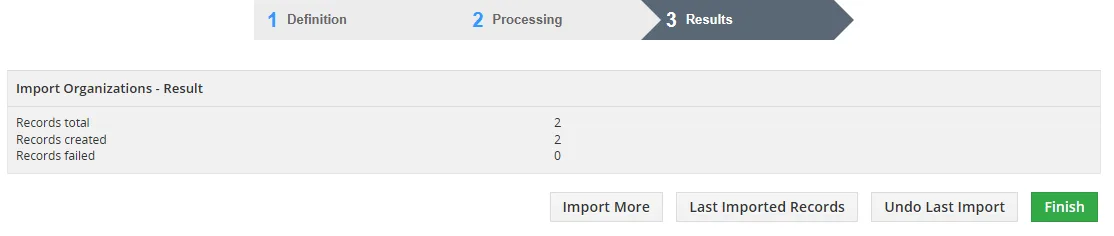
Complete the XLS import and check the import result.
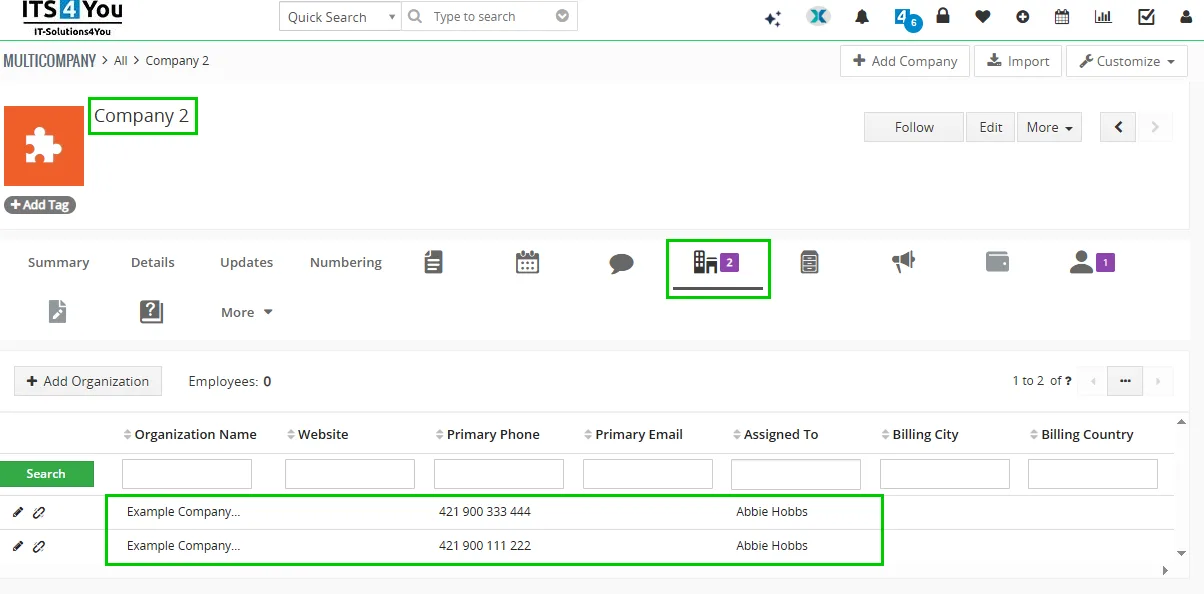
Verify that the imported records are assigned to the correct user.
Importing records using the standard Vtiger CSV Import
If you do not have the XLS Import extension, save your file in CSV format and use the standard Vtiger Import function.
CSV format required
The standard Vtiger Import function does not import XLS files directly. Convert or save the file in CSV format before starting the import.
Starting the Vtiger CSV import
Open the module where you want to import the records. For example, you can import records into Organizations, Contacts, Leads, Products or another supported module.
- Open the required Vtiger module.
- Open the module actions menu.
- Select Import.
- Select the prepared CSV file.
- Configure the available import options.
- Continue to the field mapping step.
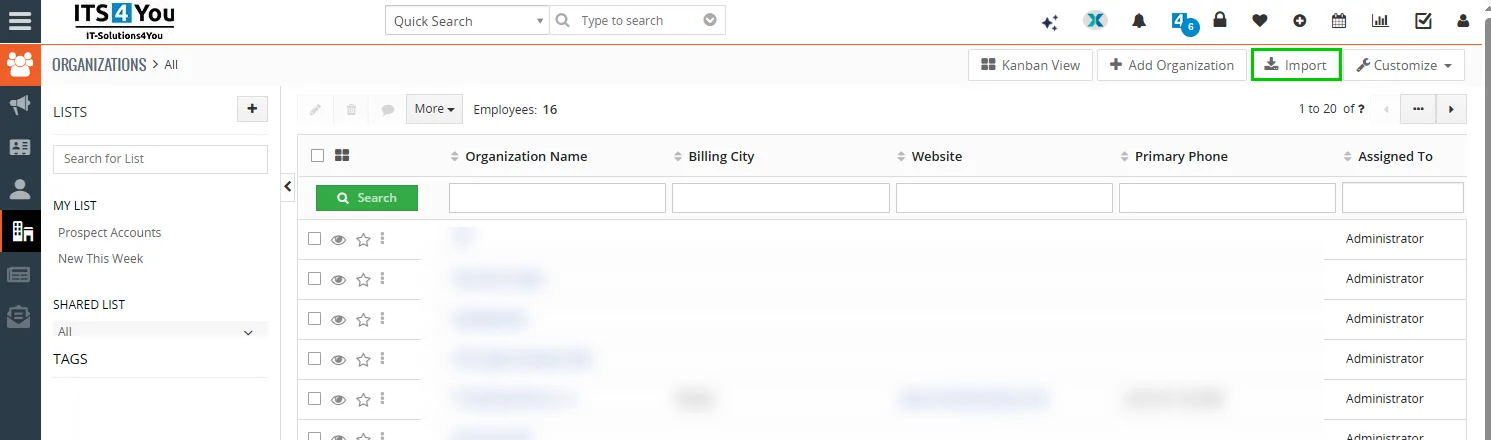
Open the required Vtiger module, select Import and upload the prepared CSV file.
Mapping the CSV fields
During the field mapping step, connect each CSV column with the corresponding Vtiger field.
The column containing the responsible user must be mapped to the Assigned To field.
Required field mapping
The CSV column containing the user name must be mapped to Assigned To. Without this mapping, Multi Company cannot assign the imported record to the required company correctly.
If Vtiger cannot assign the value from the CSV file to the correct user, select the required user manually for the Assigned To field in the import mapping settings. The manually selected user will then be used for the imported records.
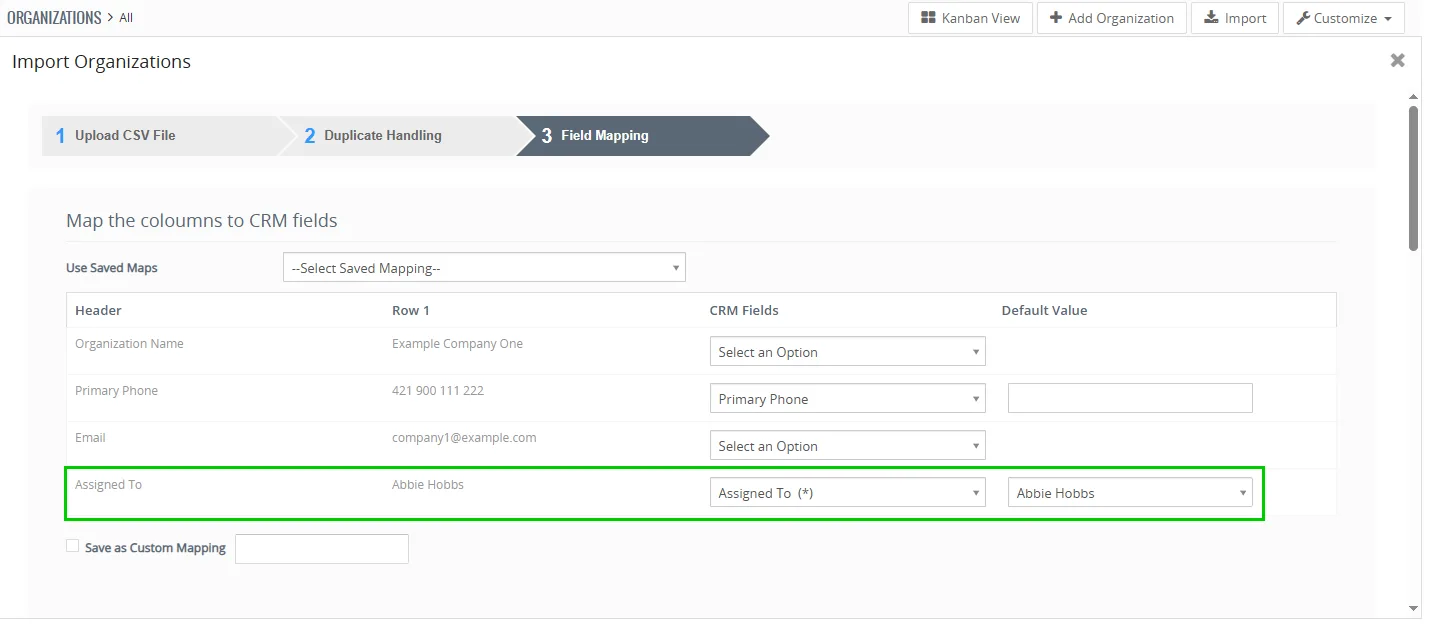
Map the CSV user column to the Assigned To field or select the required user manually.
Completing the CSV import
After all required fields are mapped, continue with the import. Vtiger will create or update the records according to the selected import options.
Each record will be assigned to the user specified in the CSV file or to the user selected manually in the mapping settings. Multi Company will then determine the appropriate company based on the role of that user.
Verifying the imported records
After completing the import, open several imported records and verify the value in the Assigned To field.
We recommend testing access with a user from the corresponding company. The user should see only the records available according to the Multi Company configuration and the selected sharing rules.
- Open an imported record.
- Check the Assigned To value.
- Verify that the selected user belongs to the correct role.
- Verify that the role belongs to the correct company.
- Log in as a user from the company and test record access.
Updating missing Multi Company records
In some cases, records may already exist in Vtiger and may already be assigned to the correct user, but they may not be visible for the expected company in Multi Company.
Multi Company includes an option that checks existing records again and updates missing Multi Company assignments.
Using Update Missing Record
- Open the Multi Company extension.
- Open Integration Settings.
- Click Update Missing Record.
- Wait until the update process is completed.
- Open the affected module and verify that the records are now displayed for the correct company.
When to use this option
Use Update Missing Record when the records already exist and have the correct user in the Assigned To field, but they are not displayed correctly in Multi Company. The function processes the existing records again and recreates any missing Multi Company assignments.
Before using this function, verify that the affected records are assigned to an active user whose role is connected to the correct company.
After the update is completed, refresh the module list and check the records using a user from the relevant company.
Example
Company A has the role Company A Sales. User Peter Novak is assigned to this role.
Company B has the role Company B Sales. User Martin Kral is assigned to this role.
When the value Peter Novak is used in the Assigned To column, the imported record will be available according to the configuration of Company A.
When the value Martin Kral is used in the Assigned To column, the imported record will be available according to the configuration of Company B.
Common import problems
| Problem | Possible cause | Solution |
|---|---|---|
| The record is assigned to the wrong company | The selected user has an incorrect role | Check the role assigned to the user and the Multi Company configuration |
| The Assigned To value is not imported | The Assigned To column was not mapped correctly | Map the user column to the Assigned To field or select the required user manually |
| Vtiger cannot find the user | The user name in the import file does not match an existing Vtiger user | Check the user value or select an existing user manually in the mapping settings |
| The XLS file cannot be imported using the standard Vtiger Import | The standard Vtiger Import requires a CSV file | Use the XLS Import extension or save the file in CSV format |
| Records have the correct user but are missing in Multi Company | The Multi Company assignment was not created or updated correctly | Open Integration Settings and run Update Missing Record |
| Users can see records from another company | Roles, sharing rules or company settings are configured incorrectly | Review the role structure, company assignment and sharing configuration |
Recommendations
- Use the XLS Import extension when working with XLS files.
- Use the standard Vtiger Import only with CSV files.
- Test the import with a small file before importing all records.
- Use only existing and active Vtiger users in the Assigned To column.
- Verify that the Assigned To value was mapped correctly.
- Select the required user manually if the value from the import file cannot be assigned correctly.
- Verify user roles before starting the import.
- Verify company role assignments in the Multi Company settings.
- Check several imported records after the import is completed.
- Use Update Missing Record if existing records have the correct user but are not displayed in Multi Company.
- Create separate import files for individual companies when this simplifies the preparation and verification process.
Summary
During an XLS or CSV import, Multi Company assignment is controlled by the Assigned To field. The imported record belongs to the company associated with the role of the selected user. Use the XLS Import extension for XLS files or the standard Vtiger Import for CSV files. If the user from the import file cannot be mapped correctly, select the required user manually in the mapping settings. If existing records have the correct user but are missing in Multi Company, run Update Missing Record from Integration Settings.
Need help with Multi Company?
Our support team answers questions about installation, templates and settings.