

 First check Integration settings and enable each module and field for which you want to use Descriptions.
To create Description please follow next steps:
- Go to Descriptions extension List view and click on
 button.

Creating Description – step 1 - After click on + Add Description you will be redirected to Edit view window.
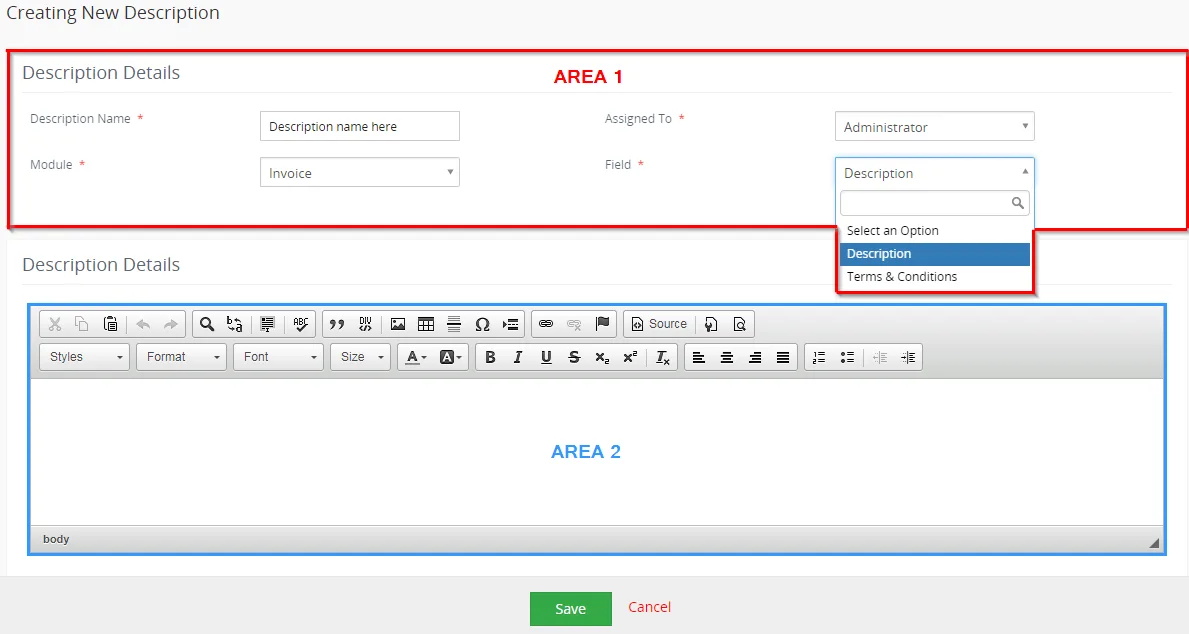
Creating is divided into two areas:
Area 1) Current information of your Description:
Description Name – name of your description
Assigned To – set to whose is description assigned to
Module – for which module you can use your description. To add/delete allowed module please see chapter 7.1 Integration. Global is for all allowed modules.
Field – field for which you can use your description. If you want use own fields please see chapter 6.3 Support of Custom Text area fields
Area 2) CK Editor area – The second area is CK Editor that is mainly used for inserting/editing your own text, tables, images etc. and to make some design adjustment of the Description like font change, color, format, size, background color of the text etc. This editing can be initiated via many toolbars located in the above part of Editing area.
Fill the data you need and click on button.
Creating Description – step 2
Now, you are able to add/replace your description into allowed modules. For adding or replacing your old description please check chapter 4.4 Descriptions pick list.
Known issues:
You do not see a Descriptions for a specific module? Please make sure to check Integration settings.
Need help with Descriptions?
Our support team answers questions about installation, templates and settings.