

The Work area of the Descriptions consists of:
- List view – used for common tasks like select records, delete records, edit records, merge records
- Detail view – shows already created Descriptions in details
- Edit view– allows to edit already created Descriptions
 – used for Integration and License settings, Upgrade and Uninstall
 – used to import records from the other Vtiger systems if needed
 – used to add new Descriptions
For more details about List view, Detail view & Edit view please see next sections.
4.1 List view
The common tasks like add/delete/find duplicates, import/export Descriptions or start editing has to be initiated via Descriptions List view. Go MENU —> TOOLS and click on DESCRIPTIONS 4 YOU link and Descriptions List view will appear on your screen.

The main part of the Descriptions List view consists of the list of the Descriptions, which gives you information about a Description name, number, module & field used. In the list you can also select one or more Descriptions and consequently delete or export the selected group of Descriptions or do additional tasks.
You can also have the option to create own List of Descriptions and set own fields to see via  button on the left side of the screen.
List view of Descriptions consists of:
 – to search Descriptions based on field,
- – is used to add new Description,
- – is used to import Descriptions from other Vtiger CRM system,
 – allow you to set Integration, License setting, Upgrade and Uninstall,
 – if you select records this option becomes available and you can edit or delete selected records,
 – used to perform additional actions like: follow, unfollow, add tag, merge records, find duplicates and export,
 – next/previous page of Descriptions.
4.2 Detail view
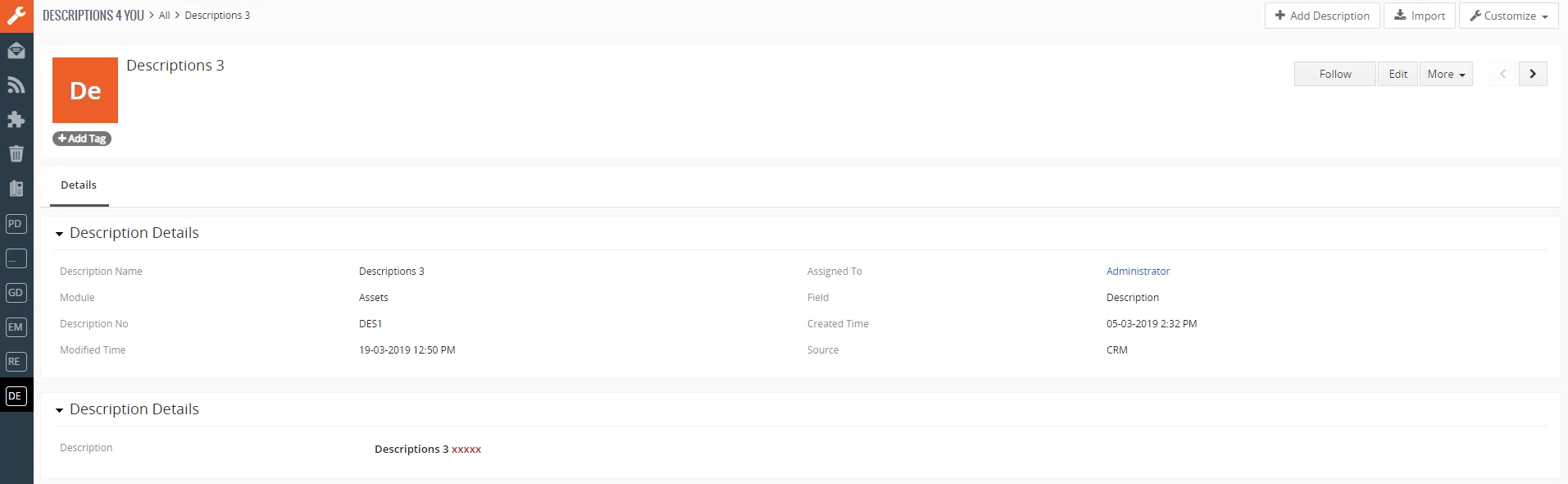
From List view you can directly open any Description in Detail view. The Detail view consists of:
- Description Details:
- Description Name
- Module (choose the module for which you will be using Descriptions extension)
- Description No
- Modified Time
- Assigned To
- Field (choose the field which will be used for Descriptions)
- Created Time
- Source
- Description – the actual block where you add your descriptions
- Group of buttons:
 – following a record is a nice fashion of marking a record as a favorite. This will act as a shortcut to get to favorite or active records. By following a record you get updates on it as the users modifies the record,
 – switch to Edit view and start editing,
 – delete or duplicate Description,
 – switch between already created Descriptions in your list view.
4.3 Edit view
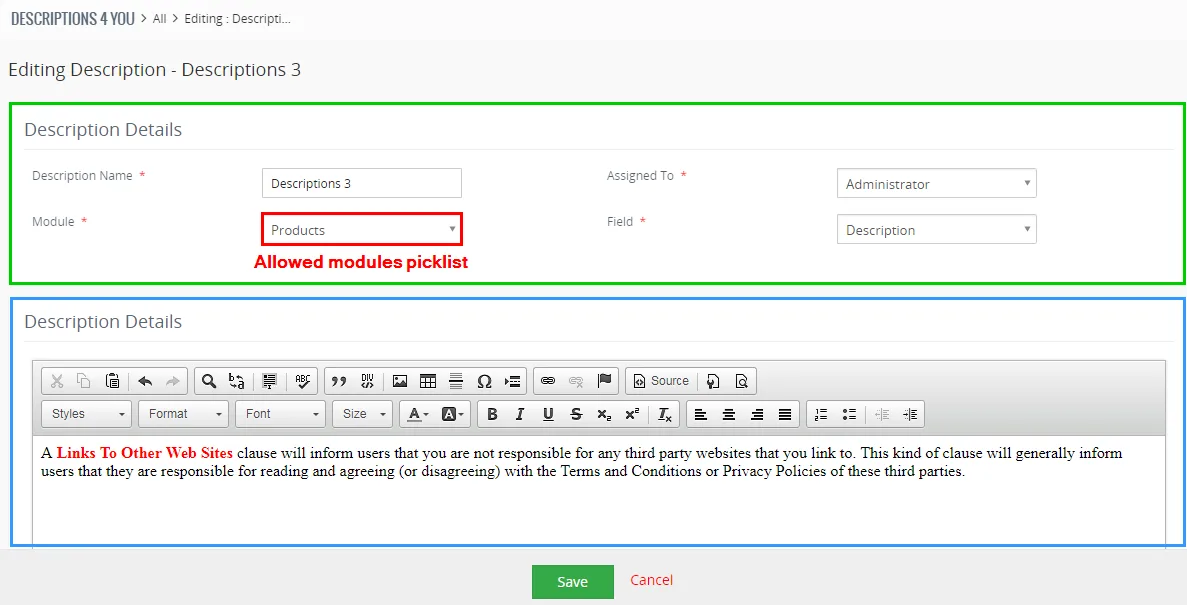
The Edit view shown in the picture below is divided into two areas:
- Description Details area – is used for Description Name, Assigned to and choose modules that are allowed + set field for which descriptions will be used
- Editing area – is mainly used for inserting/editing your own text, tables, images etc. and to make some design adjustment of the Description like font change, color, format, size, background color of the text etc. This editing can be initiated via many toolbars located in the above part of editing area.
4.4 Descriptions picklist
After installation Descriptions, you are able to see Descriptions Pick list in allowed modules that provides you to replace or add Description in the text areas.
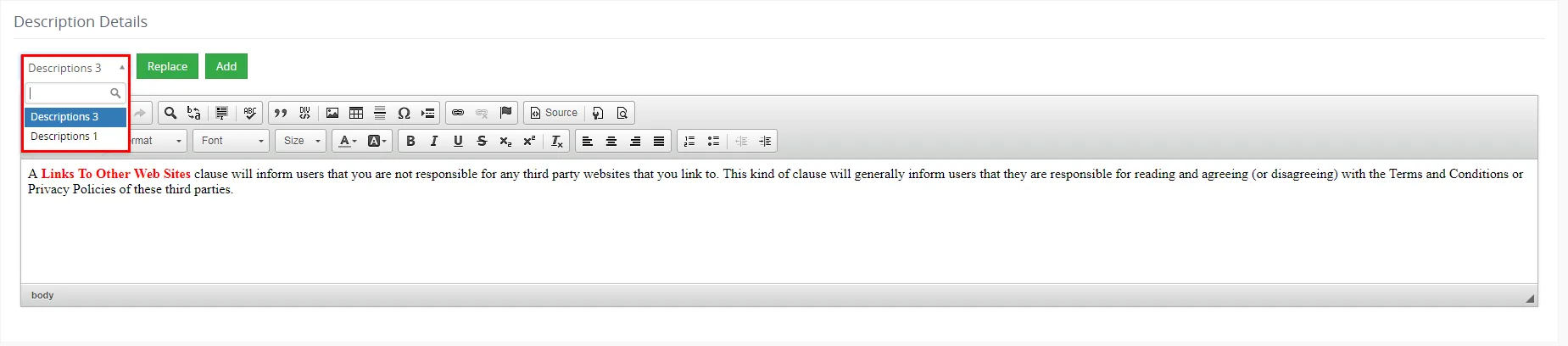
Consists of:
- Available Descriptions for module
 – is used to replace all old text by your Description (old description will be deleted)
 – is used to add new Description after old text (old description won’t be deleted)
 Note: After adding or replacing Description you can edit it manually.
Need help with Descriptions?
Our support team answers questions about installation, templates and settings.