
7.1 Products in Warehouse columns settings
Products in Warehouse Columns Settings
Available from version 4.25
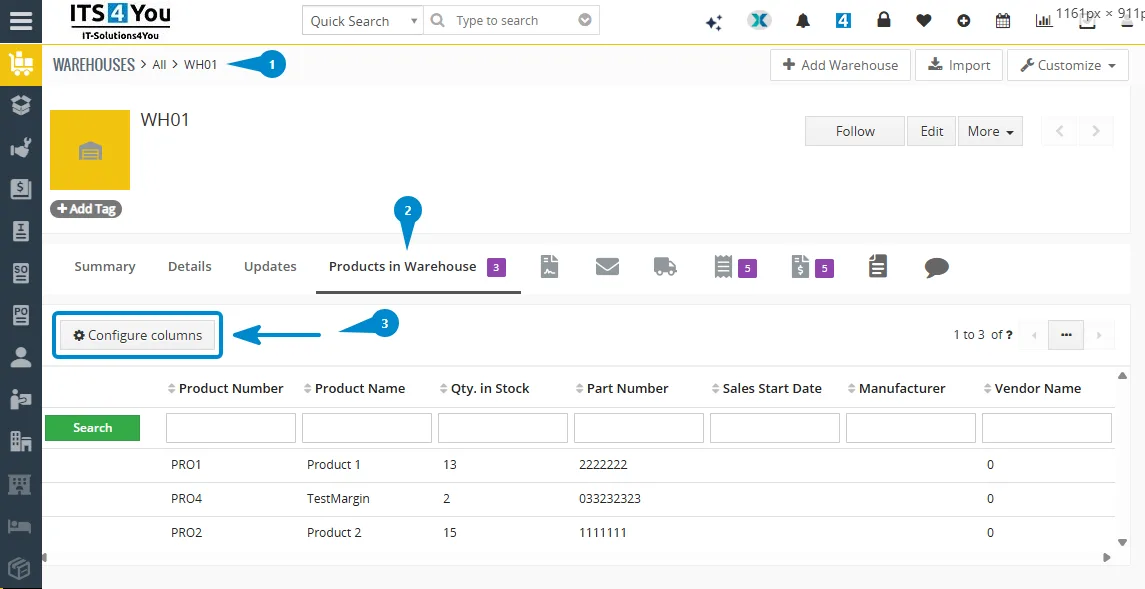
In Warehouses, the Products in Warehouse section now supports custom column configuration.
You can define which additional columns should be displayed in the product list by using the
Columns Settings option.
The default columns are always active and cannot be removed. Any columns selected in
Columns Settings are added to the existing default columns and then shown in the
Products in Warehouse list.
How to configure columns
- Open Warehouses.
- Go to the Products in Warehouse section.
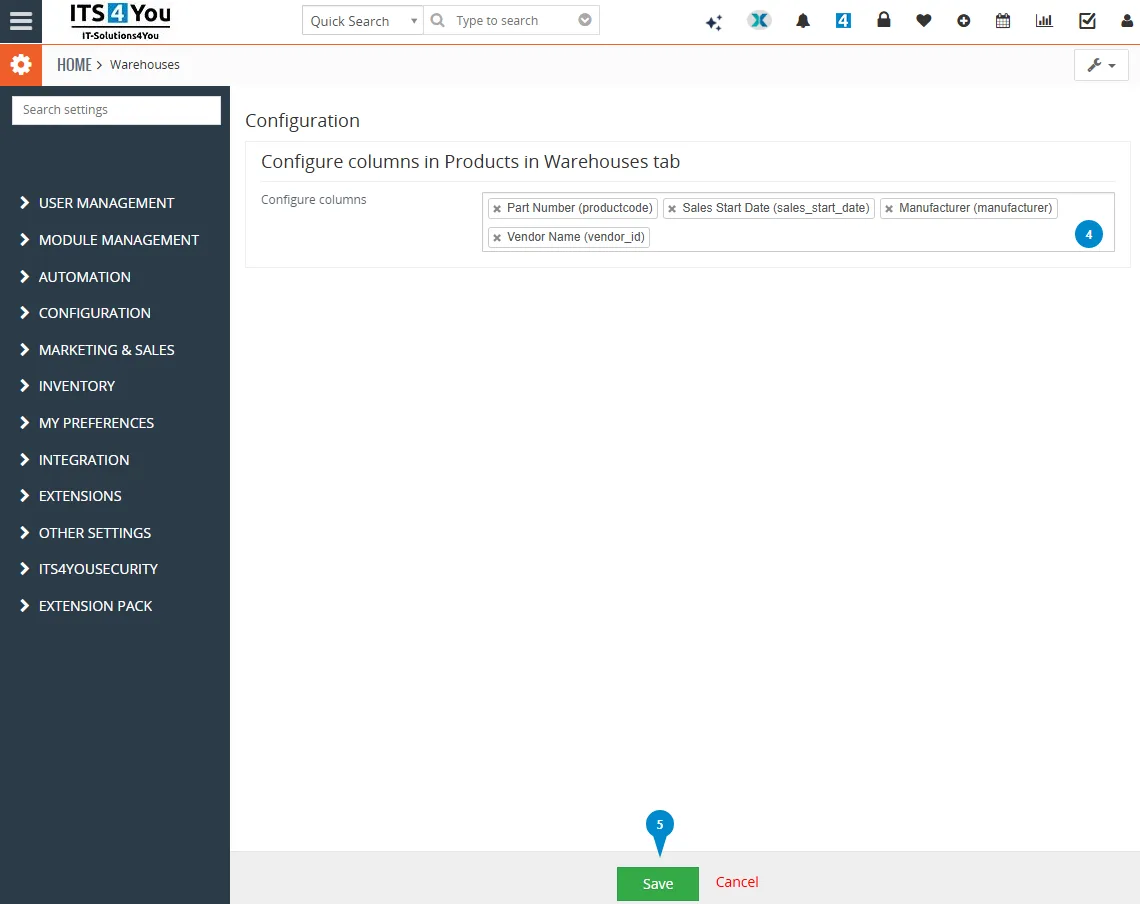
- Open Columns Settings.
- Select the columns you want to display.
- Save the settings.
After saving, the selected columns are added to the product list together with the default columns.
Alternative configuration path
The same column configuration can also be set from:
Warehouse → Customize → Configuration
Use this option when you want to adjust the column setup directly from the warehouse customization settings.
7.2 Receive purchased Products from different modules
There are 3 ways how to receive purchased Products from different modules.
- From Incoming Products module
- From Purchase Orders module
- From Invoices module
From Incoming Products module
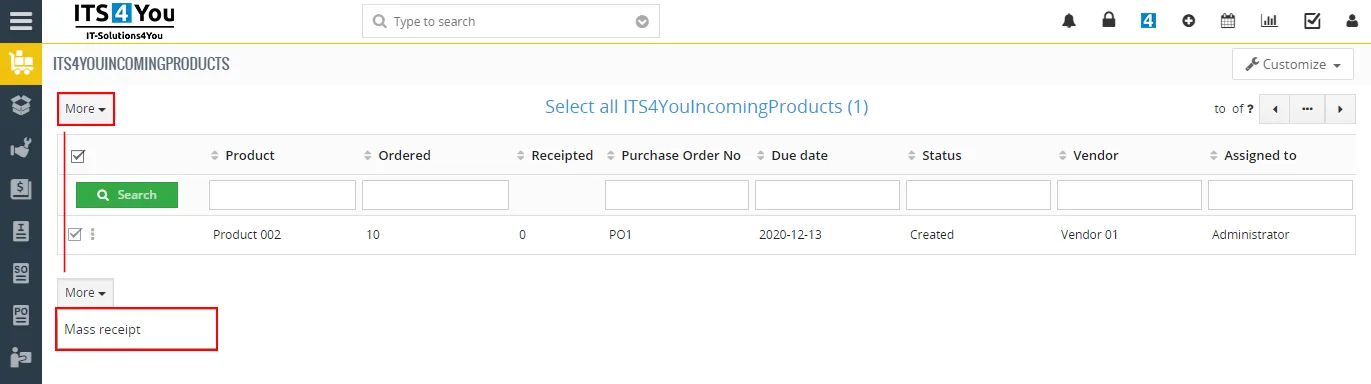
All purchased products (from all Purchase Orders) you can see in Incoming Products module.
You are able receipt products in Incoming Products module using button  and selecting “Mass receipt”.
From Purchase Orders module
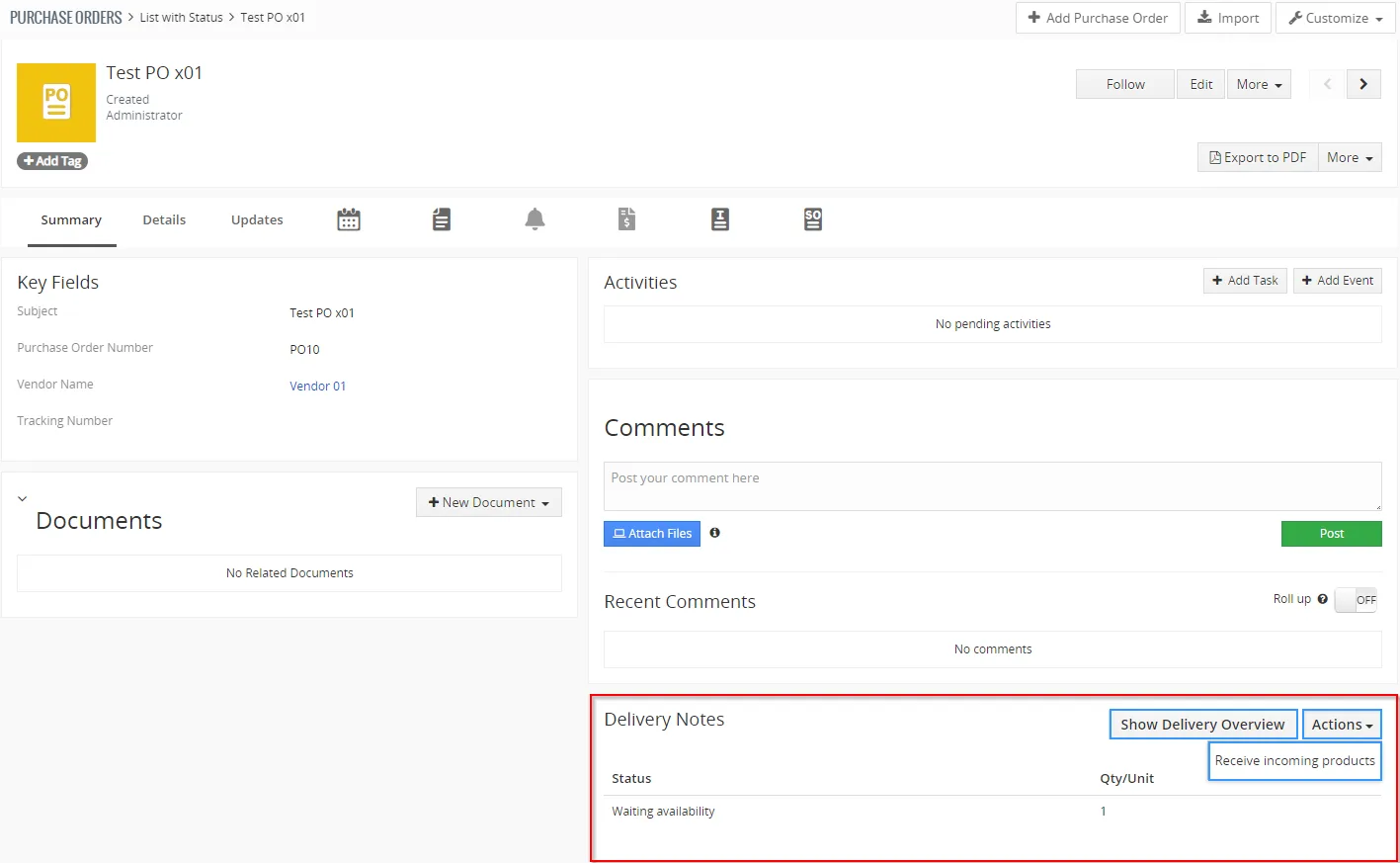
You are also able to receive products from Purchase Order.
Open Purchase Order module and find your Purchase Order.
(To better overview we recommend ListView Colors extension).
Click on  or in WH Action block and choose

From Invoices Module
- Open Invoice module and find your Invoice.
Click on or in WH Action block and choose 
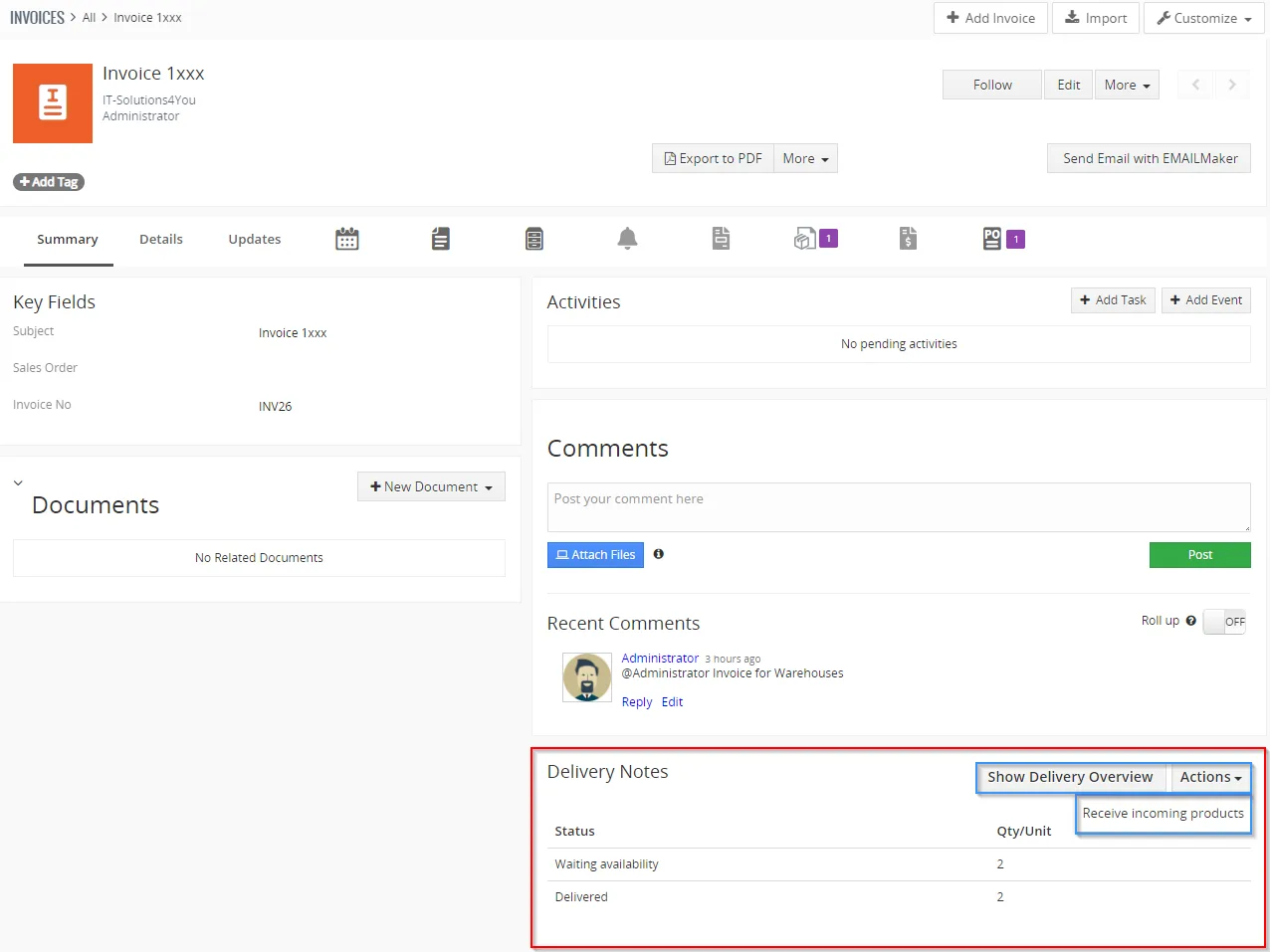
Warehouses – Invoice, receiving incoming products 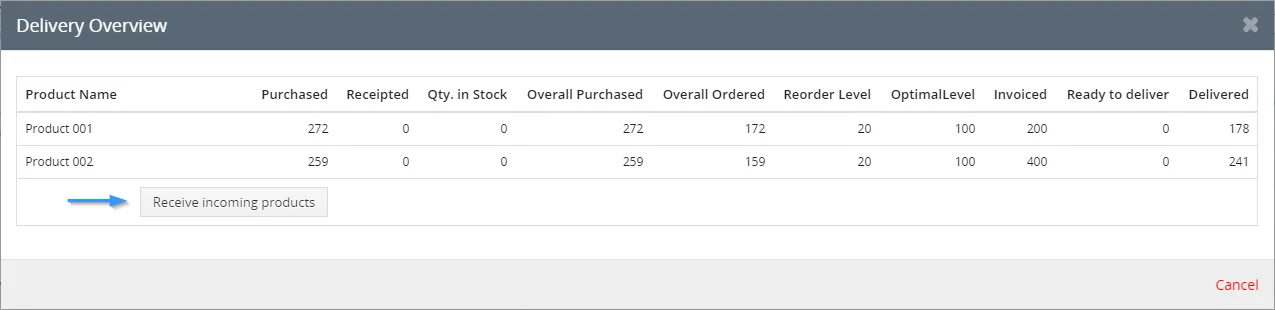
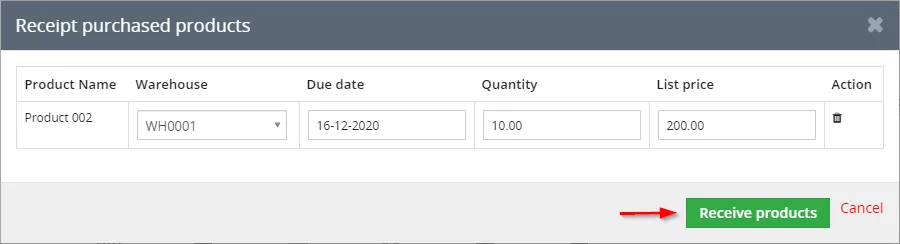
Delivery Overview in Invoice - Next steps to receipt are same for all previous modules.
If you have more Warehouses then choose Warehouse, where you received the products.
Click on button.
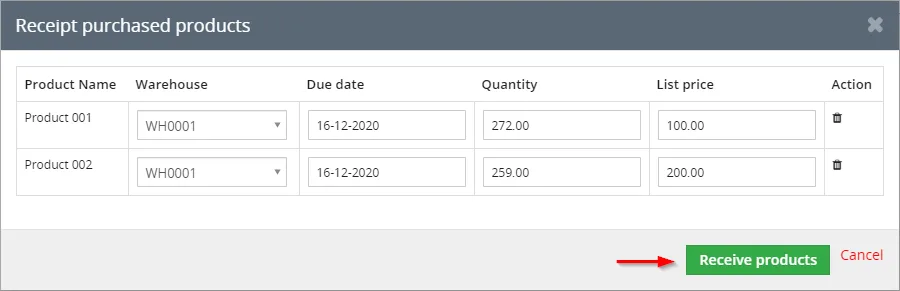
Receive products The products were received. You can see more info Product module, Receipt Card module or in Purchase Orders module.
7.3 Recalculate Warehouses quantities
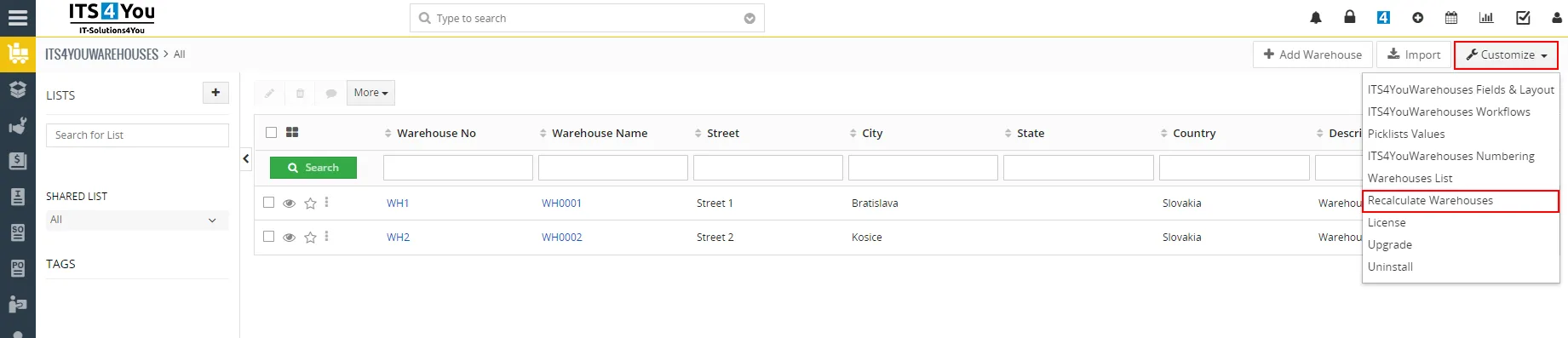
Aren’t you sure about quantity of Products in your Warehouses?
In list view of Warehouses or in Product Movements related tab, you can find an option to recalculate the quantities of Products.
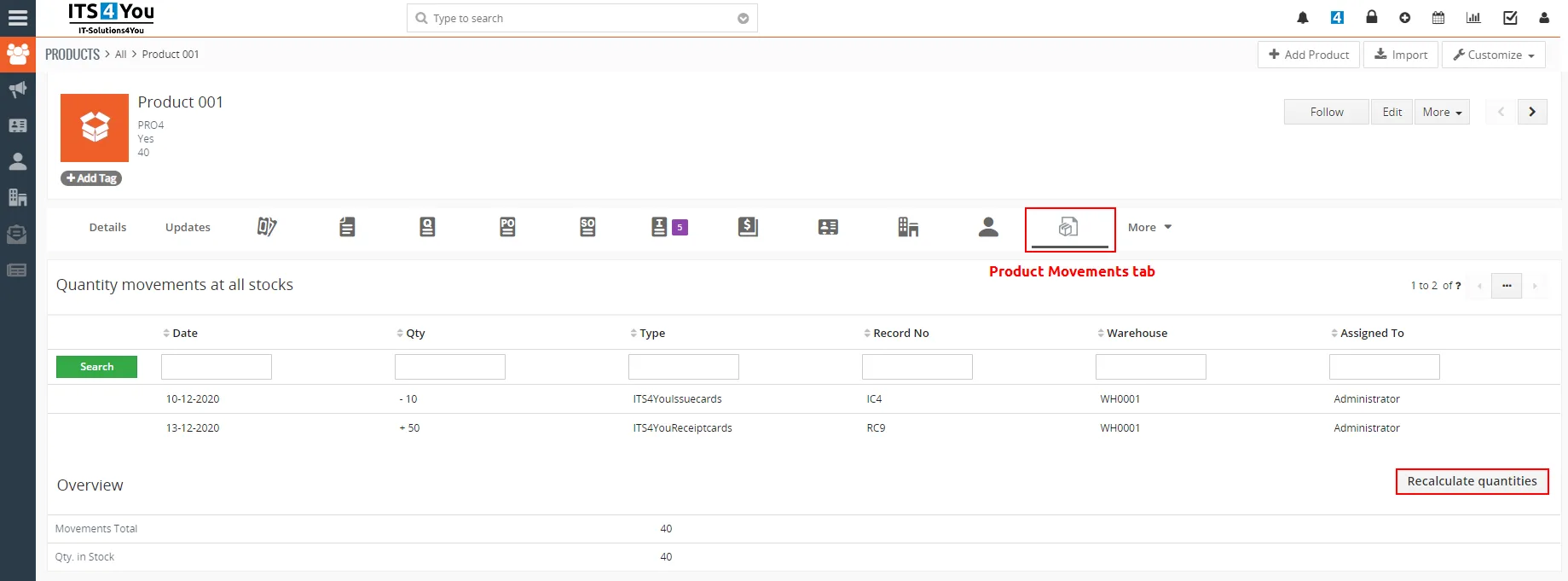
7.4 Enable/Disable Services in Delivery process
In the Delivery Notes module, we have special settings called Preferences, there you can enable Services for Delivery Notes.
You can access these settings via Delivery Notes list view:
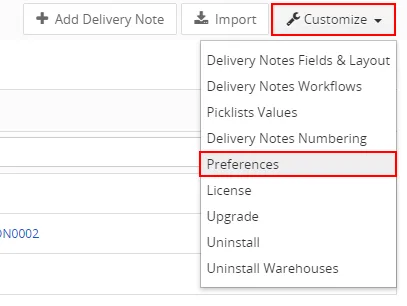
These settings are turned off as default after you install Delivery Notes module to your Vtiger CRM system. You can change these settings via  button.
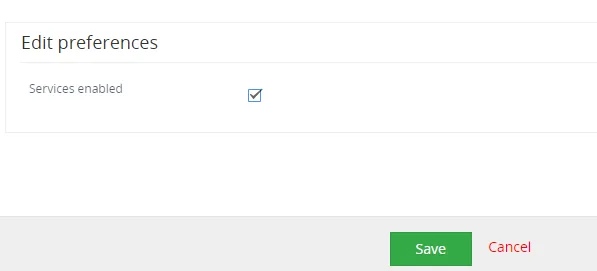
Services enabled
This is for Services module in your Vtiger CRM.
- NO: you CAN’T use Delivery Notes for your Services.
- YES: you CAN use Delivery Notes for your Services.
Example: Delivery Notes are used for Products & Services in Vtiger CRM.
But, Services are turned OFF as default. You can still turn them ON.
 We recommend having this feature turned ON.There can be situation when you creating Invoice or Sales Order and you add Products & Services to it. Then you will be need to create Delivery Note for Services, but you will be not able to do that because you didn’t turn ON this feature in the Preferences settings.
Need help with Warehouses?
Our support team answers questions about installation, templates and settings.