
Warehouses actions block (Delivery Notes block) you can find in detail views of Invoice, Sales Order, Purchase Order and Delivery Notes modules.
WH actions block, allows you to provide actions like order products, deliver, receive products and create invoices.
If there is an option to provide any action with your Invoice, Sales Order, Purchase Order or Delivery note, then you can show in WH actions block  as well as
 buttons.
On the other hand, if there is no option to provide any actions there is only button where you can find information about your INV, SO, PO or DN.
In Warehouses action block, you can see status itself and the numbers of each status.
(This number does not mean how many products are in this status. It means which products (entity) are in this status):
- Not available – you can see this status when you do not have products in warehouse
- Partially Available – you will see this status when you have part of ordered quantity
- Available – you are able to deliver the products in this status
- Ready to deliver – Delivery Note was created and now you can confirm delivery
- Delivered – if you delivered product, but it’s not invoiced yet
- Invoiced – under this status you can find products after invoicing
- Receipted – this status you can see when you confirm receiving of products from the Purchase Order
- Waiting availability – you can see this status, when you created Purchase Order but did not confirm receiving of products
6.1 Blocks and Tabs of Warehouses
Product Movements block/tab
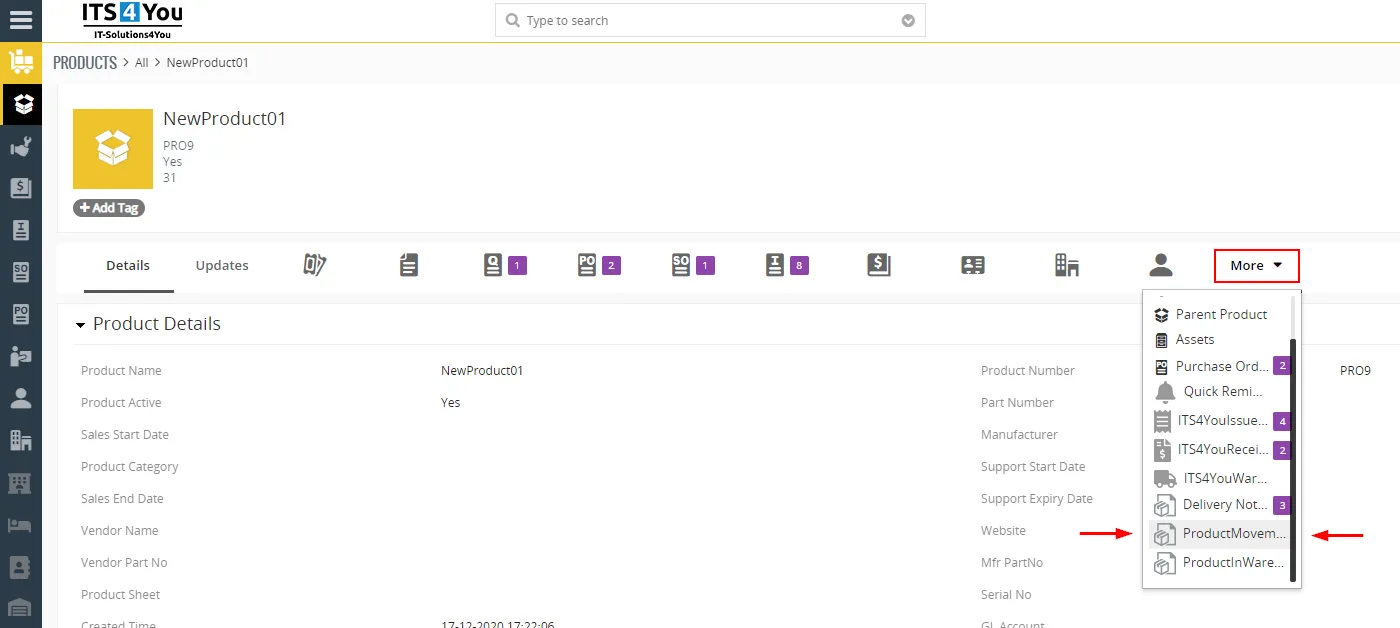
In detail view of Product you can see ProductMovements block.
Here you are able find movements of Product.
To access this block, click on More and from pop-up select ProductsMovements:
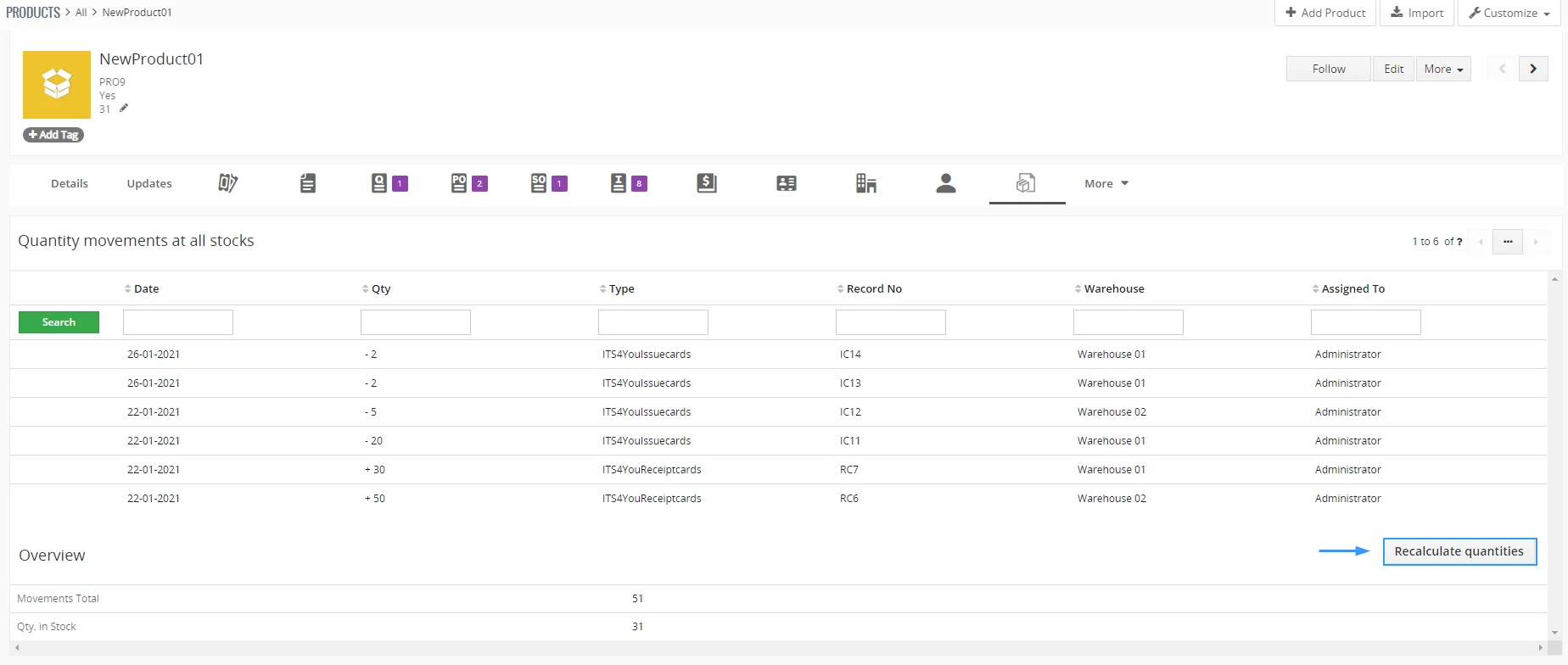
The following screen will appear, you can see all movements here and navigate between them, click on the movement to open details, filter movements via search option and more.
Tip: If you are not sure that the quantity is right. Click on  to recalculate quantities.
Products in Warehouse tab
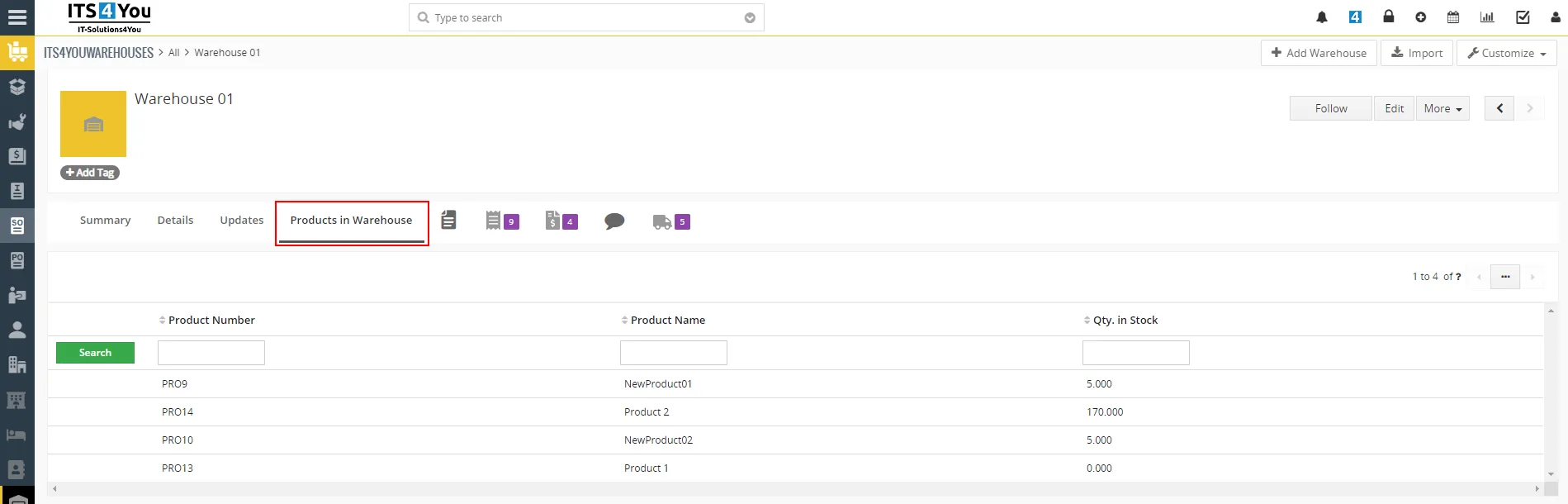
In detail view of Product you can see Products in Warehouse relation’s tab.
Here you are able find quantity of Products in Warehouse(s):
6.2 Variables
Some variables in the Warehouses Action block are probably already known to some users.
But there are few important we want to explain:
- Negative Quantity
- Qty. in Stock
- Reorder Level
- Optimal Level
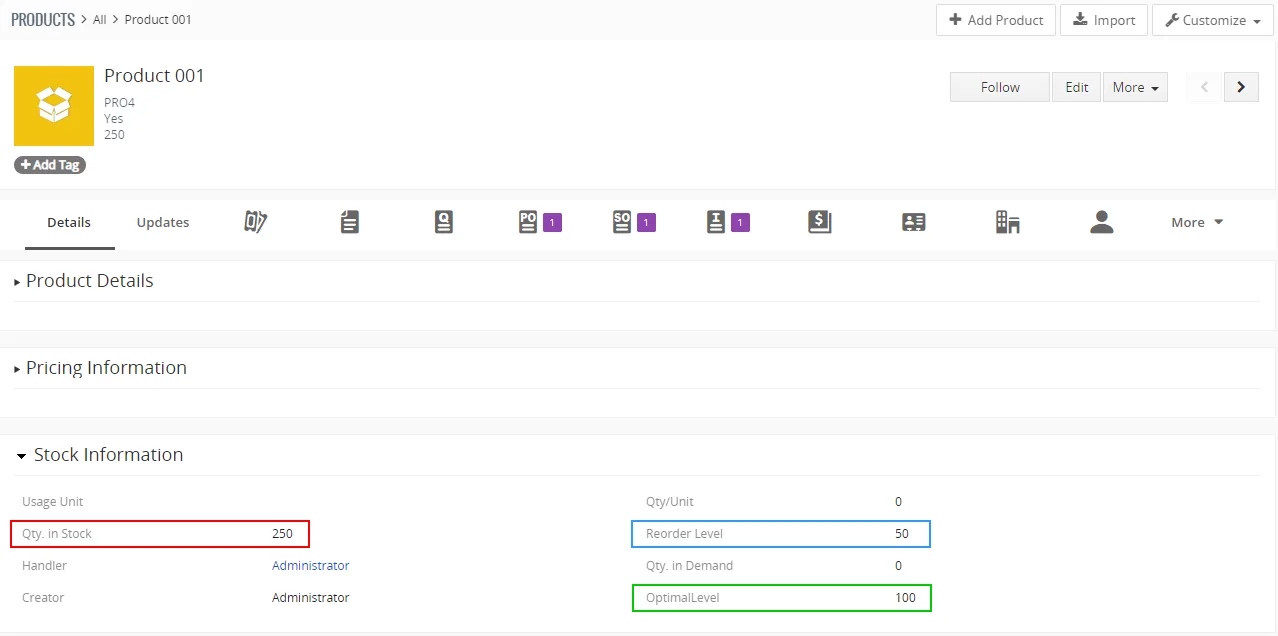
Qty. in Stock, Reorder Level and Optimal Level variables are found also in Products module.
Negative Quantity
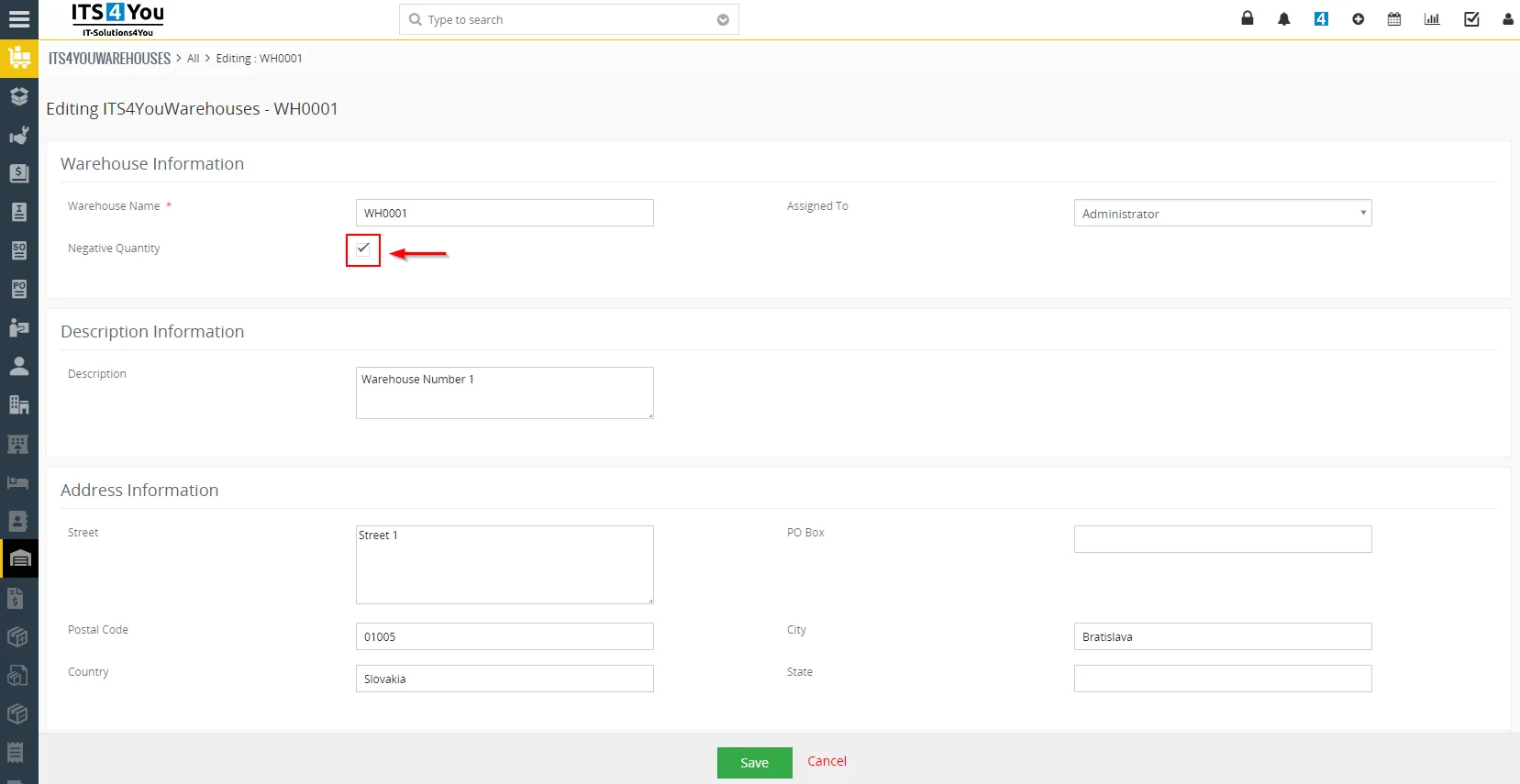
You can find Negative Quantity variable in Warehouses module. You can select/check it or not.
When you check it, then Warehouses allows you to create Delivery Note although the quantity of the Products in Warehouses decrease to negative value.
Qty. in Stock
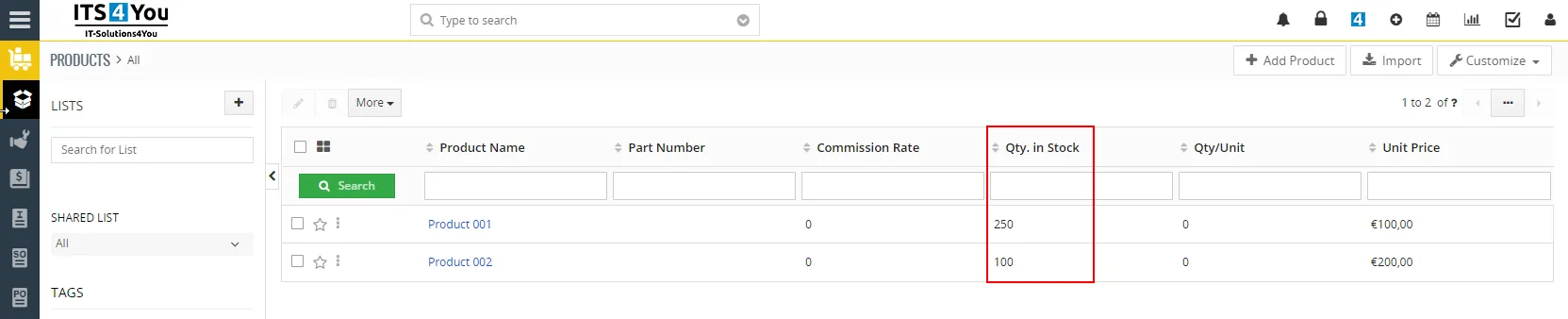
Qty. in Stock variable you can find in Products module.
It is the actual quantity of products in your Warehouses or overall in your system.
(Based if your all products are in warehouses or not, as you can also change quantity manually in Products module).
Reorder Level
Reorder Level variable you can find in Products module.
Reorder Level variable we use to know when it is a good time to create a Purchase Order and fill your Warehouses.
When Quantity of “free” products (Qty. In Stock – all Products from SO and INV) is less than Reorder Level then is the time to create Purchase Order.
Optimal Level
The Optimal Level variable you can find in Products module.
Here you can set how many products you want to have in the Warehouses.
Purchase Order will be automatically created with a quantity of Products that after delivery all Products from Sales Order and Invoices in Warehouses stay Optimal Level products quantity.
Need help with Warehouses?
Our support team answers questions about installation, templates and settings.