
There are 2 ways to use our Warehouses that we recommend.
Also, it depends on how you add Products into Warehouse if there is not enough stock of Products in Warehouse:
- Add Products simply by Receipt Card
- Buy products from your supplier/vendor, create a Purchase Order and when the Products arrive, then add them into the Warehouse
In following situations, you can see the way to use Warehouses as well as both ways to add your Products.
Warehouses extension supports Total delivery and also Partial delivery.
5.1 Sales Order to Delivery Note, DN to Invoice
The first way we recommend is to create Delivery Note from Sales Order.
- If you have enough Products then you can deliver these Products.
- If you do not have enough Products, we will describe how to add Products simply by Receipt Card.
After, you are able to deliver the Products. The final step is creating an Invoice.
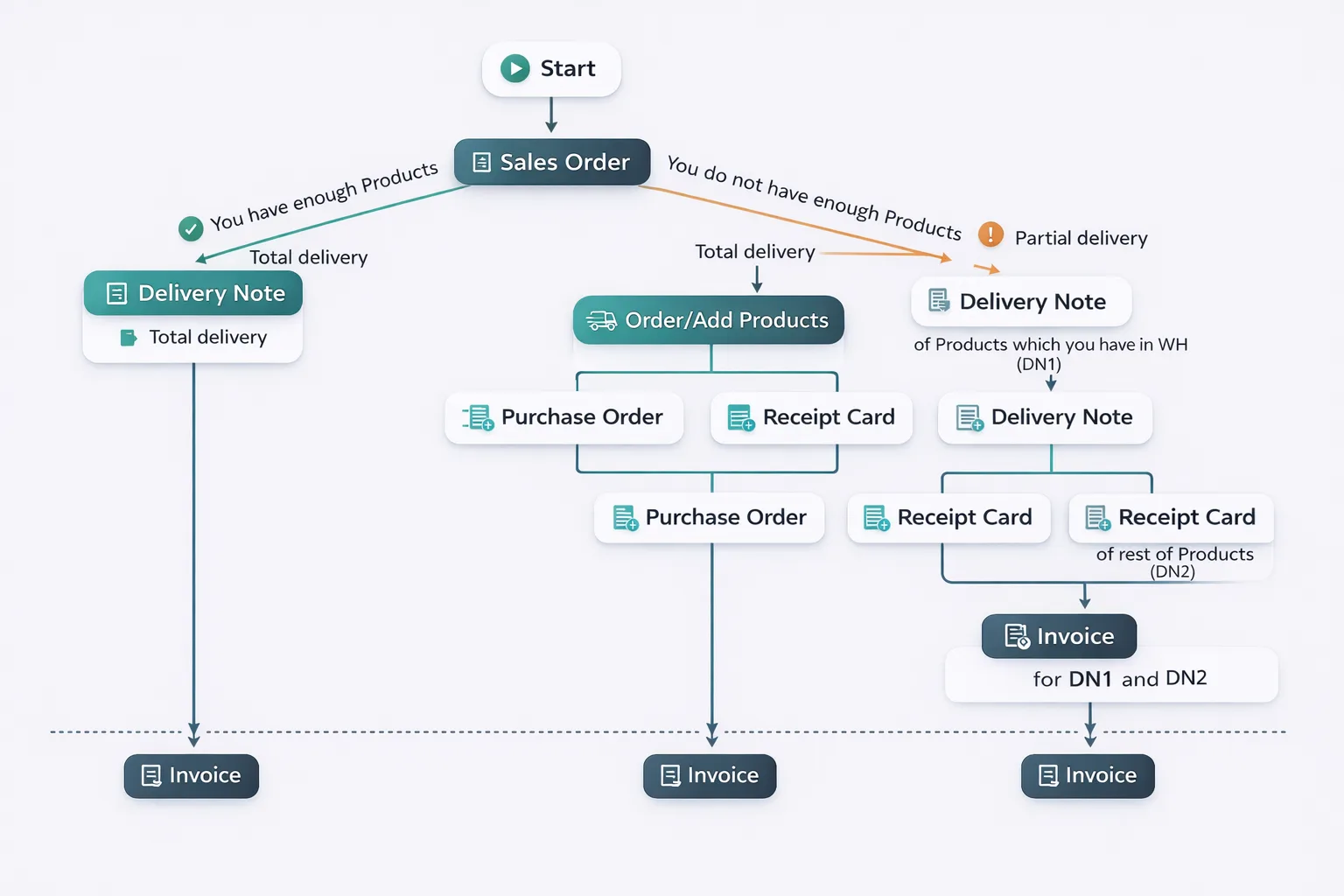
Please follow the next steps.
 Note: Some parts will be explained during the process.
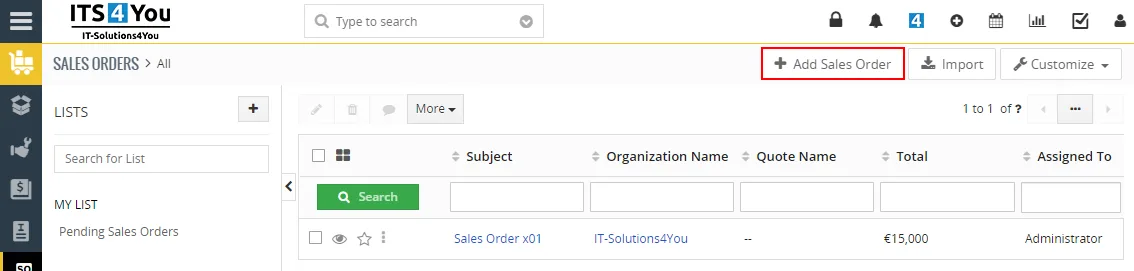
1.) Creating Sales Order
- Go to module Sales order and click on “Add Sales Order” button:
Warehouses – Create Sales Order - When you choose more Products than you have in Warehouse you will see: “Not enough stock” alert.
However, you are able create Sales Order.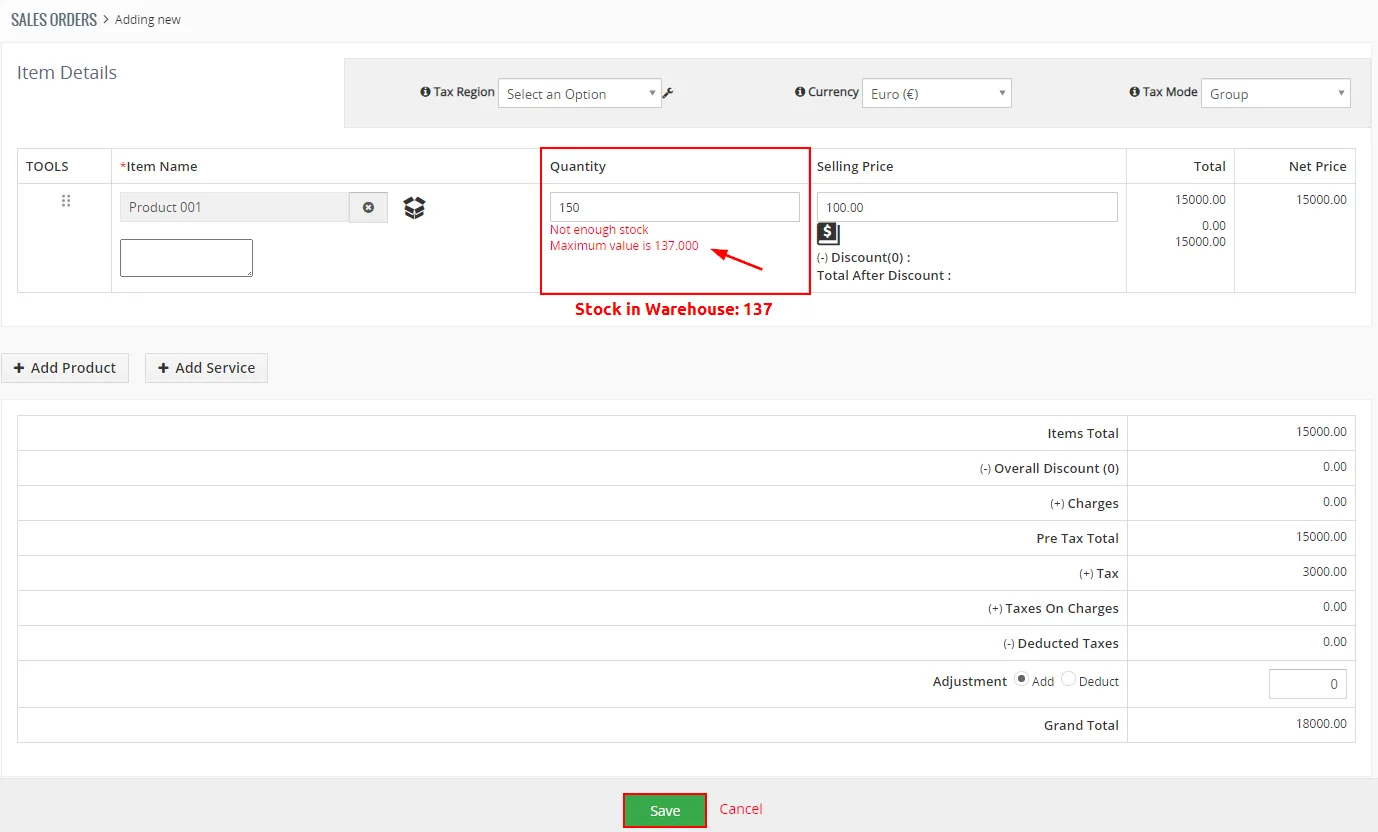
Warehouses – Creating Sales Order - Now, you can see Warehouses Actions block in Detail view of Sales Order.
More about blocks of Warehouses you can read here: 6. Blocks of Warehouses.
Click on or

If you choose the Actions button, you can create Delivery Notes or order Products.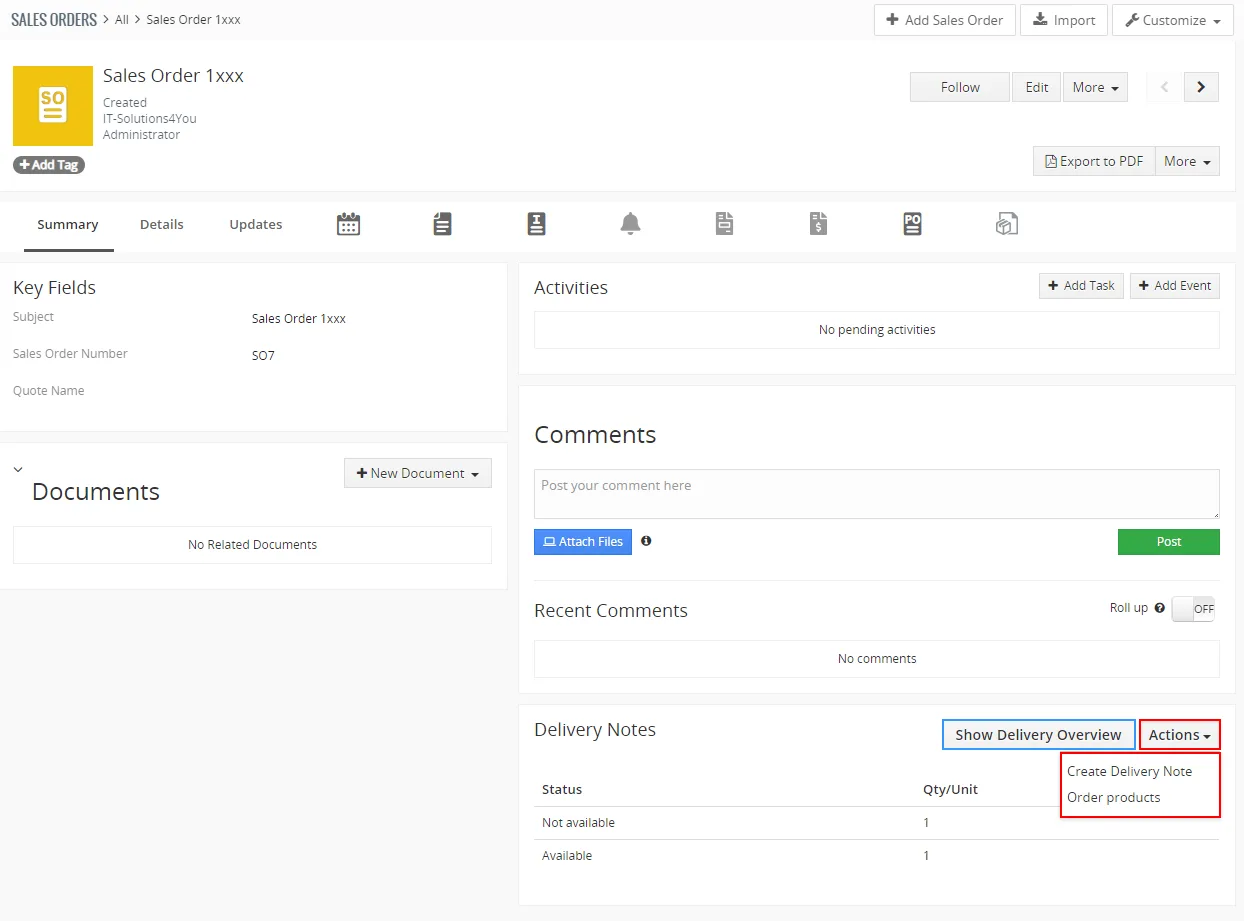
Warehouses – WH Actions block - If you choose “Show Delivery Overview” button, you can see a window with information about Sales Order and Products in Warehouse as well as Overall Purchased and Ordered Products.
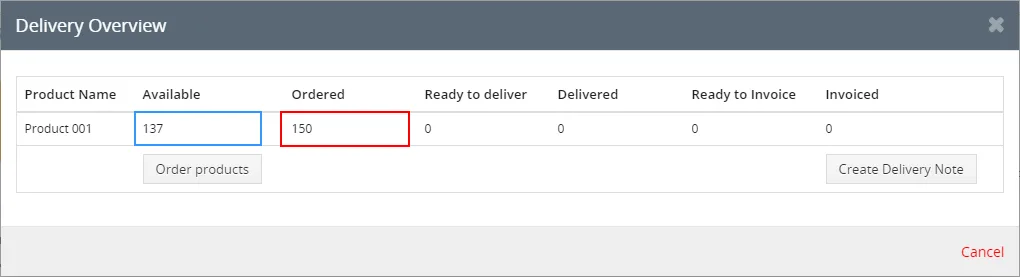
Warehouses – Delivery Overview
You can see that Ordered Products (150) are more then Available (137). Now, you have 2 options:
- Order/add missing Products and then delivery all Products A) Total delivery.
- Deliver part of Products, order/add rest of Products and then deliver the rest B) Partial delivery.
2.) In the next steps, we will show you A) Total delivery situation and how to add Products via Receipt Card.
- Open Receipt Card module and click on
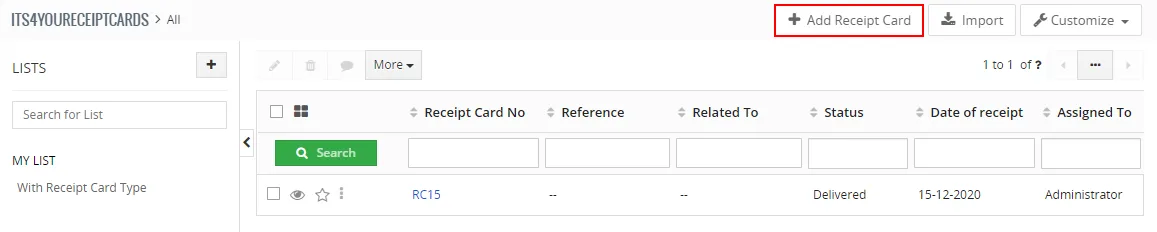
Warehouses – add Products into Warehouse - Create Receipt Card with Qty. of your Products and choose your Warehouse.
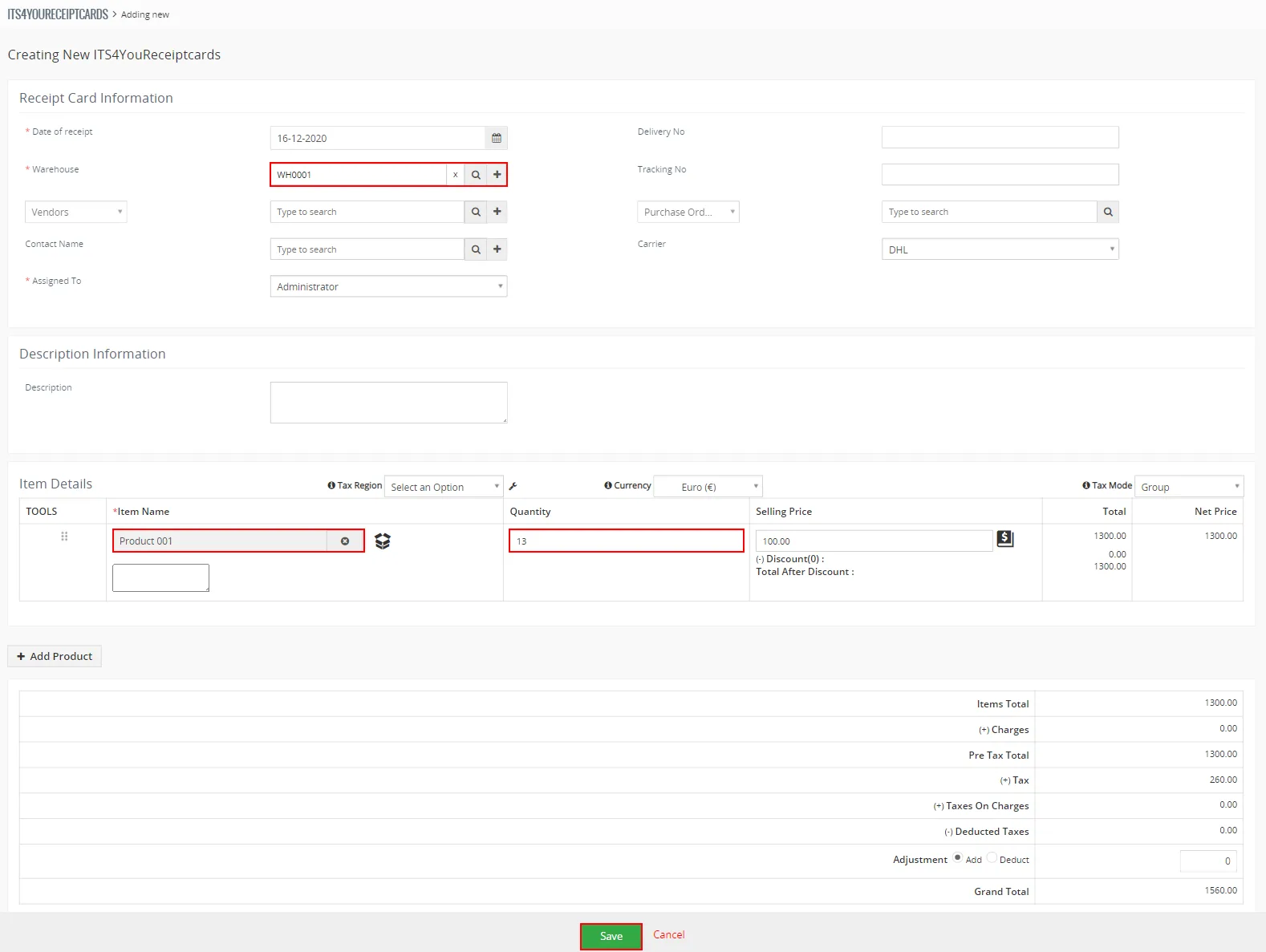
Warehouses – creating Receipt Card - Receive your Products, from detail view of Receipt Card click on
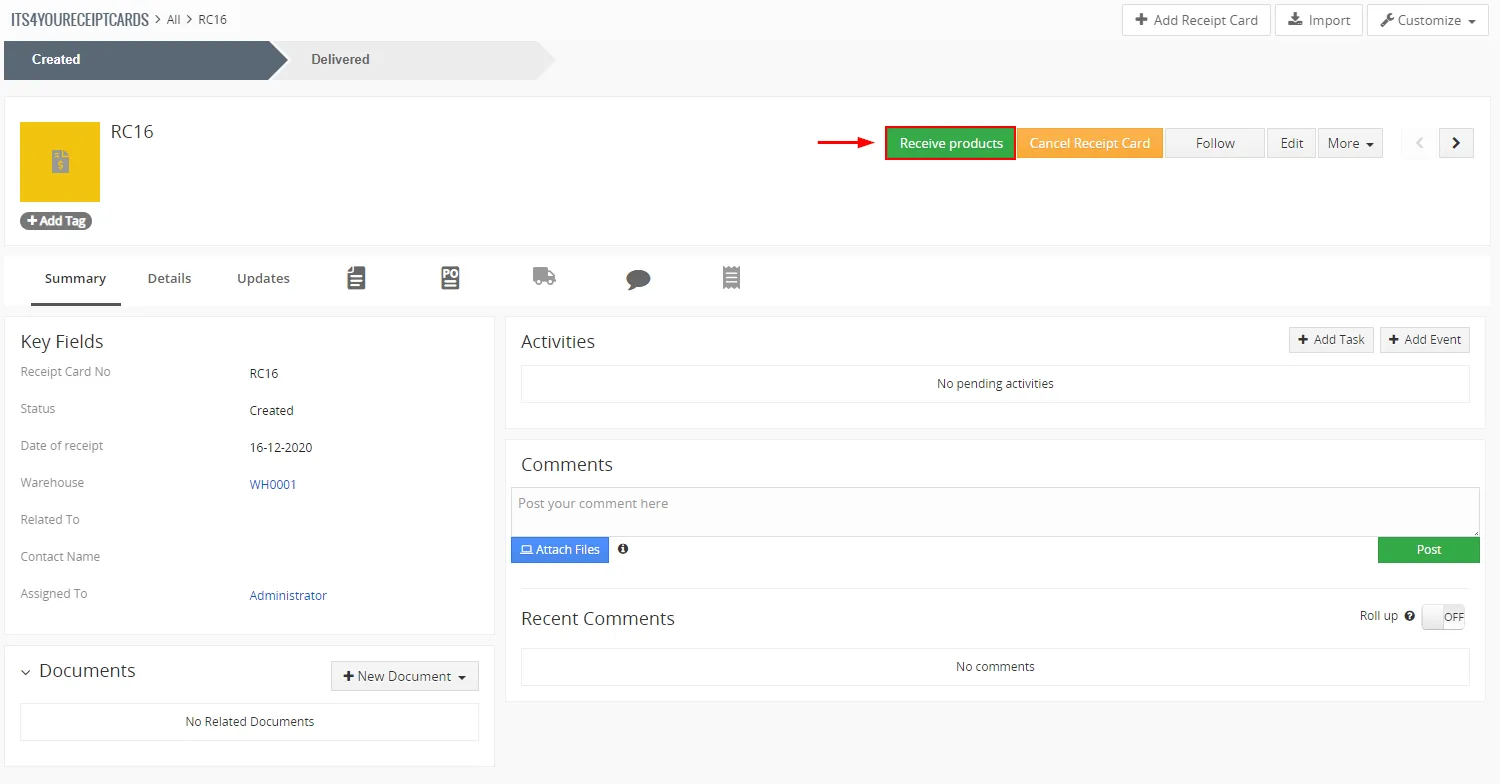
Warehouses – receive products via Receipt Card Now, Products of quantity (13), were delivered to the Warehouse, the total stock of Products (150) in a Warehouse is shown below:
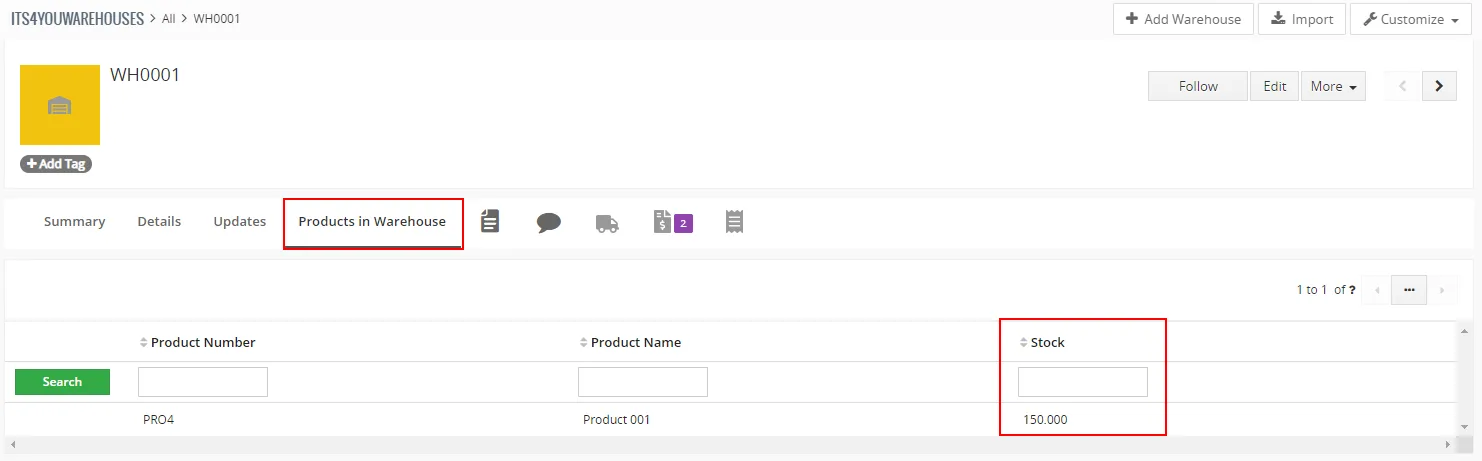
Warehouses – Products in Warehouse after delivery via Receipt Card
3.) Now, you are able to create Delivery Note for whole Sales Order. Open Sales Order detail view and click on “Show Delivery Overview” button.
- You can see that there is enough Products to deliver. Click on “Create Delivery Note” button.
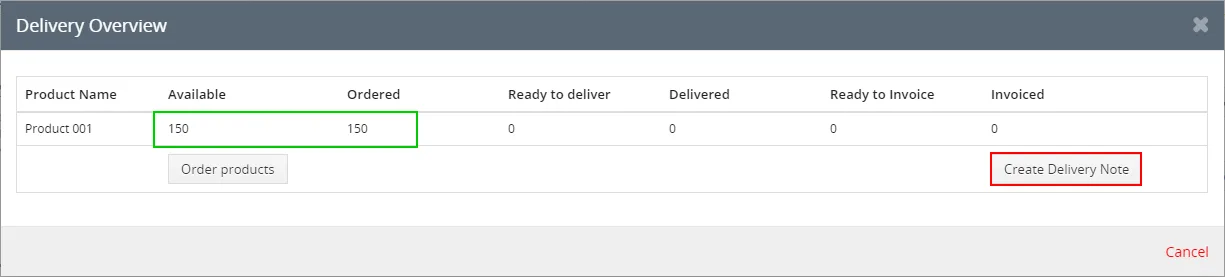
Warehouses – creating DN from SO - Confirm Quantity and click on

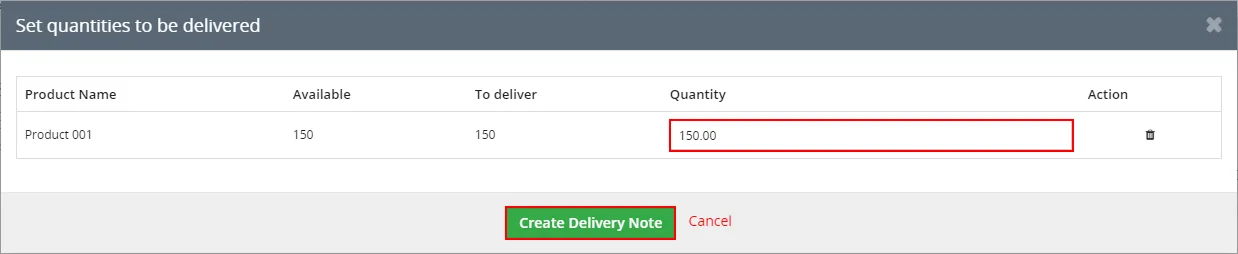
Warehouses – creating DN from SO - If you have Products in more Warehouses, here you can see the available list of Warehouses to choose from.
(We have Product 001 just in Warehouse WH0001, so we see only one/this Warehouse available).
Also you can choose from which Warehouse Products will be delivered.
If you click on button once you remove warehouse, if you click on this button again you will remove whole line. To add line again or add new line to add warehouse please click on
 button.
Fill info and and click on button.
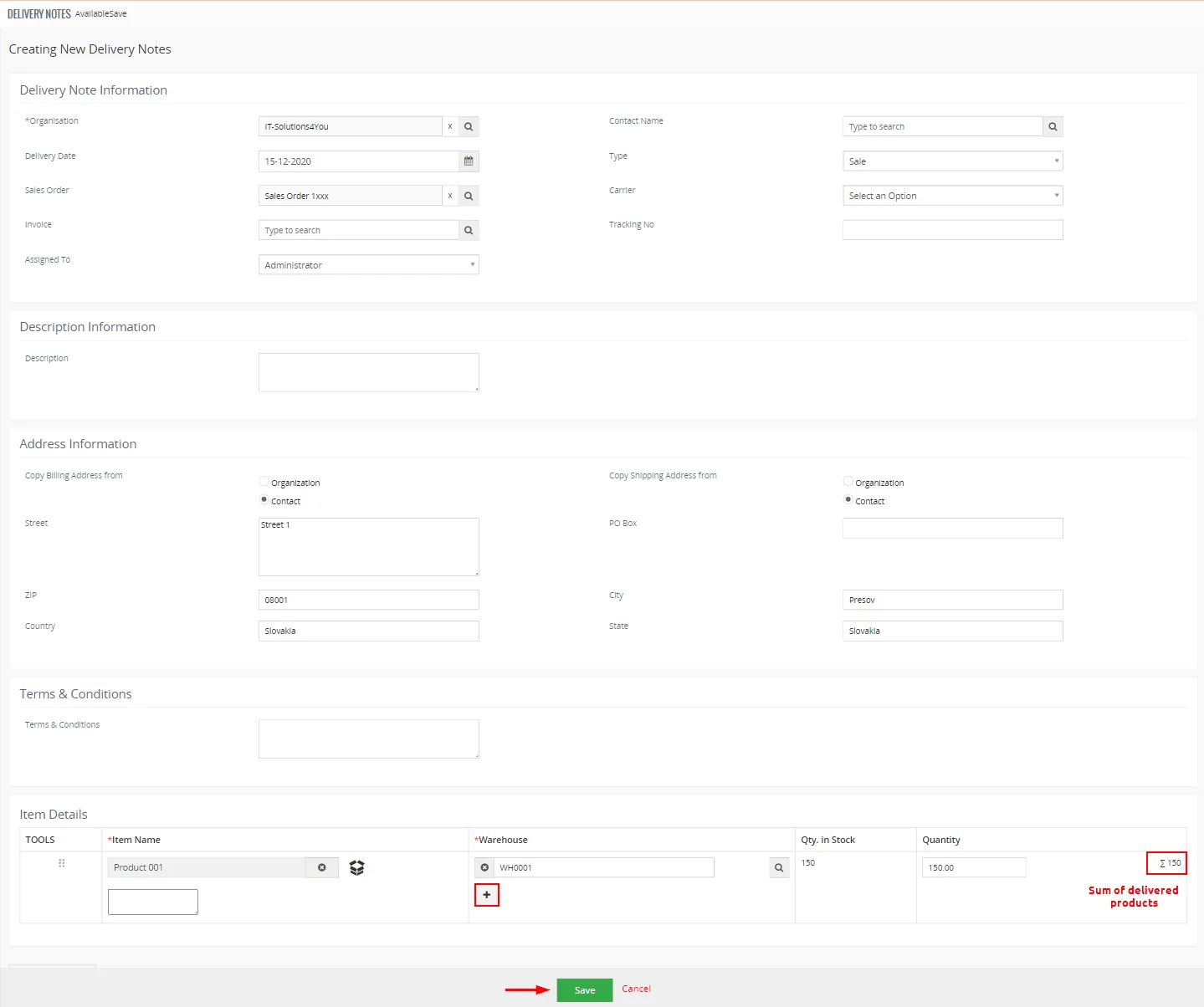
Warehouses – creating DN from SO - Delivery Note is created. Now, you can click on
 to deliver products.
You can also open Issue Card, export to PDF (with PDF Maker) for employees to know how many products should leave from Warehouse.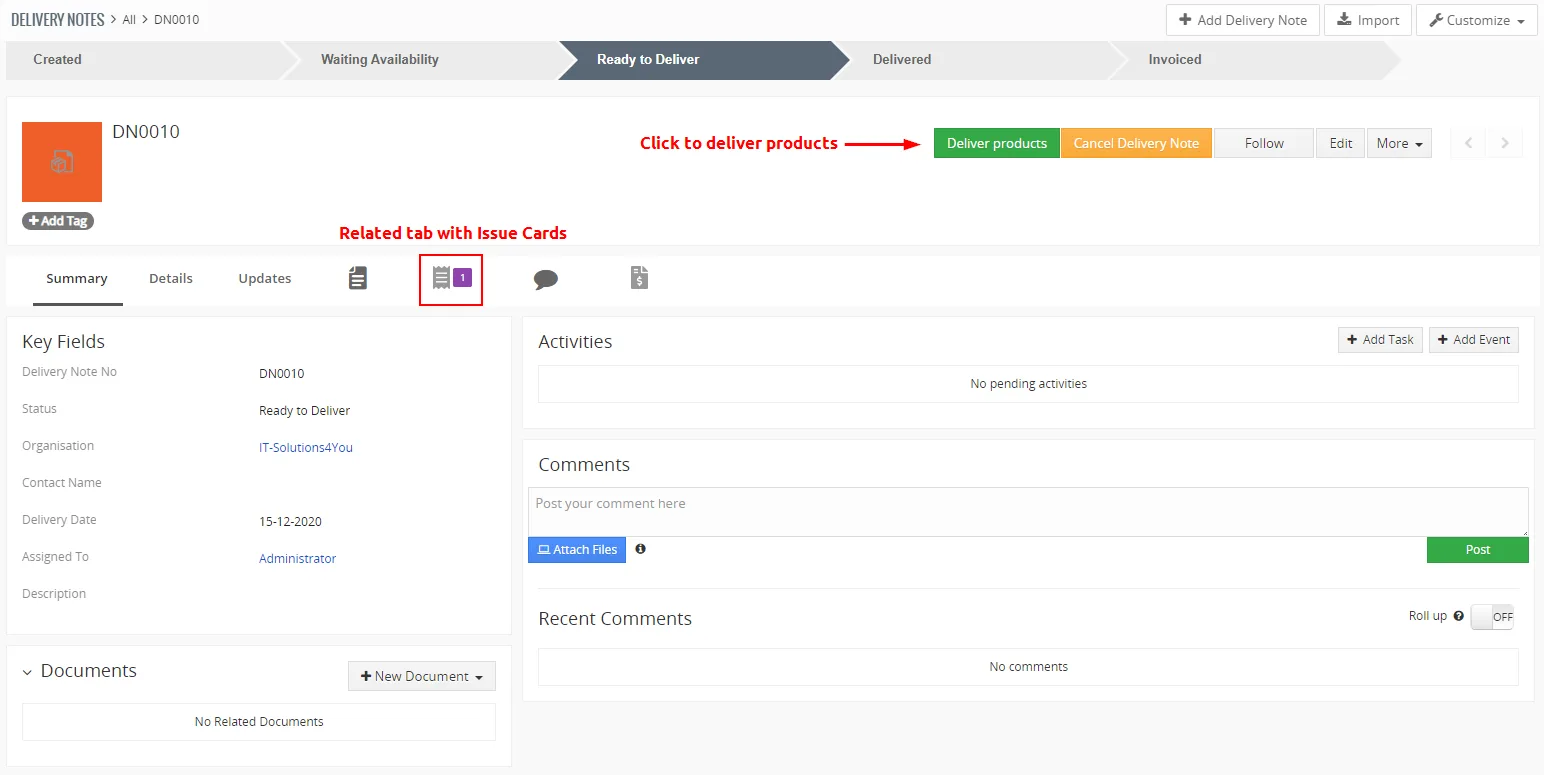
Warehouses – Delivery Note, deliver products - On next window, click on

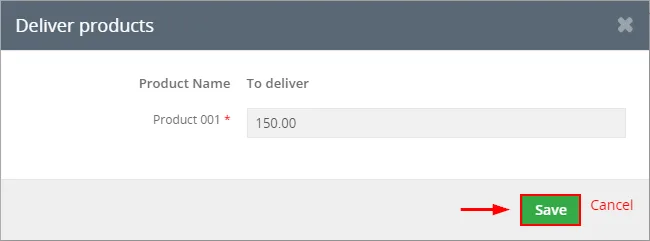
Warehouses – Delivery Note, deliver products - Now, Delivery Note have status Delivered.
You are able to invoice it. Click on and fill info you need and click on
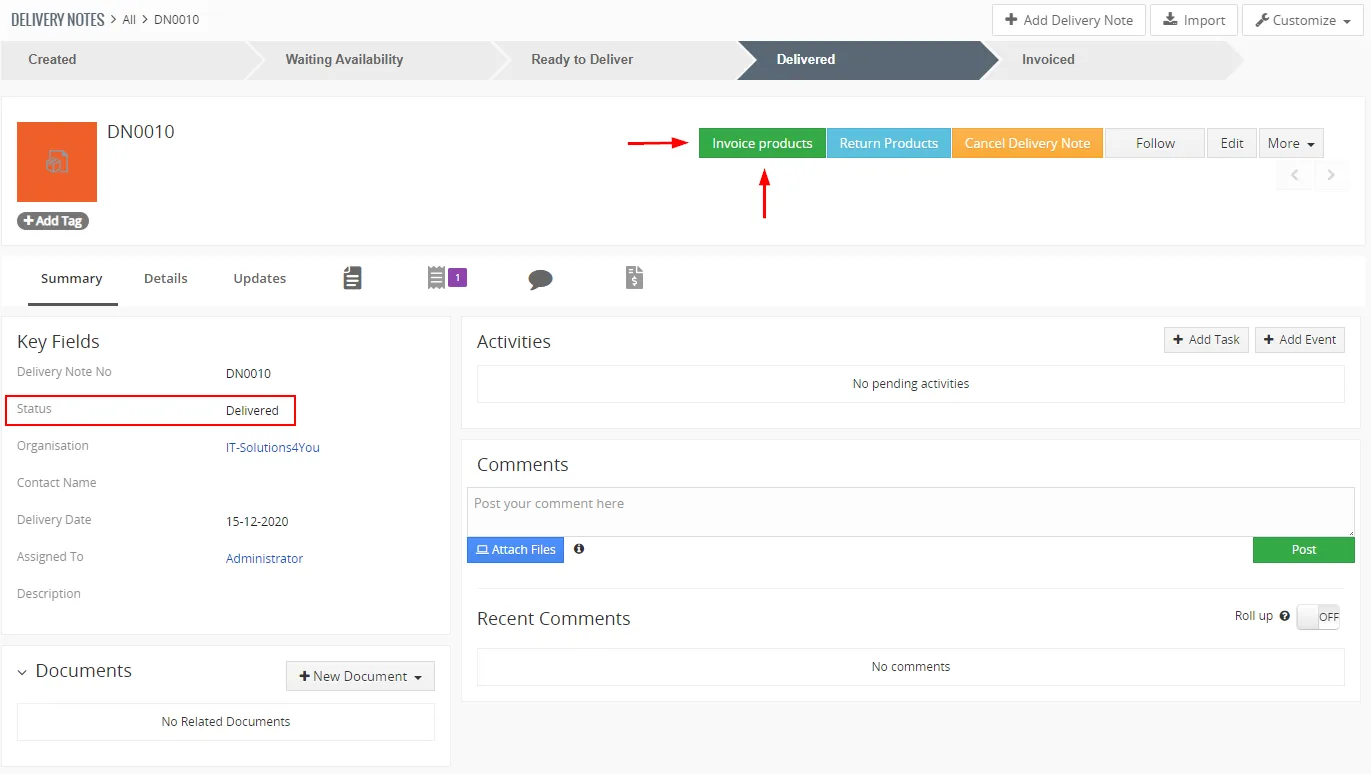
Warehouses – Invoicing products from Delivery Note
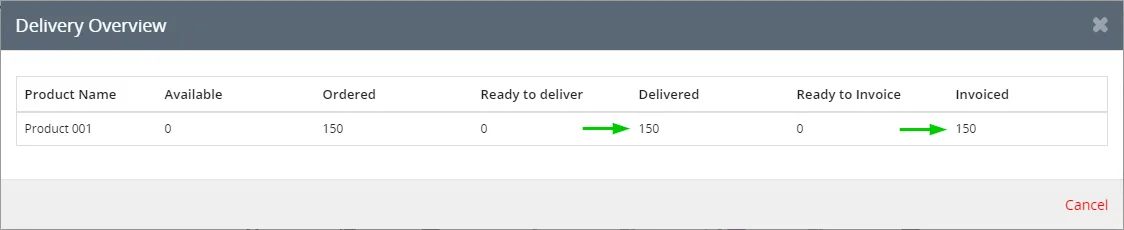
Now, in Sales Order or Invoice you can see in WH Actions block that you have Invoiced Products.
You can also click on for more information.
5.2 Invoice to Delivery Note
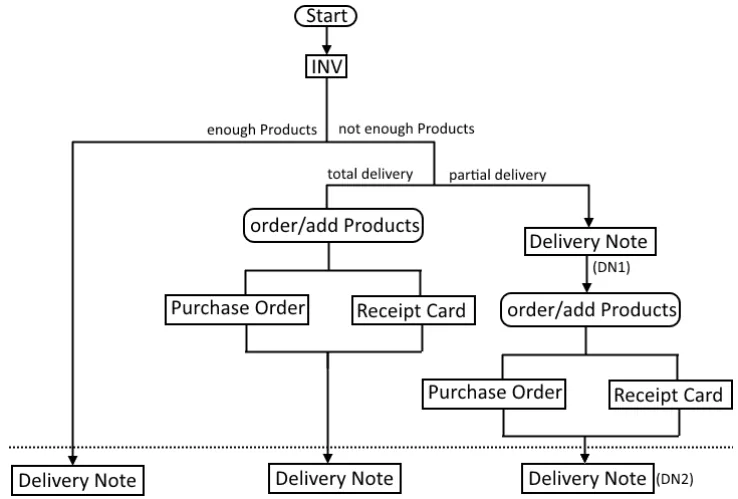
The other way that we recommend is creating Delivery Note from Invoice.
- If you have enough Products then you can Deliver these Products.
- If you do not have enough Products, we will describe how to add Products using a Purchase Order.
Then you are able to deliver the Products.
Please follow the next steps.
Note: Some parts will be explained during the process.
1.) Start with creating an Invoice
- Select module Invoices and in the list view click on

Warehouses – Creating Invoice - When you choose more Products like you have in Warehouse you will see: “Not enough stock” alert.
However, you are able to create an invoice.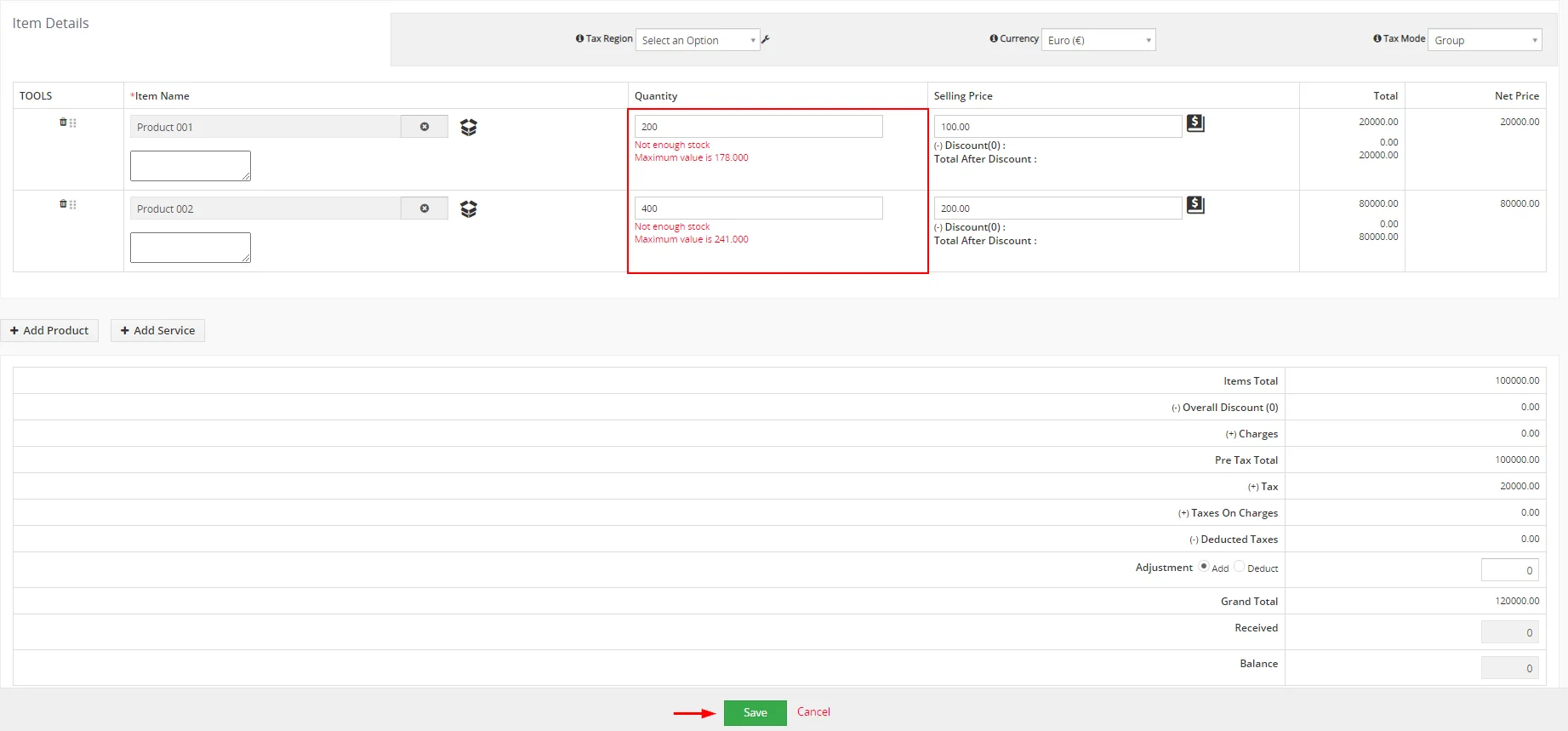
Warehouses – Creating Invoice - Now, you can see Warehouses Actions block in Detail view of Invoice.
More about blocks of Warehouses you can read here: 6. Blocks of Warehouses.
Click on or
If you choose the Actions button, you can create Delivery Notes or order Products.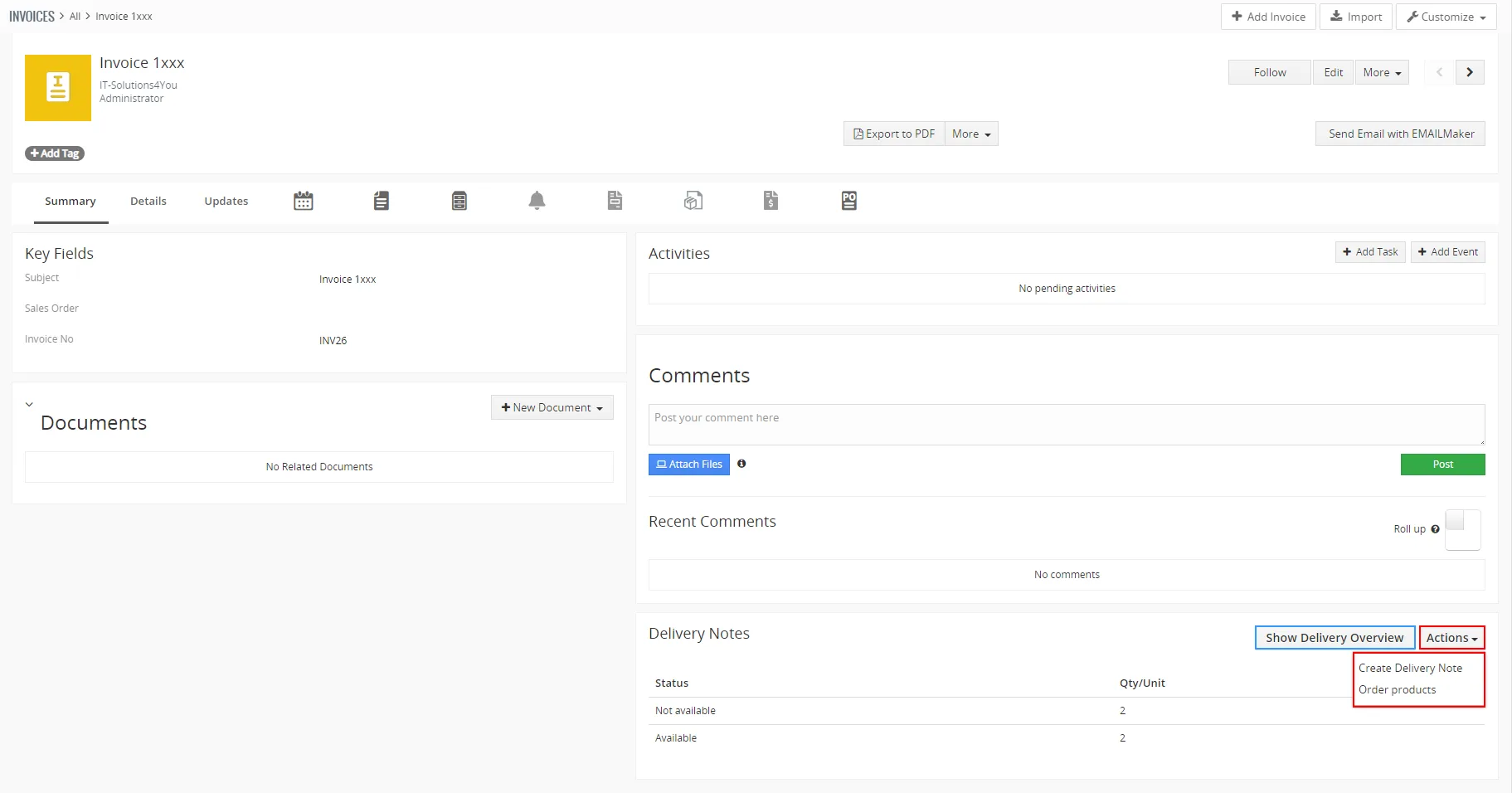
Warehouses – Invoice module, WH Actions block - If you choose “Show Delivery Overview” button, you can see a window with information about Invoice and Products in Warehouse.
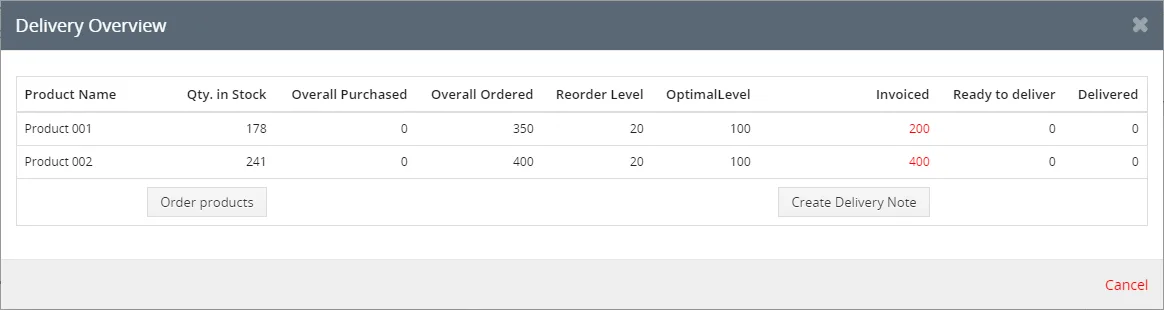
Warehouses – Invoice module, Delivery Overview
You can see that Invoiced Products are more than Qty. In Stock.
Now, you have 2 options:
- Order/add missing Products and then delivery all Products A) Total delivery.
- Deliver part of Products, order/add rest of Products and then deliver the rest B) Partial delivery.
2.) In the next steps, we will show you B) Partial delivery situation.
- From the Delivery overview in the Invoice (Image above), click on

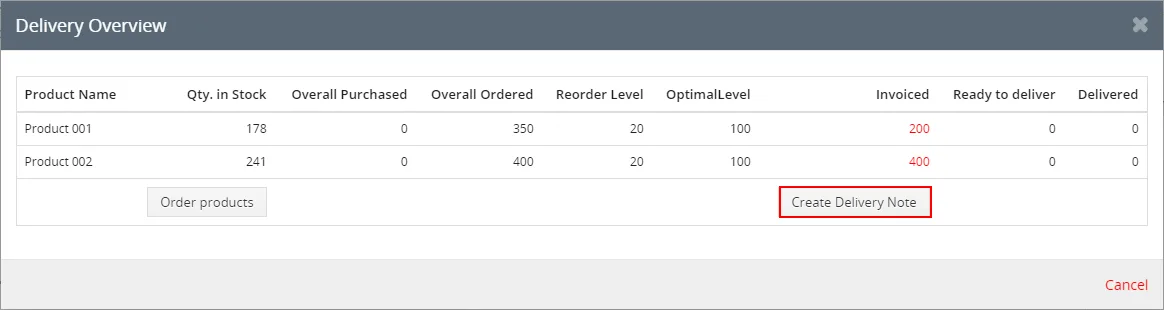
Warehouses – Invoice module, Delivery Overview You can see Qty. In Stock and quantity to deliver.
You can deliver less than Qty. in Stock but not more.
Click on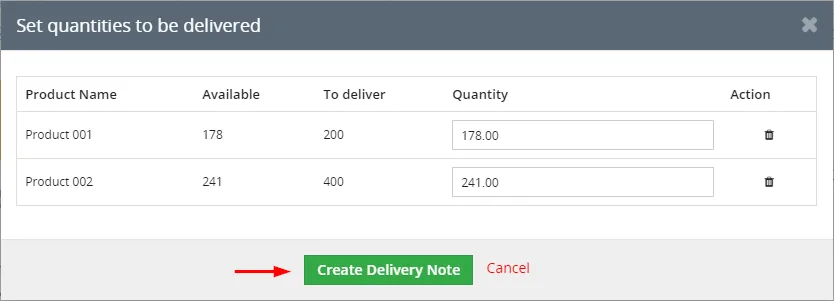
Warehouses – Delivery Note, partial delivery - Check information and confirm Delivery Note via button.
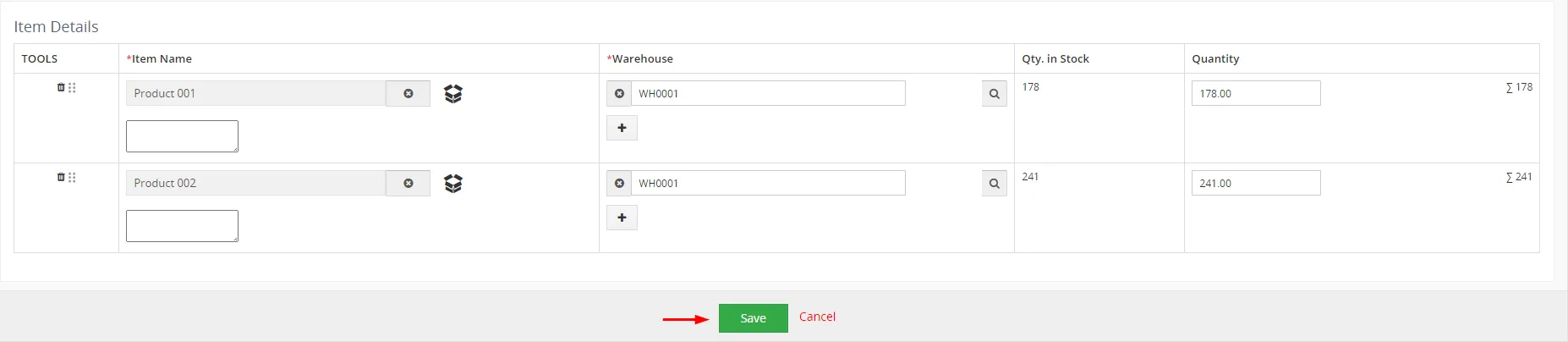
Warehouses – Delivery Note, partial delivery Delivery Note is created. Products from this Delivery Note you can see in Outgoing Products module too.
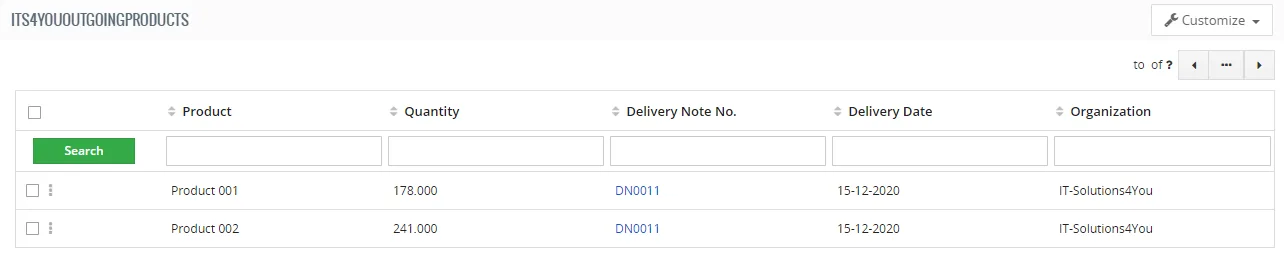
Warehouses – Outgoing Products Also Issue Card is related to Delivery Note.
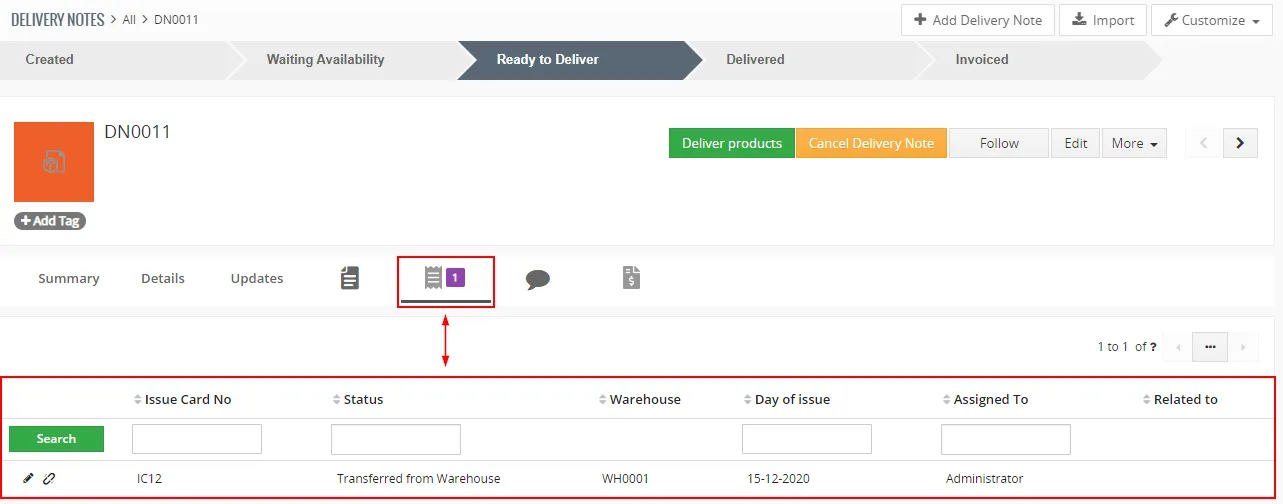
Warehouses – Issue Card related to Delivery Note - Now, you are able to deliver Products from Delivery Note or from Invoice.
From Delivery Note just click on
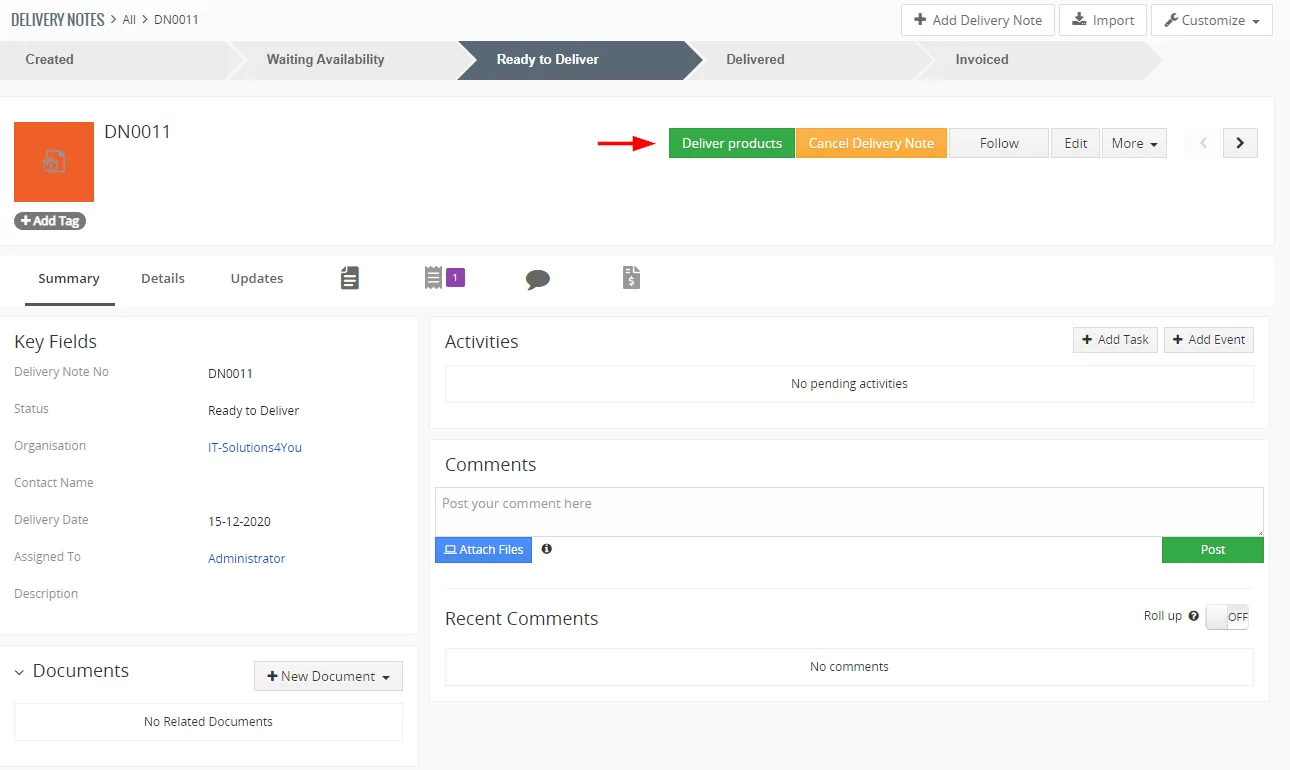
Warehouses – Deliver products via Delivery Note detail view From Invoice detailview, click on
in WH Actions block and click on 
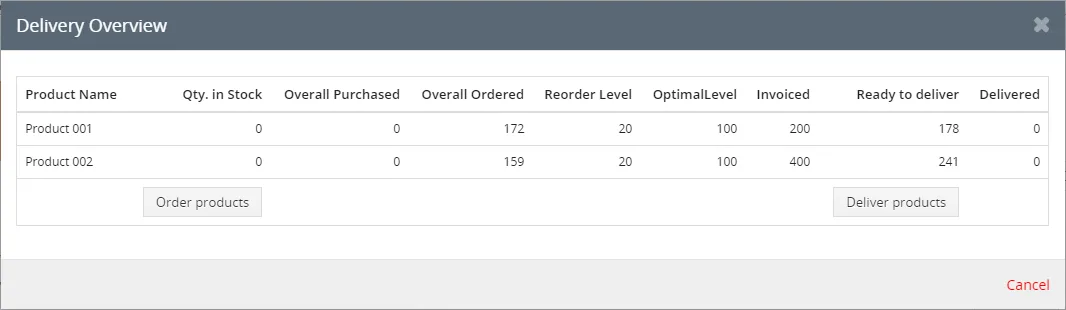
Warehouses – Deliver products via Invoice Delivery Overview block - We will deliver products via Invoice module, so after clicking on
Choose Delivery Note(s) to deliver and click on button.
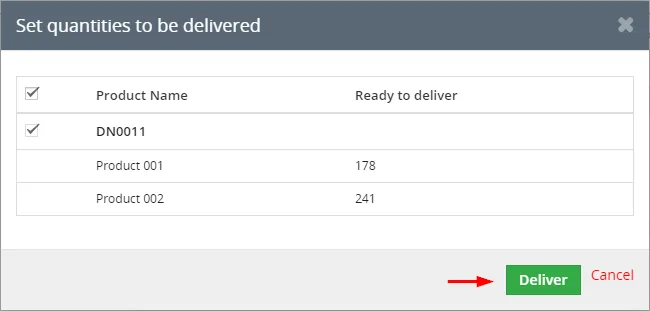
Warehouses – Deliver products via Invoice Delivery Overview block The products were delivered, you can see a message:

Warehouses – Products delivery
3.) In next steps, we will show you how to order (add) the rest of the Products by Purchase Order.
Now, we have delivered quantities for Product 001 (178) and for Product 002 (241).
We have Invoiced for Product 001 (200) and for Product 002 (400).So we need to order the rest of the Products.
Follow steps to order more Products:
- Click on in detail view of Invoice and choose
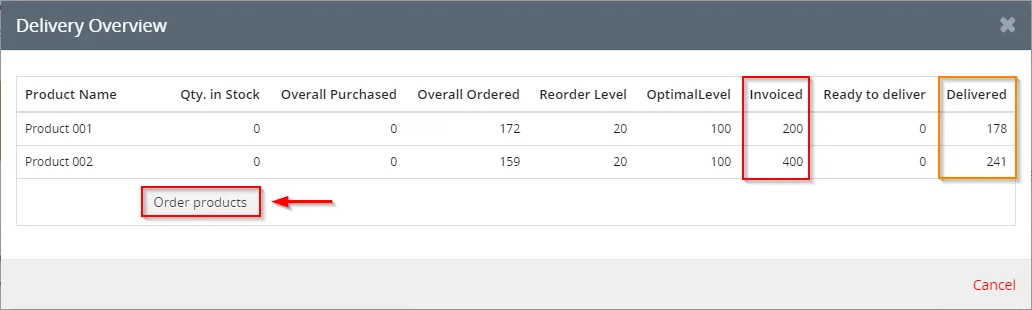
Warehouses – Invoice, Delivery Overview, ordering products - Now, you can see Order products window.
To create Purchase Order choose Quantity and click on button.
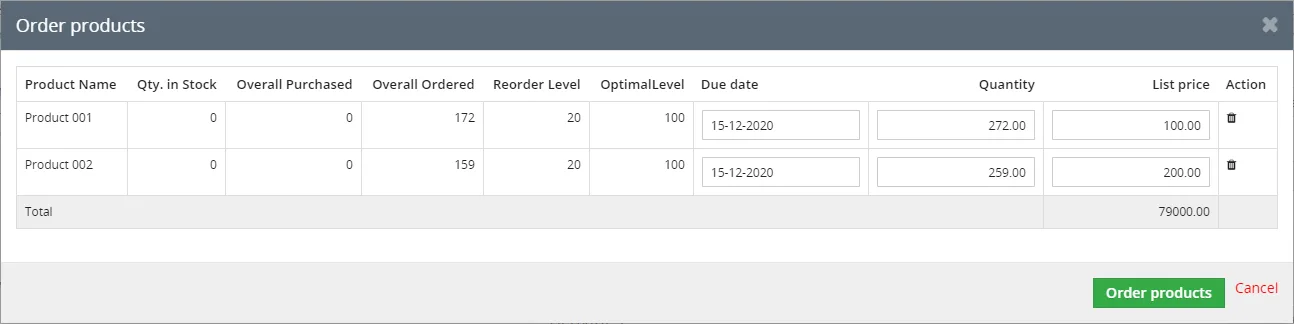
Warehouses – Ordering products via Invoice Delivery overview block 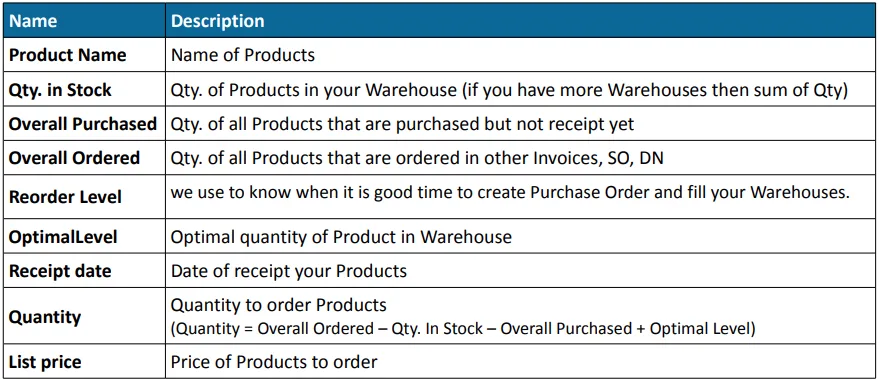
Warehouses – Variables - Purchase Order create window will appear, choose a Vendor and click on
Note: You have to choose Vendor manually if the Product does not have Vendor assigned.
If there is Vendor assigned for the Product, the Purchase Order will be created automatically.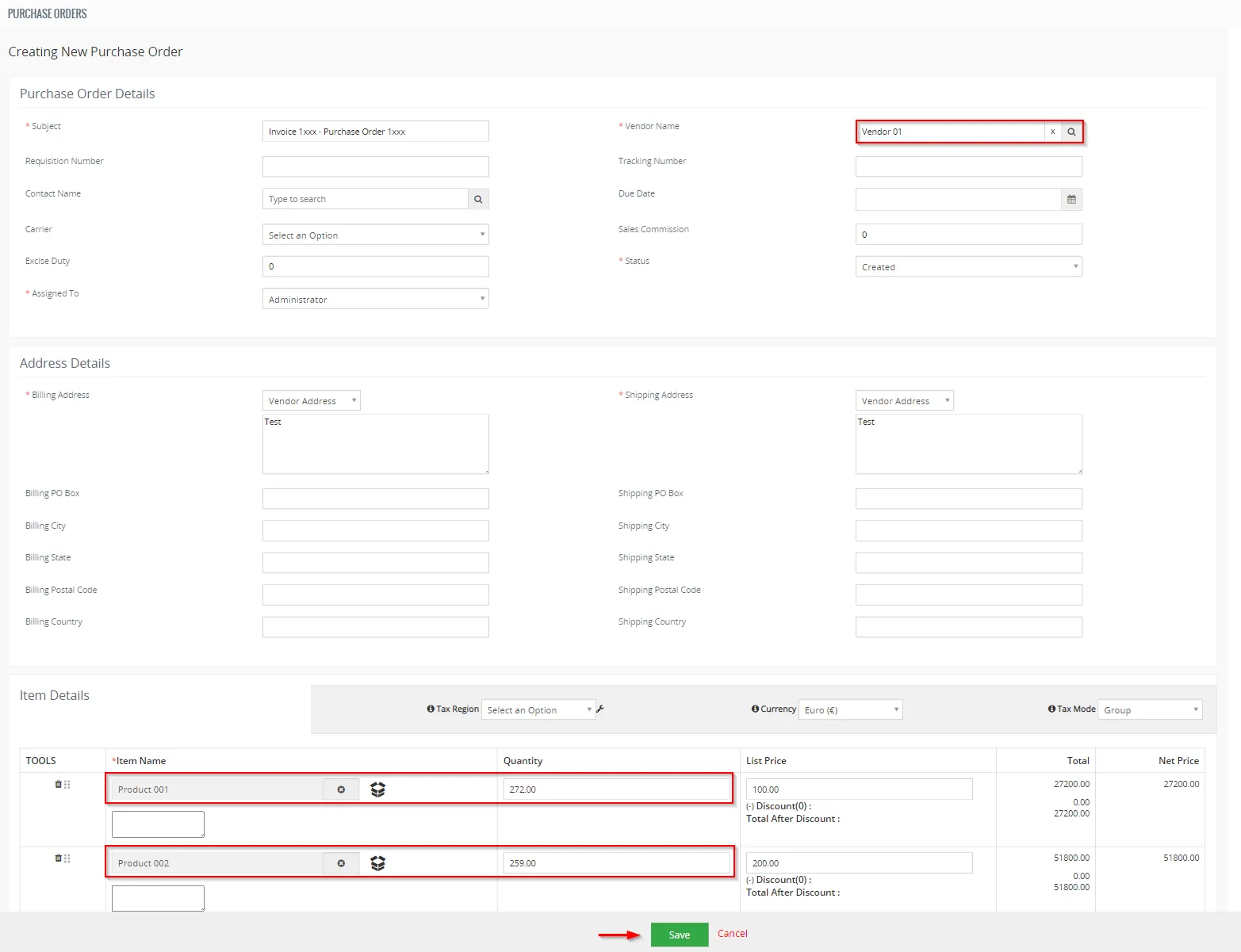
Warehouses – ordering products via Purchase Order Purchase Order was created.
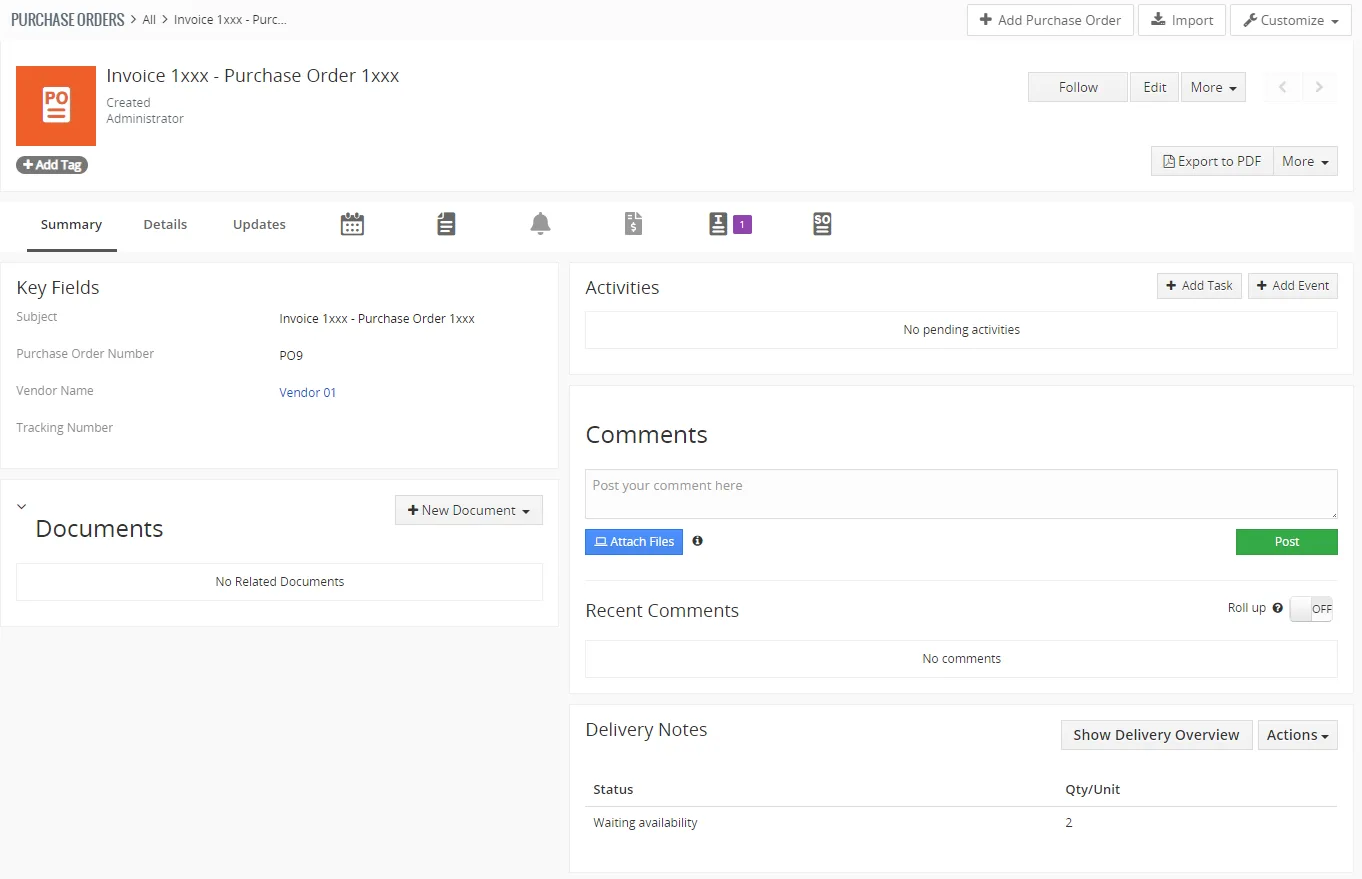
Warehouses – Purchase Order
4.) Purchase Order was created and now we need to receive purchased Products.
There are few options how to perform it:
- From Incoming Products module
- From Purchase Orders module
- From Invoices module
For more detailed information please check chapter: 7.1 Receiving purchased products.
We will demonstrate it with the Invoicemodule in next steps.
- Open Invoice module and find your Invoice.
Click on or in WH Action block and choose 
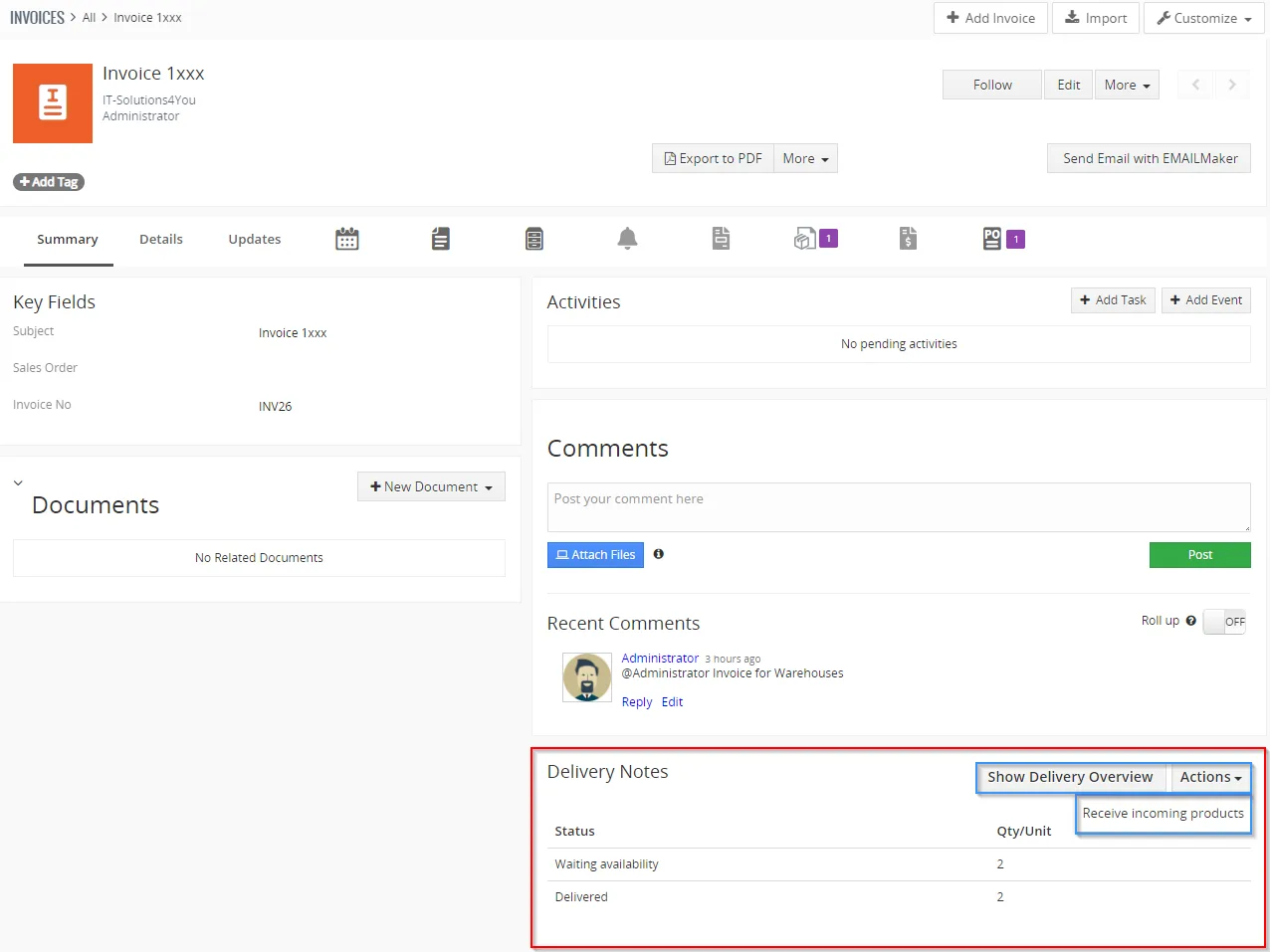
Warehouses – Invoice, receiving incoming products 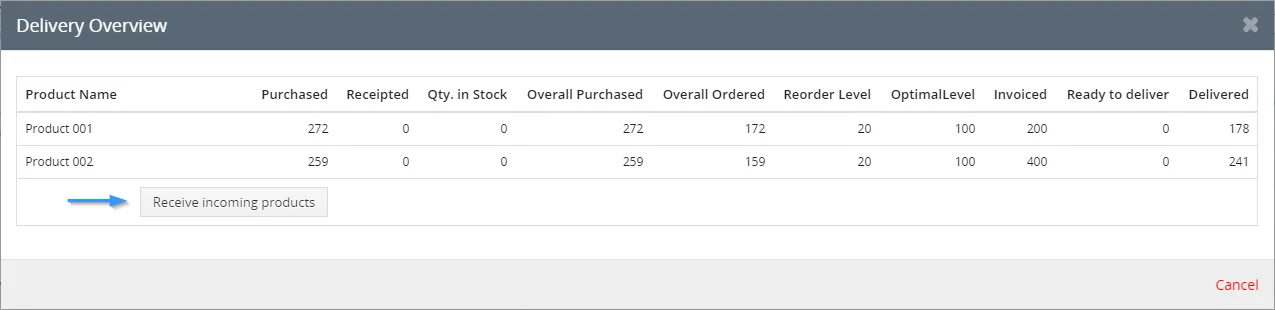
Delivery Overview in Invoice - Next steps to receipt are same for all previous modules.
If you have more Warehouses then choose Warehouse, where you received the products.
Click on button.
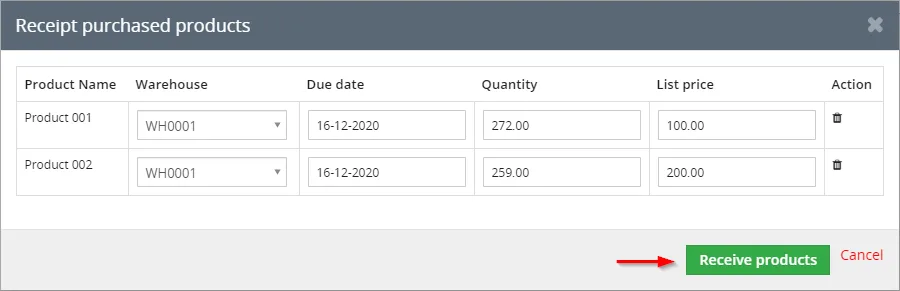
Receive products The products were received. You can see more info Product module, Receipt Card module or in Purchase Orders module.
- Now, you are able to deliver the rest of invoiced Products.
In Invoice detail view, click on or in WH Action block and choose 
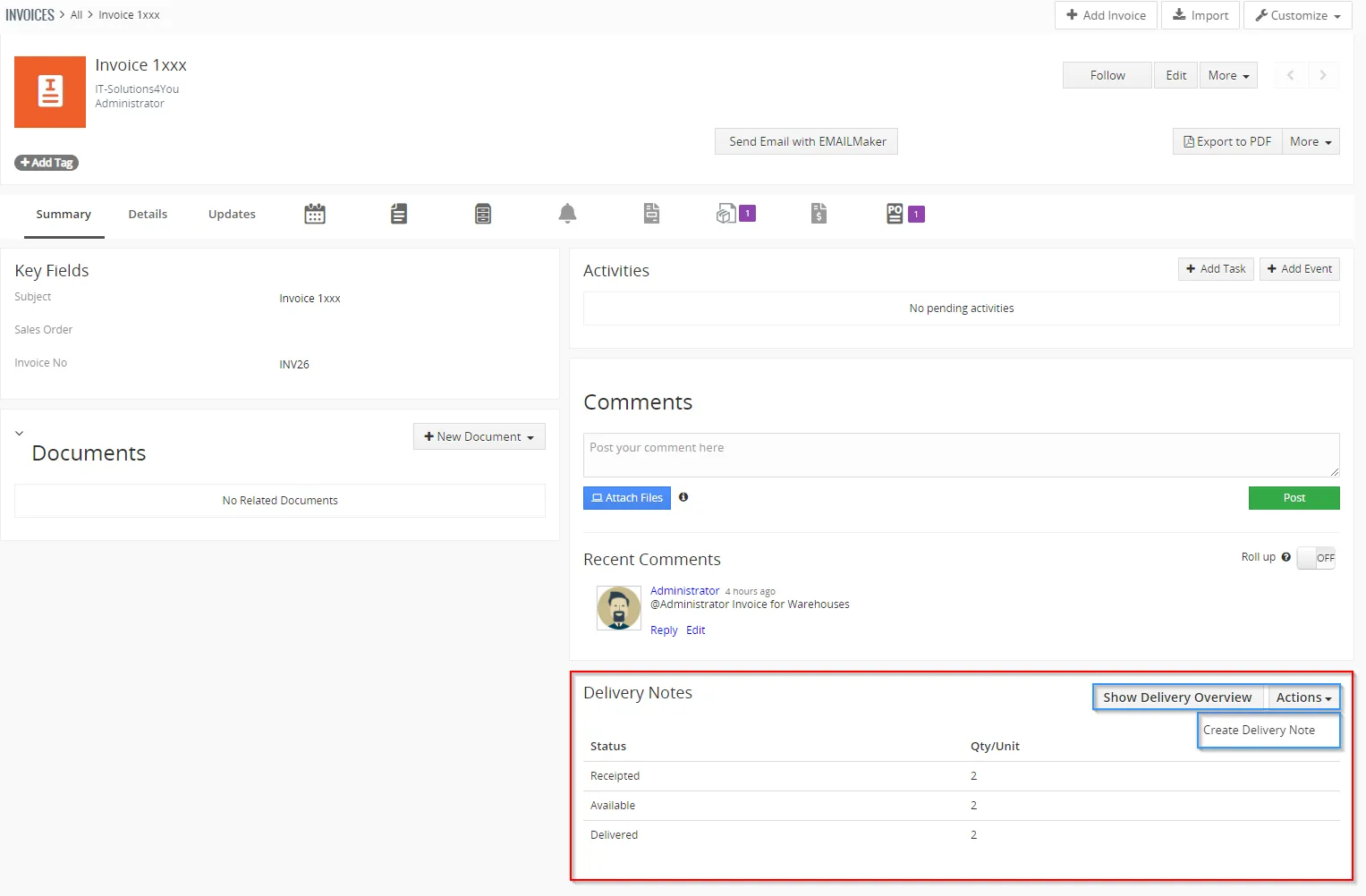
Warehouses – Invoice module, creating Delivery Note 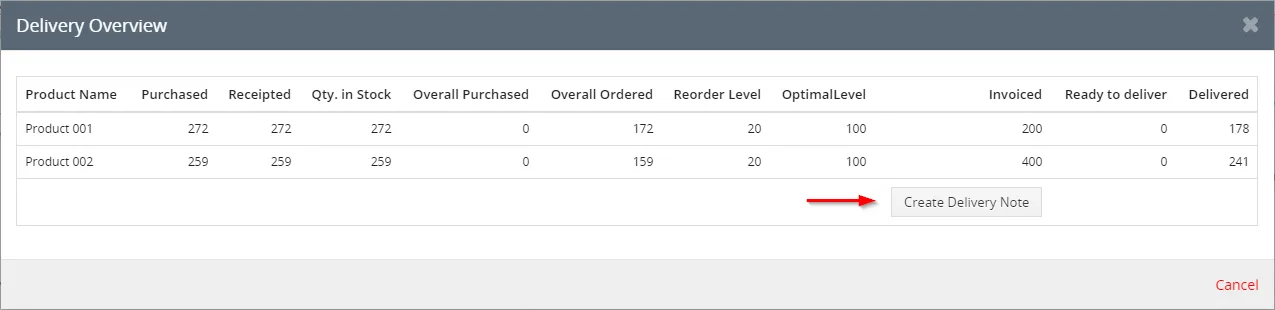
Warehouses – Invoice module, creating Delivery Note - Check information and click on
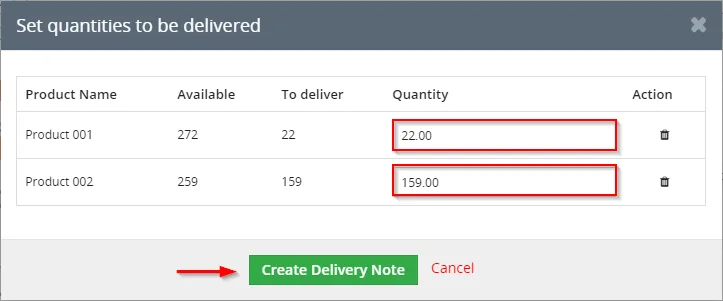
Warehouses – Invoice module, creating Delivery Note - Now, please check again information and confirm Delivery Note via button.
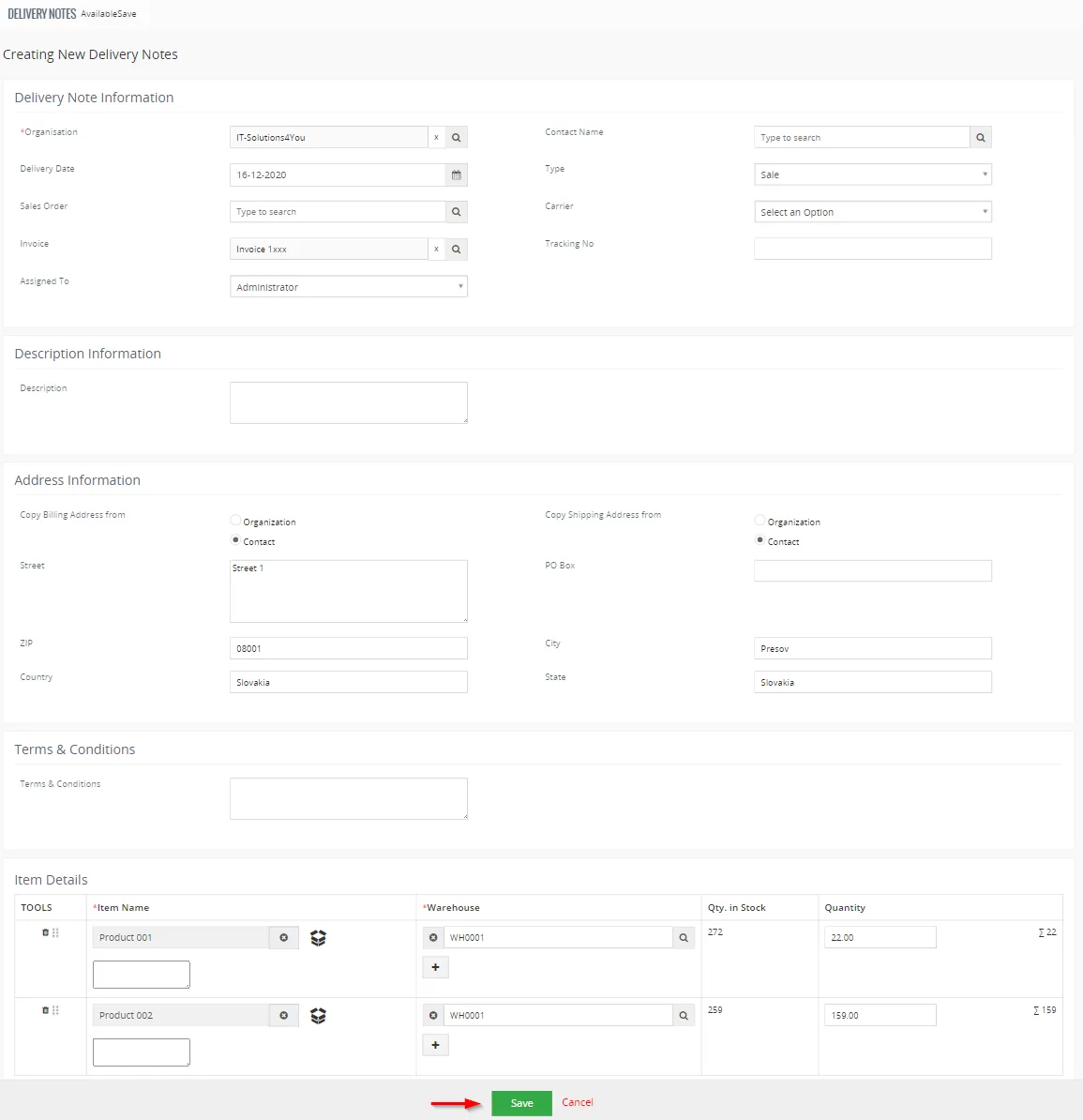
Warehouses – Invoice module, creating Delivery Note Delivery Note is created. Products from this Delivery Note you can see in Outgoing Products module too.
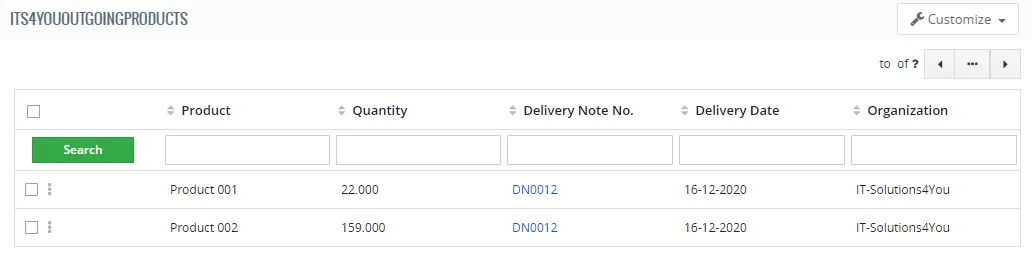
Warehouses – Outgoing products Also Issue Card is related to Delivery Note.
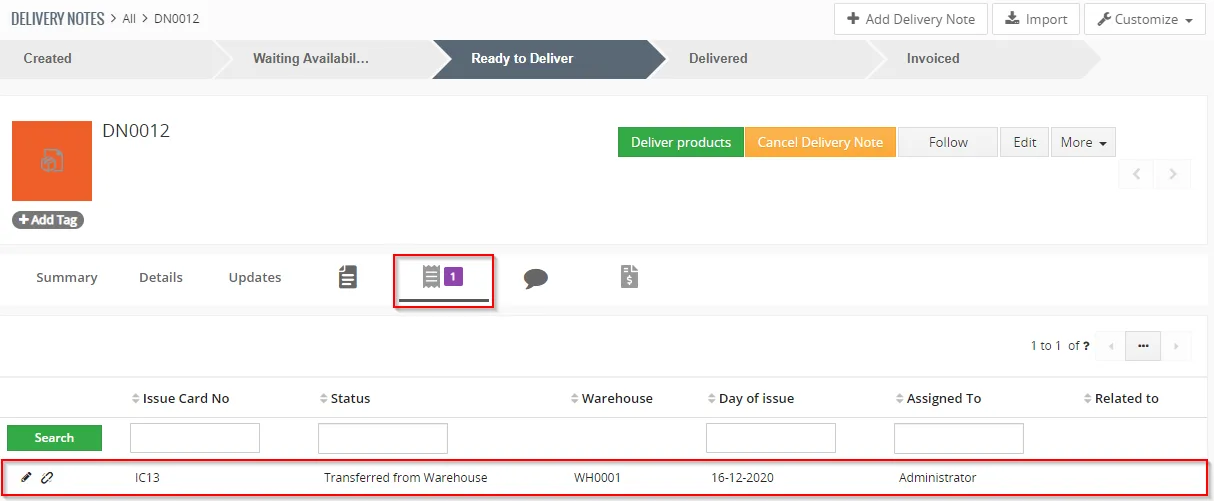
Warehouses – Issue Card - Now, you are able to deliver Products from Delivery Note or from Invoice.
From Delivery Note, just click on
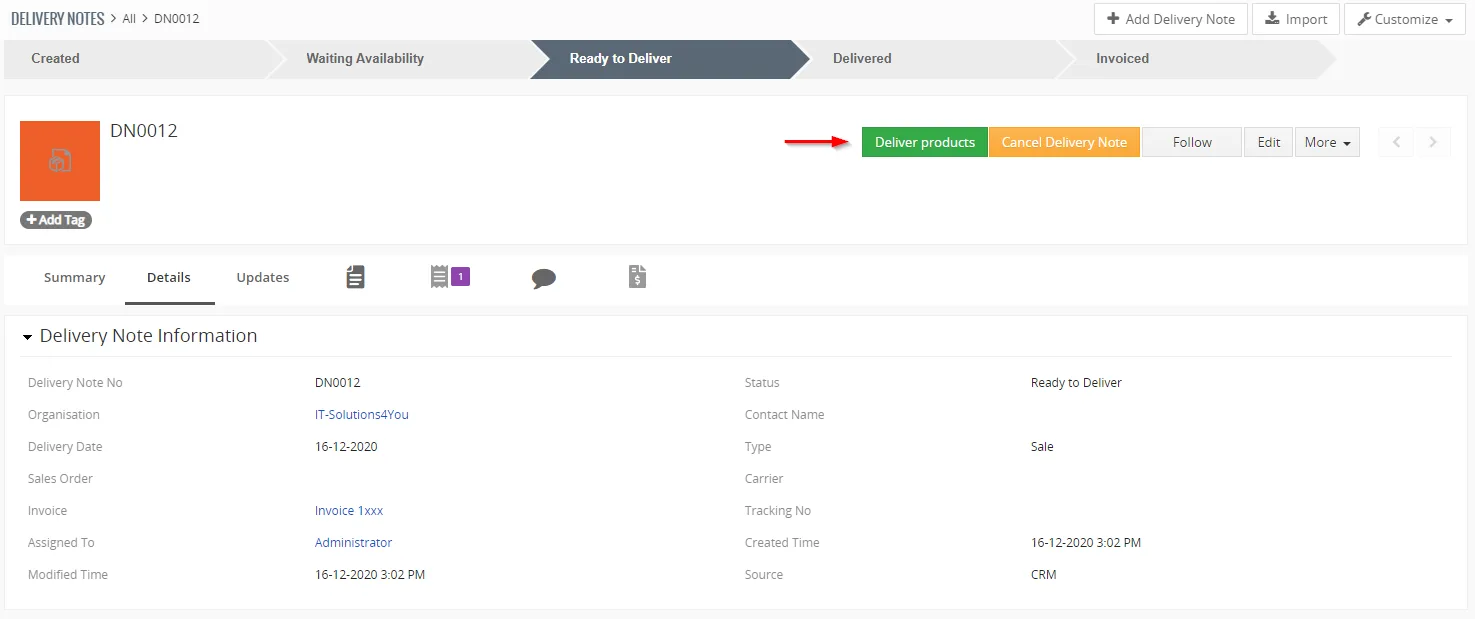
Warehouses – delivering products via Delivery Note detail view From Invoice, click on in WH Action block
and click on 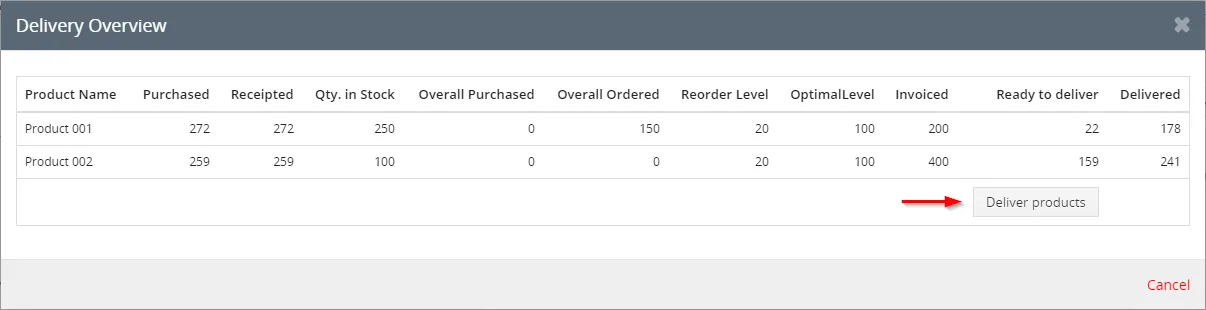
Warehouses – delivering products via Invoice module - Choose Delivery Note(s) to deliver and click on button.
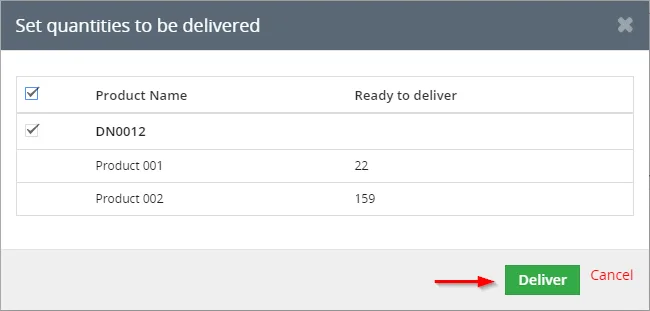
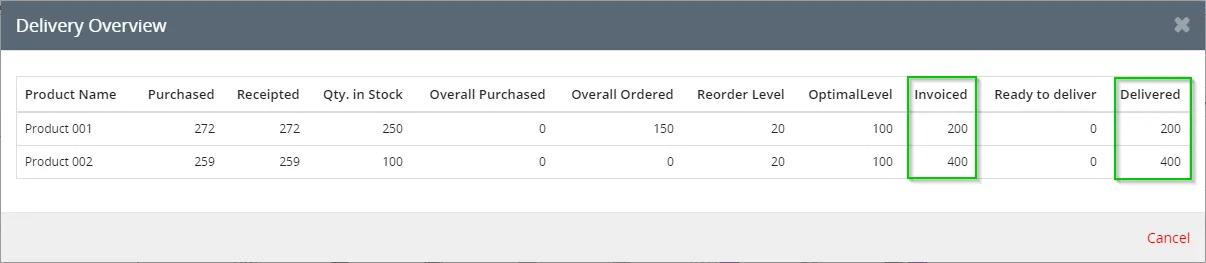
Warehouses – delivering products The products were delivered and invoiced successfully.

Warehouses – successful delivery and invoicing products
Now, button in Invoice deail view WH Action block is missing.
Also, if you click on a button, you can not see any button to order or deliver.
Need help with Warehouses?
Our support team answers questions about installation, templates and settings.