
PDF Maker can also work with our other extensions.
This greatly expands the use of PDF Maker, which brings users more benefit from the extension itself. In the next chapters, we will show you and describe in detail extensions that work with PDF Maker, or in other words, extensions that would not work without PDF Maker.
8.1 PDF Signature
PDF Signature works only with our PDF Maker, where signature variable is placed in to the template.
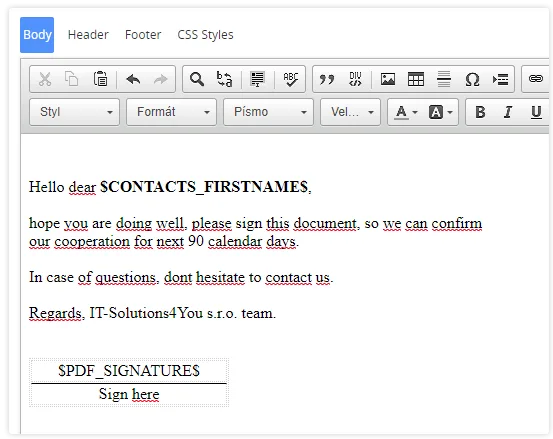
- Variable $PDF_SIGNATURE$ can be placed anywhere in the PDF template.
(variable can be found in PDF Maker template editor under Other Information tab). - You can define Width (px) and Height (px) of signature in PDF Maker template Settings.
- A signature will be presented in every template exactly where you placed it.
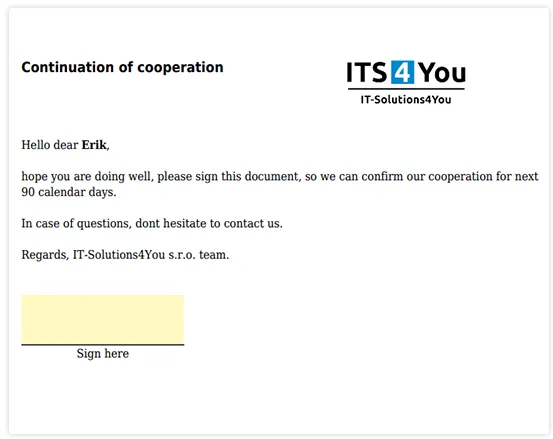
- The highlighted area indicates where the signature will be located.
For more detailed information how PDF Signature works, please visit a PDF Signature main page.
8.1.1 Signature Acceptance
This feature was added in version PDF Maker 4.49 on June 2023.
- Users or Admin can create Signatures in form of Image and then load them into the PDF Maker Templates
- This can be used for PDF Signature extension, the Acceptance Signature process
- With this feature both sides can agree on Document send via Email form
Users can create an Acceptance Signatures from the PDF Maker template list view, by going to Customize – Signatures:
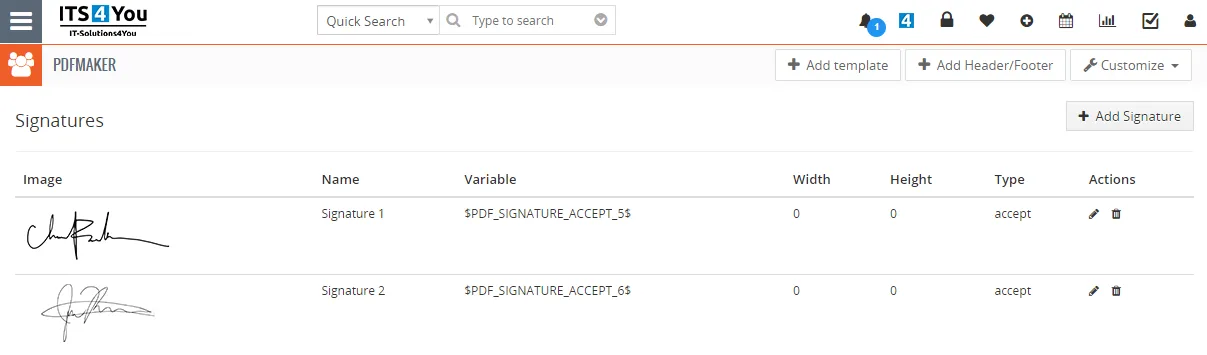
We will explain step by step how this process works:
- Firstly, create a Template or use an existing template in PDF Maker, for module which supports PDF Signature.
(As a demonstration we will use a Contacts module) - If you are using standard Signature variable as $PDF_SIGNATURE$ now, you can also add a PDF_Signature_ACCEPT variable to Acceptance Signature process. But firstly you need to create this signature as an Image.
- Navigate to PDF Maker list view, click on
 button and then select Signatgures.
- Click on the
 button, upload the Signature Image, and you can also define size of it. We suggest use size 150×60.
Confirm via Save button.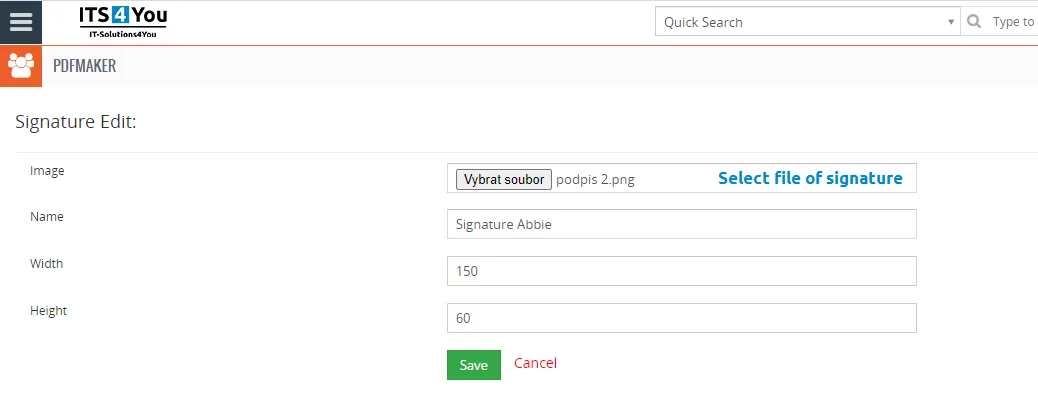
PDF Maker – Creation of Acceptance Signature - Now when we created an Image Acceptance Signature, you can use it in the template.
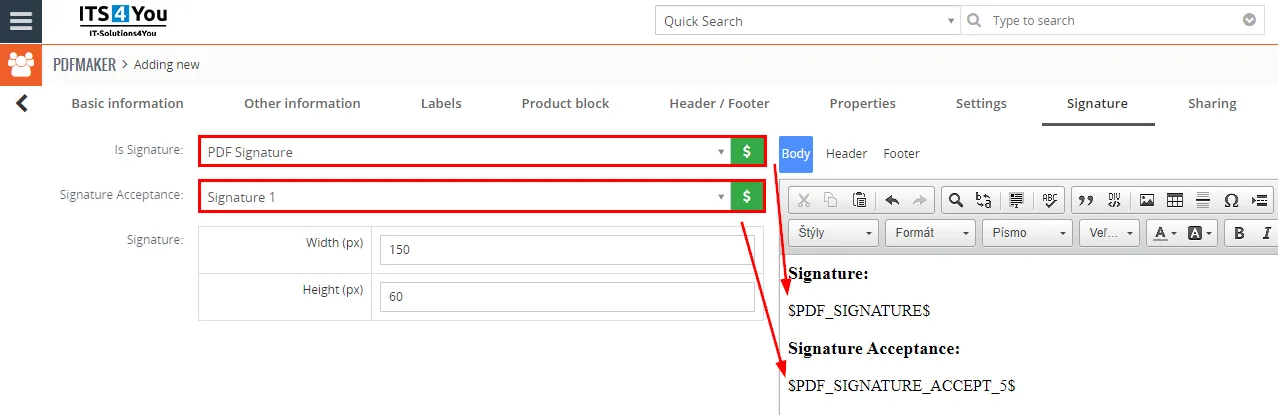
Navigate to your Template, select Signature Tab, and under Signature Acceptance you can find your Image Signatures, simply enter variable to the template: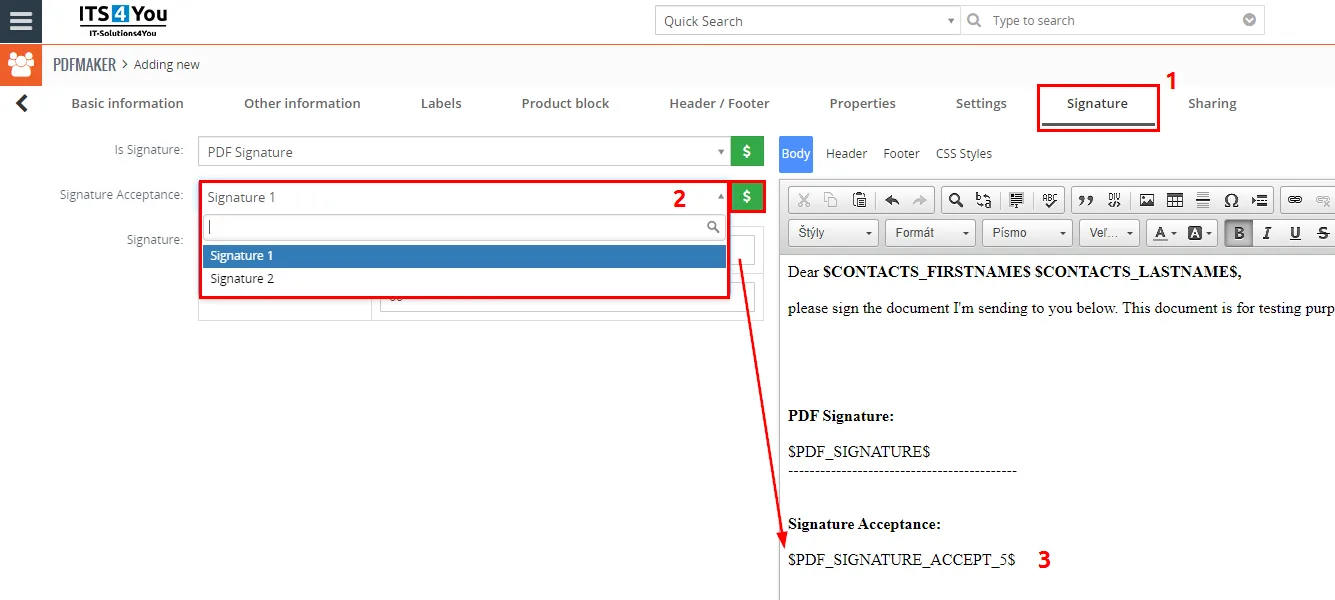
PDF Maker – adding Acceptance Signature variable - Now head to the record detail view which you need to Sign, we selected the Contact module.
Click on More and then Send to Signature: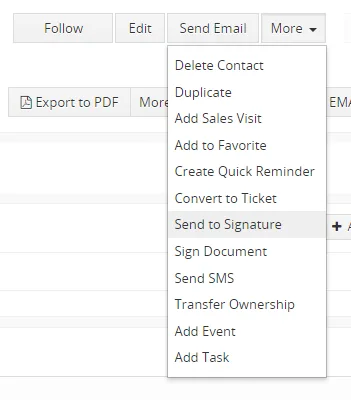
PDF Signature – Acceptance Signature - Follow the standard Signature process, select the Contact Email, Email Message and then Send Signature Email.
- The recipient will receive an email with a signature, which he will review and then sign with his own signature and confirms it.
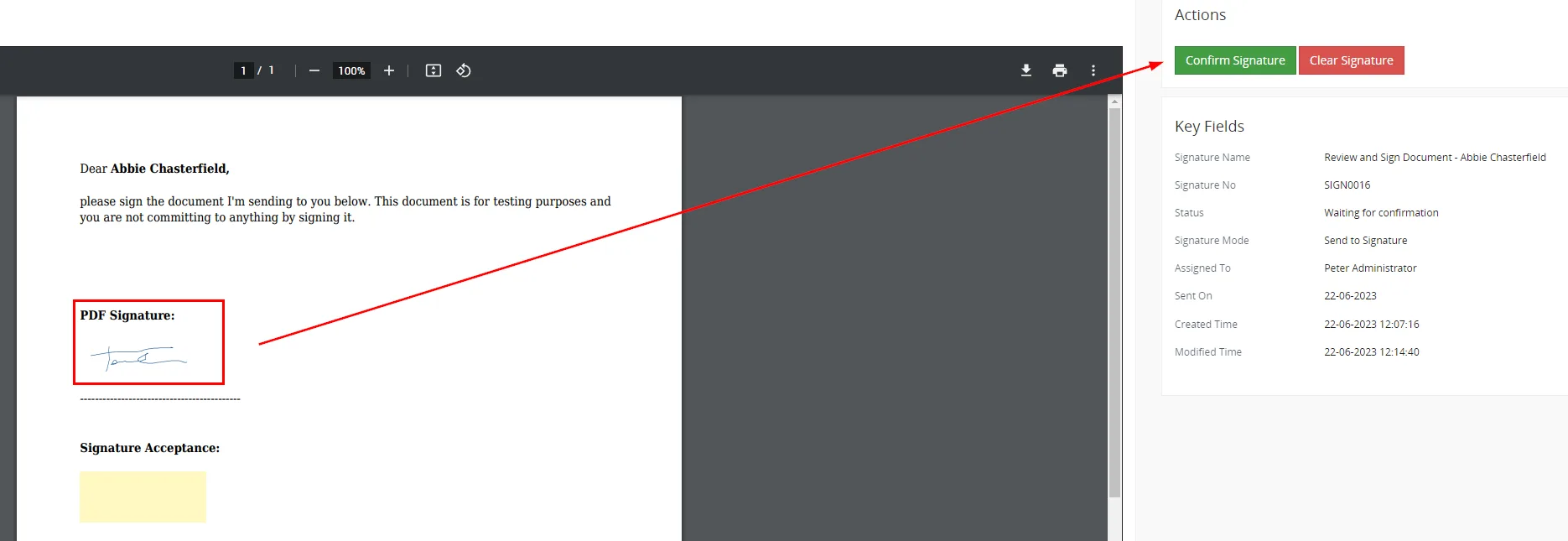
PDF Signature – Sign and Confirm signature - Once the signature is confirmed, recipient will see under Actions message “Signed and waiting for acceptance by: Peter Administrator”:
(Peter Administrator is the Sender of Signature)
- At this moment, the time is set for the Signature Acceptance process that we added, the sender of the document for signature has the right to accept the document in the detail view of Contac under button More – Accept Signature:
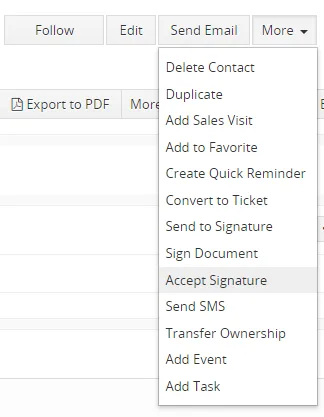
PDF Signature – Accept Signature detail view - Following window will appear, please click on the button

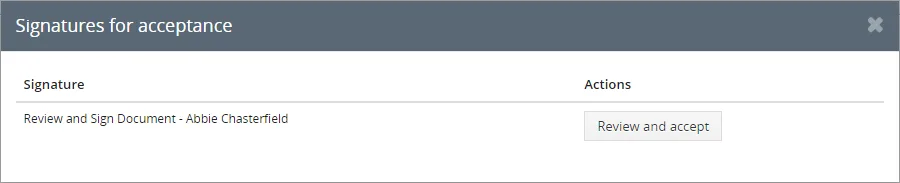
PDF Signature – Acceptance Signature - Signature window will be open again and you as the Sender of the Signature document can Accept the Signature of the recipient via
 button.
Then the created Acceptance Signature will be placed into the document as an Image: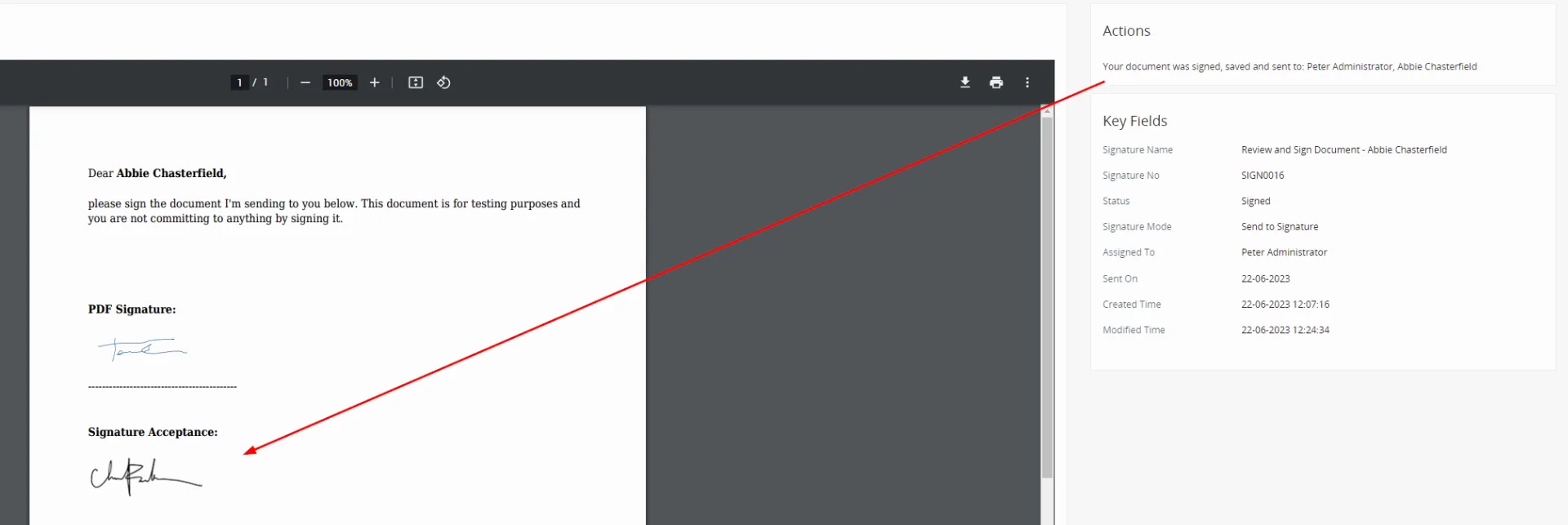
PDF Signature – Acceptance Signature added to the Document
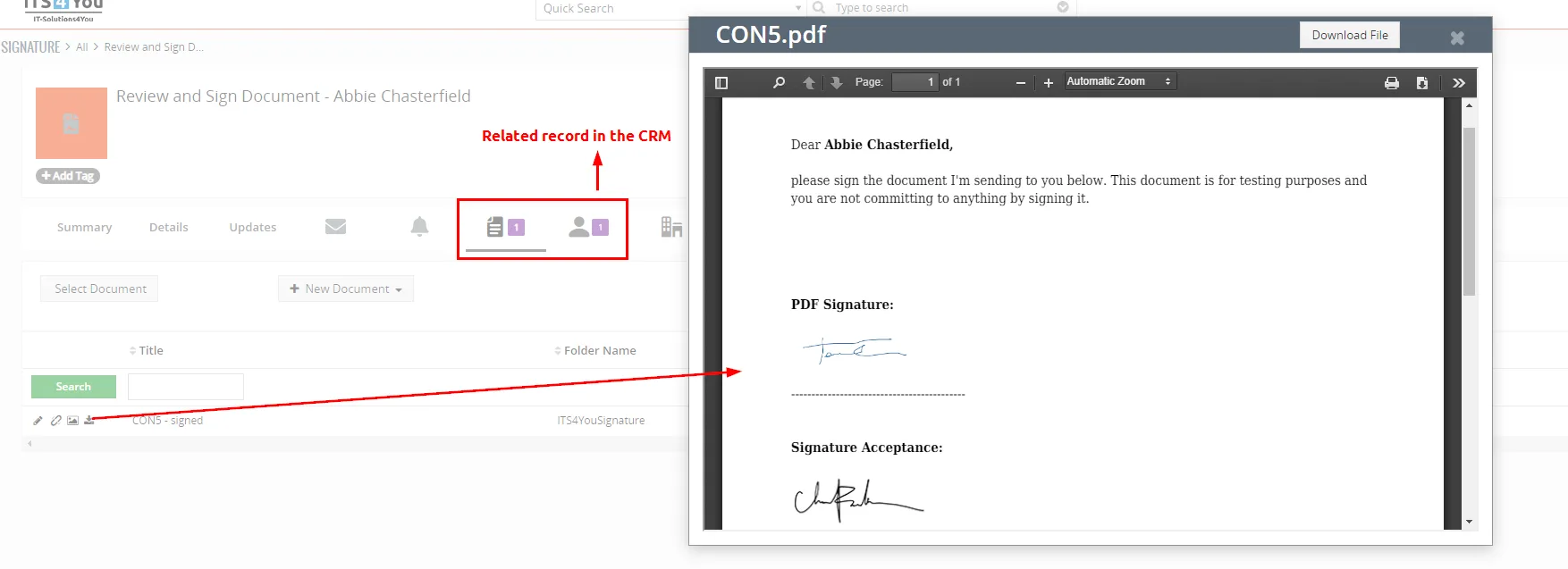
The Document is now accepted by both sides. You can preview the Document in the Vtiger CRM under Signature Extension or under the Contact record as a Related Tab:
8.1.2 Acceptance User for PDF Signature
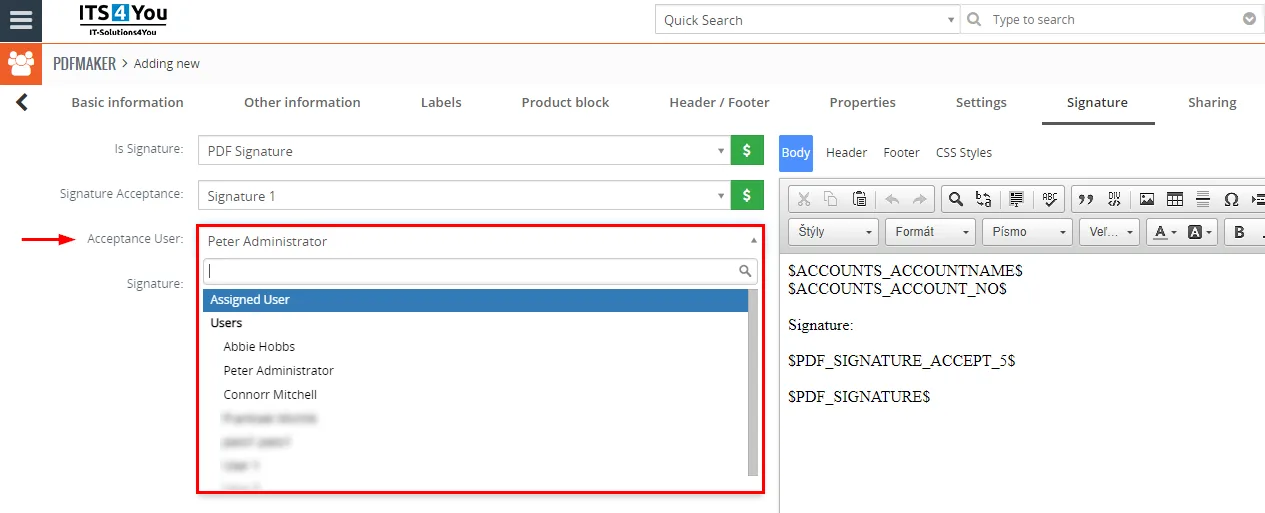
This feature has been added to the PDF Maker version 4.50 and PDF Signature 4.17.
With this feature, you can select an active User or Assigned To user for the record who will be the only one entitled to use an Acceptance Signature feature, and that means will be the only one who can accept signatures.
Need help with PDF Maker?
Our support team answers questions about installation, templates and settings.