
There are currently two options how to install extension:
- (Recommended) Using our Free extension Installer
(Please visit the Installer page for more info) - Manually installation using a .zip file
(You still need to have Installer in order to activate license)
 Note: For versions PDF Maker_4_0 and higher, you will be needing to have installed our Installer in order to activate license keys.
Since December 2019 we launched our extended version of Installer which helps you install modules and manage extensions.
2.1 Installation via Installer
Make sure you have Installer installed, you can download Installer via our E-shop when you log in under Free Downloads section or receive it upon purchasing Subscription.
Next, simply install Installer via Module Management in Vtiger CRM by importing the .zip file you downloaded.
After successful installation, you can access Installer in two ways:
- by a click on Notifications Icon
 and then on the button
 ,
- or via Main Menu – Settings – CRM Settings – Extensions – ITS4YouInstaller.
Next you can validate your license key via  button.
When the license was activated you can see module available in the Modules list below.
Simply hit the  button and Extension is installed now.
2.2 Manual Installation
Please provide following steps in order to installPDF Maker manually:
- Install the .zip (package) file of the PDF Maker module via Setting -> CRM Settings -> Module Management -> Modules. Click on the Import Module from Zip.
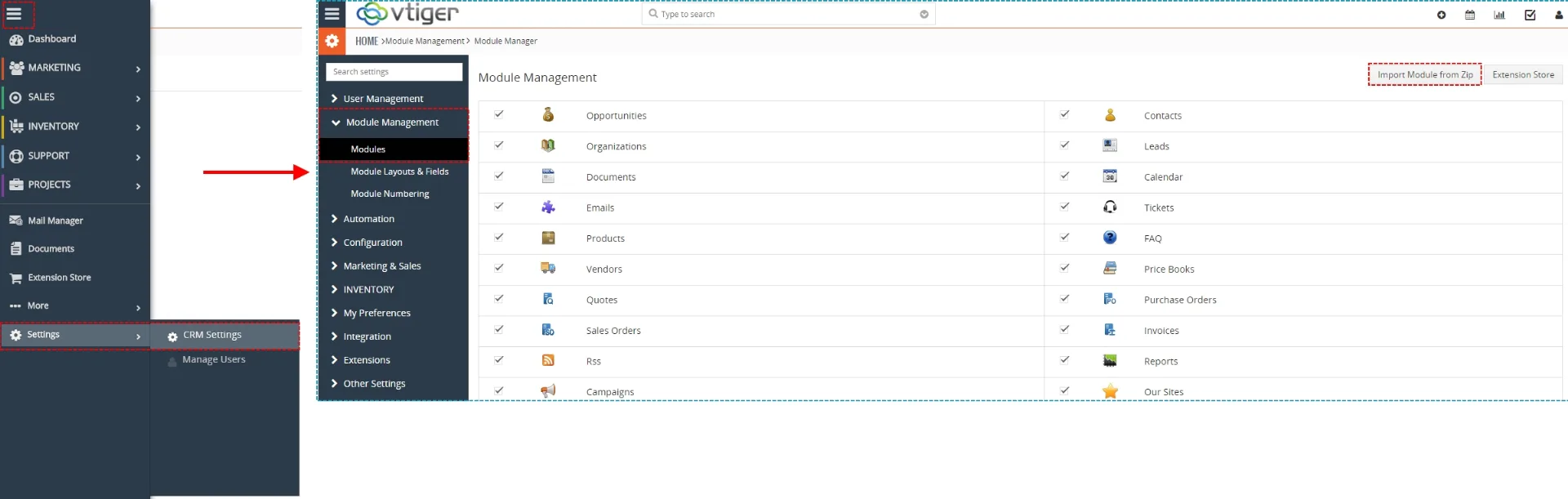
Installation of PDF Maker for vtiger 7 – step 1 - Select the .zip (package) file that you downloaded from our shop. Please check that you accepted the disclaimer and would like to proceed. Click on the [Import] button.
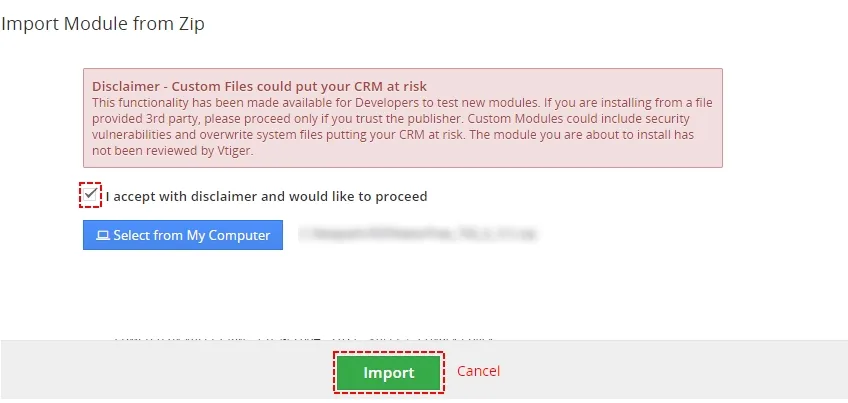
Installation of PDF Maker for vtiger 7 – step 2 Note: If you have after this step error message: Sorry! Attempt to access restricted file. Please check if folder test/vlib has correct write permission for browser (apache, www-data).
- Verify the import details parsed from the .zip (package) file. Please check that you accepted the license agreement and click [Import Now] to proceed or [Cancel] to cancel.
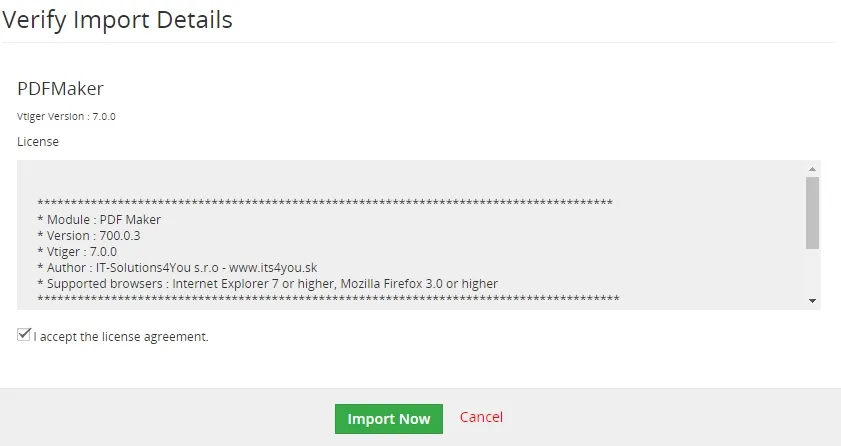
Installation of PDF Maker for vtiger 7 – step 3 For successfully completing the installation is neccesary download mPDF library into PDFMaker module from external storage place,
because mpdf.zip is over 2MB and many customers has MAX_UPLOAD_SIZE set to 2 MB (webhosting) so we have make available download it from our server. - PDF Maker was imported

Installation of PDF Maker for vtiger 7 – step 4
Note: In order to finish installation, you need activate license. For that please use our Installer
Need help with PDF Maker?
Our support team answers questions about installation, templates and settings.